Can You Hook Up Bluetooth Soundbar To Tv For Better Sound
Yes, you can absolutely hook up a Bluetooth soundbar to your TV for dramatically better sound. Most modern TVs have built-in Bluetooth, making the connection process quick and painless. If your TV lacks Bluetooth, a simple transmitter solves the problem in minutes. This guide walks you through every method, from wireless pairing to wired backup options, so you can enjoy richer, clearer audio without hassle.
If you have ever watched a movie on your TV and felt like the dialogue was getting lost, you are not alone. Many TV speakers just do not cut it anymore. The good news is that hooking up a Bluetooth soundbar to your TV is one of the easiest ways to transform your home entertainment setup. You get richer sound, deeper bass, and clearer dialogue without running a maze of cables across your living room.
Whether you have a brand new smart TV or an older model, connecting a wireless soundbar is simpler than you might think. In this guide, we will walk you through every step of the process. We will cover different connection methods, common problems, and pro tips to get the best audio experience. By the end, you will know exactly how to set up your Bluetooth soundbar and start enjoying theater-quality sound from your couch.
Key Takeaways
- Bluetooth soundbars work with most TVs: Nearly all smart TVs made after 2018 support Bluetooth connections out of the box.
- Setup is simple and wireless: You can pair a Bluetooth soundbar to your TV in under five minutes using the TV settings menu.
- A Bluetooth transmitter helps older TVs: If your TV does not have Bluetooth, a cheap transmitter adds wireless capability instantly.
- Audio lag is a common issue: Bluetooth can cause a slight delay, but many soundbars and TVs offer lip-sync settings to fix this.
- Multiple connection options exist: You can use Bluetooth, HDMI ARC, optical cables, or a 3.5mm jack depending on your TV and soundbar.
- Sound quality improves significantly: A Bluetooth soundbar delivers deeper bass, clearer dialogue, and a more immersive viewing experience.
- Keep your devices updated: Firmware updates for both your TV and soundbar ensure the best Bluetooth performance.
📑 Table of Contents
- Why Connect a Bluetooth Soundbar to Your TV?
- How to Hook Up a Bluetooth Soundbar to Your TV
- Step-by-Step Bluetooth Pairing Guide
- Common Problems and How to Fix Them
- Comparison: Bluetooth vs. Wired Soundbar Connections
- Tips to Get the Best Sound from Your Bluetooth Soundbar
- Frequently Asked Questions
- Final Thoughts
Why Connect a Bluetooth Soundbar to Your TV?
Your TV’s built-in speakers have a big limitation. They are small, flat, and often face downward or backward. This means the sound gets muffled and lacks depth. A Bluetooth soundbar fixes all of these problems with a much larger speaker surface and dedicated audio drivers.
Here is why making the connection is worth your time:
- Dramatically better dialogue clarity: Soundbars are designed to project voices forward, so you hear every word clearly.
- Deeper bass without a subwoofer: Many soundbars have built-in bass drivers that make explosions, music, and low-frequency sounds come alive.
- Wireless convenience: With Bluetooth, there are no cables to run between the soundbar and the TV. You just place the soundbar on your entertainment center and connect.
- Quick setup: Most Bluetooth soundbar setup processes take less than five minutes.
- Affordable upgrade: You can find great Bluetooth soundbars at budget-friendly prices that still deliver impressive audio quality.
The audio quality improvement alone is reason enough for most people. But the added convenience of going wireless makes it a no-brainer for anyone who values a clean, clutter-free living space.
How to Hook Up a Bluetooth Soundbar to Your TV
Connecting a Bluetooth soundbar to TV can be done in several ways. The method you choose depends on your TV model and what ports it has. Let us go through each option step by step.
Method 1: Using Built-in Bluetooth (Wireless)
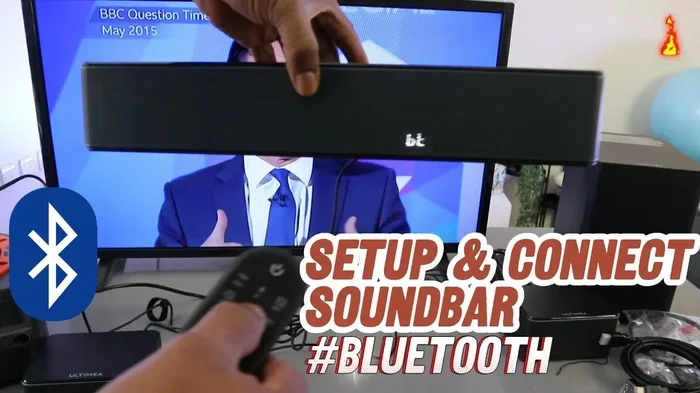
This is the easiest method, and it works if your TV has Bluetooth capability. Most smart TVs from brands like Samsung, LG, Sony, and TCL include Bluetooth these days. Here is how to do it:
- Turn on your soundbar and put it in pairing mode. Usually, you press and hold the Bluetooth button on the soundbar or its remote until the LED light flashes.
- Go to your TV settings. Navigate to the sound or audio settings menu. Look for an option labeled “Bluetooth,” “Sound Output,” or “Audio Connection.”
- Select your soundbar from the list of available devices. The TV name for your soundbar might show up as the brand name or model number.
- Confirm the pairing. Your TV will connect to the soundbar. You should hear a confirmation tone or see a message on screen.
- Set the soundbar as the default audio output. Go back to the audio settings and make sure the TV is set to output sound through the Bluetooth device, not its own speakers.
That is it! Your wireless audio streaming is now active. You can start watching content and the sound will come through the soundbar.
Quick Tip: If your TV and soundbar do not pair on the first try, turn both devices off and back on. Then repeat the pairing process. This simple step fixes most Bluetooth connection issues.
Method 2: Using a Bluetooth Transmitter (For TVs Without Built-in Bluetooth)
Not every TV has Bluetooth, especially older models. But you can still enjoy wireless soundbar audio with a Bluetooth transmitter. This small device plugs into your TV and sends audio to your soundbar over Bluetooth. Here is how it works:
- Buy a Bluetooth transmitter. These cost between $15 and $40 and are available on Amazon or electronics stores. Look for one that supports aptX or aptX Low Latency for better sound quality and less delay.
- Plug the transmitter into your TV. You can use the 3.5mm headphone jack, an optical audio output, or an RCA output depending on the transmitter and your TV.
- Power the transmitter. Most transmitters use a USB cable for power. You can plug it into your TV’s USB port or a wall adapter.
- Put your soundbar in pairing mode and pair it with the transmitter, just like you would with a phone or tablet.
- Test the audio. Play something on your TV and check if the sound comes through the soundbar.
This method is incredibly versatile. It works with almost any TV and any Bluetooth soundbar. The only downside is that you need to keep the transmitter powered on and within Bluetooth range of the soundbar.
Method 3: Using HDMI ARC or Optical Cable (Wired Backup)
While Bluetooth is the most convenient option, sometimes a wired connection is better. If you experience too much audio delay or your TV does not support Bluetooth, you can use a cable instead. Here are the two most common wired options:
- HDMI ARC (Audio Return Channel): This uses an HDMI cable to connect the soundbar and TV. It sends high-quality audio and lets you control the soundbar volume with your TV remote. Look for the HDMI ARC port on both your TV and soundbar.
- Optical Cable (TOSLINK): This is a fiber optic cable that sends digital audio from your TV to the soundbar. It delivers excellent sound quality but does not support volume control from the TV remote.
You can use a wired connection as your primary audio setup or as a backup when Bluetooth is not working. Many people use both methods and switch between them depending on the situation.
Step-by-Step Bluetooth Pairing Guide
Let us walk through the Bluetooth pairing process in more detail. This is the most common method people use, and getting it right the first time saves a lot of frustration.
Step 1: Check Compatibility. Before you start, make sure both your TV and soundbar support Bluetooth. Check the user manual or the manufacturer’s website. Most modern TVs and soundbars do, but it is always good to confirm.
Step 2: Position Your Devices. Place the soundbar within 10 feet of your TV for the best Bluetooth connection. Bluetooth range is typically about 30 feet, but walls and furniture can weaken the signal. Keeping them close during setup helps ensure a smooth pairing process.
Step 3: Turn on Both Devices. Power on your TV and soundbar. Make sure the soundbar is in pairing mode. Most soundbars have a dedicated Bluetooth button on the top or side. Press and hold it until you see a blinking light.
Step 4: Access Your TV’s Bluetooth Menu. On your TV remote, press the Home or Settings button. Navigate to Sound Settings, then look for Bluetooth or Sound Output. Select “Search for Devices” or “Pair New Device.”
Step 5: Select Your Soundbar. Your TV will scan for nearby Bluetooth devices. When your soundbar appears on the list, select it. Wait for the connection to complete.
Step 6: Test the Audio. Play a video or music and listen for sound from the soundbar. Adjust the volume using either the soundbar remote or your TV remote, depending on your setup.
Expert Insight: Some TV brands like Samsung and LG have a dedicated “Soundbar” mode in their settings menu. This mode optimizes the audio output specifically for soundbars and can reduce audio delay issues significantly.
Common Problems and How to Fix Them
Even though connecting a Bluetooth soundbar is straightforward, you might run into a few hiccups along the way. Here are the most common issues and how to solve them.
Audio Delay or Lip Sync Issues
One of the most frequent complaints about Bluetooth audio is a slight delay. You see the lips move on screen, but the sound comes a fraction of a second later. This is called audio latency, and it happens because Bluetooth takes a tiny bit of time to transmit the audio signal.
Here is how to fix it:
- Use a soundbar with low-latency Bluetooth: Many modern soundbars support aptX Low Latency, which reduces delay to almost unnoticeable levels.
- Adjust the audio delay on your TV: Go to your TV’s audio settings and look for “Audio Delay” or “Lip Sync.” Increase or decrease the delay until the sound matches the video.
- Use a wired connection as an alternative: HDMI ARC or optical cable eliminates Bluetooth delay entirely.
Soundbar Not Showing Up in Bluetooth Menu
If your TV cannot find the soundbar during the search, try these steps:
- Make sure the soundbar is in pairing mode. The Bluetooth light should be blinking.
- Turn off other Bluetooth devices nearby that might interfere with the connection.
- Restart both the TV and the soundbar, then try again.
- Check if the soundbar is already connected to another device. Disconnect it from phones, tablets, or laptops first.
Sound Keeps Cutting Out
If the audio drops in and out, the Bluetooth signal might be weak. Try moving the soundbar closer to the TV. Also, make sure there are no large metal objects or thick walls between the two devices. Wi-Fi routers and microwaves can also interfere with Bluetooth signals, so keep the soundbar away from those if possible.
Comparison: Bluetooth vs. Wired Soundbar Connections
Not sure which connection method is best for you? Here is a side-by-side comparison of the two main options.
| Feature | Bluetooth (Wireless) | HDMI ARC / Optical (Wired) |
|---|---|---|
| Ease of Setup | Very Easy | Moderate |
| Cables Needed | None | HDMI cable or Optical cable |
| Audio Quality | Good | Excellent |
| Audio Delay | Slight Delay Possible | No Delay |
| Distance Flexibility | Up to 30 Feet | Limited by Cable Length |
| Volume Control via TV Remote | Sometimes | Yes (with HDMI ARC) |
| Best For | Quick Setup, Clean Look | Best Audio Quality, No Delay |
For most people, Bluetooth is the go-to choice because of its simplicity and convenience. But if you are an audiophile or a serious movie watcher, a wired HDMI ARC connection gives you the best possible audio quality with zero delay.
Tips to Get the Best Sound from Your Bluetooth Soundbar
Once your soundbar setup is complete, you can take a few extra steps to get the most out of it. These tips will help you maximize sound quality and make the experience even better.
Place the Soundbar Correctly
Where you put your soundbar matters. Place it directly below your TV or on a wall mount directly above or below the screen. Keep it on a flat, stable surface. Avoid placing it inside a closed cabinet, as this can muffle the sound and block the Bluetooth signal.
Adjust the EQ Settings
Many soundbars come with equalizer (EQ) settings that let you customize the audio. If you watch a lot of dialogue-heavy shows, boost the mid-range frequencies for clearer voices. If you love action movies and music, increase the bass and surround effects. You can usually access EQ settings through the soundbar remote or a companion app on your phone.
Keep Your Devices Updated
Both your TV and your soundbar receive firmware updates from time to time. These updates often improve Bluetooth performance, fix bugs, and add new features. Check for updates regularly through your TV’s settings menu and the soundbar’s app or remote control menu.
Use the Soundbar Remote
While some soundbars let you control volume through the TV remote, using the dedicated soundbar remote gives you more options. You can adjust bass, treble, surround sound modes, and input sources directly from the remote. Keep it within easy reach on your coffee table or entertainment center.
Experiment with Surround Sound Modes
Many Bluetooth soundbars have different sound modes like “Movie,” “Music,” “Sports,” and “Night Mode.” Each mode adjusts the audio profile for different types of content. Try them out and see which one sounds best for your favorite shows and movies.
Common Mistakes to Avoid:
- Placing the soundbar too far from the TV, which weakens the Bluetooth signal.
- Forgetting to set the soundbar as the default audio output on your TV.
- Ignoring firmware updates that could improve performance.
- Using a low-quality Bluetooth transmitter that causes excessive audio delay.
- Blocking the soundbar’s speakers with other objects on your entertainment center.
Frequently Asked Questions
Can I connect any Bluetooth soundbar to any TV?
Most Bluetooth soundbars can connect to any TV that has Bluetooth or supports a Bluetooth transmitter. If your TV is older and does not have Bluetooth, you can buy a Bluetooth transmitter for around $20 to $40. This small device plugs into your TV and adds wireless capability so you can connect any Bluetooth soundbar.
Does Bluetooth affect sound quality on a soundbar?
Bluetooth does compress audio slightly compared to a wired connection. However, modern Bluetooth versions like 5.0 and codecs like aptX deliver very high-quality sound that most people cannot distinguish from a wired setup. For everyday TV watching and movies, the difference is barely noticeable.
How far can my Bluetooth soundbar be from the TV?
Bluetooth has a typical range of about 30 feet in open space. However, walls, furniture, and other electronic devices can reduce this range. For the best experience, keep your soundbar within 10 to 15 feet of your TV. This ensures a strong, stable connection with no audio dropouts.
Can I use my phone to control the soundbar while it is connected to my TV?
Yes, in most cases. When your soundbar is connected to your TV via Bluetooth, your phone can still connect to it separately. You can stream music from your phone through the soundbar while the TV is paused, or switch between the TV and phone as the audio source. Some soundbars even support multi-device pairing, so they remember multiple connected devices.
Why is there a delay between the video and audio when using Bluetooth?
Bluetooth audio has a slight processing delay because it takes time to encode and transmit the audio signal wirelessly. This delay is usually very small, about 100 to 200 milliseconds. If you notice it, you can adjust the audio delay or lip sync settings on your TV to match the sound with the video. Using aptX Low Latency Bluetooth transmitters also reduces this issue significantly.
Do I need any special equipment to connect a Bluetooth soundbar to my TV?
No special equipment is needed if your TV has built-in Bluetooth. You just need the soundbar and your TV. If your TV does not have Bluetooth, you will need a Bluetooth transmitter, which costs between $15 and $40. Some soundbars also come with cables for wired connections, so check the box to see what is included.
Final Thoughts
Hooking up a Bluetooth soundbar to your TV is one of the best upgrades you can make to your home entertainment setup. The process is simple, the cost is reasonable, and the difference in audio quality is night and day. Whether you use a wireless Bluetooth connection or a wired backup option, you will enjoy richer sound, clearer dialogue, and a more immersive viewing experience.
Start by checking if your TV has built-in Bluetooth. If it does, the setup takes just a few minutes. If not, grab a Bluetooth transmitter and you are good to go. Remember to place your soundbar correctly, keep your devices updated, and experiment with the sound settings to find your perfect audio profile.
Do not settle for tinny, weak TV speakers anymore. A Bluetooth soundbar gives you the power to transform any room into a mini home theater. Try it today, and you will wonder how you ever watched TV without one.