Can You Play A Dvd Through A Projector Simple Guide
Yes, you can absolutely play a DVD through a projector. It is a straightforward process that requires the right cables and a few simple connections. Whether you own a portable projector or a home theater projector, this guide walks you through every step to get your DVDs playing on a big screen.
Have you ever wanted to watch your favorite DVDs on a big screen? Maybe you have a pile of DVDs sitting around and a projector collecting dust. The good news is that playing a DVD through a projector is simpler than you think. You do not need to be a tech expert. With the right cables and a little patience, you can turn any room into your own personal movie theater.
This guide covers everything you need to know. From choosing the right cables to setting up audio, we have you covered. Whether you use a portable projector or a full-size home theater projector, you will find clear steps to get started. Let us dive in and make your movie nights better.
Key Takeaways
- DVD playback on a projector is easy: You just need the right cables and a compatible DVD player.
- HDMI is the best connection: It delivers high-quality video and audio in one cable.
- VGA and composite cables work too: Older projectors and DVD players may need these alternatives.
- Audio setup matters: Projector speakers are often weak, so external speakers improve the experience.
- Projector placement affects quality: Mounting your projector correctly ensures a clear, bright image.
- Maintenance keeps things running: Replacing the projector lamp and keeping lenses clean extends your setup life.
📑 Table of Contents
- Can You Play A Dvd Through A Projector?
- What You Need to Get Started
- Step-by-Step Setup Guide
- Audio Setup for the Best Experience
- Projector Brightness and Resolution
- Common Mistakes to Avoid
- Can You Use a Projector Instead of a TV for DVDs?
- Keeping Your Projector in Good Shape
- Alternative Ways to Watch Movies on a Projector
- Final Thoughts
Can You Play A Dvd Through A Projector?
The short answer is yes. You can play a DVD through a projector just like you would on a television. A projector acts as a big screen. It takes the video signal from your DVD player and displays it on a wall or screen. The process works with most DVD players and most projectors on the market today.
However, the way you connect them matters a lot. Different projectors have different inputs. Different DVD players have different outputs. Getting the right match ensures you get a clear picture and good sound. Let us look at the options you have.
HDMI Connection: The Best Option
HDMI is the gold standard for connecting a DVD player to a projector. It carries both video and audio through a single cable. This means fewer wires and a cleaner setup. Most modern projectors come with at least one HDMI port. Most DVD players also have an HDMI output.
If both your devices support HDMI, this is the way to go. You simply plug one end into the DVD player and the other into the projector. Then switch the projector to the correct input source. The DVD menu should appear on your big screen right away.
VGA Connection: For Older Projectors
Not all projectors have HDMI ports. Some older models only have a VGA input. VGA is an older standard that carries video only. It does not carry audio. If you have a VGA-only projector, you will need a separate cable for sound.
You can use a VGA to HDMI converter to bridge the gap. This small adapter lets you connect an HDMI DVD player to a VGA projector. It is a simple and affordable solution. Just keep in mind that VGA does not support high-definition video the way HDMI does.
Composite and RCA Cables
Very old DVD players and projectors may use composite cables. These are the red, white, and yellow RCA cables you might remember from the 1990s. The yellow cable carries video. The red and white cables carry audio.
Composite cables work, but the picture quality is not great. You will get standard definition at best. If you have no other option, composite cables will get the job done. But if you can avoid them, HDMI is always better.
What You Need to Get Started
Before you start connecting things, gather your supplies. Having everything ready saves time and frustration. Here is a simple checklist of what you need.
- A DVD player: This can be a standalone unit or a computer with a DVD drive.
- A projector: Any projector that supports the input type you plan to use.
- The right cable: HDMI is best. VGA or composite cables work for older setups.
- An audio solution: This could be the projector’s built-in speakers or external speakers.
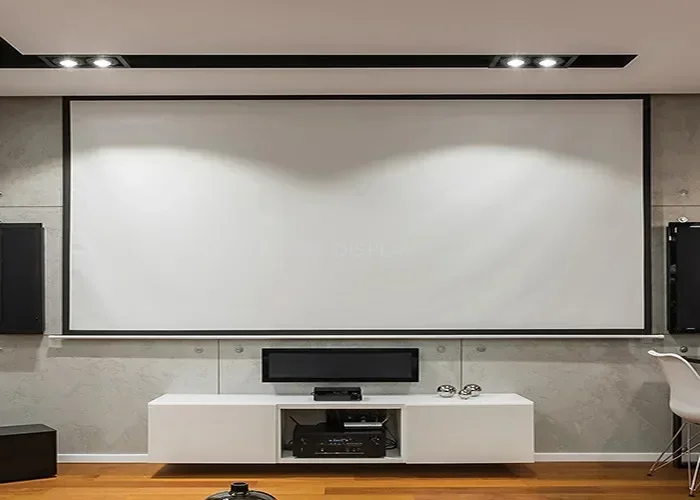
- A projection surface: A white wall or a dedicated projector screen works well.
Once you have these items, you are ready to set everything up. The process takes about five to ten minutes. It is much easier than it sounds.
Step-by-Step Setup Guide
Now let us walk through the actual setup. Follow these steps in order and you will have your DVD playing on the big screen in no time.
Step 1: Position Your Projector
First, set up your projector. Place it on a stable surface or mount it on the ceiling. Make sure it faces the projection screen or wall directly. The farther the projector is from the screen, the larger the image will be.
You can mount your projector off center if needed, but straight-on placement gives the best image quality. Avoid placing the projector where people will walk in front of the beam. That creates shadows and distractions.
Step 2: Connect the Cable
Take your HDMI cable and plug one end into the DVD player. Plug the other end into the projector. Make sure both connections are snug and secure. Loose cables are a common cause of no picture or flickering.
If you are using a VGA connection, plug the VGA cable into both devices. Then connect the red and white audio cables from the DVD player to the projector or to external speakers.
Step 3: Power On and Select Input
Turn on the projector first. Then turn on the DVD player. Use the projector’s remote or buttons to select the correct input source. If you used HDMI, look for the HDMI label on the input menu. If you used VGA, select the VGA or computer input.
The projector should now display the DVD player’s home screen. Pop in a DVD and press play. The movie should appear on your big screen right away.
Step 4: Adjust Picture and Sound
Use the projector menu to adjust the image. You can tweak brightness, contrast, and color settings. Most projectors also have a focus ring on the lens. Turn it until the image looks sharp and clear.
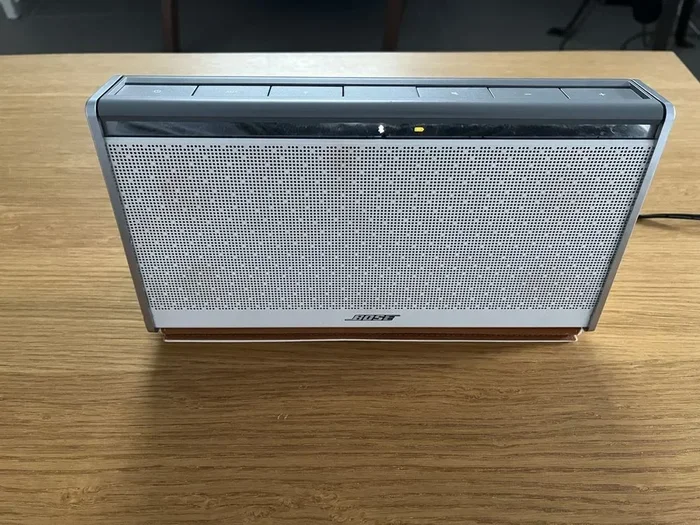
For sound, test the audio through the projector speakers first. If the sound is weak or unclear, consider connecting external speakers. A simple Bluetooth speaker or a home theater system makes a big difference.
Audio Setup for the Best Experience
Projector speakers are built to be compact. They are not designed to deliver rich, full sound. If you want a true cinema feel, you need better audio. The good news is that improving sound is easy.
Most projectors have a 3.5mm audio output or an RCA audio output. You can connect this to a pair of powered speakers. Bluetooth speakers also work well if your projector supports Bluetooth audio output.
For a more immersive setup, consider a soundbar or a full home theater system. These options fill the room with clear, powerful sound. Suddenly, watching DVDs on your projector feels like being inside the movie.
Quick Tips for Better Audio
- Place speakers near the projector: This keeps the setup tidy and reduces cable clutter.
- Use a subwoofer: It adds deep bass that makes explosions and music sound amazing.
- Adjust volume on both devices: Set the DVD player volume to about 70% and use the speaker volume for fine-tuning.
Projector Brightness and Resolution
Not all projectors are created equal. When it comes to playing DVDs on a projector, two specs matter most: brightness and resolution.
Brightness is measured in lumens. A projector with at least 2,000 lumens works well for indoor use. If you plan to watch during the day, look for 3,000 lumens or more. A brighter projector produces a clearer image even in rooms with some light.
Resolution refers to the sharpness of the image. DVDs are standard definition, so they max out at 480p or 576p. A projector with 720p or 1080p resolution will still display DVDs nicely. The projector simply scales up the image to fit its native resolution.
| Projector Spec | Minimum for DVDs | Ideal for DVDs |
|---|---|---|
| Brightness | 2,000 lumens | 3,000+ lumens |
| Resolution | 720p | 1080p |
| Input Ports | 1 HDMI | 2+ HDMI |
| Lamp Life | 3,000 hours | 5,000+ hours |
Keep these numbers in mind when shopping for a projector. They help you choose a model that will deliver a great DVD watching experience.
Common Mistakes to Avoid
Even with a simple setup, people make mistakes that cause problems. Here are the most common ones and how to avoid them.
- Using the wrong cable: Not all cables carry both video and audio. Make sure you have the right type for your devices.
- Forgetting to select the input source: The projector will not display anything until you tell it which port to use.
- Placing the projector too close: This creates a small, blurry image. Check your projector’s throw ratio for the best distance.
- Ignoring the lens cap: It sounds silly, but people forget to remove the lens cap. Always double-check before you start.
- Using a damaged cable: Frayed or bent cables cause signal loss. Replace any cable that looks worn out.
Avoiding these simple mistakes saves you hours of troubleshooting. A little preparation goes a long way.
Can You Use a Projector Instead of a TV for DVDs?
Many people ask whether a projector can truly replace a TV for DVD watching. The answer is yes. A projector offers a much larger image than any television. A 100-inch projection is hard to beat for movie nights with family and friends.
That said, projectors have some limitations. They work best in dim or dark rooms. Bright sunlight can wash out the image. Also, projector lamps need replacement over time, which adds to the cost. But if you are willing to manage these factors, a projector is a fantastic way to watch DVDs.
If you are curious about the differences between a projector and a TV, check out our guide on can I use a projector instead of a TV. It covers the pros and cons in detail.
Keeping Your Projector in Good Shape
Once you have your DVD projector setup working, you want to keep it running smoothly. Regular maintenance makes a big difference in image quality and device lifespan.
One important task is keeping the projector lens clean. Dust and fingerprints can blur the image. Use a soft, lint-free cloth to gently wipe the lens after each use. Never use household cleaners. A dedicated lens cleaning solution is safest.
The projector lamp also needs attention. Over time, lamps lose brightness. When the image starts looking dim, it may be time for a replacement. You can replace your projector lamp with an LED for longer life and better energy efficiency. LED replacements often last thousands of hours longer than traditional lamps.
Quick Maintenance Checklist
- Clean the lens weekly.
- Check the air filter monthly.
- Replace the lamp when brightness drops.
- Store the projector in a cool, dry place.
- Use a surge protector to guard against power spikes.
These small habits keep your projector performing at its best for years. They also protect your investment.
Alternative Ways to Watch Movies on a Projector
DVDs are not your only option for projector movie nights. Modern technology offers several alternatives that work just as well.
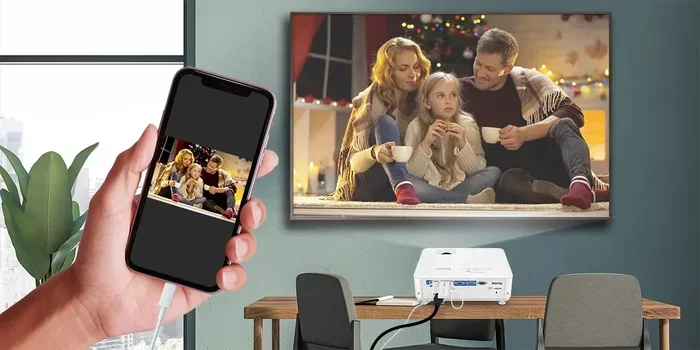
You can mirror your phone or tablet to the projector using a USB cable or wireless connection. This lets you stream from services like Netflix or YouTube on the big screen. You can also connect a laptop directly to the projector and play digital copies of your favorite movies.
For those who like the physical media feel, some projectors now come with built-in streaming apps. You do not need a separate DVD player at all. Just connect to Wi-Fi and start watching.
Still, there is something special about popping in a DVD. The ritual of choosing a disc, watching the previews, and settling in for a movie has its own charm. A projector amplifies that experience by making it feel bigger and more immersive.
Final Thoughts
Playing a DVD through a projector is one of the simplest upgrades you can make to your home entertainment setup. It transforms ordinary movie watching into an event. You get a big, bright image and a sense of being inside the story.
The process is straightforward. Get the right cable. Connect your DVD player to the projector. Adjust the picture and sound. Then sit back and enjoy. Whether you use HDMI, VGA, or composite cables, the steps are similar and easy to follow.
Remember to take care of your projector. Clean the lens, replace the lamp when needed, and store it properly. A well-maintained projector delivers great picture quality for many years. So grab a DVD, set up your projector, and make tonight movie night.
Frequently Asked Questions
Do I need a special DVD player to use with a projector?
No, you do not need a special DVD player. Any standard DVD player works fine as long as it has the right output ports. Most modern DVD players come with HDMI output, which is compatible with nearly all projectors. If your DVD player only has older outputs, you can use adapters to connect it.
Can I play DVDs through a portable projector?
Yes, portable projectors can play DVDs just like full-size models. The setup process is the same. Just make sure your portable projector has the right input ports. Many portable projectors now include HDMI inputs, making DVD playback simple and convenient.
Why is there no sound when I play a DVD on my projector?
This usually happens because the cable does not carry audio. VGA cables only carry video, so you need a separate audio connection. Check that your audio cables are plugged in correctly. Also make sure the projector is not muted and the volume is turned up.
Can I connect a laptop DVD drive to a projector?
Yes, you can. Connect the laptop to the projector using an HDMI cable. Then insert the DVD into your laptop’s DVD drive. The laptop will act as the middleman between the DVD and the projector. This method also lets you adjust playback settings on your laptop.
What is the best projector screen for watching DVDs?
A white, matte projection screen works best for DVDs. It provides a clear and evenly lit image. You can also use a plain white wall, but a dedicated screen gives better results. The screen size depends on your projector’s throw distance and room size.
Does projector brightness matter for DVD playback?
Yes, brightness matters a lot. DVDs are standard definition, so they do not need extreme brightness. However, a projector with at least 2,000 lumens ensures a clear picture in most indoor lighting. For daytime viewing, aim for 3,000 lumens or more for the best results.