Can You Plug A USB Hub Into A USB Switcher And Why
Yes, you can plug a USB hub into a USB switcher, and doing so can expand your connectivity options significantly. This setup lets you share multiple USB devices across several computers while adding extra ports for peripherals. Understanding how these two devices work together helps you build a smarter, more flexible workspace without signal loss or compatibility headaches.
You have a USB switcher on your desk. Maybe you use it to share a single printer between two computers. Now you want to connect more devices — a webcam, an external hard drive, a printer, and a card reader. The question hits you: can you plug a USB hub into a USB switcher? The short answer is yes. But the full story is more interesting than a simple yes or no.
Can you plug a USB hub into a USB switcher and expect it to work flawlessly? In most cases, absolutely. But there are important details you need to know. The way you set up this combination affects signal quality, power delivery, and overall performance. This guide walks you through everything you need to consider before connecting these devices together.
USB technology has come a long way. From USB 1.0 to USB 4.0, the standards have evolved to support faster data speeds and more power delivery. Today, many professionals and home users rely on USB hubs and USB switchers to manage their growing collection of peripherals. Knowing how these tools work — and how they interact — gives you an edge in building a clean, efficient setup.
Key Takeaways
- USB hubs and switchers serve different but complementary purposes in device connectivity
- Plugging a USB hub into a USB switcher is possible and can greatly expand your port availability
- Signal degradation can occur if you chain too many USB devices without proper power management
- Powered USB hubs are recommended when combining them with a switcher for stable performance
- Compatibility matters — check USB versions and bandwidth needs before setting up your chain
- Daisy chaining has limits — most USB setups work best with one or two levels of expansion
- Proper cable management and placement ensures the best data transfer speeds and reliability
📑 Table of Contents
- What Is a USB Hub and How Does It Work?
- What Is a USB Switcher and How Does It Work?
- Can You Plug A USB Hub Into A USB Switcher?
- When Does It Make Sense to Combine a USB Hub with a USB Switcher?
- Potential Issues and Things to Watch Out For
- Best Practices for Setting Up Your USB Hub and Switcher
- Expert Insights on USB Hub and Switcher Combinations
- Key Takeaways
What Is a USB Hub and How Does It Work?
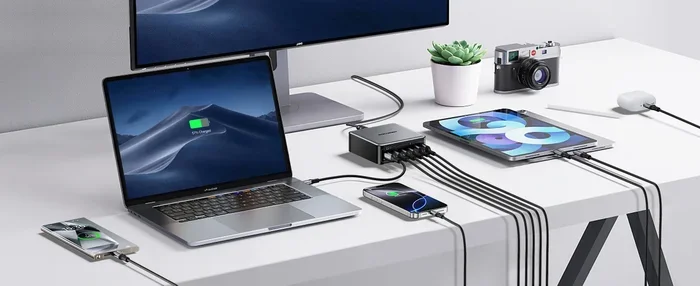
A USB hub is a device that expands a single USB port into multiple ports. Think of it as a power strip for your USB connections. You plug the hub into your computer, and suddenly you have four, seven, or even ten additional ports to connect peripherals.
USB hubs come in two main types. Unpowered hubs draw power directly from the computer’s USB port. Powered hubs have their own power supply and can deliver full charging and data speeds to connected devices. For most users, a powered USB hub is the better choice, especially when connecting power-hungry devices like external hard drives.
How USB Hubs Handle Data Transfer
When you connect multiple devices to a USB hub, they share the bandwidth of the single USB connection to the computer. USB 3.0 offers up to 5 Gbps of bandwidth. USB 3.1 Gen 2 pushes that to 10 Gbps. USB 3.2 Gen 2×2 can reach 20 Gbps. The more devices you connect, the more the bandwidth gets divided.
This matters when you are streaming video from a webcam while backing up files to an external drive. Both tasks compete for the same data pipe. A good hub manages this traffic efficiently, but it cannot create more bandwidth than the host connection provides.
Types of USB Hubs You Should Know
Not all USB hubs are the same. Here are the most common types you will encounter:
- Standard USB hubs — basic expansion with no extra features
- Powered USB hubs — include an external power adapter for full device support
- Portable USB hubs — compact and travel-friendly, often unpowered
- USB-C hubs — designed for modern laptops with USB-C or Thunderbolt ports
- Docking stations — advanced hubs with video output and Ethernet ports built in
Each type serves a different need. A portable hub works great for travel. A powered hub is essential for desktop workstations with multiple demanding peripherals.
What Is a USB Switcher and How Does It Work?
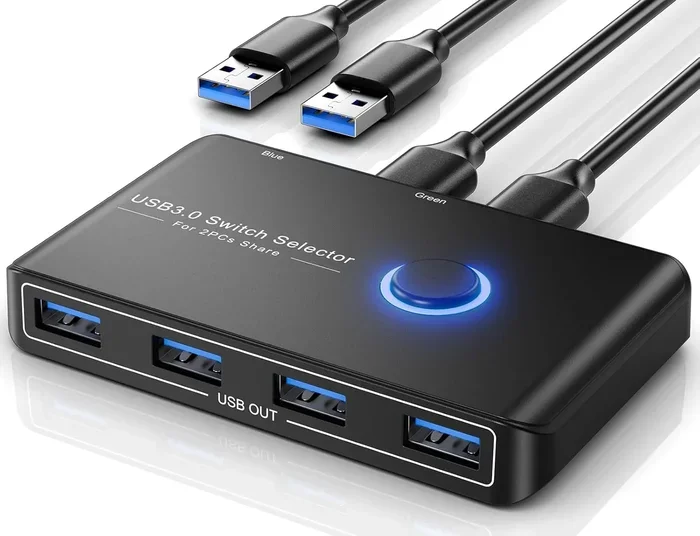
A USB switcher — sometimes called a USB switch box — lets you share USB devices between two or more computers. Instead of unplugging a device from one machine and plugging it into another, you simply press a button or use software to switch the connection.
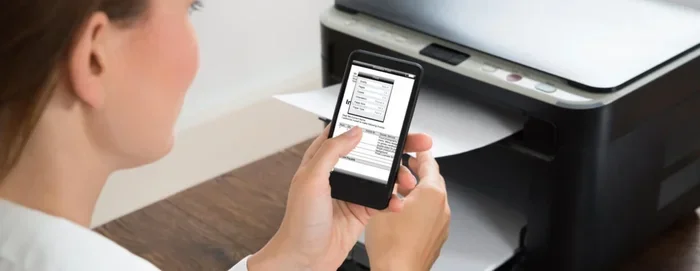
USB switchers are incredibly useful in several scenarios. You might have a powerful printer that both your work laptop and home laptop need to access. Or you share a USB security dongle between two workstations. A USB switch box makes this seamless.
How USB Switching Technology Works
USB switchers operate at the hardware level. They sit between your USB devices and your computers. When you select a computer, the switcher routes the USB data and power to that machine. The switching process is usually fast and transparent to the operating system.
Most USB switchers support one to four computers. Some advanced models handle even more. The number of shared devices depends on the switcher model. Basic switchers handle one device. Higher-end models support multiple peripherals simultaneously.
The technology behind USB switching has improved over the years. Early models sometimes caused device disconnects or required manual driver reinstallation. Modern switchers handle this much more gracefully, maintaining stable connections across all connected computers.
Common Uses for USB Switchers
USB switchers shine in specific use cases. Here are some of the most popular ones:
- Shared printers — connect one printer to two or three computers
- Security dongles — share software authorization keys between workstations
- External storage — access the same backup drive from multiple PCs
- Audio interfaces — switch a MIDI controller or audio interface between computers
- KVM integration — some switchers work alongside KVM switches for full control
If you find yourself constantly plugging and unplugging USB cables, a switcher can save you significant time and frustration.
Can You Plug A USB Hub Into A USB Switcher?
Now we get to the heart of the matter. Can you plug a USB hub into a USB switcher? Yes, you can. The USB switcher acts as the host connection, and the USB hub expands the number of available ports. This combination creates a flexible connectivity hub that serves multiple computers with many peripherals attached.
The setup works like this. You connect the USB switcher to your computers. Then you plug the USB hub into the switcher’s output port. Finally, you connect all your USB devices to the hub. The switcher routes the hub’s connection to whichever computer you have selected.
Why This Setup Is Useful
This configuration is particularly helpful in several situations. If you work in a small office with limited USB ports on your computers, combining a switcher and hub maximizes your connectivity. You get the sharing capability of the switcher plus the expansion capability of the hub.
Another benefit is cable management. Instead of running multiple cables from different devices to different computers, everything funnels through one switcher and one hub. Your desk stays cleaner, and troubleshooting becomes much easier.
Some professionals use this setup with USB port sharing for specialized equipment. Lab instruments, audio production gear, and industrial controllers often need to be shared between multiple workstations. A hub-plus-switcher arrangement makes this practical.
Limitations to Keep in Mind
While the setup works, it is not without limitations. Here are the main constraints you should understand:
- Bandwidth sharing — all devices on the hub share the single USB connection through the switcher
- Power limitations — if the switcher does not provide enough power, connected devices may underperform
- Signal degradation — adding more cables and connection points can weaken the USB signal
- Compatibility issues — some USB switchers do not work well with certain hub chipsets
- Speed bottlenecks — the slowest device on the chain can affect overall performance
Understanding these limitations helps you plan your setup properly. The good news is that most of these issues can be managed with the right equipment and configuration.
When Does It Make Sense to Combine a USB Hub with a USB Switcher?
Not every setup needs a hub-and-switcher combination. But in certain situations, this approach is incredibly valuable. Let us look at when this setup makes the most sense.
Multi-Computer Workstations
If you work across multiple computers — perhaps a desktop at the office and a laptop at home — combining a USB hub with a USB switcher is a game changer. You connect all your peripherals to the hub, plug the hub into the switcher, and share everything between your machines. No more carrying USB drives back and forth or constantly reconfiguring your devices.
This approach works especially well for people who use the same set of devices every day. A keyboard, mouse, webcam, printer, and external drive can all live on the hub, switching seamlessly between computers.
Shared Office Environments
In small offices or co-working spaces, USB switchers with hubs help reduce equipment duplication. Instead of buying three printers for three computers, you buy one printer and share it through a switcher and hub. This saves money and desk space.
Some offices use this setup to share expensive specialized equipment. A high-end audio interface, for example, might cost several hundred dollars. Sharing it through a USB switcher and hub makes financial sense.
Home Entertainment Setups
Home users also benefit from this combination. You might want to share a USB hard drive between a media PC, a gaming console, and a laptop. A USB switcher with a hub connected makes this easy. You switch between devices as needed without unplugging anything.
Similarly, if you have a home recording studio, you might need to switch an audio interface between a desktop editing machine and a laptop for recording on the go. A switcher and hub combo handles this beautifully.
Potential Issues and Things to Watch Out For
Setting up a USB hub with a USB switcher is straightforward, but some pitfalls can cause frustration. Knowing what to watch for helps you avoid common problems.
Signal Degradation Over Long Cable Runs
Every cable and connection point in your chain adds a small amount of signal loss. When you run a long USB cable from your computer to the switcher, then from the switcher to the hub, and then from the hub to your devices, the cumulative signal loss can become noticeable.
USB signals are designed to travel up to about 5 meters (16 feet) on a single cable. Beyond that, you may experience dropped connections or slower speeds. If your setup requires longer cable runs, consider using active USB cables or a powered hub to boost the signal.
Power Delivery Challenges
Power delivery is one of the trickiest parts of a hub-plus-switcher setup. USB switchers typically do not provide as much power as a direct computer connection. If you connect power-hungry devices like external hard drives or USB fans to the hub, they might not get enough juice.
The solution is simple. Use a powered USB hub. The hub’s own power supply ensures all connected devices receive the electricity they need. This is especially important if you are connecting devices that require USB charging ports.
Bandwidth Bottlenecks
When multiple devices share a single USB connection through a switcher and hub, bandwidth becomes a shared resource. If you are transferring a large file to an external drive while simultaneously using a webcam for a video call, both devices compete for the same bandwidth.
USB 3.0 and newer standards help here. They offer significantly more bandwidth than USB 2.0. But even with USB 3.0, heavy simultaneous use can cause slowdowns. Plan your setup so that high-bandwidth devices are not competing on the same hub whenever possible.
Compatibility Between Devices
Not every USB switcher plays nicely with every USB hub. Some switchers use specific chipsets that do not work well with certain hub brands. Before purchasing, check compatibility lists or user reviews.
USB peripheral compatibility also depends on the USB standard. A USB 2.0 hub connected to a USB 3.0 switcher will work, but it will operate at USB 2.0 speeds. Always match your USB versions where possible for the best performance.
Device Recognition Problems
Sometimes, when you switch computers using the switcher, the connected devices do not get recognized immediately. This is usually a temporary issue. Most operating systems re-detect USB devices within a few seconds of the switch.
If you experience persistent recognition problems, try these steps. First, unplug and replug the switcher. Second, update your USB drivers. Third, check that the switcher firmware is current. Fourth, test with a different hub to rule out compatibility issues.
Best Practices for Setting Up Your USB Hub and Switcher
Getting the most out of your USB hub and switcher combination comes down to a few smart practices. Follow these tips for a reliable, high-performance setup.
Choose the Right Powered USB Hub
Always opt for a powered USB hub when combining it with a USB switcher. The powered hub ensures stable power delivery to all connected devices. It also reduces the load on the switcher’s power supply, which leads to better overall performance.
Look for hubs that support the USB standard you need. If you use USB 3.0 devices, get a USB 3.0 hub. If you have USB-C devices, a USB-C hub with proper power delivery is ideal.
Keep Cables Short and High Quality
Shorter cables mean better signal integrity. Try to keep each cable run under 3 meters (about 10 feet) for the best results. Use high-quality USB cables with proper shielding to minimize interference.
Avoid daisy chaining too many devices. The more connections in your chain, the more potential points of failure. Keep your setup as simple as possible while still meeting your connectivity needs.
Match USB Standards Across Your Chain
For the best performance, try to match USB standards across your entire chain. If your computer supports USB 3.2, use a USB 3.2 switcher and a USB 3.2 hub. Mixing older and newer standards works, but everything will default to the slowest standard in the chain.
This is similar to how advantages and disadvantages of a proprietary operating system can affect device compatibility and performance. The ecosystem matters. When all your USB components speak the same language, everything runs smoother.
Monitor Your Device Power Requirements
Before connecting devices, check their power requirements. A powered external hard drive needs more current than a simple USB flash drive. Make sure your hub and switcher can handle the total power draw of all connected devices.
If you are unsure, check the specifications of your hub and switcher. Most products list the maximum current per port and the total power budget. Stay within these limits to avoid issues.
Use USB Port Selectors When Needed
A USB port selector is a simple device that lets you manually choose which USB port gets active. These are different from USB switchers but serve a similar purpose. They can be useful when you need a quick and inexpensive way to share a single device between two computers.
Port selectors do not offer the same level of control as full USB switchers. But for basic sharing needs, they work well and are very affordable.
Expert Insights on USB Hub and Switcher Combinations
Industry professionals who work with USB connectivity daily have some valuable insights. Here is what they recommend for users considering a hub-and-switcher setup.
Start with a clear picture of your needs. How many computers do you need to share devices with? How many peripherals will connect to the hub? Answering these questions before you buy anything prevents overspending or underperforming setups.
Another expert tip is to invest in a switcher with a good warranty and reliable customer support. USB switchers are electronic devices, and occasional issues can arise. A good warranty gives you peace of mind and quick resolution if problems occur.
Finally, keep your firmware and drivers up to date. USB technology evolves quickly, and manufacturers regularly release updates that improve compatibility and performance. Checking for updates every few months keeps your setup running at its best.
Some users find that their USB setup needs grow over time. What starts as a simple switcher and hub can evolve into a more complex arrangement. Planning for scalability from the beginning saves you from needing to reconfigure everything later.
Key Takeaways
- You can plug a USB hub into a USB switcher to expand connectivity across multiple computers
- Powered USB hubs are the best choice for stable performance in hub-and-switcher setups
- Signal degradation and power limitations are the main concerns with chained USB devices
- Matching USB standards across all components ensures the best data transfer speeds
- Keep cable runs short and use high-quality cables for reliable connections
- Monitor total power consumption to avoid overloading your switcher or hub
- This setup shines in multi-computer environments where device sharing is essential
Frequently Asked Questions
Can I connect a powered USB hub to an unpowered USB switcher?
Yes, you can connect a powered USB hub to an unpowered USB switcher. The hub’s own power supply will provide electricity to your connected devices. However, the switcher still needs enough power to handle the data routing. Check both devices’ specifications to make sure they can work together without issues.
Will plugging a USB hub into a USB switcher slow down my data transfer speeds?
It can, but usually only if you have many high-bandwidth devices active at the same time. Each USB connection has a maximum bandwidth. When multiple devices share that bandwidth through a switcher and hub, speeds may decrease during heavy use. Using USB 3.0 or newer standards helps minimize this slowdown.
How many devices can I connect through a USB switcher and hub combination?
The total number depends on your specific switcher and hub. Most USB hubs offer 4 to 10 ports. Most USB switchers support 1 to 4 computers. You can connect all your peripherals to the hub and share them across the computers connected to the switcher. Just be mindful of power and bandwidth limits.
Do I need special drivers to use a USB hub with a USB switcher?
Most modern USB hubs and switchers work plug-and-play without special drivers. Your operating system should recognize the devices automatically. If you experience issues, check the manufacturer’s website for driver updates. Some advanced switchers may include companion software for easier switching.
Can I daisy chain multiple USB hubs through a USB switcher?
Technically you can, but it is not recommended. Daisy chaining multiple hubs increases signal loss and power delivery issues. Each connection point adds potential for instability. Stick to one hub per switcher for the most reliable setup. If you need more ports, choose a larger single hub instead.
Is it better to use a USB switcher or a KVM switch for sharing devices between computers?
A USB switcher is simpler and more affordable for sharing USB peripherals. A KVM switch handles keyboard, video, and mouse sharing in addition to USB devices. If you only need to share USB devices, a USB switcher with a hub is the better choice. If you need full computer control including monitor switching, a KVM switch is more suitable.
=== CONCLUSION ===
Can you plug a USB hub into a USB switcher? Absolutely. This combination opens up a world of connectivity possibilities for multi-computer setups, shared offices, and home entertainment systems. By understanding how each device works and following best practices, you can build a reliable, efficient USB ecosystem that serves all your peripheral needs.
The key is to choose compatible, high-quality components. Use a powered USB hub to ensure stable power delivery. Keep your cable runs short. Match USB standards across your chain. And always be mindful of bandwidth and power limits.
With the right setup, you will enjoy seamless device sharing, cleaner cable management, and a more organized workspace. The small investment in a USB switcher and hub pays for itself in convenience and productivity. Start planning your setup today and experience the difference a well-connected workspace can make.
Whether you are a professional managing multiple workstations or a home user looking to simplify your device connections, combining a USB hub with a USB switcher is a smart move. The flexibility and expandability it offers are hard to beat with any other single solution.