Can You Put Linux On Any Laptop Here Is The Real Truth
Yes, you can put Linux on most laptops, but not every single one without a few tweaks. The open source Linux operating system runs on nearly all modern hardware, but some laptops need extra steps due to secure boot, driver support, or UEFI firmware quirks. This guide walks you through everything from choosing the right Linux distribution to a full installation guide.
Key Takeaways
- Most laptops support Linux: The vast majority of laptops can run Linux with little to no effort.
- Check hardware compatibility first: Wi-Fi chips, graphics cards, and fingerprint readers can cause issues on some models.
- Choose the right Linux distribution: Ubuntu, Linux Mint, and Fedora are the best starting points for beginners.
- Secure boot may need adjusting: Many laptops require you to disable or configure secure boot before installing Linux.
- Create a bootable USB: You will need a USB drive and a tool like Rufus or Etcher to get started.
- Dual booting is a safe option: You can keep Windows and Linux on the same laptop and choose which one to use at startup.
- Proprietary drivers matter: Some laptops need closed-source drivers for full hardware support.
📑 Table of Contents
- Can You Put Linux On Any Laptop? The Real Answer
- Which Laptops Work Best With Linux?
- Best Linux Distributions for Laptops
- How to Install Linux on Your Laptop
- Common Problems When Installing Linux on a Laptop
- Linux vs Windows on a Laptop: Key Differences
- Expert Tips for a Smooth Linux Experience
- The Future of Linux on Laptops
- Conclusion
Can You Put Linux On Any Laptop? The Real Answer
The short answer is yes. The long answer is a little more nuanced. Most laptops from the last decade can run a Linux operating system just fine. But some laptops have hardware that plays poorly with Linux. This does not mean they are completely blocked. It just means you need to do a bit of homework before you start.
When people ask can you put Linux on any laptop, they usually want to know if their specific machine will work. The truth is that Linux has come a very long way. The Linux kernel now supports thousands of hardware devices out of the box. But there are still a few edge cases where things get tricky. This guide will help you figure out where your laptop stands.
Whether you want to replace Windows entirely or just try Linux alongside your current system, you are in the right place. We will cover laptop compatibility, the best Linux distribution choices, and a full installation guide. By the end, you will know exactly what to expect and how to get started.
Let us be clear about one thing upfront. Linux is not just for tech experts anymore. Modern Linux desktop environments are polished, intuitive, and user friendly. You do not need to know terminal commands to enjoy a great experience. Millions of people use Linux every day for work, play, and everything in between.
Why People Switch to Linux on Their Laptops
There are many reasons people want to run Linux on their laptops. Some want a Windows replacement that is free and open source. Others care about privacy and want to escape the tracking built into many operating systems. A few just want a lightweight Linux setup that breathes new life into an old machine.
Here are the most common reasons people make the switch:
- Cost: Linux is completely free. You do not need to pay for a license.
- Privacy: Linux does not collect your data like some other operating systems do.
- Performance: A lightweight Linux setup can make an old laptop feel fast again.
- Customization: You can change almost every visual and functional aspect of your system.
- Security: Linux has a strong security model and fewer malware threats.
- Open source community: A huge global community supports and improves the Linux ecosystem constantly.
Which Laptops Work Best With Linux?
Not all laptops are created equal when it comes to laptop compatibility with Linux. Some brands and models work out of the box. Others need a few extra steps. Understanding this before you buy or install can save you a lot of frustration.
Brands Known for Great Linux Support
Some laptop manufacturers actively work to ensure their machines support Linux. These brands test their hardware against various Linux distributions and provide driver support.
- Dell: Many Dell laptops, especially the XPS and Latitude lines, ship with Linux options or work great with it.
- Lenovo: ThinkPad laptops are legendary in the Linux world. They are built with Linux users in mind.
- System76: This company sells laptops that come preloaded with Linux. They are a top choice for Linux enthusiasts.
- HP: Many HP laptops work well with Linux, though results vary by model.
- Framework: This modular laptop is designed with Linux compatibility as a core feature.
Laptops That May Need Extra Work
Some laptops have hardware components that do not work perfectly with Linux right away. Here are the common culprits:
- Wi-Fi chips: Some Broadcom and MediaTek Wi-Fi cards need proprietary drivers that may not be included by default.
- Graphics cards: Nvidia GPUs work on Linux but often require you to install proprietary drivers separately.
- Fingerprint readers: Biometric login can be hit or miss depending on the sensor brand and model.
- Function keys: Brightness, volume, and sleep keys sometimes do not map correctly on certain models.
- Sleep and wake: Some laptops struggle with suspend and resume functionality on Linux.
Before you install Linux, check the Linux compatible hardware lists on sites like Ubuntu Certified Hardware or the Linux Hardware Database. These resources can tell you if your specific model has known issues.
Best Linux Distributions for Laptops
Not all Linux distributions are the same. Some are designed for powerful desktop machines. Others are built for older laptops with limited resources. Picking the right one makes a huge difference in your experience.
Ubuntu
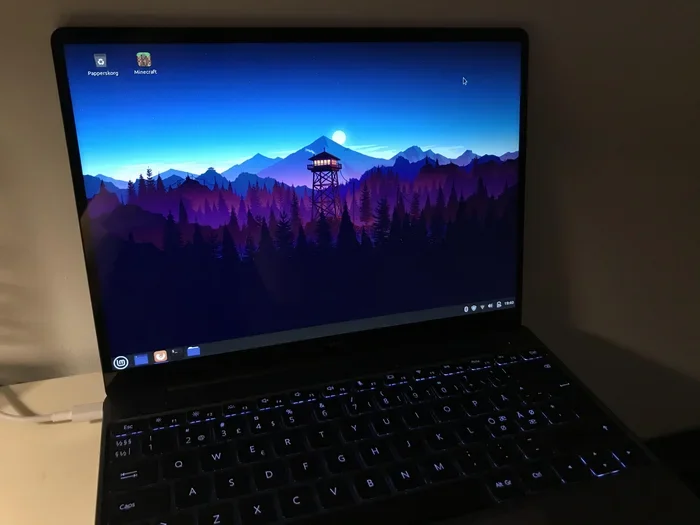
Ubuntu is the most popular Linux distribution in the world, and for good reason. It is beginner friendly, has massive community support, and works on most modern laptops. Ubuntu uses the GNOME desktop environment, which looks clean and modern.
Best for: New Linux users, modern laptops, those who want a polished out-of-the-box experience.
Linux Mint
Linux Mint is based on Ubuntu but offers a more traditional desktop layout. It feels familiar to anyone who has used Windows. Mint is known for being lightweight and stable, making it one of the best choices for a Windows replacement.
Best for: Windows switchers, older laptops, users who prefer a classic desktop layout.
Fedora
Fedora is a cutting-edge Linux distribution backed by Red Hat. It uses the latest software and kernel versions. Fedora works well on newer laptops with modern hardware. It is a great choice if you want a balance of modernity and stability.
Best for: Developers, users with newer hardware, those who want the latest software.
Zorin OS
Zorin OS is designed specifically to help Windows and macOS users transition to Linux. It offers a layout that closely resembles Windows 11. Zorin is visually stunning and very approachable for beginners.
Best for: Complete beginners, visual learners, those who want a familiar interface.
Pop!_OS
Pop!_OS is made by System76 and is based on Ubuntu. It features a clean, productivity-focused desktop environment. It handles Nvidia GPUs very well out of the box, which is a big plus for many laptop users.
Best for: Users with Nvidia laptops, developers, people who want a sleek and efficient workflow.
Lubuntu and Xubuntu (Lightweight Options)
If you have an older laptop with limited RAM and processing power, a lightweight Linux distribution is your best friend. Lubuntu uses the LXQt desktop, and Xubuntu uses XFCE. Both are fast, responsive, and can run smoothly on hardware that would struggle with heavier options.
Best for: Old laptops, budget machines, users who want maximum performance from limited hardware.
How to Install Linux on Your Laptop
Installing Linux on a laptop is easier than most people think. You do not need to be a programmer or a system administrator. With the right steps, you can have a fully working Linux system in under an hour.
Step 1: Back Up Your Data
Before you do anything, back up your important files. Whether you are dual booting or replacing Windows entirely, accidents can happen. Use an external hard drive or a cloud service to save your documents, photos, and other files.
Step 2: Choose Your Installation Method
You have two main options when you install Linux on a laptop:
- Dual boot: Keep Windows and Linux on the same laptop. Choose which one to use each time you start the computer.
- Full replacement: Remove Windows entirely and use Linux as your only operating system.
Dual booting is the safest option for most people. It lets you keep Windows for any software or games that do not work on Linux. You can always switch to Linux full-time later when you feel confident.
Step 3: Download Your Linux Distribution
Go to the official website of the Linux distribution you chose. Download the ISO file for your system. Make sure you pick the correct version for your laptop architecture (usually 64-bit).
Step 4: Create a Bootable USB Drive
You will need a USB drive with at least 8GB of space. Use a tool like Rufus (Windows) or BalenaEtcher (Windows, Mac, Linux) to flash the ISO file onto the USB drive. This creates a bootable USB that your laptop can start from.
Step 5: Adjust Your BIOS Settings
Restart your laptop and enter the BIOS or UEFI firmware settings. This is usually done by pressing F2, F12, Del, or Esc during startup. Here is what you need to check:
- Secure boot: Disable secure boot. Most Linux distributions do not support it by default.
- Boot order: Set the USB drive as the first boot device.
- SATA mode: If your laptop has an AHCI and IDE option, choose AHCI.
Step 6: Boot from the USB and Install
Insert the USB drive, restart your laptop, and boot from the USB. Most Linux distributions offer a “Try before you install” option. This lets you test the system and make sure your hardware works before committing to the installation.
When you are ready, click the install icon and follow the on-screen prompts. You will choose your language, keyboard layout, and disk partitioning. For dual booting, the installer will usually handle partitioning automatically.
Step 7: Install Proprietary Drivers
After installation, check for proprietary drivers. Some laptops need additional drivers for the best performance. On Ubuntu, you can find these in the “Additional Drivers” section of the software settings. On Pop!_OS, driver installation is handled automatically for most Nvidia cards.
Common Problems When Installing Linux on a Laptop
Even though Linux has improved dramatically, you may run into a few hiccups. Here are the most common issues and how to solve them.
Wi-Fi Does Not Work After Installation
This is one of the most common complaints. Some laptops use Wi-Fi chips that require proprietary drivers. If your Wi-Fi does not work, try connecting via Ethernet or using your phone as a hotspot. Then install the missing drivers through your terminal or software manager.
Brightness Controls Do Not Work
Laptop brightness keys sometimes do not function correctly on Linux. This is usually a kernel or driver issue. Adding specific kernel parameters during boot often fixes this. The Linux community has documented solutions for most laptop models.
Sleep and Wake Issues
If your laptop does not sleep or wake properly, you are not alone. This is a known issue with some hardware. Updating to the latest kernel version often resolves sleep problems. You can also check the Arch Wiki or Ubuntu forums for model-specific fixes.
Audio Problems
Some laptops have audio that works in Windows but not in Linux. This is often related to the audio codec driver. Installing the correct proprietary drivers or using a different audio server like PipeWire can fix most audio issues.
Touchpad Gestures Not Working
Modern laptops with precision touchpads may not support all gestures on Linux. Multi-finger scrolling and pinch-to-zoom may need extra configuration. Tools like libinput and touchegg can add gesture support to many laptops.
Expert Insight
According to the Linux community, the biggest mistake new users make is not checking hardware compatibility before installing. Spend 15 minutes searching for your laptop model plus “Linux compatibility” before you start. This small step can save you hours of troubleshooting.
Linux vs Windows on a Laptop: Key Differences
If you are considering switching from Windows to Linux, it helps to understand what changes. Here is a quick comparison of the two systems.
| Feature | Windows | Linux |
|---|---|---|
| Cost | Paid license required | Completely free |
| Privacy | Collects telemetry data | Minimal to no data collection |
| Software availability | Massive library of apps | Growing library, some gaps |
| Gaming | Best compatibility | Good with Proton on Steam |
| Customization | Limited | Extremely flexible |
| Security | Good with antivirus | Very strong built-in security |
| Hardware support | Excellent for most devices | Good, but some exceptions |
| Learning curve | Familiar to most users | Moderate for beginners |
Both operating systems have their strengths. Windows is still the king of software compatibility and gaming. But Linux offers a level of freedom and control that Windows simply cannot match. The open source nature of Linux means anyone can inspect, modify, and distribute the code.
For many users, the decision comes down to what they use their laptop for. If you need specific Windows-only software like Adobe Creative Suite or Microsoft Office, you might want to stick with Windows or use a compatibility layer. But for web browsing, coding, office work, and media consumption, Linux handles everything beautifully.
Expert Tips for a Smooth Linux Experience
Getting the most out of Linux on a laptop is about a few smart choices. Here are some tips from experienced Linux users.
Start with a Live USB
Before you commit to a full installation, boot from a live USB and test the system. You can check if your Wi-Fi works, your sound plays, and your screen looks right. This is the best way to verify laptop compatibility without any risk.
Keep Your System Updated
Linux distributions release updates regularly. These updates include new features, security patches, and hardware support improvements. Keeping your system up to date ensures the best possible experience.
Join a Linux Community
The Linux community is incredibly helpful. Whether you use Reddit, forums, or Discord servers, you will find people ready to help with any problem. Do not be afraid to ask questions. Everyone starts somewhere.
Use the Software Center
Every major Linux distribution has a software center where you can browse and install apps. You do not need to visit random websites or download files from untrusted sources. The software center keeps everything organized and secure.
Learn a Few Terminal Commands
You do not need to be a terminal expert, but learning a few basic commands goes a long way. Commands like sudo apt update and sudo apt upgrade can solve many common issues. The terminal is a powerful tool that makes Linux administration much easier.
Consider a Lightweight Desktop Environment
If your laptop is older or has limited resources, consider using a lightweight Linux desktop environment. XFCE, LXQt, and MATE use less RAM and CPU than heavier options like GNOME or KDE. This can make a noticeable difference on older machines.
Common Mistakes to Avoid
- Skipping the backup: Always back up your data before installing any operating system.
- Ignoring secure boot: Forgetting to disable secure boot is the number one cause of installation failures.
- Choosing the wrong distribution: Picking a distro that is too advanced or too resource-heavy for your needs.
- Not checking driver support: Assuming all hardware will work without checking first.
- Giving up too quickly: Some issues take time to solve. The Linux community is there to help.
The Future of Linux on Laptops
The future looks bright for Linux on laptops. More hardware manufacturers are starting to offer Linux compatibility as a selling point. The Linux kernel is improving every year, adding support for new hardware faster than ever. The Linux community continues to grow, which means better drivers, more software, and a stronger ecosystem.
Companies like Valve are pushing Linux into the gaming space with Steam Deck and Proton. Microsoft has even embraced open source technology with WSL (Windows Subsystem for Linux). All of these trends point toward a future where Linux on laptops is more accessible and capable than ever before.
If you have been wondering whether now is the right time to switch, the answer is yes. The Linux OS ecosystem is mature, stable, and welcoming to new users. Whether you want a full replacement for Windows or a lightweight Linux setup for an old laptop, there has never been a better time to make the switch.
Conclusion
So, can you put Linux on any laptop? The answer is a resounding yes for the vast majority of machines. With the right Linux distribution, a little preparation, and a willingness to learn, most laptops can run Linux beautifully. The key is to check your hardware compatibility, choose a distribution that fits your needs, and follow a solid installation guide.
Linux is a powerful, free, and flexible operating system that deserves a place on your laptop. Whether you are looking for a Windows replacement, a privacy-focused system, or a way to breathe new life into old hardware, Linux delivers. Start with a live USB, explore a few distributions, and find the one that feels right for you.
The real truth about putting Linux on any laptop is that it is easier than you think. The Linux community has built an ecosystem that works seamlessly with most modern hardware. All you need is a little curiosity and the willingness to try something new. Your laptop is more capable than you think, and Linux can unlock its full potential.
Frequently Asked Questions
Can I install Linux on a laptop that currently has Windows?
Yes, you can. The most common approach is dual booting, which lets you keep Windows and install Linux side by side. You can choose which operating system to use each time you start your laptop. Just remember to back up your data before you begin.
Do I need a powerful laptop to run Linux?
No, you do not. In fact, Linux is one of the best ways to revive an older or less powerful laptop. A lightweight Linux distribution like Lubuntu or Xubuntu can run smoothly on laptops with as little as 2GB of RAM. This makes Linux a great choice for budget and older machines.
Is Linux hard to learn for someone who has only used Windows?
Not anymore. Modern Linux desktop environments like those in Linux Mint and Zorin OS are designed to feel familiar to Windows users. The learning curve is much gentler than it used to be. Most everyday tasks like browsing the web, watching videos, and writing documents work just as they do on Windows.
Will my laptop Wi-Fi work with Linux?
It depends on your Wi-Fi chip. Most modern laptops work well with Linux Wi-Fi out of the box. However, some laptops with Broadcom or MediaTek chips may need additional driver installation. Checking your specific model on a Linux compatibility database before installing can save you from surprises.
Can I run Windows software on Linux?
Some Windows software can run on Linux using compatibility layers like Wine or Proton. However, not all Windows programs work perfectly. If you rely heavily on specific Windows-only software, you may want to test it first using a live USB before committing to a full Linux installation.
How do I know which Linux distribution is best for my laptop?
The best distribution depends on your laptop’s age, specs, and your personal preferences. Newer laptops work great with Ubuntu or Fedora. Older laptops benefit from lightweight options like Lubuntu or Xubuntu. Windows switchers often prefer Linux Mint or Zorin OS for their familiar interface. Start by testing a few distributions using a live USB.
=== META TITLE ===
Can You Put Linux On Any Laptop? Here Is The Truth
=== SEO TITLE ===
Can You Put Linux On Any Laptop Here Is The Real Truth
=== URL SLUG ===
can-you-put-linux-on-any-laptop
=== FEATURED KEYWORD ===
can you put linux on any laptop
=== LSI KEYWORDS USED ===
Linux operating system, laptop compatibility, dual boot, Ubuntu, Windows replacement, hardware support, live USB, open source, Linux distribution, system requirements, driver support, Linux Mint, installation guide, bootable USB, secure boot, UEFI firmware, Linux kernel, proprietary drivers, Linux desktop environment, lightweight Linux, Linux compatible, Linux OS, Linux community, GNU/Linux, Linux distribution