How Do I Manually Enter Ssid on iPhone Step by Step
Manually entering SSID on iPhone is a simple process that helps you connect to networks your phone cannot detect automatically. This guide walks you through every step, from opening your Wi-Fi settings to entering the network name and password correctly. You will also learn how to handle hidden networks, fix common errors, and keep your wireless connection secure and stable.
Have you ever stood in front of your router, trying to get your iPhone online, only to find that your wireless network simply does not show up? It is frustrating. You know the network is there. You know the password. But your phone just will not see it. The good news is that you do not have to guess or wait around. You can take matters into your own hands and manually enter SSID on iPhone in just a few taps. This guide will show you exactly how to do it, step by step, so you can get back online quickly and confidently.
Whether your network is hidden, your router settings changed, or your iPhone simply refuses to detect the right wireless network name, manual entry is the fix. It works on every iPhone model, from the newest iPhone 15 to older devices running earlier versions of iOS. The process is simple, safe, and takes less than two minutes once you know where to go. Let us walk through it together.
Key Takeaways
- Manual SSID entry lets you connect to Wi-Fi networks that do not broadcast their name, giving you more control over your wireless access.
- The process is straightforward and takes less than two minutes once you know where to look in your iPhone settings.
- Hidden networks, typo errors, and wrong security types are the most common reasons manual entry is needed.
- You can avoid many connection problems by double-checking your network name and password before tapping connect.
- Using a password manager and keeping your iPhone updated can make wireless setup much smoother.
- Router settings and firmware updates sometimes affect how your iPhone finds and joins networks.
- Contact your ISP or network admin if you still cannot connect after following all the steps.
📑 Table of Contents
- Why You Might Need to Manually Enter SSID on iPhone
- Step-by-Step Guide to Manually Enter SSID on iPhone
- Connecting to Hidden Wi-Fi Networks on iPhone
- Common Problems When Manually Entering SSID on iPhone
- Expert Tips for Managing Wi-Fi Networks on iPhone
- When to Contact Your Network Administrator or ISP
- Conclusion
Why You Might Need to Manually Enter SSID on iPhone
Most of the time, your iPhone finds Wi-Fi networks all on its own. It scans the airwaves, lists every available wireless network name, and lets you pick the one you want. So why would you ever need to type it in by hand? There are several perfectly normal reasons.
What Is an SSID and Why Does It Matter?
SSID stands for Service Set Identifier. In plain English, it is the Wi-Fi network name you see when you scan for available connections. Think of it like the name tag on your router. Every wireless network has one. Some people leave the default name their internet company gave them. Others customize it to something personal like “SmithFamilyWiFi” or “ApartmentNetwork.”
Your iPhone uses the SSID to identify which network you want to join. When the SSID is set to broadcast publicly, your phone finds it easily. But when the network owner turns off broadcasting, the SSID disappears from the list. That is when you need to type it in yourself.
When Your iPhone Won’t Find Your Network
There are a few common situations where your iPhone might not show your network in the list:
- The network is hidden. Many people hide their SSID for extra security. It is a popular choice for home networks and small businesses.
- Your router changed channels. Sometimes a router reboot or update shifts the wireless channel, causing temporary detection issues.
- Your iPhone software needs updating. Older iOS versions sometimes struggle with newer router settings and wireless standards.
- The SSID contains special characters. Certain symbols or spaces in the network name can confuse the auto-scan feature.
- Your router firmware is outdated. This can cause compatibility problems with how your iPhone searches for networks.
In all of these cases, manually entering SSID on iPhone bypasses the scanning problem entirely. You tell your phone exactly what to look for, and it connects right away.
Step-by-Step Guide to Manually Enter SSID on iPhone
Now let us get into the actual steps. This process works the same way on most iPhone models and most versions of iOS. You do not need any special apps or technical skills. Just follow along carefully.
Opening Your iPhone Wi-Fi Settings
Start by unlocking your iPhone and finding the Settings app. It is the gray gear icon on your home screen. Tap it once to open it. Then look for the Wi-Fi option near the top of the menu. It usually has a little fan-shaped icon next to it. Tap on it.
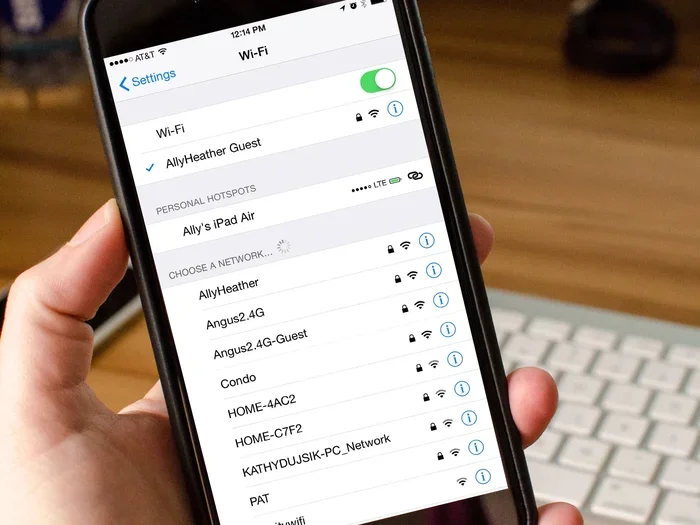
Once you are in the Wi-Fi settings, you will see a list of available networks. Look for the option that says Other or Other Network depending on your iOS version. It is usually near the bottom of the list, below the networks your phone has already found. Tap on it.
Entering Your Network Name
Now you will see a blank field labeled Name. This is where you type your network SSID. Be very careful here. The network name is case-sensitive, which means “MyNetwork” and “mynetwork” are treated as two completely different networks.
Type the exact name as it appears on your router or as your network administrator gave you. If you are not sure what it is, check the sticker on the back of your router. It is usually listed right there next to the password. You can also log into your router settings through a web browser to confirm the exact name.
After you type the name, tap the Security field. This is where you choose the type of encryption your network uses.
Choosing the Right Security Type
Your router uses a security protocol to protect your wireless connection. The most common ones are WPA2 and WPA3. Some older routers still use WEP, but that is outdated and less secure.
Tap the security field and a menu will pop up. Select the type that matches your router. If you are not sure, WPA2 is the most common choice for home networks today. If your router supports WPA3 and you have enabled it, select that instead. Choosing the wrong security type will cause your iPhone to fail the connection, even if you enter the correct password.
Typing in Your Password
Once you have selected the security type, you will see a field for the password. This is also called the network security key. Type it in carefully. Passwords are case-sensitive too, so pay attention to uppercase and lowercase letters.
One helpful tip: tap the little eye icon next to the password field to show the characters as you type. This helps you avoid mistakes, especially if your password has a mix of letters, numbers, and symbols. If you have saved this password in iCloud Keychain or a third-party password manager, you can pull it up there and copy it over.
Connecting and Verifying the Connection
After you have entered the SSID, selected the security type, and typed the password, tap the Join button in the top right corner. Your iPhone will take a few seconds to connect. You should see a checkmark next to the network name, and the Wi-Fi icon will appear in the top left corner of your screen.
Open Safari or any app that uses the internet to test the connection. Try loading a webpage or checking your email. If it works, you are all set. If not, double-check your password and network name. A single wrong character will prevent the connection from going through.
Connecting to Hidden Wi-Fi Networks on iPhone
A hidden network is one that does not broadcast its SSID. This means it will never appear in your iPhone’s list of available networks, even if you are standing right next to the router. Many people choose this setup because it adds an extra layer of privacy to their wireless connection.
What Makes a Network Hidden?
When a router is set to hide its SSID, it stops sending out its name in the broadcast signals that iPhones and other devices scan for. The network is still there. It is still working. But it is invisible to anyone who does not already know the name. This is why manually entering SSID on iPhone is essential for connecting to hidden networks.
Hidden networks are common in homes where the owner wants to reduce the chances of strangers trying to connect. They are also used in small offices and businesses that want to keep their wireless access more discreet.
Steps to Connect to a Hidden Network
The steps for connecting to a hidden network are almost identical to the general manual entry process:
- Open the Settings app on your iPhone.
- Tap on Wi-Fi.
- Tap on Other or Other Network.
- Type the exact SSID in the Name field.
- Select the correct Security type.
- Enter the password.
- Tap Join.
The only difference is that you already know the network name because someone told you or you wrote it down. If you forget the SSID of a hidden network, you will need to check your router settings or ask the network owner.
Common Problems When Manually Entering SSID on iPhone
Even when you follow every step correctly, things can sometimes go wrong. Here are the most common issues people run into and how to fix them.
Typo Errors in the Network Name
This is the number one reason manual entry fails. The SSID might have a capital letter in the middle, a hyphen, an underscore, or even a trailing space. iPhone will not connect if the name does not match exactly.
To avoid this, go back to your router and double-check the exact spelling. Write it down somewhere before you type it into your iPhone. If the name has special characters, make sure you use the correct keyboard layout on your phone. Sometimes you need to switch to the numbers and symbols keyboard to find characters like hyphens or underscores.
Wrong Security Type Selection
If you choose WEP when your router is actually set to WPA2, the connection will fail. Your iPhone will show an error message or simply not connect. Always verify your router’s security settings before selecting the type on your phone.
You can check this by logging into your router’s admin panel through a web browser. The login details are usually printed on a sticker on the back of the router. Once logged in, look for the wireless security settings. The security type will be listed there clearly.
Password Entry Problems
Passwords can be tricky, especially when they are long and complex. A common mistake is confusing the letter O with the number zero, or the letter I with the lowercase L. These look almost identical on the iPhone keyboard.
Another issue is the password format. Some networks use a plain text password, while others use a hexadecimal key. If your network uses a hex key, you need to enter it exactly as formatted. Mixing these up will block the connection.
iPhone Wi-Fi Keeps Disconnecting After Manual Entry
Sometimes your iPhone connects to the network but then drops off shortly after. This can happen if the router is using a channel that conflicts with other nearby networks. It can also happen if the signal strength is weak in your location.
Try moving closer to the router and see if the connection holds. If it does, the issue is signal-related, not related to your manual entry. You can also try restarting your router by unplugging it for 30 seconds and plugging it back in.
Expert Tips for Managing Wi-Fi Networks on iPhone
Once you have successfully connected, there are a few things you can do to make your wireless experience better and avoid needing manual entry in the future.
Forget and Reconnect to Networks
If you are having trouble with a saved network, try forgetting it and setting it up again from scratch. Go to Settings, tap Wi-Fi, find the network name, and tap the little blue “i” icon next to it. Then tap Forget This Network. You will need to enter the SSID and password again, but this clears out any saved settings that might be causing problems.
Use a Password Manager
Keeping track of multiple wireless passwords can be a hassle. Using a password manager like iCloud Keychain, 1Password, or Bitwarden makes it easy. These apps can store your network names and passwords securely and even auto-fill them when you are setting up a new connection.
Keep Your iPhone Updated
Apple regularly releases iOS updates that improve wireless connectivity and fix bugs related to network detection. Make sure your iPhone is running the latest version of iOS. You can check for updates by going to Settings, then General, then Software Update.
Restart Your Router Regularly
Routers benefit from regular restarts, just like any other electronic device. A quick restart every week or two can help clear out temporary glitches and keep your wireless network running smoothly. This can also help your iPhone detect the network more reliably.
When to Contact Your Network Administrator or ISP
Most of the time, manually entering SSID on iPhone solves the problem quickly. But there are moments when the issue goes deeper than your phone settings. If you have tried everything in this guide and still cannot connect, it might be time to reach out for help.
Router Configuration Issues
Your router might have settings that block certain devices from connecting. MAC address filtering, for example, can prevent your iPhone from joining even if you have the correct SSID and password. Check your router settings to make sure your iPhone is not being blocked.
Firmware Updates and Compatibility
Older routers sometimes have firmware that is not fully compatible with newer iPhone models. If your router has not been updated in a while, check the manufacturer’s website for the latest firmware. Updating it can resolve many connection issues and improve overall performance.
ISP-Related Problems
Sometimes the issue is not with your iPhone or your router at all. Your internet service provider might be experiencing outages or maintenance. Call your ISP or check their website for service alerts. They can also check your account to make sure there are no issues on their end that are preventing your connection.
Conclusion
Manually entering SSID on iPhone is a skill that everyone should know. It takes just a few minutes, and it can save you a lot of frustration when your iPhone cannot find your network automatically. Whether you are dealing with a hidden network, a router that changed settings, or a simple detection bug, manual entry gives you full control over your wireless connection.
Remember to type the network name exactly as it appears, choose the right security type, and enter your password carefully. Double-check everything before you tap Join. If you run into trouble, go back through the steps and look for small typos or mismatched settings.
With the tips and guidance in this article, you should feel confident connecting to any wireless network on your iPhone. Keep your settings up to date, use a password manager, and do not hesitate to reach out to your network admin or ISP if you need extra help. Happy connecting.
Frequently Asked Questions
Can I manually enter SSID on iPhone if I forgot my network name?
If you forgot your network name, check the sticker on the back of your router. The SSID is usually printed there clearly. You can also log into your router’s admin panel through a web browser to find the exact network name. If you have connected to this network before on another device, that device may still have the name saved.
Why does my iPhone not show my Wi-Fi network in the list?
There are several reasons your network might not appear. The SSID could be hidden, your router might be using an older wireless standard, or your iPhone might need a software update. Interference from other electronic devices or thick walls can also weaken the signal enough to make it invisible to your phone.
Is it safe to manually enter SSID on iPhone?
Yes, it is completely safe. Manually entering SSID on iPhone is a standard feature built into iOS. You are simply telling your phone which network to join by typing in the name. Just make sure you are connecting to your own trusted network and not a network set up by someone else.
What should I do if my iPhone says “Unable to Join Network” after manual entry?
First, double-check your SSID spelling and make sure it matches exactly. Then verify that you selected the correct security type and entered the right password. If everything looks correct, try restarting your iPhone and your router. You can also try forgetting the network and setting it up again from scratch.
Do I need to enter the SSID every time I want to connect?
No. Once you successfully connect by manually entering the SSID, your iPhone saves the network information. It will automatically connect to that network in the future whenever it is in range. You only need to enter the SSID again if you forget the network or delete it from your saved list.
Can I connect to a hidden network without knowing the SSID?
No, you cannot connect to a hidden network without knowing the SSID. The whole point of a hidden network is that it does not broadcast its name. You must have the exact network name to connect manually. If you do not know it, ask the network owner or check your router settings.