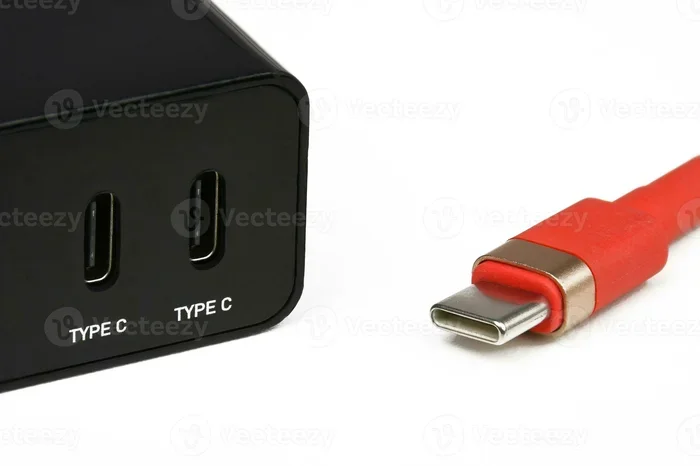
Can You Run 2 Monitors Off 1 Usb C Port Fully Explained
Yes, you can run two monitors off one USB-C port using a docking station, USB-C hub, or adapter. The method you choose depends on your laptop, the port type, and the resolution you need. This guide breaks down every option so you can set up your dual monitor workspace with confidence and zero confusion.
This is a comprehensive guide about Can You Run 2 Monitors Off 1 Usb C Port.
Key Takeaways
- USB-C can support dual monitors through docking stations, hubs, or daisy chaining.
- Thunderbolt 3 and Thunderbolt 4 ports offer the best performance for multi-monitor setups.
- DisplayPort over USB-C is a key technology that enables video output from a single port.
- USB-C hubs and docking stations are the easiest and most reliable solutions for most users.
- Bandwidth matters — running two high-resolution monitors requires more data transfer capacity.
- Not all USB-C ports are equal — check your laptop specs before buying any adapter.
- A dual monitor setup boosts productivity and makes multitasking much easier.
[FEATURED_IMAGE_PLACEHOLDER]
Can you run 2 monitors off 1 USB C port? This is one of the most common questions laptop users ask when they want to expand their workspace. The short answer is yes, but the details matter a lot. Your laptop’s USB-C port type, the cables you use, and the accessories you pick all determine whether two monitors will work smoothly.
In this guide, we walk through every method, every requirement, and every pitfall. By the end, you will know exactly what you need to buy and how to set it up. No guesswork. No wasted money.
USB-C dual monitor setups have become incredibly popular. Remote workers, students, and creatives all want the extra screen space. A multi-monitor setup can double your productivity. But connecting two screens through a single port feels confusing at first. That is exactly why this guide exists.
—
What Is USB-C and Why Does It Matter for Monitors?
USB-C is a small, reversible connector that has replaced older ports like USB-A and HDMI on many modern laptops. It is tiny, fast, and incredibly versatile. But here is the thing — not every USB-C port does the same job. Some carry data, some carry power, and some carry video signals.
The key concept you need to understand is USB-C Alt Mode. This is a feature that lets a USB-C port carry video signals, not just data. When a port supports Alt Mode, it can connect directly to a monitor. But running one monitor is different from running two.
USB-C vs. Thunderbolt: What Is the Difference?
People often confuse USB-C with Thunderbolt. They are not the same thing, even though they share the same connector shape. Thunderbolt 3 and Thunderbolt 4 use the USB-C connector but offer much more bandwidth. This extra bandwidth is what makes dual monitor setups possible from a single port.
Here is a quick comparison:
- Standard USB-C: Supports video output, but usually only one monitor at a time.
- Thunderbolt 3: Supports up to two 4K monitors or one 5K monitor from a single port.
- Thunderbolt 4: Offers the same dual-monitor support with even better reliability and speed.
Before you buy any adapter or hub, check your laptop specs. Look for the Thunderbolt symbol next to the port. It looks like a lightning bolt. If you do not see it, your port is likely standard USB-C only.
Why Bandwidth Matters for Dual Monitors
Every monitor you connect needs data to display images. Two monitors need twice the data of one. Bandwidth is the amount of data a port can handle at once. If your port does not have enough bandwidth, the second monitor will not work or will show a blank screen.
This is why DisplayPort over USB-C is so important. It is a protocol that sends video data efficiently through a USB-C connection. Many modern laptops use this technology to output video. Understanding it helps you choose the right setup.
—
Can You Actually Run Two Monitors From One USB-C Port?
The answer is yes, but your options depend on your hardware. You cannot just plug two monitors into a single USB-C cable and expect them to work. You need an intermediary device or a specific port technology. Let us look at the three main methods.
Method 1: Using a USB-C Docking Station
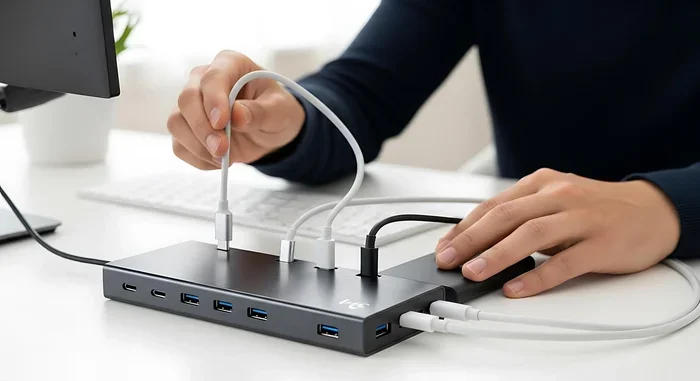
A USB-C docking station is the most popular and reliable way to connect two monitors. It plugs into your laptop’s single USB-C port and gives you multiple video outputs. Most docking stations offer HDMI and DisplayPort connections, so you can use any two monitors you already own.
Here is why docking stations work so well:
- They handle all the video processing for you.
- They often include extra USB ports for peripherals.
- Many models also charge your laptop while you work.
- They are plug-and-play on most systems.
You just plug one cable from your laptop to the dock, and then connect your two monitors to the dock. It is that simple. Look for a dock that explicitly supports dual monitor output on its packaging.
Method 2: Using a USB-C Hub with Video Outputs
A USB-C hub is similar to a docking station but smaller and more portable. Hubs are great if you travel frequently or want a cleaner desk setup. Many USB-C hubs now include two video outputs, which means you can connect two monitors directly.
However, there is a catch. Not all hubs support two simultaneous video outputs. Some only offer one HDMI or DisplayPort output. Always read the product description carefully and confirm that the hub supports dual display before you purchase it.
Method 3: Daisy Chaining Monitors
Daisy chaining is a method where you connect one monitor to your laptop and then connect the second monitor to the first monitor. Both monitors need to support DisplayPort over USB-C for this to work. You use a single USB-C cable from your laptop to the first monitor, and then a DisplayPort cable from the first monitor to the second.
This method works best with Thunderbolt ports. It keeps your cable count low and looks very clean. But it does require that both monitors have DisplayPort in and out ports. If your monitors do not support this, daisy chaining is not an option.
—
The Best Ways to Connect Two Monitors to a Single USB-C Port
Now that you know the three main methods, let us compare them. Each approach has pros and cons. Your choice depends on your budget, your desk setup, and what your laptop supports.
Comparison Table: Docking Station vs. Hub vs. Daisy Chaining
| Feature | Docking Station | USB-C Hub | Daisy Chaining |
|---|---|---|---|
| Number of Monitors Supported | Two or more | One or two | Two |
| Ease of Setup | Very easy | Very easy | Moderate |
| Portability | Low | High | High |
| Extra Ports | Many | Few to moderate | None |
| Cost | Medium to high | Low to medium | Low |
| Requires Thunderbolt | No (but better with it) | No | Yes |
For most people, a USB-C docking station is the best choice. It is reliable, supports two monitors easily, and adds useful ports for your keyboard, mouse, and other devices. If you are on a tight budget, a simple hub might work if it supports dual output.
Quick Tips for Choosing the Right Accessory
- Check your laptop manual to confirm which USB-C protocols it supports.
- Buy from reputable brands like CalDigit, Anker, or Belkin.
- Make sure the dock or hub supports the resolution you need (1080p, 1440p, or 4K).
- If you use a Windows laptop, check for driver compatibility before buying.
- Always read user reviews before making a purchase.
—
What You Need to Know About Thunderbolt and USB-C
Thunderbolt 3 and Thunderbolt 4 are game changers for anyone who wants a dual monitor setup. These technologies use the USB-C connector but offer significantly more bandwidth than standard USB-C. This extra bandwidth is what allows you to run two high-resolution monitors from a single port.
If your laptop has a Thunderbolt port, you have the best possible starting point for a USB-C multi-monitor setup. Thunderbolt 3 supports up to 40 Gbps of data transfer, while Thunderbolt 4 maintains the same speed but adds better security and display support features.
How to Tell if Your Laptop Has Thunderbolt
Look at the port on your laptop. If you see the lightning bolt symbol, it is Thunderbolt. If the port just says “USB-C” with no symbol, it is a standard USB-C port. The difference matters because standard USB-C ports may struggle with dual monitor output, especially at higher resolutions.
Here are the key differences in practical terms:
- Thunderbolt 3/4 laptops: Can easily run two 4K monitors or one 5K monitor from a single port.
- Standard USB-C laptops: May support one 4K monitor directly. A second monitor usually requires a docking station.
- Older USB-C laptops: May only support one 1080p monitor or lower resolutions.
Do You Need a Thunderbolt Dock?
You do not always need a Thunderbolt dock. If you only need two 1080p monitors, a standard USB-C docking station will often work fine. But if you want two 4K monitors or plan to use high refresh rates, Thunderbolt is strongly recommended. The extra bandwidth ensures smooth, flicker-free performance on both screens.
Expert Insight: Many users buy a standard USB-C hub expecting dual 4K support, only to find it does not work. Always match your dock’s capabilities to your monitor resolution. This one step saves a lot of frustration.
—
Common Problems and How to Fix Them
Even with the right equipment, you might run into issues when setting up two monitors from one USB-C port. These problems are common and usually easy to fix. Let us go through the most frequent issues.
Problem 1: The Second Monitor Shows No Signal
This is the most common complaint. If your second monitor shows nothing, the first thing to check is bandwidth. Your USB-C port might not have enough bandwidth to push video to two displays simultaneously. A USB-C docking station with its own processing chip can solve this problem.
Also check your cable connections. Make sure both monitors are securely plugged in. Try unplugging and replugging the dock or hub. Sometimes a simple reseat fixes the issue.
Problem 2: Flickering or Glitchy Display
If one or both screens flicker, the problem is usually bandwidth or cable quality. Cheap USB-C cables cannot handle high-resolution video well. Invest in a high-quality USB-C cable rated for video output. A good cable makes a noticeable difference.
Another cause is outdated drivers. Update your graphics drivers on Windows or your display settings on macOS. Sometimes a simple driver update resolves flickering completely.
Problem 3: Laptops Only Recognizing One Monitor
If your laptop only detects one monitor even though two are connected, go into your display settings. On Windows, press the Windows key plus P to open the projection menu. On macOS, go to System Settings and then Displays. Make sure the setting is set to “Extend” rather than “Duplicate.”
If extend mode still does not show the second monitor, try unplugging the dock, restarting your laptop, and plugging the dock back in. This forces the system to re-detect all connected displays.
Problem 4: Docking Station Not Charging the Laptop
Some USB-C docks do not pass through enough power to charge your laptop. Check the dock’s wattage rating and compare it to your laptop’s charging requirements. If the dock’s power output is too low, your laptop will charge slowly or not at all while connected.
Common Mistakes: Do not assume every dock charges every laptop. Always verify the power delivery rating before buying. A dock that supports 100W USB-C PD will work with almost any laptop.
—
Is a Dual Monitor Setup Worth It?
After all this talk about ports and adapters, you might wonder if a dual monitor setup is really worth the effort. The answer is a strong yes for most people. Research shows that dual monitors can increase productivity by 20 to 30 percent. That is a significant boost whether you work, study, or create content.
Here are the main benefits of using two monitors:
- You can keep reference material open on one screen while working on the other.
- Video calls look much more professional with your face on one screen and your presentation on the other.
- Coding, spreadsheet work, and graphic design all benefit from extra screen space.
- You reduce window switching, which saves time and reduces mental fatigue.
Setting up two monitors from one USB-C port is more accessible than ever. With the right USB-C adapter or dock, you can transform your laptop into a powerful workstation in minutes.
Who Benefits Most from a Dual Monitor Setup?
Remote workers who juggle video calls and documents. Students who research on one screen and write on the other. Gamers who want a second screen for walkthroughs or chat. Video editors who need their timeline visible while they edit. Almost anyone who spends more than four hours a day at a computer will notice a real improvement.
Key Takeaways: A dual monitor setup is one of the simplest upgrades you can make to your workspace. It costs relatively little, sets up quickly, and pays for itself in saved time and reduced frustration.
—
Final Thoughts
Can you run 2 monitors off 1 USB C port? Yes, absolutely. Whether you use a USB-C docking station, a portable hub, or daisy chaining with Thunderbolt, there is a solution that fits your needs and your budget. The key is understanding your laptop’s port capabilities and choosing the right accessory.
Start by checking if your laptop has Thunderbolt support. If it does, you have the most flexibility. If it only has standard USB-C, a good docking station will still get the job done for most setups. Always match your accessories to your monitor resolution and refresh rate requirements.
A multi-monitor setup is one of the best investments you can make for your productivity. It is simple to set up, easy to use, and makes a real difference in how you work. With the information in this guide, you are ready to take the leap and expand your workspace today.
—
Can I connect two 4K monitors to a single USB-C port?
It depends on your laptop. If you have a Thunderbolt 3 or Thunderbolt 4 port, yes, you can run two 4K monitors from one port using a compatible docking station. Standard USB-C ports may struggle with dual 4K due to limited bandwidth. Always check your laptop specifications before assuming dual 4K support.
Do I need a special cable for USB-C dual monitor setups?
You need a USB-C cable that supports video output and sufficient power delivery. Most docking stations come with the right cable included. If you are buying separately, look for a cable rated for both data and video transfer. Cheap cables often cause flickering or no signal issues.
Will a USB-C hub work for two monitors on a non-Thunderbolt laptop?
It depends on the hub. Some USB-C hubs support dual monitor output even without Thunderbolt. However, the resolution and refresh rate may be limited. Check the hub specifications carefully to confirm it supports two simultaneous displays on a standard USB-C connection.
Can I use HDMI and DisplayPort monitors together with a USB-C dock?
Yes, most USB-C docking stations offer both HDMI and DisplayPort outputs. You can connect one monitor via HDMI and the other via DisplayPort without any issues. This flexibility is one of the biggest advantages of using a dock for your USB-C dual monitor setup.
Why does my second monitor keep disconnecting when I use a USB-C dock?
This usually happens due to insufficient power delivery or bandwidth limitations. Try using a dock that connects directly to your laptop rather than through a hub chain. Also make sure your USB-C cable is high quality and supports the required data transfer rate for dual displays.
Is daisy chaining monitors better than using a docking station?
Daisy chaining keeps your desk cleaner with fewer cables, but it requires both monitors to support DisplayPort in and out. A docking station is more flexible and works with almost any combination of monitors. For most users, a dock is the simpler and more reliable choice for a dual monitor setup.
Frequently Asked Questions
What is Can You Run 2 Monitors Off 1 Usb C Port?
Can You Run 2 Monitors Off 1 Usb C Port is an important topic with many practical applications.