How Can I Connect To Alexa Through Bluetooth Speaker
Connecting Alexa to a Bluetooth speaker is simple and opens up a world of wireless audio. You can pair your Echo device with any compatible speaker in just a few steps using the Alexa app. This guide covers everything from initial setup to troubleshooting common Bluetooth connection problems.
Have you ever wanted to make your Alexa voice assistant fill a whole room with music? Maybe your Echo dot sounds too quiet, or you want better bass for a party. The good news is that you can connect Alexa to a Bluetooth speaker and get amazing sound in just a few minutes.
This guide walks you through every step of the process. We will cover how to pair your devices, fix common problems, and get the best audio experience. Whether you are a tech beginner or a seasoned smart home user, you will find helpful tips here.
Before we dive in, let us quickly talk about what you need. You will need an Alexa-enabled device like an Amazon Echo or Echo Dot. You also need a Bluetooth speaker that is turned on and ready to pair. Once you have those two things, you are almost ready to go.
Key Takeaways
- Easy Pairing: You can connect Alexa to a Bluetooth speaker in under two minutes using the Alexa app on your phone.
- Wide Compatibility: Most modern Bluetooth speakers work with Alexa, including brands like JBL, Sony, and Bose.
- Multiple Devices: You can pair Alexa with multiple speakers and manage them from one app.
- Troubleshooting Tips: Simple fixes like restarting devices and checking Bluetooth settings resolve most connection issues.
- Enhanced Audio: Using a Bluetooth speaker with Alexa gives you louder, richer sound than the built-in Echo speakers.
📑 Table of Contents
- What Is Bluetooth and How Does It Work with Alexa?
- How to Connect Alexa to a Bluetooth Speaker
- Common Bluetooth Speaker Brands That Work with Alexa
- How to Use Multiple Speakers with Alexa
- Troubleshooting Bluetooth Connection Issues
- Can You Use Alexa as a Bluetooth Speaker for Other Devices?
- Tips for the Best Bluetooth Audio Experience with Alexa
- How to Disconnect a Bluetooth Speaker from Alexa
- Frequently Asked Questions
- Conclusion
What Is Bluetooth and How Does It Work with Alexa?
Bluetooth is a wireless technology that lets devices talk to each other over short distances. Think of it like an invisible cable between your devices. When you pair Bluetooth devices, they create a private connection that stays active until you turn it off.
Alexa uses Bluetooth to send audio to your speaker without any wires. Your Echo device acts as the source, and your speaker plays the sound. This means you can control music, podcasts, and audiobooks with your voice while the audio comes through a much better speaker.
The Bluetooth range is typically about 30 feet. This means your speaker can be in another room as long as there are no thick walls blocking the signal. For the best experience, keep the speaker in the same room or nearby.
How to Connect Alexa to a Bluetooth Speaker
The pairing process is straightforward and takes less than two minutes. Follow these steps carefully, and you will be listening to great sound in no time.
Step 1: Turn On Your Bluetooth Speaker
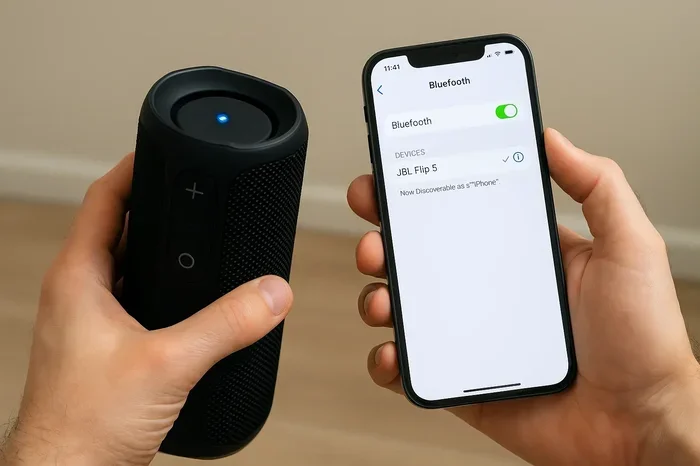
First, power on your Bluetooth speaker. Make sure it is in pairing mode. Most speakers have a blinking light or a voice prompt that says they are ready to connect. Check your speaker’s manual if you are not sure how to do this.
Step 2: Open the Alexa App
On your phone, open the Alexa app. Make sure your phone is connected to the same Wi-Fi network as your Echo device. Tap the “Devices” icon at the bottom of the screen. This takes you to your device dashboard.
Step 3: Select Your Echo Device
Find your Echo device in the list and tap on it. You will see a settings menu with different options. Look for the “Bluetooth” option and tap it. Your Echo will start searching for nearby Bluetooth devices.
Step 4: Pair the Devices
When your speaker appears on the list, tap on it. The Echo will try to connect. You may hear a chime or a voice confirmation from Alexa saying the device is connected. That is your signal that everything worked.
Now try playing some music. Say “Alexa, play my favorites” and listen to the sound come through your speaker. It should be much louder and clearer than the Echo’s built-in speaker.
Common Bluetooth Speaker Brands That Work with Alexa
Most Bluetooth speakers work with Alexa, but some brands offer a smoother experience than others. Here are some popular options that pair well with Echo devices.
JBL Speakers
JBL is one of the most popular Bluetooth speaker brands. Models like the JBL Flip and JBL Charge connect to Alexa easily. They offer great sound quality and strong Bluetooth signals. If you already own a JBL speaker, you are in luck.
Sony Speakers
Sony makes excellent Bluetooth speakers with deep bass and clear highs. The Sony SRS series pairs seamlessly with Alexa devices. These speakers are a bit pricier but deliver premium sound that really stands out.
Bose Speakers
Bose is known for its balanced sound profile. Their portable speakers work well with Alexa and offer reliable Bluetooth connectivity. The Bose SoundLink series is a favorite among smart home users.
Amazon Echo Input and Echo Studio
If you do not own a separate Bluetooth speaker yet, consider the Amazon Echo Input or Echo Studio. These devices have built-in Bluetooth and excellent audio quality. You can also use Alexa as a Bluetooth speaker by enabling that feature in the settings.
How to Use Multiple Speakers with Alexa
Did you know you can connect more than one Bluetooth speaker to Alexa? This is great for bigger rooms or outdoor gatherings. Here is how to set it up.
First, connect your primary speaker using the steps we covered earlier. Then, go to the Alexa app and select “Add Device.” Choose “Bluetooth” and pair your second speaker the same way.
To play audio on both speakers at once, you need to create a group. In the Alexa app, go to “Devices” and then “Add Device.” Select “Combine Speakers” and choose the speakers you want to group together. Now when you ask Alexa to play music, it will come through both speakers simultaneously.
This works great for parties or large living rooms. Just make sure both speakers are within Bluetooth range of your Echo device. Keep them within 30 feet for the best connection quality.
Troubleshooting Bluetooth Connection Issues
Sometimes things do not go as planned. Your speaker might not show up, or the connection might drop. Here are the most common problems and how to fix them.
Speaker Does Not Appear in the Alexa App
If your speaker does not show up, make sure it is in pairing mode. Turn it off and back on. Also check that Bluetooth is turned on in your phone’s settings. Sometimes restarting both devices fixes the issue quickly.
Connection Keeps Dropping
A weak Bluetooth signal can cause frequent disconnections. Move your speaker closer to the Echo device. Remove any obstacles like thick walls or metal objects between them. Also make sure no other Bluetooth devices are interfering with the connection.
Audio Sounds Scratchy or Distorted
If the audio quality is poor, try moving the speaker closer. Bluetooth can lose quality over long distances. You should also check if your speaker firmware is up to date. Some speakers have companion apps that let you update the software.
Alexa Says No Devices Found
This usually means the Bluetooth cache needs clearing. Go to the Alexa app, select your Echo device, and choose “Clear Bluetooth Cache.” Then try pairing again from scratch. This simple step fixes the issue most of the time.
If you are still having trouble, you might want to check whether your TV can connect to Bluetooth. Some users find that understanding Bluetooth adapter setups on other devices helps them troubleshoot Alexa connections too.
Can You Use Alexa as a Bluetooth Speaker for Other Devices?
Yes! Your Alexa device can work as a Bluetooth speaker for other devices too. This means your phone, tablet, or laptop can connect to Alexa and play audio through it. Here is how to set that up.
Go to the Alexa app, select your Echo device, and tap “Bluetooth.” Instead of pairing a new device, select “Pair a New Device.” Now, on your phone or laptop, go to Bluetooth settings and look for your Echo device. Tap to connect.
Once connected, any audio from your phone will play through your Echo or connected speaker. This is handy when you want to share music with friends or use Alexa as a speaker for a video call.
Some users also enjoy listening to audio from their Samsung TV through Bluetooth headphones or speakers. If you are exploring Bluetooth audio options across different devices, you might find it helpful to learn how to listen to your Samsung TV with Bluetooth headphones for a similar wireless setup.
Tips for the Best Bluetooth Audio Experience with Alexa
Want to get the most out of your Bluetooth speaker and Alexa setup? Here are some pro tips that make a big difference.
- Keep Firmware Updated: Check for updates on both your Echo device and your Bluetooth speaker. Updates often improve connection stability and audio quality.
- Use the Right Placement: Place your speaker on a flat surface away from walls. This reduces echo and gives you cleaner sound.
- Control Volume with Your Voice: Simply say “Alexa, turn up the volume” to adjust the speaker level without touching your phone.
- Name Your Speaker: In the Alexa app, you can rename your Bluetooth speaker. This makes it easier to manage multiple speakers and switch between them.
- Use Bluetooth 5.0 When Possible: Newer speakers with Bluetooth 5.0 offer better range and stronger connections. If you are buying a new speaker, look for this feature.
- Disconnect When Not in Use: Go to the Alexa app, select your Echo device, and tap “Disconnect” under Bluetooth. This frees up the connection for other devices.
For car owners, you might also be interested in using a Bluetooth transmitter for your car to get Alexa audio on the go. The principles are similar, and the setup process shares many common steps.
How to Disconnect a Bluetooth Speaker from Alexa
Disconnecting is just as easy as connecting. Open the Alexa app on your phone. Go to “Devices” and select your Echo device. Tap “Bluetooth” and you will see a list of paired devices. Find the speaker you want to disconnect and tap “Disconnect.”
You can also use a voice command. Just say “Alexa, disconnect Bluetooth.” This immediately cuts the connection to your current Bluetooth speaker. Alexa will go back to using its built-in speaker for audio output.
If you want to unpair a device completely, go to the Bluetooth settings and select “Forget Device.” This removes the speaker from your Echo’s memory. You will need to pair it again from scratch the next time you want to use it.
Frequently Asked Questions
Can I connect any Bluetooth speaker to Alexa?
Most Bluetooth speakers work with Alexa. The speaker just needs to be in pairing mode and support the Bluetooth profile that Alexa uses. Popular brands like JBL, Sony, and Bose all work great. If your speaker can connect to other devices via Bluetooth, it should work with Alexa too.
How do I know if my Bluetooth speaker is in pairing mode?
Most speakers flash a blue or red light when in pairing mode. Some speakers say “Pairing” out loud. Check your speaker’s manual for specific instructions. Usually, you hold down the Bluetooth button for a few seconds until the light starts blinking.
Can I connect Alexa to two Bluetooth speakers at the same time?
Yes, you can connect multiple speakers. You need to create a speaker group in the Alexa app. Select “Combine Speakers” and choose the devices you want to group. Then Alexa will play audio through all of them at once for a richer sound experience.
Why does my Bluetooth connection keep disconnecting from Alexa?
This usually happens when the speaker is too far away or there are obstacles between the devices. Move the speaker closer to your Echo. Also check if other Bluetooth devices are causing interference. Restarting both devices often fixes the problem too.
Can I use my phone to control music on Alexa through a Bluetooth speaker?
Yes, you can. Once your Bluetooth speaker is connected to Alexa, you can use the Alexa app to control playback. You can also use voice commands like “Alexa, play jazz” or “Alexa, pause.” The phone acts as a remote while Alexa handles the audio output through the speaker.
What should I do if my Echo device does not show the Bluetooth option?
Make sure your Echo device is running the latest software. Go to the Alexa app, select your device, and check for updates. If the Bluetooth option is still missing, try restarting your Echo device by unplugging it for 30 seconds and plugging it back in.
Conclusion
Connecting Alexa to a Bluetooth speaker is one of the easiest ways to upgrade your audio experience. With just a few taps in the Alexa app, you can turn any compatible speaker into a powerful voice-controlled audio system. The wireless freedom means you can place your speaker anywhere in the room and still enjoy crystal-clear sound.
Remember to keep your devices updated, place your speaker within range, and use the troubleshooting tips when needed. Whether you are hosting a party or just relaxing at home, the combination of Alexa and a Bluetooth speaker delivers amazing results.
Start with the steps in this guide today. You will be amazed at how simple and rewarding the setup process is. Once you experience the difference, you will never go back to using the Echo’s built-in speaker alone. Bluetooth connectivity with Alexa opens up a world of possibilities for your smart home audio setup.