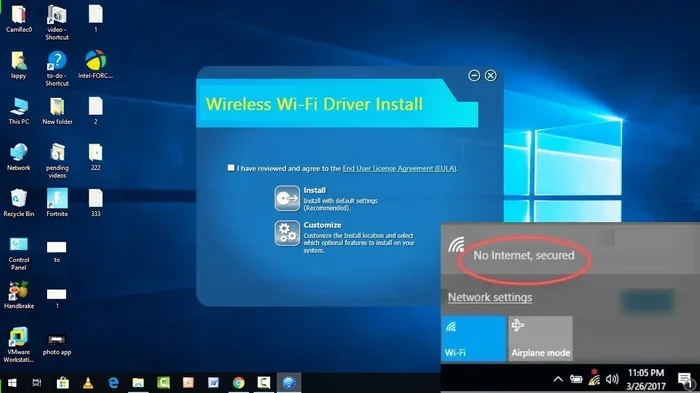
How Can I Get Wi Fi Driver Without Internet Connection
Getting a Wi Fi driver without internet is possible using offline installer packages, another computer, or a wired connection. You can download the driver on a different device, transfer it via USB, and install it on the target machine. This guide covers every reliable method so you can restore wireless connectivity fast.
Key Takeaways
- Use a Wired Connection: Plug in an Ethernet cable or USB tethering to access the internet temporarily and grab your Wi Fi driver.
- Download from Another PC: Use a second computer to download the driver and transfer it via USB flash drive.
- Use Device Manager: Windows can sometimes find and install drivers automatically even without a working Wi Fi connection.
- Create a Bootable USB: A bootable USB with network drivers lets you install Wi Fi drivers on a fresh or reset system.
- Visit the Manufacturer Website: Laptop and adapter brands offer offline driver downloads on their support pages.
- Use a Mobile Hotspot: Share your phone’s data connection to get online and download the driver quickly.
- Always Back Up Drivers: Save drivers before you lose internet so you have a fallback copy ready.
📑 Table of Contents
- How Can I Get Wi Fi Driver Without Internet Connection
- Why Do You Need a Wi Fi Driver?
- Method 1: Use a Wired Ethernet Connection
- Method 2: Download the Driver on Another Computer
- Method 3: Use Windows Device Manager to Find Drivers
- Method 4: Create a Bootable USB with Network Drivers
- Method 5: Use a Mobile Hotspot or Phone Tethering
- Common Mistakes to Avoid
- How to Prevent Future Wi Fi Driver Issues
- Expert Insights
- Conclusion
How Can I Get Wi Fi Driver Without Internet Connection
Losing your Wi Fi connection can feel like the world slows down. You suddenly cannot browse, stream, or even print. But here is the real problem. You need a Wi Fi driver to get online, and you need internet to download that driver. It feels like a never-ending loop. This guide breaks that cycle. You will learn how to get a Wi Fi driver without internet using simple, proven methods.
Whether your Wi Fi adapter stopped working after a Windows update or you set up a brand new computer, this article has you covered. We will walk through every step in plain language. No tech jargon. No confusing jargon. Just clear instructions that anyone can follow. Let us get your wireless connection back up and running.
Why Do You Need a Wi Fi Driver?
A Wi Fi driver is a small software program. It acts as a translator between your computer and the wireless adapter hardware. Without it, your laptop or desktop cannot communicate with Wi Fi networks. Think of it like a key that unlocks the door to wireless internet.
Sometimes drivers get deleted during system updates. Other times they become corrupted. A new computer might not have the right driver pre-installed. In all these cases, you need to install or reinstall the driver. But here is the catch. You usually need an internet connection to download one. That is where the methods below come in handy.
What Is a Network Adapter Driver?
Your computer has a network adapter. This is the hardware piece that sends and receives wireless signals. The driver is the software that tells your operating system how to use that hardware. Without the correct driver, the adapter simply does not work. It is like having a radio with no batteries.
Different computers use different adapters. Intel, Realtek, Qualcomm, and Broadcom are common brands. Each brand has its own driver. This is why you need to know which adapter your computer uses before downloading anything.
Method 1: Use a Wired Ethernet Connection
The easiest way to break the driver loop is to connect to the internet using a cable. An Ethernet connection gives you direct access to the web. From there, you can download the latest Wi Fi driver. This method works for most desktop computers and some laptops with an Ethernet port.
Step-by-Step Instructions
First, plug one end of an Ethernet cable into your router. Plug the other end into your computer. Wait a few seconds for the connection to establish. You should see a small icon appear in your taskbar.
Once connected, open your web browser. Go to your computer or adapter manufacturer’s website. Search for your exact model number. Find the latest network driver. Download it to your computer. After the download finishes, run the installer file. Follow the on-screen prompts. Restart your computer when asked. Your Wi Fi should work once the system boots back up.
If you do not have an Ethernet cable, ask a neighbor or visit a friend. You only need a few minutes of internet access. Another option is to use Can I Get Hotspot Without Phone Service to share your phone data and get online temporarily.
When Ethernet Is Not an Option
Many modern laptops do not have an Ethernet port. In that case, you can use a USB-to-Ethernet adapter. These small devices plug into a USB port and give you an Ethernet jack. They cost around $10 to $15 online or at any electronics store. This small investment can save you a lot of hassle.
Method 2: Download the Driver on Another Computer
This is probably the most popular method. You use a second computer that has internet access. You download the Wi Fi driver there. Then you transfer the file to the problem computer using a USB flash drive. This method works even if both computers are completely offline from Wi Fi.
What You Will Need
- A second computer with internet access
- A USB flash drive (at least 4 GB)
- The exact model number of your Wi Fi adapter or laptop
- A web browser on the second computer
Step-by-Step Instructions
Start by identifying your Wi Fi adapter model. On Windows, open Device Manager. Look for Network Adapters. Find your wireless adapter. Note the brand and model number. Write it down or take a photo with your phone.
On the second computer, open a browser. Go to the manufacturer website. Search for your adapter model. Find the driver download page. Choose the correct version for your operating system. Download the file to your desktop.
Now copy the downloaded file onto your USB flash drive. Safely remove the drive. Plug it into the computer that needs the driver. Open the file and run the installer. Follow the prompts. Restart the computer. Your Wi Fi driver should now be installed and working.
If you are not sure which driver version you need, you can also check Can I Buy A Modem And Have Internet for tips on setting up a basic connection to help identify your adapter needs.
Finding the Right Driver Online
Not all websites are safe for driver downloads. Stick to official manufacturer sites. Intel, Realtek, and Qualcomm all have trusted download pages. Avoid third-party sites that bundle extra software with drivers. These bundles can contain malware or unwanted programs. Always scan downloaded files with your antivirus software before opening them.
Method 3: Use Windows Device Manager to Find Drivers
Windows has a built-in tool that can search for and install drivers automatically. Device Manager can sometimes find the right Wi Fi driver even without a direct internet connection. This works because Windows can pull driver files from its local cache or from Windows Update servers through a wired connection.
How to Use Device Manager
Right-click the Start button on your taskbar. Select Device Manager from the menu. Look for Network Adapters and click the arrow to expand the list. Find your wireless adapter. Right-click on it. Select Update Driver from the menu.
Choose the option that says Search Automatically for Drivers. Windows will look for the latest driver. If it finds one, it will install it. You may need to restart your computer afterward. This method is simple and does not require any manual downloading.
What If Device Manager Cannot Find the Driver?
Sometimes Device Manager will say the best driver is already installed. This does not mean it is the latest version. It just means Windows could not find a newer one. In this case, you will need to use Method 1 or Method 2 to manually install the driver.
You can also try right-clicking the adapter and selecting Uninstall Device. After uninstalling, restart your computer. Windows will often reinstall the driver automatically during boot. This simple trick fixes many driver issues without any internet access at all.
Method 4: Create a Bootable USB with Network Drivers
This method is a bit more advanced. It is perfect for people who need to install drivers on a computer with no operating system or a freshly installed one. A bootable USB contains all the drivers you need. You plug it in and the computer installs everything automatically.
How to Create a Bootable USB
Start with a USB flash drive of at least 8 GB. On a computer with internet access, download the Wi Fi driver file. Extract the files to a folder on your desktop. Copy the entire folder onto the USB drive.
Next, you need to make the USB bootable. You can use free tools like Rufus or the Windows Media Creation Tool. These tools format the USB drive and make it bootable. The process takes about 10 to 15 minutes. Follow the tool’s instructions carefully.
Once the USB is ready, plug it into the target computer. Restart the computer. Press the boot menu key during startup. This key is usually F12, F2, or Esc depending on your computer brand. Select the USB drive as the boot device. The driver installation process will begin automatically.
This method is especially useful when you are setting up multiple computers at once. It saves a lot of time and effort. You can also store the USB drive for future use.
Where to Find Offline Driver Packages
Many laptop manufacturers offer offline driver packages on their support websites. Dell, HP, Lenovo, and Asus all provide these. You simply enter your laptop model number on their website. Look for the Drivers and Downloads section. Download the complete driver package. This package includes Wi Fi drivers, audio drivers, and more.
If you are looking to expand your wireless range after installing the driver, check out Can I Increase Wi Fi Signal for helpful tips on boosting your connection strength.
Method 5: Use a Mobile Hotspot or Phone Tethering
Your smartphone can act as a Wi Fi router. This is called tethering or hotspot mode. You share your phone’s mobile data with your computer. This gives your computer a temporary internet connection. You can then download the Wi Fi driver through this connection.
How to Set Up a Mobile Hotspot
On most phones, go to Settings. Look for Hotspot or Tethering. Turn it on. Set a name and password for the hotspot. On your computer, open the Wi Fi settings. Find your phone’s hotspot name. Click Connect. Enter the password. Your computer is now online through your phone’s data.
Now open your browser. Go to the manufacturer website. Download the Wi Fi driver. Install it. Restart your computer. Once the driver is installed, you can turn off the hotspot. Your Wi Fi adapter should now work on its own.
Keep in mind that tethering uses your phone data. If you have a limited data plan, this method might not be ideal. But for a quick driver download, it works great. You can also explore options like Can I Get Wi Fi Without A Router for alternative ways to access wireless connectivity in a pinch.
Tips for Using Hotspot Effectively
- Keep your phone plugged into a charger during tethering. It drains battery fast.
- Place your phone close to your computer for a stronger signal.
- Download only the driver file. Avoid large software bundles.
- Turn off the hotspot as soon as the download finishes to save data.
- Use a strong password to keep your hotspot secure.
Common Mistakes to Avoid
Installing a Wi Fi driver without internet can be tricky. Here are some common mistakes people make. Avoiding these will save you time and frustration.
- Downloading the Wrong Driver Version: Always match the driver to your operating system. A Windows 10 driver will not work on Windows 11. Check your system version before downloading.
- Skipping the Model Number: Generic drivers may not work properly. Always use the driver designed for your specific adapter model. The model number is your best friend here.
- Ignoring Antivirus Scans: Downloaded files can sometimes contain threats. Scan every file before opening it. This protects your computer from malware.
- Not Restarting After Installation: Many drivers require a restart to take effect. Do not skip this step. It is quick and essential.
- Using Untrusted Websites: Stick to official manufacturer sites. Third-party download sites often bundle unwanted software. They can also host outdated or corrupted files.
How to Prevent Future Wi Fi Driver Issues
Once you get your Wi Fi driver working, you want to keep it that way. Prevention is always better than fixing problems. Here are some simple steps you can take.
- Keep your operating system updated. Windows updates often include driver improvements.
- Save backup copies of your drivers on an external drive or cloud storage.
- Avoid uninstalling drivers unless absolutely necessary.
- Use a surge protector for your router and computer. Power surges can damage network hardware.
- Regularly check your manufacturer website for driver updates. A quick check every few months goes a long way.
If you want to learn more about keeping your connection stable, you might find Can I Extend My Wi Fi To 200 Feet Away helpful for optimizing your setup after the driver is installed.
Expert Insights
Network technicians recommend keeping a USB drive with essential drivers at all times. You never know when you will need them. A small preparation step now can save hours of frustration later. Label your USB drive clearly and keep it in a safe place.
Another expert tip is to create a system restore point before updating any drivers. If something goes wrong, you can roll back to the previous state. This safety net gives you peace of mind. It is especially important when installing drivers from third-party sources.
Finally, always check your Wi Fi adapter settings in the BIOS. Sometimes the adapter is disabled at the hardware level. You would never see it in Device Manager if it is turned off in the BIOS. Restarting into BIOS and checking the network settings can reveal hidden issues.
Conclusion
Getting a Wi Fi driver without internet is entirely possible. You have several reliable methods to choose from. You can use a wired Ethernet connection, download from another computer, or leverage Windows Device Manager. Each method has its strengths. Pick the one that fits your situation best.
The key is to stay calm and follow the steps carefully. Do not rush into downloading random drivers from untrusted sites. Take your time. Identify your adapter model. Find the right driver. Install it properly. Your wireless connection will be back before you know it.
Remember to save backup drivers in the future. A little preparation goes a long way. Share this guide with friends and family who might be struggling with the same problem. Getting your Wi Fi driver without internet is not magic. It is just a matter of knowing the right steps. Now go get your connection back.
Frequently Asked Questions
Can I get a Wi Fi driver without any internet access at all?
Yes, you can. Use a second computer with internet to download the driver, then transfer it via USB flash drive. You can also use a wired Ethernet connection temporarily to download the driver directly on the target computer.
What if I do not know my Wi Fi adapter model number?
Open Device Manager on Windows. Expand the Network Adapters section. Look for the wireless adapter listed there. The name and model number will be displayed. Write it down and use it to search for the correct driver.
Is it safe to download Wi Fi drivers from third-party websites?
It can be risky. Third-party sites often bundle extra software or malware with drivers. Always download drivers from the official manufacturer website. If you must use a third-party site, scan the file with antivirus software first.
Do I need to uninstall the old driver before installing a new one?
Not always. But it is a good practice. Go to Device Manager, right-click the adapter, and select Uninstall Device. Restart your computer. Then install the new driver. This ensures a clean installation without conflicts.
Can a USB Wi Fi adapter work without installing a driver?
Some USB Wi Fi adapters come with plug-and-play support. However, most adapters require a driver installation for full functionality. Check the manufacturer website for the correct driver even if the adapter seems to work without one.
How do I know if my Wi Fi driver is outdated?
Open Device Manager and right-click your wireless adapter. Select Properties. Go to the Driver tab. Check the driver date and version. Compare it with the latest version on the manufacturer website. If the dates differ significantly, you should update the driver.