Can You Run 3 Monitors From 1 Hdmi Without Extra Hardware
Can you run 3 monitors from 1 HDMI? The short answer is yes, but it depends on your device and method. This guide breaks down every way to create a triple monitor setup from a single HDMI port, including software tricks, adapters, and built-in features. You will learn the real limitations, the best methods, and how to avoid common pitfalls that waste your time and money.
So you want to know can you run 3 monitors from 1 HDMI? Maybe you are a freelancer juggling multiple windows. Maybe you are a gamer who wants a wider view. Or perhaps you just want a productivity setup that makes your workday smoother. Whatever your reason, running three monitors from a single HDMI port sounds like a great idea. But is it actually possible?
The truth is, it depends. It depends on your computer, your graphics card, the type of HDMI port you have, and the method you choose. Some people get it working with nothing more than a simple adapter. Others need a little extra hardware. In this guide, I will walk you through every option, every pitfall, and every pro tip you need to know. By the end, you will have a clear answer and a solid plan to get your triple monitor setup up and running.
Let us start with the basics. Understanding how HDMI works and what its limits are will save you a lot of frustration. Then we will dive into the actual methods you can use. I will also share a comparison table, common mistakes, and expert tips that you will not find in most guides. Let us get into it.
Key Takeaways
- It is possible: You can run 3 monitors from 1 HDMI using splitters, adapters, or built-in display settings.
- Hardware matters: Your graphics card and laptop ports determine which method works best for you.
- Bandwidth is a limit: A single HDMI cable has limits on resolution and refresh rate across multiple screens.
- Software solutions exist: Tools like DisplayFusion and Windows built-in extend mode help you manage multiple screens.
- Avoid common mistakes: Cheap splitters and wrong adapters are the top reasons setups fail.
- USB-C and docking stations: These offer flexible alternatives when HDMI alone is not enough.
- Plan before buying: Check your GPU outputs, monitor inputs, and cable quality first.
📑 Table of Contents
Understanding HDMI and What It Can Do
Before we answer the big question, let us talk about what HDMI actually is. HDMI stands for High-Definition Multimedia Interface. It is a standard cable that carries both audio and video signals. Most modern monitors, TVs, and laptops come with at least one HDMI port. It is simple, widely supported, and easy to use.
But here is the thing. A single HDMI port is designed to send one video signal to one display. That is its default behavior. When you try to push that signal to three screens at once, you run into a bandwidth limitation. HDMI has a fixed amount of data it can carry at one time. Split that data three ways, and each screen gets less.
This does not mean it is impossible. It just means you need to work within those limits. The resolution, refresh rate, and color depth all play a role. A 1080p setup is much easier to run from one HDMI source than a 4K setup. Keep that in mind as we explore the methods below.
HDMI Versions and Their Capabilities
Not all HDMI cables are the same. There are different versions, and each one supports different bandwidth levels. Here is a quick look at the most common versions:
- HDMI 1.4: Supports up to 4K at 30Hz. Good for basic office work.
- HDMI 2.0: Supports up to 4K at 60Hz. Great for gaming and video editing.
- HDMI 2.1: Supports up to 8K at 60Hz or 4K at 120Hz. Built for high-end setups.
Your HDMI version affects how much data you can push through a single cable. If you are using an older HDMI 1.4 cable, splitting to three monitors will be trickier. Newer versions give you more room to breathe. Check your cable and port version before you buy any adapter or splitter.
Can You Run 3 Monitors From 1 HDMI? The Real Answer
So, can you run 3 monitors from 1 HDMI? Yes, you can. But the method you choose depends on what you are working with. A desktop PC with a dedicated graphics card gives you more options than a basic laptop. A USB-C port with DisplayPort Alt Mode opens up different paths than a standard HDMI-only laptop.
The key thing to understand is that there are two main approaches. The first is hardware-based. This means using physical devices like splitters, adapters, or docking stations. The second is software-based. This means using your operating system’s built-in display settings or third-party software to manage multiple outputs. Both approaches have pros and cons.
Let me be clear about one thing upfront. Running three monitors from one HDMI port will likely require some form of extra hardware in most cases. The phrase “without extra hardware” is tricky because even a basic HDMI splitter counts as hardware. What I mean is that you do not need to buy a whole new graphics card or expensive equipment. You can do this affordably and practically. Let me show you how.
What Your Device Needs to Support This
Before you try any method, check a few things on your device. These small checks will save you hours of trial and error.
- Graphics card model: Does your GPU support multiple displays? Most modern GPUs do, even budget ones.
- Available ports: Do you have any other video outputs like DisplayPort, VGA, or USB-C?
- Operating system: Windows, macOS, and Linux handle multi-monitor setups differently.
- Monitor inputs: Do your monitors have HDMI, DisplayPort, or VGA inputs?
- Driver version: Make sure your GPU drivers are up to date before starting.
If your device only has one HDMI output and nothing else, you will need an HDMI splitter or adapter. If you have other ports, you have more flexibility. I will cover both scenarios in the next section.
Methods to Connect 3 Monitors Using a Single HDMI Port
Now let us get into the practical part. Here are the most reliable methods to run three monitors from a single HDMI source. Each method has its own strengths, and I will explain when to use which one.
Method 1: HDMI Splitter
An HDMI splitter takes one HDMI input and splits it into multiple outputs. You plug your computer into the splitter, and then connect each monitor to one of the splitter’s output ports. This is the most straightforward method.
However, there is a catch. Most basic HDMI splitters duplicate the same image on all screens. They do not extend your desktop across three monitors. If you want a true screen extension setup, a standard splitter will not work for you. You need a splitter that supports display extension, or you need to combine the splitter with other methods.
Some advanced splitters do support extended displays. These are less common and can be more expensive. Look for splitters labeled “extended” or “multi-display” rather than “mirrored.” Also, keep in mind that a splitter reduces the resolution shared across all screens. If your source is 1080p, each screen might display at a lower resolution.
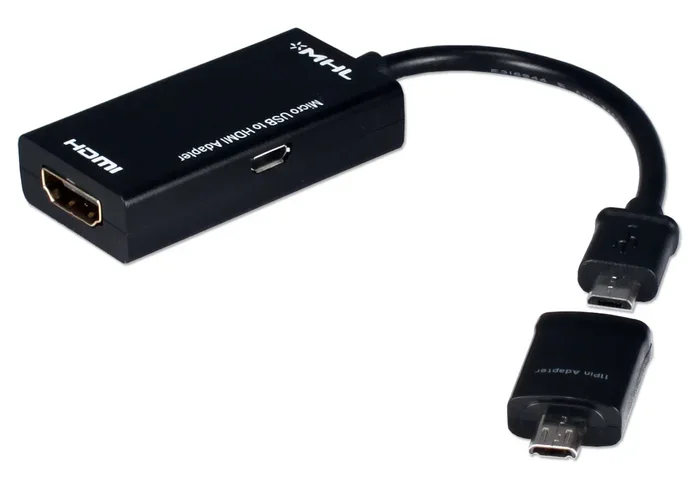
Method 2: USB-C to HDMI Adapter or Docking Station
If your laptop or PC has a USB-C port, this is one of the best routes. A USB-C to HDMI adapter or a full USB-C docking station can give you additional video outputs. Many modern docking stations offer two or even three HDMI or DisplayPort outputs from a single USB-C connection.
This method works well because USB-C supports DisplayPort Alt Mode, which allows video output just like a native DisplayPort or HDMI connection. A good docking station will let you connect your laptop to three monitors with ease.
Here is what to look for in a docking station:
- At least two HDMI or DisplayPort outputs
- Support for your laptop’s USB-C standard (USB 3.0, USB-C, or Thunderbolt)
- Adequate power delivery if you need to charge your laptop too
- Plug-and-play compatibility with your operating system
A USB-C docking station is often the cleanest solution for laptop users. It keeps your desk tidy and gives you a reliable multi-monitor setup without opening up your computer.
Method 3: Use Built-In Display Outputs on Your Graphics Card
Even if your HDMI port is the only one you see on the back of your PC, your graphics card might have more outputs. Open your computer case and check the GPU directly. Many dedicated graphics cards have multiple ports: HDMI, DisplayPort, DVI, and sometimes VGA.
If your GPU has two or three other video outputs, you can use those alongside your single HDMI port. You would just need the right cables or adapters for each monitor. For example, you might use the HDMI port for one monitor and DisplayPort-to-HDMI adapters for the other two.
This is often the cheapest and most reliable method. You do not need a splitter or a docking station. You just need the right cables. Check your GPU model online to confirm which ports it supports.
Method 4: DisplayPort Daisy Chaining
If your monitors support DisplayPort, you can use a technique called daisy chaining. You connect one monitor to your computer via HDMI (using an HDMI-to-DisplayPort adapter if needed), then connect the second monitor to the first, and the third monitor to the second. The signals pass through each monitor like a chain.
Daisy chaining requires that your monitors have both DisplayPort in and DisplayPort out ports. Not all monitors support this feature, so check your monitor specs before buying cables. This method works beautifully for a clean desk setup with minimal cables.
However, this method does not strictly use only one HDMI port. It uses one HDMI connection as the starting point and then relies on DisplayPort for the rest. It is a hybrid approach, but it gets the job done.
Method 5: Software-Based Display Management
Sometimes the hardware is already there, but your operating system is not using it correctly. Both Windows and macOS have built-in settings for extending your desktop across multiple screens. If your device has hidden or unused video outputs, software can help you activate them.
In Windows, go to Settings > System > Display. You should see icons representing each connected display. Click “Extend these displays” to spread your desktop across all three screens. On macOS, go to System Settings > Displays and arrange your screens manually.
For more advanced control, third-party software like DisplayFusion or Ultramon gives you extra features. You can set different wallpapers per screen, move windows between monitors with keyboard shortcuts, and manage taskbars independently. These tools are especially helpful for a productivity setup where you need to juggle many windows at once.
Comparing Your Options
Not all methods are created equal. Some are cheaper, some are easier to set up, and some offer better performance. Here is a comparison of the main methods I covered above.
| Method | Cost | Ease of Setup | Extends Desktop | Best For |
|---|---|---|---|---|
| HDMI Splitter | Low ($15-$40) | Very Easy | Usually No (Mirrors) | Simple duplicated displays |
| USB-C Docking Station | Medium ($50-$200) | Easy | Yes | Laptop users, clean setups |
| GPU Extra Ports | Low ($5-$20 for cables) | Easy | Yes | Desktop PCs with multi-port GPUs |
| DisplayPort Daisy Chain | Low ($10-$25 for cables) | Moderate | Yes | Monitors with DP in/out |
| Software Management | Free or Low ($0-$50) | Easy | Yes | Activating hidden outputs |
The best method for you depends on your device, your budget, and what you want to achieve. If you just need the same image on all three screens, a splitter works fine. If you want a true extended desktop, a docking station or using your GPU’s extra ports is the way to go.
Common Mistakes People Make With Triple Monitor Setups
Setting up three monitors from one HDMI source can be frustrating if you do not know what to watch out for. Here are the most common mistakes I see people make, and how to avoid them.
Buying a Cheap HDMI Splitter
Not all splitters are created equal. A cheap, no-name splitter might not support the resolution you need. It might cause flickering, signal loss, or audio issues. Always buy from a reputable brand and check the specs before purchasing. Look for splitters that support your desired resolution and HDMI version.
Ignoring Bandwidth Limits
Running three 4K monitors from one HDMI port is asking for trouble. The bandwidth simply is not there on most systems. Stick to 1080p or 1440p for a triple setup from a single source. If you need 4K on all three screens, you will need multiple HDMI ports or a more powerful GPU.
Forgetting to Update GPU Drivers
This sounds obvious, but it is one of the top reasons multi-monitor setups fail. Outdated or corrupted GPU drivers can cause displays to not be detected, flicker, or show incorrect resolutions. Always update your drivers before setting up a new display configuration.
Using the Wrong Cable or Adapter
Not all HDMI cables are the same. A standard HDMI cable might not support the bandwidth needed for high-resolution multi-monitor setups. Use high-speed HDMI cables rated for at least HDMI 2.0. Also, make sure your adapters are active, not passive, when converting between different signal types.
Not Checking Monitor Input Compatibility
Before you buy any adapter or cable, check what inputs your monitors actually have. If your monitor only has VGA and HDMI, and you need a DisplayPort connection, you will need a DisplayPort-to-VGA adapter. mismatched connections are a leading cause of setup failures.
Expert Tips for a Flawless Multi-Monitor Experience
After helping many people set up their triple monitor setups, I have gathered some tips that make a big difference. These small tweaks can save you from headaches and get your setup running smoothly from day one.
Use high-quality cables. A good HDMI cable with proper shielding reduces signal interference. This is especially important when you are splitting a signal across three screens. Cheap cables lead to dropped signals and blurry images.
Match your resolutions. Try to use three monitors with the same resolution and size. Mismatched screens can make your desktop feel uneven, and some applications may not display correctly across screens with different resolutions.
Consider a monitor arm. A monitor mount or arm frees up desk space and lets you position each screen perfectly. This is a small investment that dramatically improves your productivity setup.
Set your display arrangement correctly. In Windows or macOS display settings, drag and drop the monitor icons to match their physical placement on your desk. This ensures your mouse moves naturally between screens.
Use a power strip with surge protection. Three monitors plus your computer and docking station draw a lot of power. A good surge protector protects your equipment and keeps everything running steadily.
Test one monitor at a time. When setting up, connect and test each monitor individually before connecting all three. This helps you isolate any problems and makes troubleshooting much easier.
Think about your use case. If you are a gaming setup enthusiast, make sure your GPU can handle three screens at the resolution and refresh rate you want. For a streaming setup or video editing workspace, prioritize color accuracy and screen real estate over refresh rate.
Final Thoughts
So, can you run 3 monitors from 1 HDMI? Absolutely. Whether you use an HDMI splitter, a USB-C docking station, your GPU’s extra ports, or a combination of methods, a triple monitor setup is within your reach. The key is to understand your device’s capabilities, choose the right method for your needs, and avoid the common mistakes that trip people up.
Start by checking your GPU outputs and HDMI version. Then pick the method that fits your budget and your workspace. If you are on a tight budget, using your GPU’s existing ports with the right cables is the way to go. If you are a laptop user, a USB-C docking station gives you the most flexibility and a clean desk.
Remember that a great multi-monitor setup is not just about the hardware. It is about how you arrange your screens, manage your windows, and tailor the setup to your workflow. Take the time to configure your display settings properly, and you will wonder how you ever worked with just one screen.
Now you have all the knowledge you need. Pick your method, grab the right cables or adapters, and get your three monitors up and running. Your productivity and your workflow will thank you.
Frequently Asked Questions
Do I need a special graphics card to run 3 monitors from 1 HDMI?
Not necessarily. Most modern graphics cards, even budget ones, support multiple displays. Check the back of your PC or your GPU specs to see what video outputs are available. If your GPU has HDMI, DisplayPort, or other video outputs, you can use them alongside your single HDMI port to connect three monitors.
Will an HDMI splitter reduce the quality of my displays?
Yes, it can. A basic HDMI splitter duplicates the same signal to all screens, and the resolution may drop depending on the splitter quality and the number of outputs. For the best results, use a high-quality splitter that matches your HDMI version and supports your desired resolution.
Can I run 3 monitors from 1 HDMI on a laptop?
Yes, but it depends on your laptop’s ports. If your laptop has USB-C with DisplayPort Alt Mode, a USB-C docking station is the easiest solution. If your laptop only has one HDMI port, you will need an HDMI splitter or adapter to add more outputs.
What is the best budget method for a 3-monitor setup from 1 HDMI?
The cheapest method is to check your GPU for extra video outputs and use the right cables or adapters. If your GPU only has one HDMI port, a basic HDMI splitter costs around $15 to $30 and can get you started. A USB-C docking station costs more but offers better performance and a true extended desktop.
Can I run 3 different 4K monitors from 1 HDMI port?
Running three 4K monitors from a single HDMI port is very difficult. HDMI bandwidth limits make it impractical for most setups. You will likely need to drop to 1080p or 1440p for all three screens, or use multiple HDMI ports on a dedicated graphics card for true 4K on all displays.
Is DisplayPort daisy chaining better than using an HDMI splitter?
For a true extended desktop, yes. Daisy chaining via DisplayPort gives each monitor its own display signal, resulting in better performance and resolution. An HDMI splitter typically mirrors the same image. However, daisy chaining requires monitors with DisplayPort in and out ports, which not all monitors have.
=== CONCLUSION ===
Running 3 monitors from 1 HDMI is absolutely doable, and you have several solid methods to choose from. Whether you go with an HDMI splitter, a USB-C docking station, your GPU’s extra ports, or DisplayPort daisy chaining, the right approach depends on your device, your budget, and your goals. Take the time to check your hardware, pick the method that suits you best, and enjoy the productivity boost that a triple monitor setup brings. You have got this, and your new multi-screen workspace is closer than you think.