Can You Run Linux On A Windows Laptop And Find Out
Yes, you can run Linux on a Windows laptop using several methods like dual booting, WSL, or virtual machines. This guide covers every approach in detail, so you can pick the best option for your needs. Whether you are a developer, a curious learner, or a seasoned tech user, you will find a setup that works for you.
Key Takeaways
- Multiple methods exist: You can run Linux via dual boot, WSL, or virtual machines, each with unique benefits.
- Dual boot gives full performance: Installing Linux alongside Windows lets you use native hardware speed.
- WSL is the easiest option: Windows Subsystem for Linux runs Linux tools right inside Windows with minimal setup.
- Virtual machines are flexible: You can test Linux without changing your existing system at all.
- Backup first: Always back up your data before installing Linux to avoid accidental data loss.
- Hardware compatibility varies: Some older laptops may need extra drivers or tweaks for Linux to work properly.
📑 Table of Contents
- Why Run Linux on a Windows Laptop?
- Methods to Run Linux on a Windows Laptop
- Method 1: Dual Boot Linux on Your Windows Laptop
- Method 2: Use WSL (Windows Subsystem for Linux)
- Method 3: Run Linux in a Virtual Machine
- Hardware Compatibility and What to Watch For
- Choosing the Right Linux Distribution
- Troubleshooting Common Issues
- Final Thoughts: Can You Run Linux on a Windows Laptop?
Why Run Linux on a Windows Laptop?
So you want to explore Linux but do not want to ditch your Windows laptop entirely. That makes total sense. Running Linux on a Windows laptop is one of the most popular questions in the tech world today. The good news is that you have more options than ever before.
Linux offers something Windows often does not. It is lightweight, open source, and packed with powerful developer tools. Many programmers, system admins, and cybersecurity experts swear by it. But you do not need to throw away your Windows setup to enjoy these benefits.
There are several ways to get Linux running on your Windows machine. Each method fits different needs and skill levels. You can pick the one that feels right. Let us break them all down.
Who Should Run Linux on Their Windows Laptop?
- Software developers who need Linux command-line tools but work in a Windows environment.
- Students learning computer science who want hands-on experience with a different operating system.
- Privacy-conscious users looking for an open-source alternative.
- Servers and DevOps professionals who need to test Linux configurations locally.
No matter who you are, there is a path for you. Let us look at the main methods available.
Methods to Run Linux on a Windows Laptop
There are three primary ways to run Linux alongside Windows. Each one has pros and cons. Let us compare them so you can make an informed choice.
Method Comparison Table
| Method | Ease of Setup | Performance | Risk Level | Best For |
|---|---|---|---|---|
| Dual Boot | Moderate | Native (Full Speed) | Medium (Partitioning) | Full Linux experience |
| WSL | Very Easy | Near-Native | Low | Developers and CLI users |
| Virtual Machine | Easy | Reduced (Shared Resources) | Low | Testing and experimentation |
Now let us dive into each method in detail. You will have all the information you need to get started.
Method 1: Dual Boot Linux on Your Windows Laptop
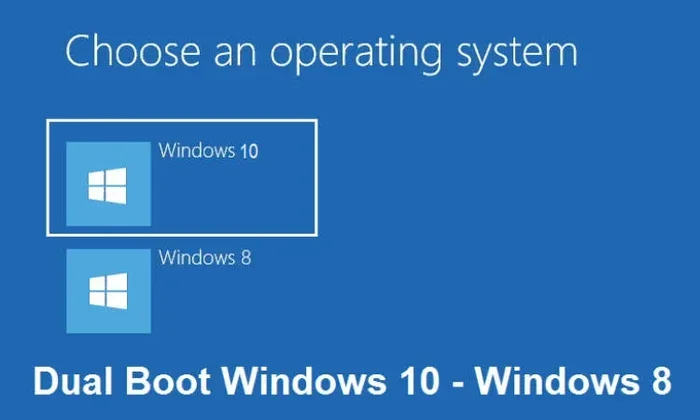
Dual booting means installing Linux on a separate partition of your hard drive. Your laptop then gives you a choice at startup: launch Windows or launch Linux. This method gives you the full Linux experience with native performance.
Why Choose Dual Boot?
- You get full hardware access including GPU acceleration and Wi-Fi drivers.
- Linux runs at full speed since it has its own dedicated partition.
- You can keep Windows untouched for your regular daily tasks.
- It is the closest thing to having a dedicated Linux machine.
The trade-off? You need to shrink your Windows partition, which takes some disk space planning. Also, switching between operating systems requires a restart.
Quick Tips for Dual Booting
- Back up your data first. Partitioning always carries some risk. A solid backup saves headaches.
- Use a recent Linux distribution. Ubuntu, Fedora, or Linux Mint are beginner-friendly and well-documented.
- Create a bootable USB drive. You will need this to start the Linux installer.
- Disable Secure Boot if needed. Some Linux distros do not play well with Secure Boot enabled.
Step-by-Step Dual Boot Guide
Here is a simplified walkthrough. Every laptop is slightly different, but this covers the general process.
- Back up your Windows data. Use an external drive or cloud storage. Do not skip this step.
- Create free disk space. Go to Disk Management in Windows and shrink your main partition. Aim for at least 50 GB for Linux.
- Download a Linux ISO. Ubuntu is a great starting point. Grab the latest version from the official site.
- Create a bootable USB. Use a tool like Rufus or Balena Etcher to write the ISO to a USB drive.
- Restart your laptop and boot from USB. You may need to change the boot order in your BIOS settings.
- Follow the installer. Choose the “Install alongside Windows” option when prompted. The installer handles the rest.
- Reboot and choose your OS. The GRUB boot loader will appear. Pick Linux or Windows each time you start up.
That is it. You now have Linux running alongside Windows. It might sound involved, but most people finish this in under an hour.
Common Mistakes During Dual Boot Installation
- Forgetting to back up data. Always back up before touching partitions.
- Choosing the wrong partition. Accidentally formatting your Windows drive is a costly mistake. Double-check every screen.
- Ignoring BIOS settings. If your laptop will not boot from USB, your boot order or Secure Boot settings might need adjustment.
- Not testing before committing. Try Linux in live mode first before installing. This lets you check hardware compatibility.
Expert Insight: According to Linux kernel developer Greg Kroah-Hartman, “Most hardware works out of the box with modern Linux distributions. If something does not work, the community is usually one forum post away from a fix.”
Method 2: Use WSL (Windows Subsystem for Linux)
If you want Linux tools without leaving Windows, WSL is your best bet. Windows Subsystem for Linux lets you run a Linux environment directly inside Windows. No partitioning. No rebooting. It just works.
What Makes WSL Special?
- Incredibly easy setup. You can install WSL with a single command in Windows Terminal.
- Near-native performance. WSL 2 uses a real Linux kernel under the hood.
- Seamless integration. You can access your Windows files from Linux and vice versa.
- Perfect for developers. Run Git, Docker, Python, and command-line tools natively.
How to Install WSL
- Open Windows Terminal as Administrator.
- Type wsl –install and press Enter.
- Restart your laptop when prompted.
- Pick your favorite Linux distribution from the Microsoft Store. Ubuntu is the default and a great choice.
- Launch the distro and set up your username and password.
That really is all there is to it. You are running Linux inside Windows in just a few minutes.
WSL Quick Tips
- Use WSL 2 for better performance. It supports system calls and Docker natively.
- Try WSLg for GUI apps. You can now run Linux graphical applications right on your Windows desktop.
- Keep your distros updated. Run sudo apt update && sudo apt upgrade regularly inside your Linux environment.
Limitations of WSL
WSL is fantastic, but it is not perfect. You cannot run every Linux application. Some server daemons and kernel modules do not work inside WSL. Also, GPU and hardware access is limited compared to a full Linux installation. For most development work, though, WSL handles everything you need.
Method 3: Run Linux in a Virtual Machine
A virtual machine (VM) runs an entire operating system inside a window on your existing system. Think of it as a computer inside your computer. You get a full Linux desktop without altering your Windows laptop at all.
Why Use a Virtual Machine?
- Zero risk to your main system. If something breaks, your Windows stays safe.
- Easy to test different distros. Try Ubuntu, Fedora, Arch, or any Linux flavor without committing.
- Snapshot and rollback. Save your VM state and revert if needed.
- Great for learning. Experiment freely without consequences.
Popular Virtual Machine Software
- VirtualBox: Free and open source. Works on most Windows laptops.
- VMware Workstation Player: Free for personal use. Slightly better performance.
- Hyper-V: Built into Windows Pro editions. Lightweight and well-integrated.
How to Set Up a Linux VM
- Download and install VirtualBox or your preferred VM software.
- Download a Linux ISO file (Ubuntu is recommended for beginners).
- Create a new virtual machine in your software.
- Allocate at least 4 GB of RAM and 20 GB of disk space to the VM.
- Mount the Linux ISO and start the VM.
- Follow the installation prompts inside the Linux environment.
Expert Insight:
System administrators often recommend VMs for testing environments. As Linux creator Linus Torvalds once noted about flexibility, the beauty of open source is that you can tailor everything to your specific needs. A VM gives you that freedom without risk.
Virtual Machine Performance Tips
- Enable virtualization in BIOS. Look for Intel VT-x or AMD-V settings. This significantly boosts VM speed.
- Allocate enough RAM. Give your VM at least 4 GB for a smooth experience.
- Use a solid-state drive. VMs run much faster on SSDs compared to traditional hard drives.
- Install Guest Additions. VirtualBox and VMware both offer tools that improve display, mouse, and file-sharing support.
Hardware Compatibility and What to Watch For
One concern many people have is whether their laptop can handle Linux. The short answer is usually yes. But there are a few things to check before you dive in.
Check These Before Installing
- Processor: Almost all modern processors support Linux. Intel and AMD chips both work great.
- RAM: 4 GB minimum for a comfortable experience. 8 GB or more is ideal, especially for VMs.
- Storage: You need at least 25 GB of free space for a full Linux installation.
- Wi-Fi and Bluetooth: Most modern hardware works out of the box. Older cards may need proprietary drivers.
- Graphics: NVIDIA GPUs sometimes need extra driver installation. AMD and Intel graphics usually work immediately.
Quick Tips for Hardware Issues
- Check the Linux Hardware Compatibility List (HCL). This resource tells you if your specific components are supported.
- Try the live USB first. Boot into Linux without installing to test Wi-Fi, sound, and display drivers.
- Keep proprietary drivers handy. Some hardware works better with manufacturer-provided drivers rather than open-source alternatives.
Common Mistakes: Assuming Hardware Will Not Work
Many people assume their laptop is too old or incompatible. In reality, most laptops from the past decade run Linux beautifully. Do not let assumptions stop you from trying. The Linux community is incredibly helpful if you do run into issues.
Choosing the Right Linux Distribution
Not all Linux distributions are the same. Each one targets different users and use cases. Picking the right one makes a big difference in your experience.
Best Linux Distros for Beginners
- Ubuntu: The most popular and well-supported. Huge community and tons of tutorials.
- Linux Mint: Looks and feels familiar if you are used to Windows.
- Fedora: Cutting-edge features with strong community backing.
- Zorin OS: Designed specifically for users switching from Windows.
Best Linux Distros for Developers
- Fedora: Ships the latest developer tools and technologies.
- Pop!_OS: Made by System76. Great for coding and gaming.
- Arch Linux: Rolling release with total control. Best for advanced users.
- Debian: Rock-solid stability. The foundation for Ubuntu and many others.
Expert Insight:
Ubuntu developer and community leader Jonathan Riddick once said, “Pick the distro that matches your curiosity level. If you want to learn how things work, try something hands-on. If you just want it to work, go with Ubuntu or Mint.”
Quick Tips for Choosing
- Start with Ubuntu or Mint if you are brand new. They have the easiest installations and best support.
- Try multiple distros in VMs. There is no commitment needed. Test before you install.
- Read the release notes. Understanding what each version brings helps you make an informed choice.
Troubleshooting Common Issues
Even with the best preparation, you might run into snags. Here are the most common problems and how to fix them.
Boot Problems After Dual Boot
If Windows takes over your boot loader after an update, you need to repair GRUB. Boot from your Linux USB and use the boot-repair tool. This restores the boot menu quickly.
Wi-Fi Not Working
Check if your card needs a proprietary driver. Run sudo ubuntu-drivers autoinstall on Ubuntu-based systems. Alternatively, use your phone as a USB tethering hotspot temporarily.
Slow Performance in a VM
Make sure virtualization is enabled in BIOS. Allocate more RAM and CPU cores. Switch from dynamically allocated disk to a fixed-size disk for better speed.
WSL Errors or Timeouts
Run wsl –update in your terminal. Make sure you are on Windows 10 version 2004 or later. If issues persist, try resetting WSL with wsl –shutdown and restarting.
Common Mistakes When Troubleshooting
- Ignoring error messages. Read them carefully. They usually point you toward the fix.
- Not searching community forums. Someone has likely solved your exact problem already.
- Reinstalling instead of diagnosing. A fresh install should be your last resort, not your first move.
Final Thoughts: Can You Run Linux on a Windows Laptop?
The answer is a resounding yes. Whether you choose dual boot for full performance, WSL for developer convenience, or a virtual machine for safe experimentation, Linux on a Windows laptop is entirely achievable. You do not need to be a Linux expert. You do not need special hardware. You just need a bit of curiosity and this guide.
Every method has its strengths. Dual boot delivers the full Linux experience with native speed. WSL brings Linux tools into your Windows workflow seamlessly. Virtual machines let you explore without any risk to your main system.
Pick the method that fits your comfort level and goals. Start small if you are unsure. Test Linux in a VM or try WSL first. When you are ready, go for a full dual boot installation. The Linux world is waiting for you, and it is more welcoming than you might think.
So go ahead. Run Linux on your Windows laptop and discover what you have been missing. You might just find your new favorite operating system.
Frequently Asked Questions
Can you run Linux alongside Windows without losing data?
Yes, you can. Using WSL or a virtual machine keeps your Windows system completely untouched. If you choose dual boot, always back up your data first, but the installation process typically preserves your existing files and Windows installation.
Is it legal to run Linux on a Windows laptop?
Absolutely. Linux is open source and completely free to use. You can install it on as many machines as you like. There are no licensing fees or restrictions from Microsoft or the Linux community.
Will my laptop slow down if I run Linux alongside Windows?
Not if you use WSL or a virtual machine, since they share resources with Windows. With dual boot, Linux actually runs faster than it would in a VM because it has full access to your hardware. Your laptop performance depends on how you allocate resources.
What is the easiest way to try Linux without installing anything?
The easiest way is to use a virtual machine. Download VirtualBox, create a VM, and try any Linux distribution without making any changes to your Windows laptop. You can also boot from a live USB to test Linux without installing it permanently.
Can I run Linux GUI applications on WSL?
Yes, you can. WSLg, which is included in recent Windows updates, lets you run Linux graphical applications directly on your Windows desktop. This feature has made WSL much more versatile for everyday use beyond just command-line tools.
Do I need to reinstall Windows if something goes wrong with Linux?
No, you should not need to. If you installed Linux via WSL or a virtual machine, removing it does not affect Windows at all. Even with dual boot, you can delete the Linux partition and restore your Windows boot loader using simple repair tools. Always keep a backup just in case.