Can You Use An External Wifi Card On A Laptop Right Now
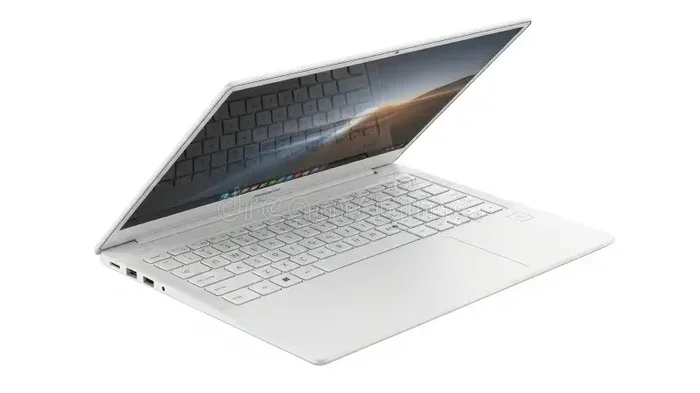
Yes, you can absolutely use an external WiFi card on a laptop. A USB WiFi adapter gives your laptop a stronger signal, faster speeds, and better range compared to a weak internal wireless card. Whether your built-in wireless network card is broken or you just need a WiFi signal boost, an external adapter solves the problem fast and affordably.
Have you ever sat at your laptop and wondered why your internet keeps dropping? Or maybe your built-in wireless card just died, and now you cannot connect to anything. The good news is that you can fix this problem easily. You can use an external WiFi card on a laptop, and it works like a charm. In this guide, we will walk you through everything you need to know. We will cover how these adapters work, why they are a great choice, and how to set one up in minutes.
Whether you are a student working from home, a remote employee, or just someone who needs a reliable internet connection, this article has you covered. We will look at the different types of adapters, compare them to internal cards, and give you practical tips to get the best performance. By the end, you will know exactly what to buy and how to install it. Let us dive in.
Key Takeaways
- Plug and Play: Most external WiFi cards connect via USB and work instantly without opening your laptop.
- Better Signal Strength: An external adapter with a powerful antenna delivers stronger and more stable wireless connectivity than most built-in cards.
- WiFi 6 Support: Modern USB adapters support the latest WiFi standards, giving you faster internet speeds and lower latency.
- Easy Setup: You just plug in the dongle, install the driver, and you are connected.
- Dual Band Options: Many adapters offer both 2.4GHz and 5GHz bands, letting you choose the best frequency for your needs.
- Fixes Broken Internal Cards: If your laptop’s internal wireless card fails, an external adapter is a quick and cheap replacement.
- Portable and Compact: Most USB WiFi adapters are small enough to carry in your pocket and use on any laptop.
📑 Table of Contents
What Is an External WiFi Card?
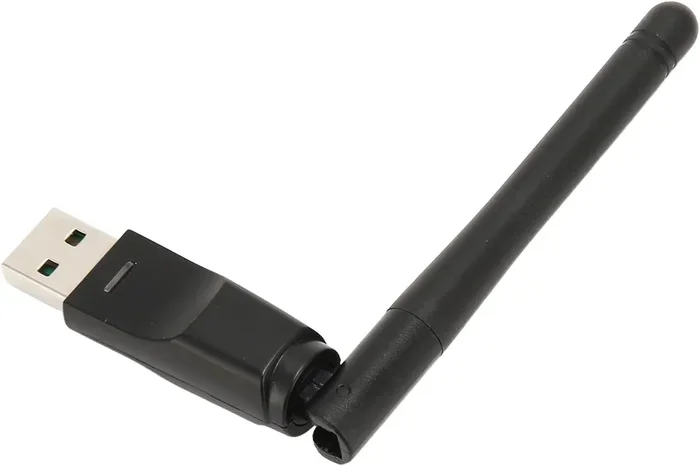
An external WiFi card is a small device that plugs into your laptop through a USB port. It acts as a wireless network card on the outside of your machine. Instead of relying on the weak internal antenna inside your laptop, this adapter brings its own powerful antenna and modern WiFi technology to the table.
Think of it like this. Your laptop has a small built-in antenna for wireless connectivity. But that antenna is often tucked inside the metal body of the laptop. This limits its reach and signal strength. An external WiFi card steps in and gives you a much better antenna setup. It connects to your router and pulls in a stronger, more stable internet signal.
Most of these adapters look like small USB sticks or dongles. Some come with long cables and external antennas that you can position for the best reception. The market has many options, from basic budget adapters to high-performance WiFi 6 USB adapters that deliver incredible speeds.
How Is It Different from an Internal WiFi Card?
An internal wireless card sits inside your laptop, connected to the motherboard. It usually has small internal antennas that are hidden from view. These cards work fine for basic tasks like browsing and email. But they struggle when you need strong signals or fast speeds over long distances.
An external adapter, on the other hand, sits outside your laptop. It has a bigger antenna and often better hardware inside. This means it can pick up weaker signals and deliver faster data rates. If your laptop’s internal card is old or damaged, an external option is the easiest fix.
How Does an External WiFi Card Work?
The technology behind these adapters is straightforward. When you plug an external wireless adapter into a USB port, it communicates with your laptop’s operating system. The adapter then searches for available WiFi networks, just like your built-in card would. Once you connect, it handles all the wireless data transfer between your laptop and your router.
Here is what happens in simple steps:
- You plug the USB WiFi adapter into an available port.
- The laptop recognizes the device and installs a driver.
- The adapter scans for nearby wireless networks.
- You select your network and enter the password.
- The adapter establishes a connection and starts sending and receiving data.
Some adapters come with plug-and-play support, which means Windows or macOS installs the driver automatically. Other adapters require you to download the driver from the manufacturer’s website. Both approaches are simple and take only a few minutes.
The Role of WiFi Standards
External WiFi cards support different wireless standards. The most common ones you will see are WiFi 5 (also called 802.11ac) and WiFi 6 (also called 802.11ax). WiFi 6 is the newest standard and offers better speeds, lower latency, and improved performance in crowded areas. If you want the best wireless bandwidth, look for a WiFi 6 USB adapter.
Most modern adapters also support dual band connectivity. This means they can connect on both the 2.4GHz and 5GHz frequency bands. The 2.4GHz band reaches farther but is slower. The 5GHz band is faster but has a shorter range. A good dual band adapter lets you switch between them depending on your needs.
Benefits of Using an External WiFi Card on a Laptop
There are many reasons to choose an external adapter over your laptop’s built-in wireless card. Let us look at the biggest advantages.
1. Better Signal Strength and Range
This is the number one reason people buy an external adapter. The external antenna picks up WiFi signals much better than the tiny internal antenna inside your laptop. If you live in a large house or work far from your router, this makes a huge difference. You will notice fewer dropouts and a more stable internet connection.
2. Faster Internet Speeds
A modern USB WiFi adapter can deliver much faster speeds than an older internal card. If you have a fast internet plan but your laptop’s card is outdated, you are leaving speed on the table. A new adapter can unlock the full potential of your internet plan and give you smooth streaming, fast downloads, and lag-free video calls.
3. Easy to Use and Portable
You do not need to open your laptop or call a technician. Just plug the adapter into a USB port, and you are good to go. These devices are small and lightweight, so you can carry them in your laptop bag. Need a stronger connection at a coffee shop or a hotel room? Just bring your adapter along.
4. Fixes Broken or Outdated Internal Cards
If your laptop’s internal wireless card stops working, replacing it is expensive and complicated. You would need to open the laptop, find the right replacement card, and install it. An external adapter solves this problem in seconds. It costs a fraction of the price and requires zero technical skill.
5. Supports the Latest WiFi Technology
Laptop manufacturers often use older wireless cards to save money. By the time you buy the laptop, WiFi technology has already moved forward. An external adapter lets you upgrade to WiFi 6 or even WiFi 6E without buying a new laptop. This is a smart and affordable way to future-proof your wireless connectivity.
Types of External WiFi Cards You Can Buy
Not all adapters are the same. The right one for you depends on your needs, budget, and laptop model. Here are the main types you will find on the market.
Basic USB WiFi Dongles
These are the smallest and most affordable options. They plug directly into a USB port and usually support WiFi 5 or basic WiFi 6. They work well for light browsing, email, and video calls. If you just need a quick fix for a broken internal card, this is a great choice.
High-Performance USB Adapters with External Antennas
These adapters come with one or two large antennas that you can position for the best signal. They support WiFi 6 and offer dual band connectivity. They are ideal for users who need strong signals over long distances or who live in areas with weak WiFi coverage. These are the best option if you want serious speed and reliability.
WiFi 6 and WiFi 6E Adapters
These are the newest and fastest options available. WiFi 6E adds support for the 6GHz frequency band, which is less crowded and offers incredible speeds. If you have a WiFi 6 router and want maximum performance, a WiFi 6E USB adapter is the way to go. These adapters are perfect for gaming, 4K streaming, and heavy file transfers.
USB-C vs USB-A Adapters
Check which USB port your laptop has before buying. Older laptops usually have USB-A ports. Newer laptops often use USB-C ports. Some adapters come with a USB-A connector and a USB-C cable included, giving you flexibility. Make sure the adapter matches your laptop’s ports to avoid buying the wrong one.
How to Set Up an External WiFi Card on Your Laptop
Setting up an external WiFi card is simple. Here is a step-by-step guide that works for most laptops and adapters.
Step 1: Plug in the Adapter
Insert the USB WiFi adapter into an available port on your laptop. If you are using an adapter with external antennas, attach them before plugging it in. Wait a few seconds for your laptop to recognize the device.
Step 2: Install the Driver
Windows 10 and Windows 11 often install the driver automatically. If not, you will need to download it from the manufacturer’s website. Go to the support page for your adapter model, find the correct driver for your operating system, and install it. Mac users should check the manufacturer’s website for macOS-compatible drivers.
Step 3: Connect to Your WiFi Network
Once the driver is installed, click the WiFi icon in your taskbar or menu bar. You should see the adapter listed as a network device. Select your WiFi network, enter the password, and click connect. Your internet connection should be active within seconds.
Step 4: Optimize Your Settings
For the best performance, go into your adapter’s software or your laptop’s WiFi settings. Switch to the 5GHz band if you are close to your router. This gives you faster speeds. If you are far away, use the 2.4GHz band for better range. You can also update the adapter’s firmware through the manufacturer’s app to get the latest performance improvements.
Quick Tips for Best Performance
- Use a USB 3.0 port for faster data transfer speeds.
- Place the adapter near a window for better signal reception.
- Keep the external antennas upright and unobstructed.
- Update the adapter driver regularly for bug fixes and performance gains.
- Avoid plugging the adapter into a USB hub; connect it directly to the laptop for the best results.
Common Problems and How to Fix Them
While external WiFi cards are easy to use, you might run into a few issues. Here are the most common ones and how to solve them.
The Adapter Is Not Recognized by Your Laptop
This usually happens when the driver is missing or outdated. Try plugging the adapter into a different USB port. If that does not work, download the latest driver from the manufacturer’s website. On Windows, you can also go to Device Manager, find the unrecognized device, and try updating the driver manually.
Slow Internet Speeds
If your speeds are lower than expected, try switching to the 5GHz band. Also, make sure you are using a USB 3.0 port, not a USB 2.0 port. USB 2.0 limits the data transfer rate and can slow down your connection significantly. Moving closer to your router can also help improve speed.
Frequent Disconnections
Interference from other USB devices or a weak WiFi signal can cause dropouts. Try using a powered USB hub or plugging the adapter directly into the laptop. You can also try changing the WiFi channel on your router to reduce interference from neighboring networks.
Driver Conflicts
Sometimes the external adapter conflicts with your laptop’s internal wireless card. To fix this, go to Device Manager and disable the internal wireless adapter. This prevents both devices from fighting for control. Most laptops let you disable the internal card through the BIOS settings as well.
Is an External WiFi Card Worth It?
The short answer is yes. If you have any of these situations, an external adapter is a smart investment:
- Your laptop’s internal wireless card is broken or outdated.
- You experience weak WiFi signals or frequent dropouts.
- You want faster internet speeds without buying a new laptop.
- You need portable WiFi connectivity for travel or work.
- You want to upgrade to WiFi 6 without replacing your entire laptop.
External WiFi cards are affordable, easy to use, and deliver real results. They solve a wide range of wireless connectivity problems in just a few minutes. Whether you are a casual user or a power user, there is an adapter that fits your needs and budget.
Before you buy, check the adapter’s specs carefully. Look for WiFi 6 support, dual band capability, and USB 3.0 compatibility. Read user reviews to make sure the adapter works well with your laptop model. A little research goes a long way in finding the right product.
One thing to keep in mind is that an external adapter works best when paired with a good router. If your router is old and outdated, even the best adapter will struggle. Consider upgrading your router to a WiFi 6 model if you want the full benefit of a modern external WiFi card.
In summary, using an external WiFi card on a laptop is one of the easiest and most effective ways to improve your internet experience. It costs little, takes minutes to set up, and delivers noticeable improvements in signal strength, speed, and reliability. Give it a try, and you will wonder why you did not do it sooner.
Conclusion
Using an external WiFi card on a laptop is simple, affordable, and incredibly effective. Whether your internal wireless card is broken, outdated, or just not strong enough, an external adapter gives you a quick and easy fix. You get better signal strength, faster speeds, and more reliable wireless connectivity with just one USB plug-in.
The market has many great options, from basic USB dongles to high-end WiFi 6 adapters. Pick the one that matches your needs and budget, follow the setup steps, and you will be online in minutes. Do not let a weak or broken internal card hold you back. Upgrade your laptop’s wireless connection today and enjoy a smoother, faster internet experience.
Frequently Asked Questions
Can I use an external WiFi card on any laptop?
Yes, most laptops support external WiFi adapters. As long as your laptop has a USB port, you can use an external card. Check that the adapter’s driver is compatible with your operating system, whether it is Windows, macOS, or ChromeOS.
Do I need to install drivers for an external WiFi card?
Many modern adapters install drivers automatically on Windows 10 and 11. However, some adapters require you to download the driver from the manufacturer’s website. Always check the product listing before buying to confirm driver support.
Will an external WiFi card make my internet faster?
It can, but it depends on your current setup. If your internal card is old or weak, an external adapter will improve your speeds significantly. However, your internet speed is also limited by your internet plan and your router’s capabilities.
Can I use an external WiFi card and the internal card at the same time?
Yes, but it can cause conflicts. To avoid issues, disable the internal wireless card in Device Manager or BIOS when using an external adapter. This ensures a stable and conflict-free connection.
Is a USB WiFi adapter safe to use?
Absolutely. USB WiFi adapters are safe and widely used by millions of people worldwide. They do not damage your laptop or affect its performance negatively. Just buy from a reputable brand to ensure quality and safety.
What is the difference between WiFi 5 and WiFi 6 USB adapters?
WiFi 6 adapters offer faster speeds, lower latency, and better performance in crowded areas compared to WiFi 5 adapters. If you have a WiFi 6 router, a WiFi 6 USB adapter lets you take full advantage of the latest technology. For basic browsing, a WiFi 5 adapter works perfectly fine.