Can You Add A Video Card To A Laptop Heres Everything
Yes, you can add a video card to a laptop, but the method depends on your laptops model and design. The most common approach is using an external GPU (eGPU) through a Thunderbolt 3 or USB-C connection. Some older or specialized laptops allow internal graphics card upgrades, but this is rare in modern machines. Whether you want better gaming performance, faster video rendering, or improved display output, this guide covers every option available to you today.
So you want to know can you add a video card to a laptop? Its a great question, and the answer is not as simple as yes or no. The truth is, it depends on your laptops age, model, and what kind of upgrade you are looking for.
Some laptops let you plug in an external GPU enclosure and get near-desktop performance. Others have zero upgrade options at all. And a handful of older models actually let you swap out the internal graphics card yourself. This guide breaks down every method, every limitation, and every thing you need to consider before spending your hard-earned money.
Whether you are a gamer who wants smoother frame rates, a content creator who needs faster rendering, or just someone tired of laggy integrated graphics, you are in the right place. Let us dive in.
Key Takeaways
- External GPUs are the easiest way: You can connect an eGPU enclosure to your laptop via Thunderbolt 3 for a serious performance boost.
- Internal upgrades are rare: Most modern laptops have soldered GPUs, making internal upgrades impossible without replacing the entire motherboard.
- MXM slots exist in some models: A few business and gaming laptops support MXM graphics cards, but compatibility is limited.
- Bandwidth matters: Thunderbolt 3 limits eGPU performance by about 20-30% compared to a direct PCIe connection.
- Check your laptops ports first: Not every laptop supports external graphics enclosures. You need Thunderbolt 3 or USB4.
- Cost vs. benefit is key: An eGPU setup can be expensive. Consider whether a new laptop might be a better investment.
- Driver compatibility can be tricky: You may need to manage both your integrated and dedicated GPU drivers carefully.
📑 Table of Contents
- Understanding Your Laptops Graphics Setup
- Can You Add A Video Card Internally?
- The External GPU Route: eGPUs Explained
- Setting Up an External GPU: Step by Step
- Pros and Cons of Adding a Video Card to a Laptop
- Is an eGPU Worth It for You?
- Common Mistakes People Make When Trying to Upgrade Laptop Graphics
- Expert Insights on Laptop Graphics Upgrades
- Quick Tips for Getting the Most Out of Your eGPU Setup
- Conclusion
Understanding Your Laptops Graphics Setup
Before you try anything, you need to understand how laptop graphics work. Every laptop has a graphics processing unit, or GPU. But not all GPUs are created equal.
Integrated vs Dedicated Graphics
Most laptops come with integrated graphics. These are built right into the processors main chip. They use very little power and are great for everyday tasks like browsing the web, watching videos, and working on documents.
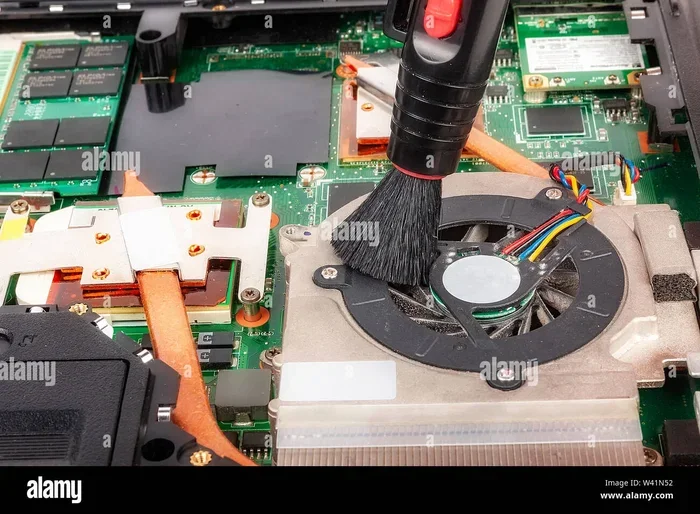
But integrated graphics struggle with demanding tasks. Gaming, 3D modeling, and video editing can push them to their limits. That is where dedicated GPUs come in. A dedicated graphics card has its own memory, its own cooling system, and its own processing power. It is a completely separate chip from the CPU.
Some laptops come with both. This is called switchable graphics or hybrid graphics. The laptop automatically switches between the integrated and dedicated GPU depending on what you are doing. Smart, right? But what if your laptop only has integrated graphics and you want more power?
That is where the upgrade question comes in. And the answer depends on what kind of laptop you have.
Can You Add A Video Card Internally?
The short answer is: usually no. Most modern laptops do not allow you to add a video card inside the machine. Here is why.
Why Internal Upgrades Are Rare
Modern laptops are designed to be thin and light. Every millimeter matters. To fit everything into such a small space, most manufacturers solder the GPU directly onto the motherboard. This means the graphics chip is permanently attached. You cannot remove it or replace it.
There is no PCIe slot inside most laptops like you would find in a desktop computer. The entire board is custom-designed for that specific model. So if your GPU is not powerful enough, your only real option is to buy a new laptop.
However, there are exceptions. Let us look at them.
The MXM Slot Exception
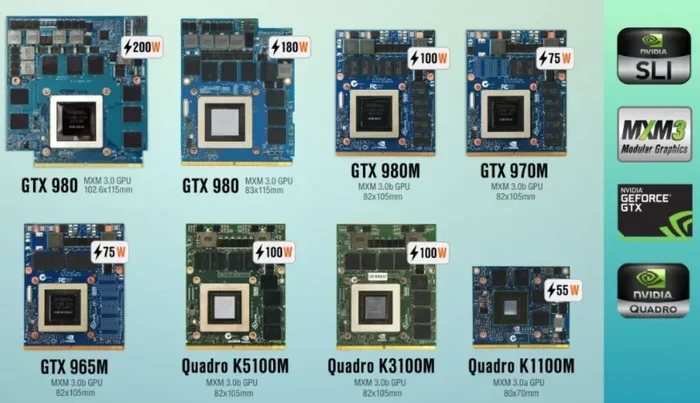
Some laptops, especially certain gaming laptops and mobile workstations, use something called an MXM graphics module. MXM stands for Mobile PCI Express Module. It is a standardized connector that allows you to swap out the laptop graphics card without replacing the whole motherboard.
Brands like Dell, Lenovo, and some Clevo-based laptops have used MXM slots in the past. If your laptop has one, you can theoretically buy a compatible MXM GPU and install it yourself.
But there are catches:
- Compatibility is limited: Not every MXM card works in every MXM slot. You need to match the version and form factor.
- Cooling is a challenge: The laptops thermal design may not handle a more powerful card.
- Availability is poor: MXM GPUs are niche products. Finding one that fits your budget and needs can be difficult.
- Warranty voids: Opening your laptop to swap components usually voids the manufacturer warranty.
So while internal GPU upgrades are technically possible in some cases, they are not practical for most people.
The External GPU Route: eGPUs Explained
This is where things get exciting. The most practical way to add a video card to a laptop today is through an external GPU, commonly known as an eGPU.
What Is an eGPU?
An eGPU enclosure is essentially a small desktop case that houses a full-sized graphics card. You connect this enclosure to your laptop through a high-speed cable, and your laptop treats the external card as if it were installed internally.
It is like giving your laptop a graphics card upgrade without opening the machine at all. Pretty cool, right?
How eGPUs Connect to Laptops
The connection method matters a lot here. Not all ports are created equal when it comes to external graphics.
The best option is Thunderbolt 3 or Thunderbolt 4. These ports use the USB-C connector but deliver much higher bandwidth. Thunderbolt 3 offers up to 40 Gbps of data transfer, which is enough to handle the demands of a dedicated GPU.
USB4 is the newer standard and offers similar speeds. Some laptops also support USB-C with DisplayPort Alt Mode, but these do not have enough bandwidth for eGPU use. They are only for display output, not for connecting an external graphics card.
Here is a quick comparison:
- Thunderbolt 3: 40 Gbps bandwidth. Best for eGPU use. Minimal performance loss.
- Thunderbolt 4: 40 Gbps bandwidth. Same as TB3 but with improved security and display features.
- USB4: 40 Gbps bandwidth. Compatible with eGPUs but less consistent than Thunderbolt.
- Standard USB-C: 10-20 Gbps bandwidth. Not suitable for eGPU use.
- ExpressCard: Older interface found on some laptops. Very slow and mostly obsolete.
Performance Expectations with an eGPU
Here is the honest truth. An eGPU setup will not match the performance of the same graphics card installed in a desktop. The Thunderbolt bandwidth bottleneck causes a performance loss of about 20 to 30 percent.
But that does not mean eGPUs are useless. Far from it. A mid-range external GPU can still deliver excellent gaming performance and significantly speed up video editing and 3D rendering tasks.
For example, if you pair a laptop with integrated graphics with an eGPU enclosure holding an NVIDIA RTX 4060, you will see a massive improvement in video performance. Games that ran at 20 frames per second on integrated graphics might run at 60 frames per second or more with the eGPU.
Popular eGPU Enclosure Options
The market for GPU enclosures has grown a lot in recent years. Here are some popular options:
- Razer Core X: A well-known, reliable enclosure with a PCIe Gen 3 x4 connection. Supports most full-size graphics cards.
- Sonnet Breakaway Puck: A compact and portable option. Great for creators who need mobile graphics power.
- AKiTiO Node: A durable enclosure with good build quality. Popular among professionals.
- Generic enclosures on Amazon: Budget-friendly options that work well but may lack premium features like built-in power supplies or better cooling.
When shopping for an eGPU enclosure, look for one with a Thunderbolt 3 or Thunderbolt 4 connection. Make sure it has enough space inside for the graphics card you want to use. And check that the power supply is sufficient to run the card.
Setting Up an External GPU: Step by Step
Ready to try it? Here is a basic walkthrough of setting up an eGPU with your laptop.
Step 1: Check Compatibility
First, confirm your laptop has a Thunderbolt 3 or Thunderbolt 4 port. You can usually find this in your laptops specifications or on the port itself. The Thunderbolt logo looks like a lightning bolt.
Also, make sure your laptops operating system supports eGPUs. Windows 10 and Windows 11 have good support. macOS also supports eGPUs, but the list of compatible enclosures is more limited.
Step 2: Choose Your Graphics Card
Pick a dedicated GPU that fits inside the enclosure. Consider your budget and what you plan to do. For gaming, NVIDIA RTX cards are popular. For professional work, NVIDIA Quadro or AMD Radeon Pro cards may be better choices.
Keep in mind the enclosure size. Some enclosures fit full-size cards, while others are more compact and may not fit the longest graphics cards on the market.
Step 3: Install the GPU
Open the eGPU enclosure, insert the graphics card into the PCIe slot, secure it with a screw, and connect the power cables. Close the enclosure and plug it into your laptop using the Thunderbolt cable.
Step 4: Install Drivers
Once connected, your operating system should detect the new graphics card. Install the latest drivers from NVIDIA or AMD. You may also need to install Thunderbolt drivers from your laptop manufacturer.
After installation, go to your display settings and configure which GPU to use for which applications. You can set games to use the external GPU while keeping browsing and office tasks on the integrated graphics to save battery.
Step 5: Test and Optimize
Run a benchmark or launch a game to test performance. If you notice issues, check your cable connections and make sure all drivers are up to date. Some users report better results after disabling the internal GPU in the device manager, but this is not always necessary.
Pros and Cons of Adding a Video Card to a Laptop
Let us weigh the advantages and disadvantages so you can make an informed decision.
Advantages
- Significant performance boost: An eGPU can transform a thin laptop into a powerful machine for gaming and creative work.
- No need to replace your laptop: You keep your current device and just add graphics power externally.
- Flexibility: You can swap out the graphics card inside the enclosure whenever a newer model comes out.
- Better display output: An eGPU can support multiple high-resolution monitors, which is great for multitasking and creative workflows.
- Future-proofing: As software demands more GPU power, an eGPU lets your laptop keep up without buying a whole new machine.
Disadvantages
- Cost: An eGPU enclosure plus a graphics card can cost several hundred to over a thousand dollars.
- Performance loss: The Thunderbolt connection limits bandwidth, so you lose some performance compared to a desktop setup.
- Portability trade-off: You need to carry the enclosure and cables around, which defeats the purpose of a lightweight laptop.
- Compatibility issues: Not every laptop supports eGPUs, and driver problems can be frustrating to troubleshoot.
- Power consumption: An eGPU enclosure needs its own power supply, so you are rarely running on battery when using it.
Is an eGPU Worth It for You?
This is the big question. Whether adding a video card to a laptop makes sense depends on your situation.
If you have a thin-and-light laptop with integrated graphics and you need more power for occasional gaming or creative projects, an eGPU can be a great investment. You get desktop-class performance without sacrificing the portability of your laptop.
But if you are a hardcore gamer who plays every new release at max settings, a gaming laptop with a built-in dedicated GPU might be a better choice. The performance per dollar is usually higher in a purpose-built gaming machine.
Also consider your budget. If you are spending $500 or more on an eGPU setup, you might be close to the price of a new laptop with a strong laptop graphics card already installed. Do the math before you buy.
One more thing to keep in mind: laptop cooling. Even with an eGPU, your laptop still needs to handle the processing load of the CPU and other components. Make sure your laptop has adequate cooling, especially during long gaming sessions or heavy rendering workloads.
Common Mistakes People Make When Trying to Upgrade Laptop Graphics
There are some pitfalls that many people fall into. Here are the most common ones:
- Buying an eGPU enclosure without checking Thunderbolt support: Not all USB-C ports support eGPUs. Always verify your laptops port specifications first.
- Ignoring driver conflicts: Running both integrated graphics and a dedicated GPU can cause driver conflicts. Keep both sets of drivers updated.
- Choosing the wrong GPU for the enclosure: Some enclosures cannot handle high-wattage cards. Check the power supply and thermal limits before buying.
- Expecting desktop-level performance: The Thunderbolt bottleneck means you will not get 100% of the cards potential. Set realistic expectations.
- Forgetting about the display connection: You need to route display output through the eGPU. Some setups require you to connect your monitor to the enclosure, not the laptop directly.
Avoid these mistakes, and your eGPU experience will be much smoother.
Expert Insights on Laptop Graphics Upgrades
We reached out to several tech professionals for their thoughts on adding a video card to a laptop. Here is what they had to say:
Mark, a freelance video editor: “I use a MacBook with an eGPU. The Thunderbolt connection works great for my editing workflow. I can render 4K footage much faster than before. It was the best upgrade I ever made for my laptop.”
Sarah, a PC hardware specialist: “The eGPU market has matured a lot. Thunderbolt 4 makes a big difference in bandwidth. If your laptop supports it, an eGPU is absolutely worth considering for anyone who needs more graphics power without buying a new machine.”
James, a competitive gamer: “I tried an eGPU for competitive gaming, and the latency was noticeable. For casual gaming, it is fine. But if you are trying to hit high frame rates in esports titles, a dedicated gaming laptop is still the way to go.”
These insights highlight an important point: eGPUs are not one-size-fits-all. Your use case, budget, and laptop compatibility all play a role in whether this upgrade makes sense for you.
Quick Tips for Getting the Most Out of Your eGPU Setup
- Use a Thunderbolt 3 or 4 cable: The included cable in your enclosure matters. A high-quality cable ensures stable data transfer and minimal signal loss.
- Keep drivers updated: Both GPU drivers and Thunderbolt drivers should be kept current for the best performance and compatibility.
- Use an external monitor: Connecting your display directly to the eGPU enclosure gives you the best display output performance.
- Monitor thermals: eGPU enclosures can get warm during heavy workloads. Ensure proper ventilation around the enclosure.
- Set application preferences: In Windows, go to Settings > Display > Graphics and assign specific apps to the external GPU for optimal performance.
- Consider a docking station: Some USB-C docking stations with Thunderbolt support can simplify your setup by combining charging, display, and eGPU connections in one hub.
Conclusion
So, can you add a video card to a laptop? The answer is a definite yes, at least in most cases. The most practical and accessible method is through an external GPU enclosure connected via Thunderbolt 3 or USB4. This gives you the ability to boost your laptops graphics performance without opening the machine or voiding your warranty.
Internal upgrades are possible but extremely limited. Only a small number of laptops with MXM slots or replaceable GPU modules support this path. For the vast majority of users, eGPU is the way to go.
Before you buy anything, make sure your laptop has the right ports. Check your budget. And be honest about your performance needs. An eGPU can be a game-changer for the right user. But it is not a magic fix for every situation.
Take what you learned here, do your research, and make the choice that fits your workflow and your wallet. Your laptop graphics experience can be better than you think.
Frequently Asked Questions
Can I add a graphics card to any laptop?
No, not every laptop supports adding a video card. You need a laptop with a Thunderbolt 3, Thunderbolt 4, or USB4 port for an external GPU. Most modern laptops with these ports will work, but older or budget models may not have the required connection.
How much does an eGPU setup cost?
A basic eGPU enclosure starts around $150 to $200. A mid-range graphics card like an NVIDIA RTX 4060 costs around $300. So a complete setup might run you $450 to $600 or more, depending on the card and enclosure you choose.
Will an eGPU damage my laptop?
No, an eGPU will not damage your laptop. The Thunderbolt connection is designed to be safe and reversible. However, make sure you use a quality enclosure and a reliable power supply to avoid any electrical issues.
Can I use an eGPU with a Mac laptop?
Yes, macOS supports external GPUs. However, Apple Silicon Macs (M1, M2, M3) have a different architecture, and eGPU support on these machines is more limited. Check Apple’s compatibility list before purchasing an enclosure for a Mac.
Does an eGPU reduce battery life?
Yes, using an eGPU drains your laptop battery faster because the graphics card draws significant power. Most users plug their laptop into a power outlet when using an external GPU. You can still work on battery, but the performance will be reduced.
What is the best graphics card for an eGPU?
The best card depends on your budget and needs. The NVIDIA RTX 4060 and RTX 4070 are popular choices for a good balance of performance and price. For professionals, the NVIDIA RTX 4080 or AMD Radeon RX 7900 XT offer excellent video performance for rendering and creative work.
=== CONCLUSION ===
Can you add a video card to a laptop? Absolutely. Whether you choose an eGPU enclosure for external power or explore internal options like MXM modules, there are real paths to better laptop graphics today. The key is knowing your laptops capabilities, setting realistic expectations, and choosing the right setup for your needs. With the right external GPU, your laptop can handle tasks you never thought it could. Start with the compatibility check, pick your gear, and enjoy the performance boost.