Can You Use Two Display Ports At The Same Time Now
Yes, you can use two display ports at the same time to run dual monitors from a single computer. This guide covers everything you need to know about display port connectivity, GPU support, and setting up your multi-monitor display without any hassle.
Yes, you can use two display ports at the same time. It is one of the simplest ways to expand your screen real estate and boost productivity. Whether you are a gamer, a designer, or someone who just needs more screen space, running two monitors from your computer is easier than you think.
But here is the thing. It is not always plug-and-play. Your graphics card, your cables, and even your monitor settings all play a role. This guide walks you through everything you need to know about using two display ports at the same time. You will learn what works, what does not, and how to avoid the most common pitfalls.
Let us get into it.
Key Takeaways
- Dual display ports work: Most modern GPUs support running two monitors from separate display ports simultaneously.
- Check your GPU first: Not all graphics cards have multiple outputs, so verify your hardware before buying cables.
- Mix and match ports: You can use a DisplayPort and HDMI at the same time on most systems.
- Resolution matters: Running two high-res displays can strain your GPU, so check your card’s bandwidth limits.
- Avoid common mistakes: Using outdated cables or wrong adapters is the top reason dual setups fail.
- Wireless is an option: If wired ports are limited, wireless display tech can fill the gap.
📑 Table of Contents
- What Is a Display Port and Why Does It Matter?
- Can You Actually Use Two Display Ports at the Same Time?
- How to Set Up Two Display Ports for Dual Monitors
- Display Port vs HDMI for Dual Monitor Setups
- When Using Two Display Ports Does Not Work
- Expert Tips for the Best Dual Display Experience
- Key Takeaways
What Is a Display Port and Why Does It Matter?
A display port is a physical connection on your computer or monitor that sends video signals from your GPU to your screen. Think of it as a highway for visual data. The wider the highway, the more data it can carry at once.
Display ports come in different versions. DisplayPort 1.2, 1.4, and 2.0 are the most common ones you will see today. Each version supports different maximum resolutions and refresh rates. Newer versions handle more data, which means sharper images and smoother motion.
Your computer’s motherboard and graphics card both have ports. If you want to learn more about the key parts inside your PC, check out our guide on 5 Components That Are Found On The Motherboard. It covers the essential hardware that makes everything work together.
Types of Display Ports You Will Encounter
When you look at the back of your PC, you might see several different port types. Here is a quick breakdown:
- DisplayPort (DP): The most common digital video port on modern GPUs. It supports high resolutions and refresh rates.
- HDMI: Found on both GPUs and monitors. Very popular for home theater setups and casual use.
- USB-C with DisplayPort Alt Mode: A newer option that carries video through a USB-C cable. Great for laptops and slim setups.
- VGA and DVI: Older analog connections. They still work but lack the bandwidth of modern ports.
Each port type has its strengths. The good news is that most modern GPUs have at least two or three different outputs. This makes running multiple monitors very doable.
Can You Actually Use Two Display Ports at the Same Time?
The short answer is yes. In most cases, you can use two display ports simultaneously. Your GPU can send video signals to two different monitors at the same time. Each monitor gets its own dedicated signal through its own port.
But there is a catch. Your graphics card must physically have two output ports. And those ports must be active and supported by your GPU’s drivers. Some budget or older cards only have one output. In those cases, you cannot run two monitors without adding extra hardware.
The Short Answer: It Depends on Your GPU
Most mid-range and high-end GPUs from NVIDIA and AMD come with at least three video outputs. A typical card might have three DisplayPorts and one HDMI port. That gives you plenty of options for a dual-monitor setup.
However, some integrated graphics solutions or very basic GPUs may only offer one or two outputs. Before you buy cables or adapters, open your PC case or check your laptop specs. Count the ports on your graphics card. If you see at least two video outputs, you are good to go.
What Happens When You Connect Two Monitors?
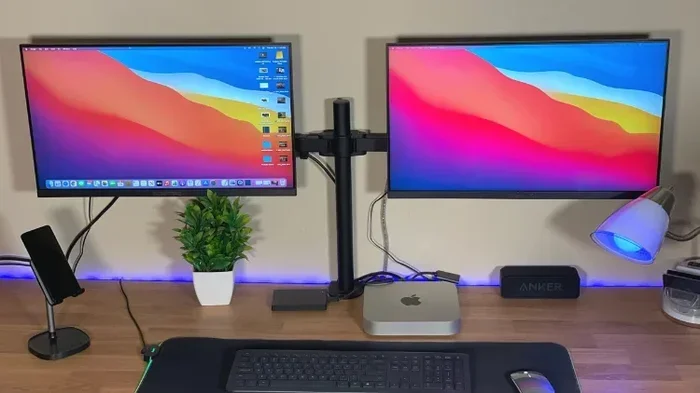
When you plug in two monitors, your operating system detects both displays. You then get to choose how they work. You can either extend your desktop across both screens or mirror the same image on both.
Extending your desktop is the most popular choice. It lets you put different windows on each screen. You could have your email open on one monitor and your work document on the other. Mirroring is useful when you want the same content visible on two screens, like during a presentation.
How to Set Up Two Display Ports for Dual Monitors
Setting up two display ports is straightforward. But there are a few steps you should follow to make sure everything works smoothly.
Step-by-Step Setup Guide
- Check your GPU ports: Look at the back of your PC or the side of your laptop. Identify the available video outputs.
- Pick your cables: Use the right cables for your monitors. DisplayPort to DisplayPort is ideal. HDMI to HDMI works well too.
- Connect both monitors: Plug one cable into each monitor and the other end into your GPU’s output ports.
- Power on both monitors: Turn on your monitors and make sure they are set to the correct input source.
- Configure your display settings: On Windows, go to Settings > System > Display. On macOS, go to System Preferences > Displays. Choose whether to extend or mirror your desktop.
- Adjust resolution and scaling: Make sure both monitors are set to their native resolution for the sharpest image.
That is it. In most cases, your system will recognize both monitors within seconds. If one monitor does not show an image, do not panic. Move on to the troubleshooting section below.
Quick Tips for a Smooth Setup
- Always use cables that match your port type. Mixing adapters can sometimes cause issues.
- Plug cables directly into your GPU ports, not into your motherboard ports. Motherboard ports are for integrated graphics and will not work with a dedicated GPU.
- If one monitor flickers, try a different cable. Damaged cables are a surprisingly common problem.
- Update your GPU drivers before setting up a new multi-monitor configuration.
Display Port vs HDMI for Dual Monitor Setups
When setting up two monitors, you might wonder whether to use two DisplayPorts, two HDMIs, or a mix of both. Each option has pros and cons.
Speed and Bandwidth Comparison
DisplayPort generally offers more bandwidth than HDMI. This means it can handle higher resolutions and refresh rates more easily. For example, DisplayPort 1.4 can support 4K at 120Hz, while HDMI 2.0 maxes out at 4K at 60Hz.
However, for most everyday tasks like web browsing, office work, and even casual gaming, HDMI is perfectly fine. The difference really shows up when you push high refresh rates or very high resolutions.
Can You Mix DisplayPort and HDMI?
Yes, you absolutely can. You can use one DisplayPort for one monitor and one HDMI for the other. Your GPU does not care which type of port each monitor uses. It just sends the video signal through whatever port is available.
This flexibility is a huge advantage. It means you do not need to buy two identical monitors or two identical cables. Just use whatever works best for your setup.
It is worth noting that some wireless display options exist as well. For example, if you are exploring wireless connectivity for your peripherals, you might want to check whether all WiFi antennas are the same. Different antennas affect wireless performance, and the same principle applies to wireless display adapters.
When Using Two Display Ports Does Not Work
Sometimes, even when you have two ports, things go wrong. Here are the most common reasons a dual-display setup fails and how to fix them.
Common Problems and How to Fix Them
- No signal on the second monitor: This usually means the cable is not seated properly or the monitor is on the wrong input channel. Unplug and replug the cable, then select the correct input on the monitor.
- Black screen or flickering: Try a different cable first. If that does not work, your GPU drivers might be outdated. Update them through the NVIDIA or AMD software.
- Resolution mismatch: If one monitor looks blurry, it might be running at the wrong resolution. Go to your display settings and set each monitor to its native resolution.
- GPU overheating: Running two monitors puts extra load on your graphics card. Make sure your PC has good airflow and that your GPU fans are working properly.
- Not enough bandwidth: If you are running two 4K monitors at high refresh rates, your GPU might struggle. Lower the resolution or refresh rate on one or both displays.
When You Need Extra Hardware
In some cases, your GPU might not have enough ports for your needs. Maybe you want three or four monitors but only have two ports. In that situation, you have a few options.
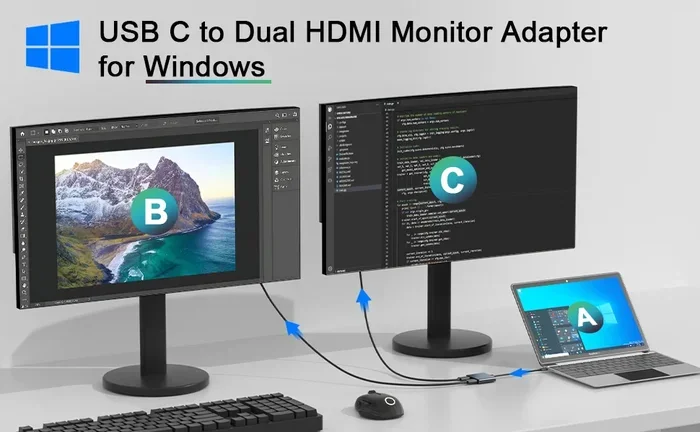
You can use a DisplayPort daisy chain if your monitors and GPU support it. This lets you connect multiple monitors in a chain using a single DisplayPort cable. You can also use a USB to DisplayPort adapter or a docking station to add more outputs.
Just be aware that adapters and docks can sometimes reduce performance. They add an extra link in the signal chain, which can introduce lag or limit resolution. For the best experience, try to use native ports on your GPU whenever possible.
Expert Tips for the Best Dual Display Experience
Once you have your two monitors running, there are a few things you can do to get the most out of your setup.
Quick Tips for Optimal Performance
- Use the same monitor models: Matching monitors make it easier to align images and colors across screens. Different panels can look noticeably different.
- Position your monitors correctly: Place them at eye level and angle them so you do not strain your neck. A monitor arm can help with this.
- Calibrate your colors: If you do photo or video work, calibrate each monitor for accurate colors. Most operating systems have built-in color calibration tools.
- Use keyboard shortcuts: Learn the shortcuts for switching between displays. On Windows, Win + P gives you quick access to extend, duplicate, and second screen-only modes.
- Check your cable lengths: Longer cables can degrade signal quality. Keep cables as short as possible for the best image quality.
What to Look for When Buying Monitors for a Dual Setup
If you are shopping for a second monitor, keep a few things in mind. Match the resolution as closely as possible to your primary monitor. A mismatched setup can be jarring. Also consider panel type. IPS panels offer the best color accuracy and viewing angles, which is great for creative work.
For gaming, look for fast refresh rates and low response times. For office work, a good IPS panel with comfortable brightness levels will do the job just fine.
Key Takeaways
Using two display ports at the same time is not just possible. It is one of the easiest upgrades you can make to your computer setup. The key is to understand your hardware, use the right cables, and configure your display settings correctly.
Most modern GPUs handle dual displays without any issues. You can mix DisplayPort and HDMI. You can extend or mirror your desktop. And if something goes wrong, the fixes are usually simple and quick.
The main things to remember are to check your GPU ports, use quality cables, keep your drivers updated, and position your monitors for comfort. Follow these tips and you will be enjoying a smooth dual-monitor experience in no time.
Frequently Asked Questions
Can I use two DisplayPort monitors with a laptop?
Yes, most modern laptops with a dedicated GPU can run two external monitors via DisplayPort. Check your laptop’s specs to confirm it supports dual outputs. Some laptops with only integrated graphics may be limited to one external display.
Do I need special cables to use two display ports at the same time?
No special cables are needed. Standard DisplayPort or HDMI cables work perfectly fine. Just make sure your cables are in good condition and support the resolution you need. High-quality cables reduce the chance of signal issues.
Can I mix DisplayPort and HDMI on the same GPU?
Absolutely. You can use one DisplayPort for one monitor and one HDMI for the other. Your GPU handles both protocols independently. Just make sure both cables are plugged into the GPU, not the motherboard.
Will using two monitors slow down my computer?
Using two monitors does use slightly more GPU resources, but the impact is minimal for most tasks. If you are gaming on both monitors or running heavy video editing, you might notice a performance drop. For everyday use, the difference is barely noticeable.
Can I daisy chain monitors using DisplayPort?
Yes, if both your GPU and monitors support DisplayPort daisy chaining. This lets you connect multiple monitors in a chain from a single port. Not all monitors support this feature, so check your monitor specs before buying.
What should I do if my second monitor is not detected?
First, check that the cable is firmly connected on both ends. Then go to your display settings and click “Detect” or “Identify” monitors. If that does not work, try a different cable or port. Updating your GPU drivers often fixes detection issues as well.
=== CONCLUSION ===
Using two display ports at the same time is simple, practical, and incredibly useful. Whether you are boosting your productivity with an extended desktop or leveling up your gaming setup, dual monitors make a real difference. The technology is mature, the hardware is widely available, and the setup process is straightforward.
Just remember to check your GPU, use the right cables, and configure your settings properly. Avoid the common mistakes like plugging into motherboard ports or using damaged cables. And if you ever run into trouble, the fixes are usually quick and easy.
So go ahead and set up that dual display. Your workflow will thank you.