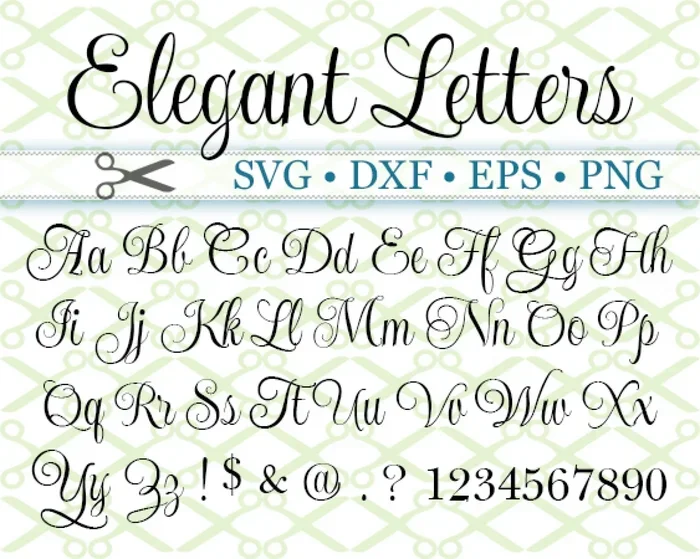
Common Cursive Font For A Mac PC That Really Looks Great
Looking for a common cursive font for a Mac PC that looks stunning? You are in the right place. This guide covers the top built-in and downloadable cursive fonts that work beautifully on macOS and Windows. You will learn how to pick, use, and pair cursive fonts like a pro.
Finding the right common cursive font for a Mac PC can feel tricky. There are so many options, and not all of them look good on screen or in print. Whether you are designing a wedding invitation, working on a school project, or just want your documents to look more polished, the font you choose makes a big difference. This guide walks you through the best cursive fonts available for Mac and PC users. You will learn what to look for, where to find them, and how to use them without making common design mistakes.
Cursive fonts add a personal touch to any project. They feel warm, elegant, and creative all at once. But picking the wrong one can make your work look messy or hard to read. That is why this article focuses on common cursive fonts that really look great on both Mac and PC systems. We will cover built-in options, free downloads, and practical tips you can use right away. By the end, you will feel confident choosing and applying cursive fonts in your own work.
Key Takeaways
- Built-in cursive fonts on Mac include Apple Chancery, Brush Script, and Zapfino, all ready to use right away.
- Popular cursive fonts like Pacifico and Great Vibes are free and easy to download for both Mac and PC.
- Using cursive fonts the right way means pairing them with clean sans-serif fonts for better readability.
- Common mistakes include using cursive for body text, which hurts readability and looks unprofessional.
- Font size and spacing matter a lot when working with script and cursive styles.
- Cursive fonts shine in invitations, logos, and headings but are not ideal for long paragraphs.
📑 Table of Contents
- What Is a Cursive Font and Why Does It Matter?
- Best Common Cursive Fonts Built Into macOS
- Free Cursive Fonts You Can Download for Mac and PC
- How to Use Cursive Fonts Effectively on Mac and PC
- Cursive Fonts for Different Project Types
- Common Mistakes to Avoid When Using Cursive Fonts
- Expert Tips for Finding and Using the Perfect Cursive Font
- Where to Find More Cursive Fonts for Mac and PC
- Final Thoughts on Finding the Right Cursive Font
What Is a Cursive Font and Why Does It Matter?
A cursive font is a typeface designed to look like handwritten script. The letters flow into each other, just like when you write with a pen. This style has been around for centuries and is still widely used today. People love cursive fonts because they feel personal and artistic.
On a Mac or PC, cursive fonts fall into a few categories. Some are formal and elegant. Others are casual and playful. The key is knowing which one fits your project. Here are the main types you will encounter:
- Formal script fonts – These look like old-fashioned calligraphy. They work well for wedding invitations and formal letters.
- Casual cursive fonts – These feel relaxed and friendly. They are great for greeting cards and social media posts.
- Handwritten-style fonts – These mimic real penmanship. They give a natural, authentic feel to any design.
- Decorative script fonts – These are bold and artistic. They work best for logos and headlines.
When you search for a common cursive font for a Mac PC, you will see many of these styles. Understanding the difference helps you choose wisely. Not every cursive font works for every project. Pick the style that matches your purpose.
Best Common Cursive Fonts Built Into macOS
One of the best things about using a Mac is that it comes with great fonts already installed. You do not need to download anything to get started. Apple includes several beautiful cursive and script fonts that look professional and elegant. Here are the ones you should know about.
Apple Chancery
Apple Chancery is probably the most well-known cursive font on Mac. It was designed specifically for Apple by the typographer Kris Holmes. The font has a classic, refined look that works beautifully for formal documents and invitations. Its letters connect smoothly, and the spacing is well balanced.
Many people use Apple Chancery for wedding stationery, certificates, and greeting cards. It is easy to read even at smaller sizes, which makes it a versatile choice. If you want a clean, timeless cursive look, this is a great starting point.
Brush Script MT
Brush Script MT gives a more casual and artistic feel. It mimics the look of brush lettering, which makes it perfect for creative projects. You will often see this font used on posters, coffee shop menus, and informal invitations.
The downside is that Brush Script MT can be hard to read at small sizes. The letters are not as connected as other cursive fonts, and the strokes vary in thickness. Use it for headlines and display purposes, not for body text.
Zapfino
Zapfino is a fancy cursive font that stands out. It was designed by Hermann Zapf and is known for its flowing, decorative style. The letters have beautiful swashes and flourishes that make any text look luxurious.
This font works best for short pieces of text like logos, titles, and special occasion cards. Because of its decorative nature, it is not ideal for long paragraphs. Use Zapfino when you want to make a bold, artistic statement.
Snell Roundhand
Snell Roundhand is another elegant cursive font found on most Macs. It has a traditional calligraphy feel with clean, well-proportioned letterforms. It is often used for formal documents, diplomas, and elegant stationery.
This font is highly readable and looks refined at any size. If you need a cursive font that feels classic and sophisticated, Snell Roundhand is an excellent choice. It pairs well with serif and sans-serif fonts too.
Free Cursive Fonts You Can Download for Mac and PC
While built-in fonts are great, sometimes you need something more unique. The good news is that many free cursive fonts are available for download. These work on both Mac and PC, giving you more creative options. Here are some of the most popular ones.
Pacifico
Pacifico is a laid-back, beachy cursive font that has become very popular. It has a casual, friendly vibe that works well for branding, social media, and informal designs. The font is smooth and easy to read, which makes it a favorite among designers.
You can find Pacifico on Google Fonts for free. It works on both Mac and PC without any issues. It is a great example of a common cursive font for a Mac PC that looks modern and stylish.
Great Vibes
Great Vibes is an elegant cursive font with a flowing, romantic feel. The letters connect beautifully, and the font has a natural handwritten quality. It is perfect for invitations, thank-you cards, and branding for lifestyle businesses.
This font is also available for free on Google Fonts. It renders well on both macOS and Windows systems. Great Vibes is one of the most downloaded cursive fonts online, and for good reason. It looks gorgeous in both digital and print formats.
Sacramento
Sacramento is a thin, delicate cursive font that feels very refined. It has a handwritten quality with thin strokes that give it a light, airy feel. This font works wonderfully for elegant designs, luxury branding, and feminine aesthetics.
Like the others, Sacramento is free and available on Google Fonts. It is a great option when you want something subtle and sophisticated. Pair it with a bold sans-serif font for contrast and balance.
Dancing Script
Dancing Script is a playful and lively cursive font. It has a fun, energetic feel that works well for creative projects, blogs, and casual branding. The font has varying stroke widths, which gives it a natural, hand-drawn look.
It is another free Google Font that works seamlessly on Mac and PC. Dancing Script is versatile enough for many different design projects. Just be careful not to use it at too small a size, as the thinner strokes can become hard to read.
How to Use Cursive Fonts Effectively on Mac and PC
Choosing a beautiful cursive font is only half the battle. Knowing how to use it properly makes all the difference. Many people make the mistake of using cursive fonts in ways that hurt readability and design quality. Here are some practical tips to help you get the best results.
Use Cursive Fonts for Headlines, Not Body Text
This is the number one rule of working with cursive fonts. Script and cursive styles are designed to draw attention, not to be read in long paragraphs. When you use them for body text, the connected letters become hard to follow, and readers will tire quickly.
Instead, reserve your cursive font for headings, titles, and short phrases. Use a clean sans-serif or serif font for the main body of your text. This creates a nice contrast and keeps your design readable and professional.
Pair Cursive Fonts with Sans-Serif Fonts
The best way to make cursive fonts look great is to pair them with simple fonts. A sans-serif font like Helvetica, Arial, or Open Sans works perfectly as a complement. The clean lines of a sans-serif font balance the flowing curves of a cursive font.
For example, you might use Great Vibes for your headline and Open Sans for your body text. This combination looks polished and modern. It also ensures that your design is easy to read from a distance or on small screens.
Mind Your Font Size and Spacing
Cursive fonts often need more space than regular fonts. The connected letters and decorative swashes can feel cramped if the spacing is too tight. Adjust your letter spacing and line height to give the font room to breathe.
A good rule of thumb is to increase letter spacing slightly and use a larger font size for cursive headings. Most design programs let you adjust these settings easily. Experiment until the text looks balanced and inviting.
Test Your Font in Different Sizes
Not every cursive font looks good at every size. Some fonts are designed specifically for large display use, while others work well at smaller sizes. Always test your chosen font at the actual size you plan to use it.
Print a test page or view it on your screen at full size. Check for readability, especially in the smaller details of the font. If the thin strokes disappear or the letters become hard to distinguish, try a different size or a different font altogether.
Consider the Color and Background
The color of your text and the background it sits on can make or break a cursive font. Light cursive fonts on dark backgrounds can be stunning, but they can also be hard to read. Dark cursive fonts on light backgrounds usually work best for clarity.
If you want a lighter font color, make sure there is enough contrast. Test your design on different devices and printouts to see how it looks everywhere. A font that looks great on screen might not look as good on paper, and vice versa.
Cursive Fonts for Different Project Types
Different projects call for different cursive styles. A wedding invitation needs a different font than a children’s party flyer. Here is a quick guide to help you match your cursive font to your project.
Wedding Invitations and Formal Events
For formal events, you want an elegant, refined cursive font. Apple Chancery, Great Vibes, and Snell Roundhand are all excellent choices. These fonts have a timeless quality that feels special and sophisticated. Pair them with a simple serif font for the details and RSVP text.
Social Media Graphics and Posts
Social media designs benefit from fun, eye-catching cursive fonts. Pacifico, Dancing Script, and Brush Script MT work well here. These fonts are bold enough to grab attention in a busy feed. Keep your text short and pair it with a clean sans-serif font for any supporting text.
Logos and Branding
Logos need a cursive font that is memorable and unique. Zapfino and Sacramento are popular choices for branding. They have distinctive styles that help a brand stand out. However, make sure the font is legible at small sizes, since logos often appear on business cards and app icons.
Personal Letters and Journals
For personal writing or journaling, you might want a font that feels warm and handwritten. Casual cursive fonts like Dancing Script or free handwritten fonts work well for this purpose. They add a personal touch without feeling too formal or stiff.
Common Mistakes to Avoid When Using Cursive Fonts
Even the most beautiful cursive font can look bad if it is used incorrectly. Here are some common mistakes to watch out for when working with cursive fonts on your Mac or PC.
Using cursive for entire paragraphs. This is the biggest mistake people make. Cursive fonts are not designed for long blocks of text. They become hard to read and tire the eyes quickly. Always use a simple font for body text and save cursive for headings and accents.
Choosing a font that is too decorative. Some cursive fonts have so many flourishes and swashes that they become distracting. If the font is more about decoration than communication, it is probably not the right choice. A good cursive font should be beautiful and readable at the same time.
Ignoring font licensing. Not all free fonts are truly free for commercial use. Before you use a cursive font in a client project or for business branding, check the license. Many fonts on Google Fonts are fully free for commercial use, but others may have restrictions.
Neglecting font pairing. Using a cursive font alone can make a design feel unbalanced. Always pair your cursive font with at least one other font. This creates visual harmony and improves readability. A sans-serif font is usually the best pairing partner.
Forgetting about print quality. A font that looks perfect on screen might not print well. Inkjet and laser printers render fonts differently. Always print a test copy before finalizing any design that will be printed. This simple step can save you from costly mistakes.
Expert Tips for Finding and Using the Perfect Cursive Font
Professional designers follow a few simple rules when working with cursive fonts. These tips can help you achieve a polished, professional look every time.
- Start with a system font. Before you download anything, try the cursive fonts already on your Mac. Apple Chancery and Zapfino are surprisingly versatile and professional.
- Use Google Fonts for free options. Google Fonts has a huge library of high-quality cursive fonts. They are free, well-designed, and work on both Mac and PC.
- Limit yourself to two fonts per project. Using too many fonts creates visual clutter. Stick with one cursive font and one complementary font for a clean, cohesive look.
- Check readability on mobile devices. Many people view designs on their phones now. Make sure your cursive font is still legible on small screens before you finalize your work.
- Install fonts properly. On a Mac, double-click the font file and click Install Font. On PC, right-click the font file and select Install. Restart your design app after installing new fonts.
- Use font preview tools. Most design programs let you preview fonts before applying them. Take advantage of this feature to compare different cursive fonts side by side.
These simple steps will help you use cursive fonts like a seasoned designer. The key is to keep things simple, test everything, and always prioritize readability. A common cursive font for a Mac PC can look absolutely stunning when used the right way.
Where to Find More Cursive Fonts for Mac and PC
If you have exhausted the built-in options and the most popular free fonts, there are plenty of other places to look. Here are some trusted sources for finding high-quality cursive fonts.
- Google Fonts – A free library with hundreds of cursive and script fonts. All fonts are free for personal and commercial use.
- DaFont – A popular site with thousands of free and premium cursive fonts. Be sure to check the license for each font.
- Font Squirrel – Offers free, commercially licensed fonts. Their cursive collection is carefully curated for quality.
- Creative Market – A marketplace for premium fonts and design assets. You can find unique, high-end cursive fonts here.
- Adobe Fonts – If you have a Creative Cloud subscription, Adobe Fonts gives you access to a massive library of cursive and script fonts.
Each of these sources has its own strengths. Google Fonts is the best for free, reliable options. Creative Market is ideal if you want something truly unique and are willing to pay for it. No matter where you shop, always check the font license before using it in any project.
Final Thoughts on Finding the Right Cursive Font
Choosing a common cursive font for a Mac PC does not have to be overwhelming. You have plenty of great options right at your fingertips. Whether you stick with the built-in fonts on your Mac or download free fonts from the web, the key is to match the font to your project. Use cursive fonts for headings and display text, pair them with clean complementary fonts, and always test for readability.
The best cursive fonts add warmth, personality, and elegance to your work. They make your designs feel more human and inviting. With the tips and font recommendations in this guide, you are well equipped to choose the perfect cursive font for any project. Start experimenting today and see how a well-chosen cursive font can transform your designs from ordinary to extraordinary.
Remember, less is often more when it comes to cursive fonts. Pick one beautiful font, use it thoughtfully, and let it do the talking. Your designs will look more professional and polished than ever before.
Frequently Asked Questions
What is the most common cursive font already on a Mac?
Apple Chancery is the most well-known cursive font that comes pre-installed on macOS. It is elegant, readable, and works for a wide range of projects. Other built-in cursive fonts include Brush Script MT, Zapfino, and Snell Roundhand.
Can I use cursive fonts on both Mac and PC?
Yes, most cursive fonts work on both Mac and PC. Fonts in TrueType (.ttf) or OpenType (.otf) formats are compatible with both operating systems. You can download free cursive fonts from Google Fonts that work seamlessly on either system.
What is the best cursive font for invitations?
Great Vibes and Apple Chancery are two of the best cursive fonts for invitations. They are elegant, readable, and have a classic feel. Pair them with a simple sans-serif font for the details and body text to keep the design clean and professional.
Are free cursive fonts safe to use?
Most free cursive fonts from reputable sources like Google Fonts and Font Squirrel are safe to use. They come with open licenses that allow personal and commercial use. Always check the license terms before using any font in a project, especially for business purposes.
How do I install a cursive font on my Mac?
To install a cursive font on a Mac, download the font file, then double-click it. The Font Book application will open automatically. Click the Install Font button, and the font will be available in all your design apps. You may need to restart your application after installing.
What size should I use for cursive fonts in my designs?
Cursive fonts generally look best at larger sizes, typically 18 points or above for headings. For smaller text, stick with a simple sans-serif or serif font. Always test your cursive font at the size you plan to use it and check for readability on both screen and print.
=== CONCLUSION ===
Finding the right common cursive font for a Mac PC is easier than you think. With built-in options like Apple Chancery and Zapfino, plus free downloads like Great Vibes and Pacifico, you have many beautiful choices. Use cursive fonts for headlines and accents, pair them with clean fonts, and always keep readability in mind. Follow the tips in this guide, and your designs will look professional and polished every time.