Do I Need To Turn On Bluetooth To Connect My Airpods
Yes, you must turn on Bluetooth to connect your AirPods. Bluetooth is the wireless technology that lets your AirPods communicate with your phone, tablet, or computer. Without Bluetooth enabled, your AirPods connection simply will not work, and you will not be able to stream wireless audio or take calls. This guide walks you through every step to pair, troubleshoot, and enjoy your wireless earbuds hassle-free.
You just pulled your AirPods out of the case and want to start listening to music. But wait. Do you need to turn on Bluetooth first? The short answer is yes. But there is a lot more to know about how your wireless earbuds actually connect, and it is simpler than you might think.
Whether you are using AirPods Pro, the standard AirPods, or the latest AirPods Max, the process is the same at its core. Bluetooth is the invisible bridge between your earbuds and your device. Without it, you are just holding two expensive pieces of plastic. In this guide, we will walk you through everything you need to know about AirPods pairing, Bluetooth connectivity, and fixing common connection problems.
By the end of this article, you will know exactly how to get your AirPods connection working, why Bluetooth matters, and what to do when things go wrong. Let us dive in.
Key Takeaways
- Bluetooth must be on: You cannot connect AirPods without enabling Bluetooth on your device first.
- Pairing mode is key: Opening the AirPods case near your device triggers automatic pairing.
- Troubleshooting is simple: Most connection issues can be fixed by restarting Bluetooth or resetting your AirPods.
- Multiple devices work: AirPods can connect to phones, tablets, laptops, and even some TVs.
- Check Bluetooth settings: Always verify your device has the latest Bluetooth version for the best experience.
- Range matters: Keep your AirPods within about 30 feet of your device for a stable Bluetooth signal.
📑 Table of Contents
- Why Bluetooth Is Essential for AirPods
- How to Turn On Bluetooth and Connect Your AirPods
- Common Problems and How to Fix Them
- Can You Use AirPods Without Bluetooth?
- How Bluetooth Connects AirPods to Different Devices
- Expert Insights on AirPods and Bluetooth
- Key Takeaways
- Frequently Asked Questions
- Conclusion
Why Bluetooth Is Essential for AirPods
AirPods are wireless earbuds that rely entirely on Bluetooth technology. They do not use Wi-Fi or cables to send audio to your ears. Instead, they use a short-range wireless connection that beams sound directly from your phone or laptop to the earbuds.
Think of Bluetooth as a tiny invisible radio. It sends and receives data between two Bluetooth devices over short distances. Your AirPods have a Bluetooth chip inside them. Your phone or computer has one too. When both are turned on and discoverable, they find each other and create a private audio channel.
Here is why this matters:
- No Bluetooth means no sound. Your AirPods will not play music, podcasts, or videos without it.
- Bluetooth handles calls too. When you take a phone call, the same wireless audio stream carries your voice back and forth.
- Low latency is possible. Modern Bluetooth versions deliver audio with very little delay, making videos and games feel syncced.
- It is energy efficient. Bluetooth uses very little power, which is why your AirPods can last for hours on a single charge.
So the answer to the core question is clear. You absolutely must turn on Bluetooth to connect your AirPods. There is no workaround. No secret setting. No magic trick. Bluetooth must be active for the AirPods connection to happen.
How Bluetooth Version Affects Your AirPods
Not all Bluetooth is the same. Older versions like Bluetooth 4.0 may work but offer shorter range and lower audio quality. Newer versions like Bluetooth 5.0 and above provide better range, stronger Bluetooth signal, and improved battery life. Most modern iPhones and Androids support Bluetooth 5.0 or higher, so your AirPods pairing experience should be smooth.
How to Turn On Bluetooth and Connect Your AirPods
The process of turning on Bluetooth and connecting your AirPods is quick and straightforward. Here is exactly what to do on different devices.
On iPhone and iPad
Follow these simple steps to get your AirPods setup running on an Apple device:
- Open the Settings app on your iPhone or iPad.
- Tap on Bluetooth. You will see a toggle switch at the top.
- Slide the switch to turn Bluetooth on. The icon will turn green.
- Open your AirPods case lid while holding it near your iPhone.
- A popup will appear on your screen. Tap Connect.
- Wait a few seconds. Your AirPods will pair automatically.
That is it. Your wireless earbuds are now connected and ready to use. You will see them listed under My Devices in the Bluetooth settings.
On Android Phones
Android phones work with AirPods too, though the setup is slightly different:
- Go to Settings and tap on Bluetooth.
- Turn Bluetooth on by tapping the toggle.
- Open your AirPods case near your phone.
- Tap on AirPods in the list of available Bluetooth devices.
- Wait for the pairing to complete.
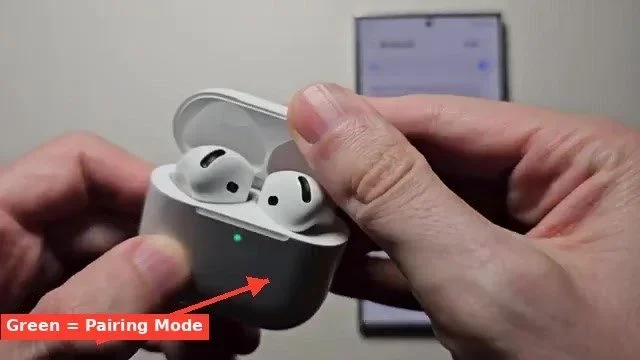
Some Android phones may not show AirPods in the list automatically. In that case, put your AirPods in pairing mode by holding the setup button on the back of the case until the light flashes white.
On Windows PC or Mac
You can also connect AirPods to computers for calls, music, and videos:
- Mac: Click the Control Center icon in the top right. Click Bluetooth. Turn it on. Open your AirPods case near the Mac and click Connect.
- Windows PC: Go to Settings. Click Devices. Click Bluetooth and other devices. Turn Bluetooth on. Click Add Bluetooth or other device. Select Bluetooth. Open your AirPods case and select them from the list.
For the best results, make sure your computer has the latest Bluetooth version installed. Older computers may struggle with Bluetooth connectivity if the driver is outdated.
Quick Tips for Smooth AirPods Connection
Here are some fast tips to make every AirPods connection seamless:
- Always open the AirPods case near the device you want to connect to.
- Make sure your AirPods are charged. Low battery can cause pairing failures.
- Restart Bluetooth if the connection stalls. Turn it off, wait five seconds, and turn it back on.
- Keep your device within 30 feet of your AirPods for the best Bluetooth range.
- Update your device software. New updates often fix Bluetooth troubleshooting issues.
Common Problems and How to Fix Them
Even when Bluetooth is turned on, you might run into issues getting your AirPods connection to work. This is normal. Most problems have simple fixes. Let us look at the most common ones.
AirPods Not Showing Up in Bluetooth List
This is the number one complaint people have. You open the case, but nothing appears on your screen. Here is what to do:
- Check that Bluetooth is actually turned on. It sounds obvious, but it happens all the time.
- Make sure your AirPods are in pairing mode. The light inside the case should flash white.
- Restart your device. A simple reboot often fixes Bluetooth connectivity issues.
- Move closer to your device. Walls and furniture can weaken the Bluetooth signal.
- Forget the AirPods from your Bluetooth settings and try pairing again from scratch.
Audio Keeps Cutting Out
If your audio drops in and out, the wireless connection is likely being interrupted. Try these fixes:
- Stay within range of your device. Do not wander too far away.
- Turn off other Bluetooth devices nearby that might be causing interference.
- Check for Wi-Fi or microwave interference. These can disrupt Bluetooth audio streaming.
- Restart both your AirPods and your device.
- Update your device firmware and AirPods firmware if available.
One AirPod Connects but the Other Does Not
This is frustrating but common. It usually means one earbud has a pairing issue. Reset both AirPods by holding the setup button for 15 seconds until the light flashes amber, then white. Then try pairing again. This resets the AirPods pairing memory and usually fixes the problem.
Bluetooth Is On But AirPods Still Will Not Connect
Sometimes Bluetooth shows as on, but the connection fails. This can happen when the Bluetooth settings get stuck. Try turning Airplane Mode on for 10 seconds, then off. This resets all wireless connections including Bluetooth. Then try connecting your AirPods again.
Can You Use AirPods Without Bluetooth?
Some people wonder if there is a way to use AirPods without Bluetooth. The honest answer is no. AirPods are designed to be wireless earbuds. They have no wired mode and no alternative connection method.
When Bluetooth is off, your AirPods are essentially dormant. They cannot stream audio, take calls, or interact with any device. The only time Bluetooth is not needed is when you are charging them in the case. But even then, the case uses its own power and does not create an audio connection.
Some people ask about using AirPods with a wired connection. Unfortunately, Apple does not include a headphone jack adapter or cable for standard AirPods. The Lightning or USB-C charging cable is only for power, not audio. So Bluetooth is the only way to enjoy your wireless audio from AirPods.
What About AirPods with a Cable?
It is worth noting that some third-party cables can convert AirPods to a wired setup, but this is not official and often causes more problems than it solves. The AirPods setup experience is built around Bluetooth, and that is how Apple intends you to use them. Embrace the wireless experience. It is what makes AirPods special.
How Bluetooth Connects AirPods to Different Devices
One of the great things about AirPods is their versatility. They can connect to many different devices thanks to Bluetooth compatibility. Let us explore how this works across different scenarios.
Connecting AirPods to Your TV
Many smart TVs now support Bluetooth. You can pair your AirPods with your TV for private listening. This is perfect for late-night watching when someone else is sleeping. Not all TVs support this, but most modern ones do. If your TV does not have built-in Bluetooth, you can use a Bluetooth transmitter plugged into the audio output.
Some users connect Bluetooth headphones to their TV for a personal cinema experience. The same principles apply. Turn on Bluetooth on your TV, put your AirPods in pairing mode, and connect from the TV settings menu.
Using AirPods with Multiple Devices
Apple devices make switching between devices seamless. If you are listening to music on your iPhone and get a call on your MacBook, your AirPods will switch automatically. This works because all your Apple devices share the same Apple ID and Bluetooth settings. It is one of the best features of the Apple ecosystem.
On Android, you can still connect AirPods to multiple devices, but you have to manually switch between them in the Bluetooth settings each time.
Using AirPods While Traveling
Traveling with AirPods is a breeze. You can use them on planes, trains, and buses. Just remember to turn on Bluetooth before boarding. If you are worried about international charges, you might want to check if airplane mode affects your Bluetooth connection. In most cases, you can keep Bluetooth on while using airplane mode. This lets you use your wireless earbuds without worrying about cellular charges.
Expert Insights on AirPods and Bluetooth
From years of testing and reviewing wireless audio gear, here are some insights that can help you get the most from your AirPods and Bluetooth setup.
Keep your firmware updated. Apple regularly releases updates for AirPods that improve Bluetooth connectivity and fix bugs. Make sure your iPhone is running the latest iOS version. Your AirPods update automatically when they are connected.
Clean your AirPods regularly. Earwax and dust can block the sensors and speakers. This does not affect Bluetooth directly, but it can make your AirPods feel unresponsive or cause connection drops if the sensors cannot detect they are in your ears.
Reset before you replace. If you are having persistent Bluetooth troubleshooting issues, try resetting your AirPods before buying new ones. Most problems are software-related and a simple reset fixes them.
Check your environment. Bluetooth works best in open spaces. Thick walls, metal surfaces, and crowded areas with many wireless signals can weaken your Bluetooth signal. If you are in a busy office or apartment building, stay close to your device for the best wireless connection.
Key Takeaways
- Bluetooth must be on: You cannot connect AirPods without enabling Bluetooth on your device first.
- Pairing mode is key: Opening the AirPods case near your device triggers automatic pairing.
- Troubleshooting is simple: Most connection issues can be fixed by restarting Bluetooth or resetting your AirPods.
- Multiple devices work: AirPods can connect to phones, tablets, laptops, and even some TVs.
- Check Bluetooth settings: Always verify your device has the latest Bluetooth version for the best experience.
- Range matters: Keep your AirPods within about 30 feet of your device for a stable Bluetooth signal.
Frequently Asked Questions
Do I need to turn on Bluetooth every time I want to use my AirPods?
Yes, Bluetooth must be enabled each time you want to use your AirPods. When Bluetooth is off, your device cannot detect or connect to your AirPods. However, on most Apple devices, Bluetooth stays on by default, so you rarely need to manually turn it on.
Can I connect my AirPods to a device that does not have Bluetooth?
No. AirPods require Bluetooth to function. They cannot connect to devices that lack Bluetooth capability. If your device does not have Bluetooth, you will need a Bluetooth adapter or a different pair of wired headphones.
How far can my AirPods be from my device while staying connected?
AirPods typically work within a range of about 30 feet (10 meters) from your device. Walls, furniture, and other wireless signals can reduce this range. For the best Bluetooth connectivity, keep your device nearby.
Why do my AirPods disconnect randomly even with Bluetooth on?
Random disconnections are usually caused by interference from other wireless devices, low battery, or outdated software. Try moving closer to your device, restarting Bluetooth, or updating your device firmware. If the problem persists, resetting your AirPods often resolves the issue.
Can I use AirPods while my phone is in airplane mode?
Yes, you can. Airplane mode turns off cellular and Wi-Fi, but you can manually re-enable Bluetooth. This lets you use your AirPods without cellular charges while traveling. Just make sure Bluetooth is turned on after enabling airplane mode.
Do AirPods connect faster if Bluetooth is already on?
Yes. When Bluetooth is already active on your device, your AirPods connect faster because the device is already searching for Bluetooth devices. You simply open the case and the pairing happens almost instantly. This is why many people keep Bluetooth on at all times.
Conclusion
The answer is simple and definitive. You must turn on Bluetooth to connect your AirPods. There is no way around it. Bluetooth is the technology that makes wireless audio possible, and without it, your AirPods are just beautifully designed pieces of hardware sitting quietly in their case.
The good news is that turning on Bluetooth is easy. It takes just a few seconds on any device. And once it is on, connecting your AirPods is almost automatic. Apple has made the AirPods pairing process incredibly smooth, and most users connect their AirPods for the first time in under a minute.
If you run into problems, remember that most Bluetooth troubleshooting steps are simple. Restart Bluetooth, reset your AirPods, update your software, and check your distance from the device. These steps solve the vast majority of connection issues.
Your AirPods connection is worth protecting. Keep your Bluetooth settings optimized, your firmware updated, and your devices within range. Do this, and you will enjoy seamless, high-quality wireless audio every single day. Now go enjoy your music.