Do You Need A Box For Xfinity Wifi Router Setup Guide
You do not always need a separate box for Xfinity WiFi. Xfinity provides a combined modem-router device called the xFi Gateway that handles both functions in one unit. However, some users may need an additional box depending on their internet plan, home size, and coverage needs. This guide walks you through when you need a box, what type to choose, and how to set it up the right way.
Key Takeaways
- The xFi Gateway is all-in-one: It combines modem and router functions, so many users do not need a separate box.
- Your internet plan matters: Some Xfinity plans require specific equipment that may include an extra box.
- Home size affects your needs: Larger homes may benefit from a separate router or WiFi booster for better coverage.
- You can rent or buy equipment: Xfinity lets you rent their box or purchase your own compatible device.
- Setup is straightforward: Most Xfinity WiFi setups take less than 30 minutes with the right guidance.
- Extra boxes are not always necessary: Before buying anything extra, check if your current equipment meets your needs.
📑 Table of Contents
- Do You Really Need A Box For Xfinity WiFi?
- When Do You Need a Separate Box?
- Xfinity Equipment Options Explained
- How to Set Up Your Xfinity WiFi Box
- Common Mistakes to Avoid
- Can You Use Xfinity WiFi Without Any Box at All?
- Tips for Getting the Best Xfinity WiFi Performance
- Final Thoughts
- Frequently Asked Questions
Do You Really Need A Box For Xfinity WiFi?
Setting up home internet can feel confusing. There are cables, boxes, and settings everywhere. One question many Xfinity customers ask is whether they actually need a separate box for their WiFi setup. The short answer is: it depends on your plan and your home.
Xfinity offers a device called the xFi Gateway. This single unit works as both a modem and a router. For many households, this one box does everything. But some situations call for extra equipment. Let us break it all down so you know exactly what you need.
The goal of this guide is simple. We want to help you understand your Xfinity WiFi setup without the confusion. You will learn what each box does, when you need one, and how to get the best WiFi in your home.
What Is the Xfinity WiFi Box?
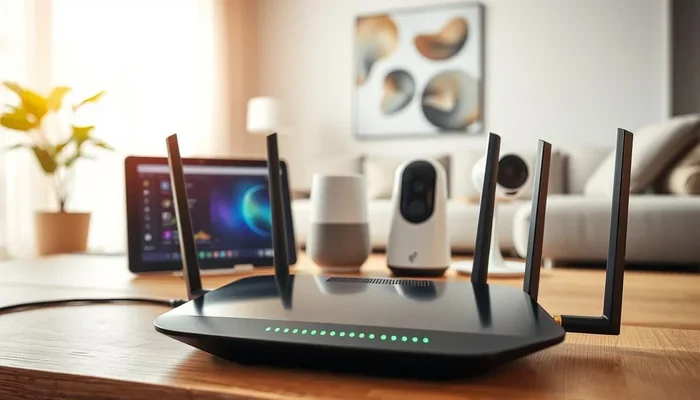
The Xfinity WiFi box is really a gateway device. It connects your home to the Xfinity internet network. Then it broadcasts a WiFi signal throughout your house. Think of it as the brain of your home internet setup.
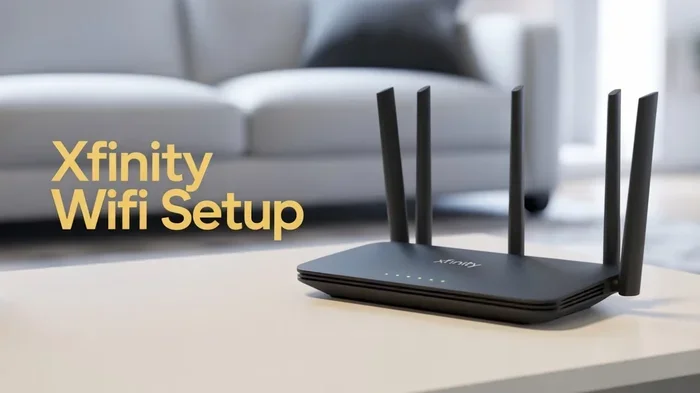
The most common Xfinity box is the xFi Gateway. It comes in different models. Some support older internet speeds while others handle the latest gigabit plans. The box has lights on the front that show you the status of your connection. Green usually means everything is working well.
Inside the box, you will find a power cable, an Ethernet port, and phone ports on some models. The box plugs into a wall outlet and connects to your home’s cable line. From there, it sends internet signals to all your devices wirelessly.
When Do You Need a Separate Box?
Not everyone needs a second box. But certain situations make an extra device very helpful. Let us look at the most common reasons people add a separate box to their Xfinity setup.
You Have a Large Home
The xFi Gateway works well for small to medium homes. But if your house is big, one box might not reach every room. Dead zones are areas where the WiFi signal is weak or missing. These often happen in basements, garages, and far-away bedrooms.
If you notice weak signals in certain areas, a separate wireless router can help. You can place it in a central location to extend coverage. This setup gives you a stronger and more reliable connection throughout the house.
You Want Better Performance
The Xfinity gateway is good, but it is not always the best. Some users prefer a separate high-performance router. This is especially true for gamers or families who stream a lot of content. A dedicated router can offer faster speeds and better handling of multiple devices at once.
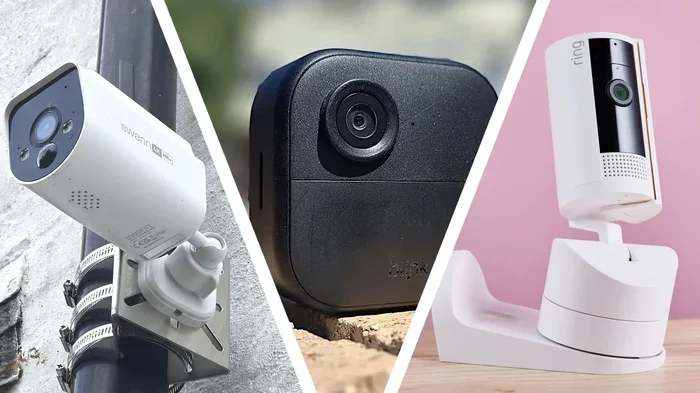
Also, if you have many smart home devices, a separate router can manage them better. Smart cameras, lights, and speakers all compete for bandwidth. A strong router keeps everything running smoothly.
You Want to Save Money on Rental Fees
Xfinity charges a monthly fee to rent their equipment. Over time, this adds up. Many customers choose to buy their own modem and router. This can save money in the long run. If you go this route, you do not need the Xfinity box at all.
Just make sure any equipment you buy is compatible with Xfinity’s network. You can check the Xfinity website for a list of approved devices. This avoids compatibility headaches later on.
Xfinity Equipment Options Explained
Xfinity offers several ways to get your WiFi up and running. Understanding your options helps you make the right choice. Here is a look at what is available.
Option 1: The xFi Gateway
This is the standard Xfinity equipment. It combines a modem and router in one box. Most new Xfinity customers get this as their default setup. It is simple, easy to use, and works well for most homes.
The xFi Gateway supports WiFi 6 on newer models. This means faster speeds and better handling of many devices. It also comes with the xFi app, which lets you manage your network from your phone.
Option 2: Separate Modem and Router
Some users prefer to split their setup. They use a separate modem for the internet connection and a standalone router for WiFi. This gives more flexibility. You can upgrade one device without replacing the other.
For example, you might keep your Xfinity modem but add a better router. This approach works well for tech-savvy users who want more control over their network.
Option 3: Xfinity xFi Pods or Mesh Systems
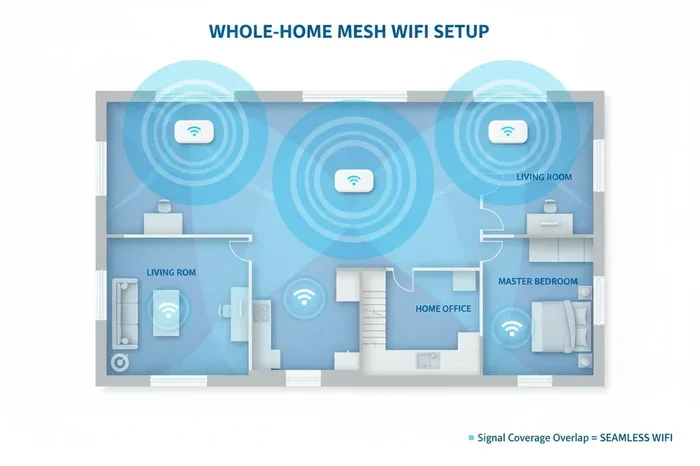
If you need more coverage but do not want a full second router, Xfinity offers xFi Pods. These are small devices you plug into wall outlets around your home. They extend the WiFi signal from your main gateway.
Mesh WiFi systems are another option. Brands like Eero and Google Nest WiFi work well with Xfinity internet. They create a seamless network that covers every corner of your home. You can also check if a WiFi booster might help extend your signal in hard-to-reach areas.
| Equipment Option | Best For | Cost | Setup Difficulty |
|---|---|---|---|
| xFi Gateway | Small to medium homes | Rental fee monthly | Easy |
| Separate Modem + Router | Custom setups and savings | One-time purchase | Moderate |
| xFi Pods | Extending coverage in large homes | One-time purchase | Easy |
| Mesh WiFi System | Very large homes or offices | One-time purchase | Moderate |
How to Set Up Your Xfinity WiFi Box
Setting up your Xfinity WiFi box is easier than you might think. Follow these steps for a smooth installation. Whether you use the xFi Gateway or a separate router, the basic process is similar.
Step 1: Find the Right Spot
Placement matters a lot for WiFi performance. Put your box in a central location in your home. Avoid hiding it inside a cabinet or behind furniture. Open spaces let the signal travel freely.
Keep the box away from microwaves, baby monitors, and other electronics. These devices can interfere with the WiFi signal. A higher position, like on a shelf, also helps the signal reach further.
Step 2: Connect the Cables
Plug the power cable into the box and connect it to an outlet. Then connect the coaxial cable from your wall to the box’s input port. Make sure all connections are firm and secure.
If you are using a separate modem and router, connect the modem to the wall cable first. Then use an Ethernet cable to link the modem to the router. Wait for both devices to power up fully before moving to the next step.
Step 3: Activate Your Service
You need to activate your Xfinity service before it works. You can do this online through the Xfinity website or app. Follow the on-screen instructions to enter your account details.
Once activated, your box will start broadcasting a WiFi signal. The default network name and password are usually on a sticker on the bottom of the box. Write these down and keep them in a safe place.
Step 4: Connect Your Devices
Now you can connect your phone, laptop, smart TV, and other devices. Look for the WiFi network name on each device. Enter the password when prompted. You should be online within seconds.
If you want to customize your network name or password, use the xFi app. It gives you full control over your WiFi settings from your phone. You can also use the app to see which devices are connected and manage parental controls.
Common Mistakes to Avoid
Setting up WiFi seems simple, but small mistakes can cause big problems. Here are the most common errors Xfinity customers make.
- Hiding the box in a closet: Walls and doors block WiFi signals. Keep the box out in the open for the best coverage.
- Ignoring firmware updates: Xfinity regularly updates the gateway software. These updates improve speed and security. Check the xFi app for updates often.
- Using too many extension cords: Extra cords and power strips can cause connection issues. Plug the box directly into a wall outlet when possible.
- Not restarting the box: If your WiFi is slow, try unplugging the box for 30 seconds. This simple trick fixes many common problems.
- Skipping the Xfinity app: The xFi app is a powerful tool. It helps you troubleshoot issues, manage devices, and optimize your network.
Can You Use Xfinity WiFi Without Any Box at All?
Some people wonder if they can skip the box entirely. The answer is no. You need some kind of equipment to connect to Xfinity’s network. The box (or gateway) is what translates the cable signal into a WiFi connection your devices can use.
However, you do not always need a box from Xfinity. If you buy your own compatible modem, you can skip the rental. Some users pair their own modem with a separate router to create a custom setup. Just make sure your equipment is Xfinity-approved to avoid activation issues.
If you travel or need WiFi outside your home, you might wonder about portable options. For instance, you might ask can I get pocket WiFi in Japan or similar destinations? While that is a different topic, it shows how WiFi needs vary by situation. At home, your Xfinity setup remains the foundation of your internet connection.
Another thing to keep in mind is that Xfinity sometimes offers WiFi through their xFi Advanced Gateway. This newer model includes built-in security features and better performance. If your current box is old, upgrading to a newer model can make a noticeable difference.
Tips for Getting the Best Xfinity WiFi Performance
Once your box is set up, you can take steps to improve your WiFi experience. These simple tips make a big difference in speed and reliability.
Restart Your Gateway Regularly
A quick restart clears out temporary issues and refreshes your connection. Try unplugging your Xfinity box once a week. Leave it off for 30 seconds, then plug it back in. Your internet will reconnect within a minute or two.
Use the 5GHz Band When Possible
Most Xfinity gateways broadcast two WiFi bands: 2.4GHz and 5GHz. The 5GHz band is faster but has a shorter range. The 2.4GHz band is slower but reaches further. For streaming and gaming, use the 5GHz band when you are close to the box.
Keep Your Equipment Updated
Old equipment limits your internet speed. If your xFi Gateway is several years old, consider upgrading. Xfinity often offers newer models at no extra cost. Contact their support team to check if an upgrade is available for your plan.
Position Antennas Correctly
If your gateway has external antennas, point them straight up. This creates a horizontal signal spread across your home. For multi-story homes, you might want to experiment with antenna positioning to reach both floors evenly.
Final Thoughts
So, do you need a box for Xfinity WiFi? For most people, the answer is yes. The xFi Gateway is the standard equipment that makes your internet work. But you do not always need a second box. It depends on your home size, internet usage, and budget.
Start with the equipment Xfinity provides. If it works well for your home, great. If you have coverage issues or want better performance, consider adding a separate router or WiFi extender. The key is to understand your needs before you buy anything extra.
Setting up your Xfinity WiFi does not have to be stressful. With the right box in the right spot, you can enjoy fast, reliable internet all day long. Take your time, follow the steps above, and you will be online in no time.
Frequently Asked Questions
Do I need a separate router if I already have the Xfinity xFi Gateway?
In most cases, no. The xFi Gateway handles both modem and router functions. However, if you have a large home or need faster speeds, a separate router can improve performance. It is only necessary if your current setup does not meet your needs.
Can I use my own modem with Xfinity internet?
Yes, Xfinity allows you to use your own compatible modem. Check their website for a list of approved modems. Using your own modem can save you the monthly rental fee. Just make sure the modem supports Xfinity’s internet speeds and network type.
How much does the Xfinity WiFi box cost per month?
Xfinity charges a monthly rental fee for their gateway, typically around $14 to $15. This fee is added to your internet bill. You can avoid this fee by purchasing your own compatible modem and router instead.
What is the difference between a modem and a router?
A modem connects your home to the internet through Xfinity’s cable network. A router creates the WiFi signal that your devices use. The xFi Gateway combines both functions into one box. Separate setups use a modem for the connection and a router for the wireless signal.
Can I move my Xfinity WiFi box to a different house?
Yes, you can move the Xfinity gateway to a new home. Simply unplug it, take it with you, and set it up at the new location. You may need to reactivate the service through the Xfinity app or website. Make sure the new home has the same type of cable connection available.
What should I do if my Xfinity WiFi box keeps blinking orange?
An orange blinking light usually means there is a connection issue. Try unplugging the box, waiting 30 seconds, and plugging it back in. If the light stays orange, contact Xfinity support. They can run remote diagnostics and help resolve the problem quickly.