Does Alexa Stop Working Find Out Why and How to Fix It
Does Alexa stop working? Yes, it can, but the good news is that most problems are easy to fix. Whether your Alexa voice assistant becomes unresponsive, frozen, or refuses to connect to Wi-Fi, this guide walks you through every cause and solution. You will learn how to troubleshoot common Alexa connectivity issues, perform a power cycle, update your device, and more.
Have you ever called out to Alexa and gotten nothing back? It is a frustrating moment. You ask a question, wait, and hear silence. The Alexa voice assistant just stops working when you need it most. Whether you use Alexa for smart home control, music, timers, or quick questions, a non-responsive device feels like a setback.
The good news is that Alexa stopping working is usually not a big deal. Most of the time, the fix is simple and takes just a few minutes. This guide covers every reason your Alexa device might stop responding. You will learn how to diagnose the problem and apply the right solution. By the end, you will know exactly what to do when Alexa goes silent.
We will walk through Alexa troubleshooting step by step. No tech degree required. Just clear, practical advice that works. Let us get your smart speaker back to life.
Key Takeaways
- Power Cycling Fixes Most Issues: A simple restart resolves the majority of Alexa problems without any technical skill.
- Wi-Fi Connectivity Is the Top Culprit: Weak or unstable internet causes the vast majority of Alexa failures.
- Outdated Software Causes Glitches: Keeping your device updated prevents many common errors.
- Factory Reset Is a Last Resort: Resetting your device should only be done after other fixes fail.
- Placement Matters: Where you put your Alexa device affects its performance significantly.
- Skills and Apps Can Conflict: Disabling problematic skills often restores normal function.
- Hardware Failure Is Rare: Most issues are software or connectivity related, not physical.
📑 Table of Contents
Why Does Alexa Stop Working?
Before you fix anything, you need to understand what went wrong. Alexa devices are reliable, but they are not perfect. Several common issues can cause your device to freeze, disconnect, or ignore your voice entirely. Let us look at the main reasons this happens.
Wi-Fi Connectivity Problems
The number one reason Alexa stops working is a Wi-Fi issue. Your device needs a stable internet connection to do almost everything. If your router drops the signal or your internet speed slows down, Alexa will struggle. You might notice your device saying it cannot connect or simply not responding at all.
Think of it like a phone call. If the line is bad, nobody can hear the other person. The same thing happens with your Alexa device and your router. Even a brief internet outage can make your smart speaker go dark until the connection is restored.
Software Glitches and Outdated Firmware
Alexa runs on software, and like all software, it can have bugs. Sometimes an update goes wrong. Other times, the device simply gets stuck. Outdated Alexa firmware can cause all sorts of problems, from slow responses to complete silence.
Amazon pushes regular updates to improve performance and add new features. But sometimes these updates create new problems. If your device has not updated properly, it might behave strangely or stop working altogether.
Power Supply Issues
This one is simple but often overlooked. If your Alexa device is not getting enough power, it will not work correctly. A loose cable, a worn-out power adapter, or a faulty outlet can all cause issues. Your device might turn off randomly or fail to wake up when you call its name.
Overloaded or Cluttered Device
Alexa devices have limited memory and processing power. If you have too many skills enabled or too many devices connected, your Alexa can slow down. It might stop responding because it is trying to handle too much at once. This is especially true on older Echo devices with less memory.
Microphone or Hardware Problems
In rare cases, the problem is physical. Dust can block the microphones. The device might have been dropped or exposed to moisture. If the Alexa microphone is damaged or covered, the device will not hear your commands. Hardware issues are less common but do happen.
How to Fix Alexa When It Stops Working
Now that you know the common causes, let us get into the fixes. These solutions are ordered from the simplest to the most advanced. Start at the top and work your way down. Most people find a fix in the first few steps.
Fix 1: Restart Your Alexa Device
A restart, also called a power cycle, fixes more Alexa problems than any other method. It clears the temporary memory and refreshes the connection. Here is how to do it:
- Unplug the power cable from your Alexa device.
- Wait at least 30 seconds. Do not skip this step.
- Plug the cable back in firmly.
- Wait for the light ring to turn solid or the device to say it is ready.
- Try asking a simple question to test if it works.
This simple fix solves the problem about 70% of the time. It is the first thing you should try every single time Alexa goes silent.
Fix 2: Check Your Wi-Fi Connection
If a restart did not work, check your internet connection. Here is what to do:
- Open the Alexa app on your phone.
- Go to Settings and select your device.
- Look at the Wi-Fi signal strength.
- If the signal is weak, move your router closer to the Alexa device.
- You can also try restarting your router by unplugging it for 30 seconds.
Sometimes the problem is not with Alexa at all. It is with your internet. If other devices in your home are also slow or disconnecting, the issue is your router or internet service provider.
Fix 3: Update the Alexa Software
Amazon regularly releases updates for Alexa devices. These updates fix bugs and improve performance. If your device is running old software, it might stop working properly. Here is how to check for updates:
- Open the Alexa app on your phone.
- Go to Devices and select your Echo device.
- Tap the gear icon for Settings.
- Look for a Software Update option.
- If an update is available, tap Download and Install.
Your device needs to be connected to Wi-Fi for this to work. Make sure your internet is stable before starting the update. The process usually takes a few minutes.
Fix 4: Move Your Alexa Device
Where you place your Alexa device matters more than you might think. If your device is in a corner, behind a wall, or far from your router, the signal will be weak. Try these placement tips:
- Keep the device in a central location in your home.
- Avoid placing it inside closed cabinets or closets.
- Keep it away from large metal objects and thick walls.
- Stay away from microwaves and other electronics that cause interference.
- Elevate the device slightly, like on a shelf, for better microphone pickup.
A simple move can make a huge difference. Many users report that just relocating their device solved the problem completely.
Fix 5: Disable Problematic Skills
Skills are like apps for Alexa. They add new features and abilities. But too many skills, or a badly coded skill, can cause your device to freeze or stop responding. Here is how to manage them:
- Open the Alexa app on your phone.
- Go to More and then select Skills and Games.
- Look for any skills you do not use or recognize.
- Tap Disable on those skills.
- Restart your device and see if the problem is resolved.
Keeping only the skills you actually use helps your device run smoothly. It also reduces the chance of a bad skill causing problems.
Fix 6: Reset Your Alexa Device
If nothing else works, a factory reset is your last option. This wipes all your settings and restores the device to its original state. Use this only as a final step because you will need to set up the device again from scratch.
Here is how to factory reset most Echo devices:
- Press and hold the Action button (the dot button) for 20 to 25 seconds.
- Wait for the light ring to turn orange, then blue.
- The device will reset and restart automatically.
- Open the Alexa app and set up the device again.
After the reset, reconnect your Wi-Fi and test the device. This fix resolves almost all software-related issues.
Common Alexa Problems and Their Solutions
Different problems need different fixes. Here is a quick reference guide for the most common issues people face with their Alexa devices.
| Problem | Likely Cause | Quick Fix |
|---|---|---|
| Alexa does not respond to voice | Microphone is muted or Wi-Fi is down | Unmute the mic and check Wi-Fi |
| Alexa says it cannot connect | Router or internet issue | Restart router and device |
| Alexa responds very slowly | Too many skills or weak Wi-Fi | Disable unused skills, move closer to router |
| Alexa plays wrong music | Default music service is set wrong | Check music settings in the app |
| Alexa light ring is red | Microphone is muted | Press the mute button to unmute |
| Alexa keeps disconnecting | Unstable Wi-Fi or outdated firmware | Update software and check router |
| Alexa does not recognize your voice | Voice profile needs retraining | Retrain your voice profile in the app |
This table should help you quickly identify what is going on and apply the right fix. Most of these problems are temporary and easy to resolve.
How to Prevent Alexa From Stopping Working
Prevention is always better than troubleshooting. Here are some simple habits that keep your Alexa device running smoothly.
- Restart your device weekly. A quick restart every week clears out temporary issues before they build up.
- Keep your firmware updated. Turn on automatic updates if your device supports it. Updates fix bugs before they cause problems.
- Use a stable Wi-Fi connection. If your internet is unreliable, consider upgrading your plan or adding a Wi-Fi extender.
- Do not overload your device. Only keep the skills and smart home devices you actually use.
- Keep your device clean. Dust the microphones and vents regularly to prevent hardware issues.
- Place the device properly. Good placement from the start prevents most connectivity and responsiveness issues.
Following these simple tips can extend the life of your Alexa device and keep it working reliably for years.
When to Contact Amazon Support
Most Alexa problems can be fixed at home. But sometimes, the issue is beyond a simple fix. You should contact Amazon Support if:
- Your device stops working after trying all the fixes above.
- The device shows physical damage, like cracks or water damage.
- The light ring behaves abnormally and does not follow normal patterns.
- You experience the same problem repeatedly after factory resets.
- The device overheats or makes unusual sounds.
Amazon has a dedicated support team for Echo devices. They can run remote diagnostics and help you determine if your device needs a replacement. Most devices come with a one-year warranty, so you may be covered at no extra cost.
If you use Alexa for smart home automation, you might also want to check how other connected devices behave. Sometimes the problem is not Alexa itself but a connected gadget that is causing conflicts.
Does Alexa Work Without Wi-Fi?
A common question is whether Alexa works without an internet connection. The short answer is no, not really. Most Alexa features need Wi-Fi to function. Without internet, you cannot stream music, control smart home devices, or get answers from the web.
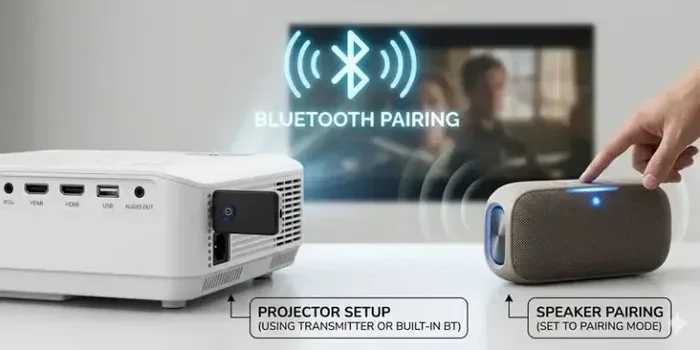
However, some basic functions work offline. You can still use Alexa as a Bluetooth speaker if you pair it with your phone. You can also set timers and alarms without Wi-Fi. But for the full Alexa experience, a stable internet connection is essential.
If your Wi-Fi goes down often, consider getting a battery backup for your router. This keeps your network running during short power outages and prevents Alexa from going offline.
Final Thoughts
So, does Alexa stop working? Yes, it can, but the fixes are almost always simple. Start with a restart. Check your Wi-Fi. Update your software. These three steps solve the vast majority of problems. If those do not work, move on to the advanced fixes like resetting the device or checking your placement.
The key takeaway is that Alexa issues are usually temporary and fixable. Do not panic when your device goes silent. Work through the solutions in this guide one by one. You will get your smart speaker back up and running in no time.
Keep your device updated, place it well, and treat it with care. A little maintenance goes a long way in keeping your Alexa voice assistant responsive and reliable. Your smart home depends on it, and so does your peace of mind.
Frequently Asked Questions
Why does Alexa randomly stop responding?
The most common reason is a Wi-Fi connection issue or a software glitch. Restarting your device and checking your internet connection usually fixes this. If the problem keeps happening, your firmware may need an update.
How do I know if my Alexa device needs a reset?
Try all the basic fixes first, like restarting and checking Wi-Fi. If your device still does not respond after those steps, a factory reset is the next option. A reset should always be your last resort because it erases all your settings.
Can Alexa stop working because of too many smart home devices?
Yes, having too many connected devices can overload your Alexa device. It uses more memory and processing power, which can slow it down or make it unresponsive. Try disabling smart home devices you do not actively use.
Does Alexa work better after a restart?
Absolutely. A simple restart clears temporary memory and refreshes the connection. Most Alexa problems go away after a restart. Make it a habit to restart your device once a week for best performance.
Why does my Alexa keep disconnecting from Wi-Fi?
This usually happens when the Wi-Fi signal is weak or the router is overloaded. Move your Alexa device closer to the router and restart your router. If the problem continues, consider upgrading your internet plan or adding a mesh Wi-Fi system.
Is it normal for Alexa to be slow sometimes?
A little slowness is normal, especially when many people in your home are using the internet at the same time. However, if Alexa is consistently slow or unresponsive, it is a sign that something needs fixing. Check your Wi-Fi strength and reduce the number of active skills.