Does Chromecast Have Settings You Should Know About
Yes, Chromecast has a wide range of settings you can customize to improve your streaming experience. From display and audio preferences to network configuration and parental controls, Chromecast settings give you full control over how you watch and cast content. This guide walks you through every important setting you should know about.
You bought a Chromecast. You plugged it in. But now you are staring at your TV screen wondering if there is more to it than just casting videos from your phone. The short answer is yes. Chromecast has settings that let you tweak everything from picture quality to who gets to cast content to your TV. And knowing these settings can completely change how you use the device.
Many people buy a Chromecast, set it up once, and never look back. They assume the default settings are good enough. And most of the time, they are. But what if your streaming keeps buffering? What if the audio is out of sync? What if your kids are watching things you would rather they not see? These are exactly the kinds of problems that Chromecast settings can solve.
In this article, we will walk through every important setting available on Chromecast. We will cover the Google Home app, display options, audio controls, network configuration, parental controls, and much more. By the end, you will know exactly what your Chromecast can do and how to get the most out of it.
Key Takeaways
- Chromecast offers robust settings: You can adjust display, audio, network, and privacy options through the Google Home app.
- Network settings matter most: Proper Wi-Fi configuration ensures smooth streaming and reduces buffering.
- Parental controls keep kids safe: Chromecast lets you set content restrictions and pin settings for family safety.
- Display and audio customization is easy: You can tweak resolution, brightness, and audio output to match your setup.
- Guest mode and privacy settings add flexibility: You control who can cast to your device and how your data is used.
- Resetting Chromecast is simple: A factory reset clears all settings and returns the device to its original state.
📑 Table of Contents
- What Are Chromecast Settings and Why Do They Matter?
- Display Settings: Getting the Best Picture Quality
- Audio Settings: Fine-Tuning Your Sound
- Network and Wi-Fi Settings
- Parental Controls and Privacy Settings
- Advanced Settings and Troubleshooting
- Common Mistakes People Make With Chromecast Settings
- Quick Tips for Optimizing Your Chromecast Experience
- Final Thoughts on Chromecast Settings
What Are Chromecast Settings and Why Do They Matter?
When we talk about Chromecast settings, we mean all the configurable options that control how your Chromecast device works. These settings determine the picture quality, sound output, Wi-Fi connection, who can cast to the device, and much more. Think of them as the control panel for your streaming experience.
Unlike some streaming devices that come with a full remote and on-screen menu system, Chromecast relies heavily on your phone or computer for configuration. The Google Home app is the main hub where you access and change settings. Once your Chromecast is connected to the same Wi-Fi network as your phone, you can open the app, tap on your device, and explore a range of options.
Why does this matter? Because default settings are designed to work for the widest possible audience. They are not optimized for your specific home, your TV, or your internet speed. Adjusting Chromecast settings to match your environment can reduce buffering, improve picture quality, and give you more control over your streaming experience.
How to Access Chromecast Settings
Getting to your settings is straightforward. First, make sure your phone or tablet is on the same Wi-Fi network as your Chromecast. Open the Google Home app. Tap on your Chromecast device at the top of the screen. You will see several options including settings, remote controls, and device preferences.
From the settings menu, you can adjust display preferences, audio settings, network configuration, and more. You can also check for firmware updates, which often include performance improvements and new features. It is worth checking this regularly to keep your device running smoothly.
Display Settings: Getting the Best Picture Quality
The display settings on your Chromecast control how content looks on your TV screen. These options let you adjust resolution, brightness, and other visual preferences. Getting these right can make a huge difference in your viewing experience.
Resolution and Picture Quality
Chromecast supports different resolution levels depending on the model. The older Chromecast (1st and 2nd generation) streams in 1080p. The Chromecast Ultra and newer models support 4K resolution and even HDR (High Dynamic Range). You can check and adjust the resolution in the display settings within the Google Home app.
If you have a 4K TV but your Chromecast is set to stream in 1080p, you are leaving quality on the table. Go into the settings and make sure your resolution matches your TV’s capabilities. Keep in mind that higher resolution requires a faster internet connection. If your Wi-Fi is slow, 4K streaming might buffer constantly.
Brightness and Display Mode
Some Chromecast models let you adjust the display mode to match your viewing environment. You can choose between different display modes that optimize the picture for movies, sports, or general viewing. Brightness settings can also be adjusted to reduce eye strain in dark rooms.
One quick tip: if you notice that the colors look washed out or too bright, try adjusting the display mode. Sometimes the default settings do not account for the ambient lighting in your room. A small tweak here can make your viewing much more comfortable.
Audio Settings: Fine-Tuning Your Sound
Audio quality is just as important as video quality when it comes to streaming. Chromecast settings include several audio options that let you customize how sound comes out of your TV or speakers.
Audio Output Configuration
By default, Chromecast sends audio through your TV speakers. But if you have a soundbar, home theater system, or external speakers connected to your TV, you may need to adjust the audio output. You can usually manage this through your TV’s audio settings or through the Google Home app.
If you are using a soundbar, make sure your TV is set to pass audio through the correct output. Some TVs have multiple audio output options, including optical, HDMI ARC, and Bluetooth. Choosing the right one ensures that sound comes through your soundbar instead of the TV speakers.
Volume Control and Sync
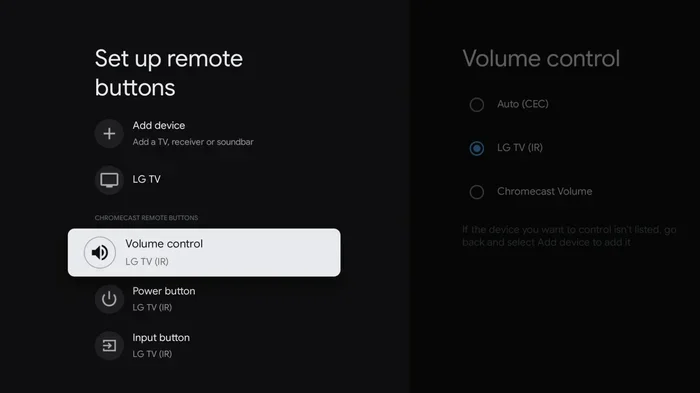
Chromecast lets you control volume directly from the Google Home app or from your phone’s volume buttons when casting. You can also adjust the volume using your TV remote in most cases. If you notice that the audio is out of sync with the video, try adjusting the audio delay setting in the Chromecast preferences.
Audio sync issues are common and usually easy to fix. A small delay between what you see and what you hear can be very distracting. The audio sync setting lets you compensate for this delay and enjoy perfectly timed sound.
Network and Wi-Fi Settings
Your Chromecast settings include several network-related options. Since Chromecast streams content over Wi-Fi, your network configuration directly affects performance. Understanding these settings can help you troubleshoot buffering and connection issues.
Connecting to Wi-Fi
During initial setup, you connect your Chromecast to your home Wi-Fi network. But you can change this connection later if needed. In the Google Home app, go to your device settings and look for the network option. You can switch to a different Wi-Fi network, forget a saved network, or troubleshoot connection problems from here.
For the best streaming experience, connect your Chromecast to a 5 GHz Wi-Fi band if your router supports it. The 5 GHz band is faster and less congested than the 2.4 GHz band. This is especially important if you live in a densely populated area with many neighboring Wi-Fi networks.
Guest Mode and Device Discovery
Chromecast has a guest mode that allows visitors to cast content to your device without needing to be on your Wi-Fi network. This setting is found in the device preferences. You can turn guest mode on or off depending on your preference.
Some people prefer to keep guest mode off for privacy reasons. Others love the convenience it offers when friends come over and want to share a video or photo. You can also control whether your Chromecast shows up in the casting menu of other devices nearby. This relates to device discovery settings that manage how other devices find and connect to your Chromecast.
Parental Controls and Privacy Settings
If you have children in your household, Chromecast settings include parental controls that help you manage what content they can access. These features are built into the Google Home app and are easy to set up.
Setting Up Content Restrictions
You can set up a PIN code that is required before casting certain types of content. This prevents kids from accidentally or intentionally casting inappropriate material to your TV. You can also set content ratings restrictions that block shows and movies above a certain rating.
To set up parental controls, go to the Google Home app, select your Chromecast, and look for the parental controls option. You will be asked to create a PIN that you will need to enter before casting restricted content. This is a simple but effective way to keep your kids safe while using the device.
Privacy and Data Settings
Like any smart device, Chromecast collects some data to improve its services. You can manage your privacy settings through the Google Home app. These settings control what kind of usage data is shared with Google and how your casting activity is tracked.
If you are concerned about privacy, take a few minutes to review these settings. You can opt out of personalized recommendations, limit data collection, and control how your device information is used. It is also worth noting that if you are concerned about security on other devices, you might want to check whether do Chromebooks have a password set up properly, as Chromebooks share the same Google ecosystem as Chromecast.
Advanced Settings and Troubleshooting
Beyond the basic settings, Chromecast offers several advanced options that power users will appreciate. These settings can help you get the most out of your device and troubleshoot common issues.
Firmware and Software Updates
Chromecast receives regular firmware updates that add new features, fix bugs, and improve performance. You can check for updates in the Google Home app under your device settings. Keeping your firmware up to date ensures the best experience and the latest security patches.
Sometimes updates happen automatically. Other times, you may need to manually trigger an update. If your Chromecast is acting strangely, checking for a pending update is always a good first step.
Factory Reset
If you are selling your Chromecast, giving it to someone else, or experiencing persistent issues, a factory reset is your best option. This restores all Chromecast settings to their default values and removes your account information from the device.
To factory reset, you can either do it through the Google Home app or by pressing and holding the button on the Chromecast device itself. The button method involves holding the reset button for about 25 seconds until the LED light starts flashing. Once the reset is complete, you will need to set up the device again from scratch.
Screen Mirroring and Casting Preferences
Chromecast supports screen mirroring from Android devices, which lets you display your phone’s screen on your TV. You can adjust casting preferences to control how mirroring works. For example, you can set whether mirroring should use the original resolution or adapt to your TV’s capabilities.
Screen mirroring works differently from casting specific apps. When you cast from an app like Netflix, the app handles the streaming directly. When you mirror your screen, your phone sends a live feed of everything on your screen. This can use more bandwidth and may have slightly lower quality.
It is also worth noting that some devices have their own casting and connectivity features. For instance, if you are curious about how other devices handle connectivity and notifications, you might wonder does AirDrop notify other devices when you are trying to share content wirelessly. Similarly, if you are traveling and want to stream, you might ask do Virgin flights have Netflix to plan your entertainment ahead of time.
Common Mistakes People Make With Chromecast Settings
Even though Chromecast settings are easy to access, many people make avoidable mistakes. Here are some common ones to watch out for.
- Leaving default settings unchanged: Default settings work, but they are not optimized for your specific home and internet setup.
- Ignoring firmware updates: Updates often include performance improvements and security fixes. Skipping them means you miss out.
- Connecting to 2.4 GHz when 5 GHz is available: The 2.4 GHz band is slower and more prone to interference. Use 5 GHz whenever possible.
- Not setting up parental controls: If you have kids, skipping parental controls can lead to unexpected content showing up on your TV.
- Forgetting to check Wi-Fi strength: A weak Wi-Fi signal causes buffering. Move your router closer to your Chromecast or use a Wi-Fi extender if needed.
Quick Tips for Optimizing Your Chromecast Experience
Want to get the most out of your Chromecast? Here are some quick tips that make a real difference.
- Restart your Chromecast regularly. Just like any device, a fresh restart clears temporary issues and improves performance.
- Use the Google Home app to manage all settings. It is the central hub for everything Chromecast-related.
- Keep your Wi-Fi network secure. A strong password prevents unauthorized users from accessing your Chromecast.
- Position your router close to your TV. Walls and distance weaken the Wi-Fi signal, which affects streaming quality.
- Update your apps regularly. Streaming apps like Netflix, YouTube, and Disney+ receive updates that improve casting performance.
Final Thoughts on Chromecast Settings
The answer to whether Chromecast has settings is a resounding yes. From display and audio adjustments to network configuration, parental controls, and privacy options, there is a lot you can customize. Taking the time to explore these settings can transform your streaming experience from mediocre to excellent.
You do not need to be a tech expert to make these changes. The Google Home app makes everything accessible and easy to understand. Start with the settings that matter most to you, whether that is improving picture quality, setting up parental controls, or troubleshooting connectivity issues.
Remember that technology evolves quickly. Google regularly adds new features and settings to Chromecast through firmware updates. Staying curious and checking your settings periodically ensures you always get the best experience possible. Your Chromecast is a powerful little device, and with the right settings, it can do so much more than you might expect.
So go ahead. Open that Google Home app. Explore your Chromecast settings. You might be surprised at what you find. And once you make a few adjustments, you will wonder how you ever streamed without them.
Frequently Asked Questions
Can I change Chromecast settings without the Google Home app?
No, the Google Home app is the primary way to access and change most Chromecast settings. While some basic adjustments can be made through your TV or casting app, the full range of settings is only available through the app.
How do I reset all Chromecast settings to default?
You can perform a factory reset either through the Google Home app or by pressing and holding the physical button on the Chromecast for about 25 seconds. This restores all settings to their original state.
Can I use Chromecast settings to block certain websites?
Chromecast does not have a built-in website blocker. However, you can use parental controls to restrict content by rating. For broader web filtering, you may need to configure settings on your router or use DNS-level filtering.
Why are my Chromecast settings not saving?
If your settings are not saving, check your Wi-Fi connection and make sure the Google Home app is up to date. Sometimes restarting both your Chromecast and your router resolves the issue.
Can I set different Chromecast settings for different users in my household?
Yes, you can set up multiple Google accounts and each user can have their own casting preferences. Parental controls and PIN settings can be configured separately for different household members.
Do Chromecast settings affect how other devices on my network perform?
Chromecast settings mainly affect the Chromecast device itself. However, heavy streaming can impact your overall network speed. Adjusting streaming quality settings in Chromecast can help reduce bandwidth usage for other devices.
=== CONCLUSION ===
Chromecast settings give you more control over your streaming experience than most people realize. Whether you want to improve picture quality, set up parental controls, or troubleshoot connectivity issues, the right settings make all the difference. Take a few minutes today to explore your options and customize your device to fit your needs.