Can I Use Ps5 Controller Without Bluetooth Connection
Yes, you can use a PS5 controller without Bluetooth. You can connect it via a USB cable, a wireless adapter, or even through your PC using Steam. The DualSense controller offers multiple connectivity options that work even when Bluetooth is unavailable. This guide covers every method, troubleshooting tip, and expert insight you need.
Key Takeaways
- USB Wired Connection: You can plug your PS5 controller directly into a PC or console using a USB-C cable for a stable, lag-free experience.
- Wireless Adapter: A USB Bluetooth adapter can give your PS5 controller wireless capability without built-in Bluetooth.
- Steam Compatibility: The Steam Big Picture mode allows full PS5 controller support on PC, even without Bluetooth.
- DualSense Versatility: The PS5 controller works on multiple devices beyond PlayStation 5, including PC and Android.
- Firmware Matters: Keeping your controller firmware updated ensures smooth connectivity across all methods.
- Input Lag Is Minimal: Wired connections often provide lower input lag than Bluetooth, making them ideal for competitive gaming.
📑 Table of Contents
- Can You Use a PS5 Controller Without Bluetooth?
- How to Connect Your PS5 Controller Without Bluetooth
- Pros and Cons of Each Connection Method
- Common Issues When Using a PS5 Controller Without Bluetooth
- Expert Tips for the Best PS5 Controller Experience
- PS5 Controller Compatibility Beyond Bluetooth
- Key Takeaways
- Conclusion
Can You Use a PS5 Controller Without Bluetooth?
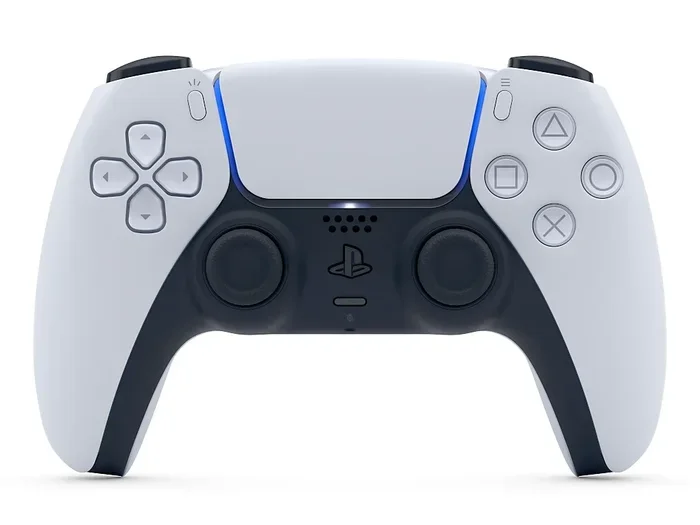
Many gamers wonder about this question every day. The short answer is yes. You absolutely can use a PS5 controller without Bluetooth. Sony designed the DualSense controller with flexibility in mind. Whether your PC lacks Bluetooth, your adapter stopped working, or you simply prefer a wired setup, there are plenty of ways to get your controller connected.
The DualSense wireless controller is more than just a Bluetooth device. It is a versatile gaming tool that supports multiple connection methods. You can plug it in with a USB cable. You can use a wireless adapter. You can even connect it through specific software on your PC. Each method has its own benefits and trade-offs.
In this guide, we will walk you through every option. We will show you step-by-step setup instructions. We will cover troubleshooting tips. And we will share expert insights to help you get the best experience. Let us dive right in.
Why Would You Need to Use a PS5 Controller Without Bluetooth?
There are several reasons you might need an alternative connection. Some desktop PCs do not have Bluetooth built in. Others have Bluetooth but experience frequent connection drops. Some gamers prefer the reliability of a wired connection for competitive play. Whatever your reason is, understanding your options is the first step.
Here are the most common scenarios where you might need to ditch Bluetooth:
- No Bluetooth hardware: Your PC or laptop does not support Bluetooth at all.
- Bluetooth issues: You experience frequent disconnections or audio interference.
- Lower input lag: Wired connections offer faster response times than wireless ones.
- Battery conservation: A USB cable keeps your controller powered during long sessions.
- Console limitations: Some setups do not allow Bluetooth pairing easily.
How to Connect Your PS5 Controller Without Bluetooth
Now that you know why you might need an alternative, let us explore the different methods. Each one is straightforward and does not require advanced technical skills.
Method 1: Wired USB Connection
The simplest way to connect your DualSense controller without Bluetooth is by using a USB cable. You need a USB-C cable, which is the same cable used to charge your phone. Most people already have one lying around.
Here is how to do it:
- Plug the USB-C end into the top of your PS5 controller.
- Connect the other end to a USB port on your PC, laptop, or console.
- Wait a few seconds for the device to be recognized.
- Your controller should now be connected and ready to use.
That is it. No pairing process. No Bluetooth settings. Just plug and play. This method works great on PC, PlayStation 5, and even some Android devices. The wired connection is stable and has virtually no input lag. For competitive gamers, this is often the preferred method.
Pro Tip: Use a high-quality USB-C cable. Cheap cables can cause connection issues or charging problems. A braided cable tends to last longer and perform better.
Method 2: USB Bluetooth Adapter
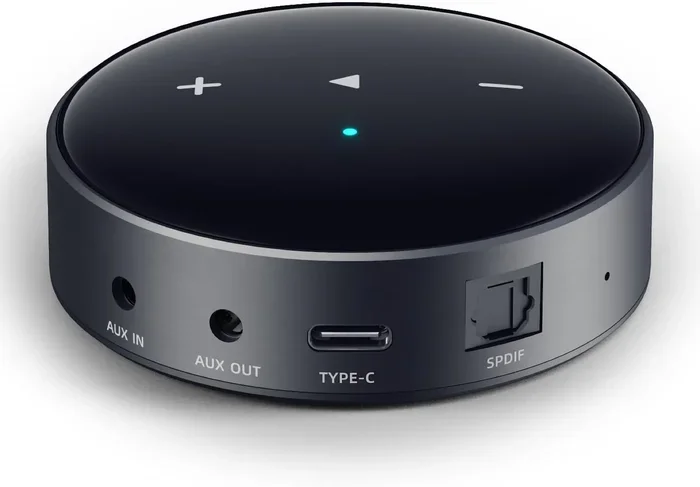
If you want wireless freedom without built-in Bluetooth, a USB Bluetooth adapter is your best friend. These small devices plug into a USB port and add Bluetooth capability to your computer. They are affordable and work well with the DualSense controller.
Here is what you need to do:
- Buy a compatible Bluetooth 5.0 or higher adapter.
- Plug it into a USB port on your PC.
- Install any necessary drivers that come with the adapter.
- Put your PS5 controller into pairing mode by pressing the PS button and the Create button simultaneously.
- Select the controller from your PC’s Bluetooth device list.
This method gives you the wireless experience without relying on built-in Bluetooth. It works well for most users. However, some budget adapters may have slight latency. If you are a competitive gamer, you might notice the difference compared to a wired connection.
Method 3: Steam Big Picture Mode on PC
Steam is a powerful tool for PC gamers. The Steam Big Picture mode supports PS5 controllers natively. This means you can connect your DualSense controller through Steam even if your system does not have Bluetooth.
Here is how to set it up:
- Open Steam on your PC.
- Go to Settings and then Controller.
- Enable Steam Input.
- Connect your PS5 controller via USB cable.
- Steam will recognize the controller automatically.
Once connected, you can play thousands of games with full controller support. Steam even lets you customize button mappings and sensitivity settings. This is a fantastic option for anyone who games primarily on PC.
Pros and Cons of Each Connection Method
Every connection method has strengths and weaknesses. Let us compare them so you can choose the best option for your setup.
| Method | Pros | Cons |
|---|---|---|
| USB Wired | Zero input lag, stable connection, no battery needed | Limited mobility, cable management |
| Bluetooth Adapter | Wireless freedom, affordable, easy setup | Potential latency, driver issues |
| Steam Big Picture | Full game support, customization, works with USB | PC only, requires Steam platform |
As you can see, each method serves a different purpose. If you want the most reliable connection, go with USB wired. If you want freedom of movement, a Bluetooth adapter works well. If you are a PC gamer on Steam, Big Picture mode is the way to go.
Common Issues When Using a PS5 Controller Without Bluetooth
No setup is perfect. Sometimes you will run into issues. Here are the most common problems and how to fix them.
Controller Not Recognized by PC
This is the most common issue. If your PC does not detect the DualSense controller, try these steps:
- Try a different USB port or cable.
- Restart your PC and reconnect the controller.
- Update your USB drivers through Device Manager.
- Check that the controller firmware is up to date.
Sometimes a simple restart solves everything. Do not panic if it does not work the first time.
Input Lag or Delay
If you notice a delay between pressing a button and seeing the action on screen, check a few things:
- Switch from Bluetooth to a wired USB connection.
- Make sure no other wireless devices are causing interference.
- Update your controller firmware through the PlayStation app or Steam.
- Reduce the distance between the controller and the receiver if using an adapter.
Wired connections almost always eliminate input lag. If you are playing competitive games, this matters a lot.
Battery Drains Quickly
When using Bluetooth or wireless modes, your controller battery drains faster. To avoid this:
- Use a USB cable to keep the controller powered while playing.
- Lower the brightness of the light bar on the controller.
- Turn off adaptive trigger features if you do not need them.
Keeping your controller plugged in during long gaming sessions is a smart habit. It ensures you never run out of power mid-game.
Expert Tips for the Best PS5 Controller Experience
Want to get the most out of your DualSense controller? Here are some expert tips that make a real difference.
Keep Your Firmware Updated
Sony regularly releases firmware updates for the PS5 controller. These updates fix bugs, improve connectivity, and add new features. Always check for updates through the PlayStation app or your console settings. A simple update can solve many connection problems.
Use Quality Accessories
Do not skimp on your USB cables or Bluetooth adapters. A good USB-C cable ensures stable data transfer and charging. A quality Bluetooth adapter reduces latency and improves range. These small investments pay off in a smoother gaming experience.
Customize Your Controls
The DualSense controller offers features like adaptive triggers and haptic feedback. You can customize these settings in Steam or on your PlayStation 5. Tailoring the controls to your preferences makes every game feel more immersive.
Clean Your Controller Regularly
Dust and grime can build up in the buttons and joysticks over time. Use a soft cloth and isopropyl alcohol to clean the surface. Clean buttons respond better and last longer. This simple habit keeps your controller in top shape.
PS5 Controller Compatibility Beyond Bluetooth
The DualSense controller is not just for PlayStation 5. It works with many other devices and platforms. This makes it one of the most versatile controllers on the market.
Here are some devices where you can use your PS5 controller without Bluetooth:
- PC (Windows): Works via USB cable or Steam Big Picture mode.
- Android devices: Connects through USB-OTG adapters for mobile gaming.
- Mac computers: Supports wired connections through USB.
- PlayStation 5: Naturally works via USB when Bluetooth is disabled.
This wide compatibility is one of the biggest advantages of the DualSense controller. You are not locked into one device or one connection method.
Key Takeaways
- USB Wired Connection: You can plug your PS5 controller directly into a PC or console using a USB-C cable for a stable, lag-free experience.
- Wireless Adapter: A USB Bluetooth adapter can give your PS5 controller wireless capability without built-in Bluetooth.
- Steam Compatibility: The Steam Big Picture mode allows full PS5 controller support on PC, even without Bluetooth.
- DualSense Versatility: The PS5 controller works on multiple devices beyond PlayStation 5, including PC and Android.
- Firmware Matters: Keeping your controller firmware updated ensures smooth connectivity across all methods.
- Input Lag Is Minimal: Wired connections often provide lower input lag than Bluetooth, making them ideal for competitive gaming.
Conclusion
So, can you use a PS5 controller without Bluetooth? Absolutely. The DualSense controller is designed to work in many different ways. Whether you choose a USB wired connection, a Bluetooth adapter, or Steam Big Picture mode, you have options. Each method offers a reliable way to enjoy your favorite games without needing built-in Bluetooth.
The wired USB connection is the most stable and responsive option. It is perfect for competitive gamers who want zero input lag. The Bluetooth adapter gives you wireless freedom at an affordable price. And Steam Big Picture mode opens up a world of PC gaming with full controller support.
Keep your controller firmware updated. Use quality cables and accessories. And do not be afraid to experiment with different connection methods. The PS5 DualSense controller is a powerful tool, and knowing how to use it in every scenario gives you a real edge.
Now that you have all the information, pick the method that works best for your setup. Plug in that controller, start your game, and enjoy the experience. Happy gaming.
Frequently Asked Questions
Can I use a PS5 controller on PC without Bluetooth?
Yes, you can. The easiest way is to connect your PS5 controller to your PC using a USB-C cable. This wired connection works instantly without any Bluetooth pairing. You can also use a USB Bluetooth adapter if you prefer wireless freedom.
Does using a PS5 controller without Bluetooth affect performance?
Not at all. In fact, a wired USB connection often performs better than Bluetooth. It has lower input lag and a more stable connection. For competitive gaming, wired is usually the better choice.
What kind of USB cable do I need for my PS5 controller?
You need a USB-C cable. This is the same cable used to charge most modern smartphones. Make sure to use a data cable, not just a charging cable, so your PC can recognize the controller properly.
Can I use a PS5 controller without Bluetooth on a console?
Yes, you can connect your PS5 controller to a PlayStation 5 using a USB cable even when Bluetooth is turned off. This is useful for troubleshooting or when you want a more reliable wired connection during gameplay.
Is a USB Bluetooth adapter compatible with the PS5 controller?
Most Bluetooth 5.0 adapters work well with the DualSense controller. Plug the adapter into a USB port, install the drivers, and pair the controller through your PC’s Bluetooth settings. Some budget adapters may have slight latency, so choose a quality one.
How do I update my PS5 controller firmware?
You can update your controller firmware through the PlayStation app on your phone or through your PlayStation 5 console. Connect the controller via USB and follow the on-screen prompts. Keeping firmware updated ensures the best compatibility and performance.