Does The Iphone Use Data To Text People And How To Save It
Yes, the iPhone uses data to text people when you send iMessages or multimedia messages over the internet. Standard SMS texts do not use data, but MMS and iMessage rely on your cellular data or Wi-Fi connection. This guide covers everything you need to know about iPhone data usage for texting and shares simple tips to save your data plan.
Key Takeaways
- iMessages use data: When you send a blue-bubble message, your iPhone sends it over the internet, not through the cellular voice network.
- SMS texts do not use data: Green-bubble texts travel through your carrier’s voice network and do not count against your data plan.
- MMS requires data: Pictures, videos, and group messages sent as MMS use mobile data or Wi-Fi.
- You can save data easily: Simple settings changes can dramatically reduce your iPhone’s data usage for messaging.
- Wi-Fi texting is a great option: Sending messages over Wi-Fi keeps your cellular data untouched.
- Monitor your usage: Built-in iPhone tools let you track exactly how much data your messaging apps consume.
📑 Table of Contents
Does The iPhone Use Data To Text People
If you have ever glanced at your phone bill and wondered why your data usage spiked, you are not alone. Many iPhone users ask a simple question: does the iPhone use data to text people? The short answer is yes, but it depends on the type of message you are sending.
Your iPhone can send messages in different ways. Each method uses your phone’s resources differently. Some messages travel through your carrier’s voice network and use zero data. Others ride the internet and count against your data plan. Understanding this difference is the first step to controlling your data usage.
In this article, we will break down exactly how your iPhone sends texts. We will cover iMessage, SMS, and MMS. We will also share practical tips to help you save data every day. Whether you are on a tight data plan or just curious about how your phone works, this guide has you covered.
What Happens When You Send a Text on iPhone
When you tap the send button on your iPhone, a lot happens behind the scenes. Your phone decides which path to take based on the type of message and your settings. Let us look at the three main ways your iPhone sends messages.
SMS (Short Message Service) is the classic green-bubble text. It goes through your carrier’s voice network. It does not use your cellular data at all. This is the most basic form of texting. It works even if you have no data plan or no internet connection.
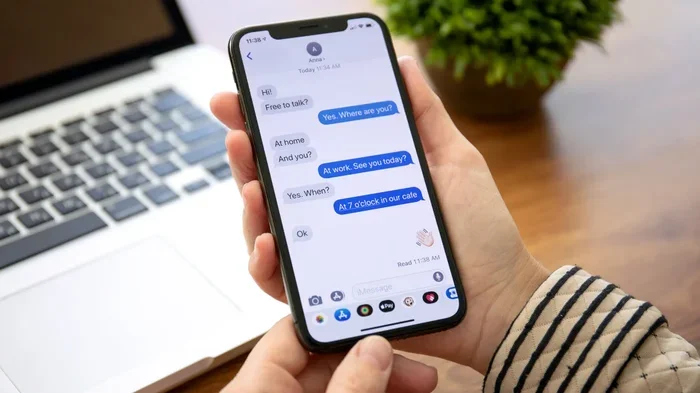
iMessage is Apple’s internet-based messaging service. It sends blue-bubble messages. iMessage uses your cellular data or Wi-Fi to deliver messages. It supports features like read receipts, typing indicators, and high-quality photo sharing. When you send an iMessage, your iPhone sends data packets over the internet.
MMS (Multimedia Messaging Service) handles pictures, videos, and group texts. MMS always requires a data connection. It uses your cellular data or Wi-Fi to send media files. Even if you are texting someone who does not have iMessage, sending a photo will trigger MMS and use data.
How Much Data Does a Text Message Use
You might be surprised by how little data a simple text uses. A standard SMS text uses virtually zero data from your data plan. It is handled by your carrier’s voice network, just like a phone call.
An iMessage uses very little data for plain text. A single text-only iMessage uses about 1 kilobyte or less. That is so small it barely registers. However, things change fast when you start sending media.
Here is a rough breakdown of data usage for different message types:
- Plain text SMS: 0 KB (does not use data)
- Plain text iMessage: About 1 KB per message
- Photo via MMS: 100 KB to 1 MB per photo
- Video via MMS: 2 MB to 20 MB per video
- Group iMessage: Varies based on media shared
- Emoji-only iMessage: About 2 KB per emoji
As you can see, the real data hog is media. A single video message can use as much data as streaming a few minutes of music. If you send lots of photos and videos through your messaging app, your data usage will add up quickly.
Why Your iPhone Uses Data To Text People
Your iPhone is designed to be smart about messaging. It tries to use the best available method to deliver your messages. This means it may switch between SMS, iMessage, and MMS depending on the situation.
When you send a message to another iPhone user, your phone defaults to iMessage. It uses your data connection to deliver the message instantly. This happens even when you are not actively using the internet. Your iPhone sends small data packets in the background to route your messages through Apple’s servers.
When you send a message to an Android user, your iPhone falls back to SMS or MMS. If the message contains only text, it uses the carrier voice network. If it contains a photo or video, it uses MMS and requires a data connection.
The Role of Your Cellular Network
Your cellular network plays a big role in how your iPhone handles texts. When you have a strong cellular signal, your iPhone can send and receive messages quickly. But even when you have a weak signal, your phone may still try to use data to deliver iMessages.
This is where things get tricky. If you are in an area with poor cellular coverage but have Wi-Fi available, your iPhone will use Wi-Fi to send iMessages. This is actually a great feature. It means you can still text people even when your cellular signal is weak. But it does mean your data usage is not always zero, even for simple texts.
How Background Data Affects Texting
Your iPhone does not just use data when you actively send a message. It also uses background data to keep your messaging app ready. This means your phone may quietly use small amounts of data throughout the day to sync messages and receive new ones.
Background data usage for messaging is usually very small. But it adds up over time, especially if you are in a busy group chat. Every new message, photo, or reaction in a group chat triggers a small data transfer. Over the course of a day, these tiny transfers can consume a noticeable amount of your data plan.
How to Check Your iPhone Data Usage for Texting
Apple makes it easy to see how much data your iPhone is using. You can check this right on your phone. This helps you understand if your messaging habits are eating into your data plan.
Here is how to check your data usage:
- Open the Settings app on your iPhone.
- Tap on Cellular or Mobile Data.
- Scroll down to see a list of all your apps.
- Look for Messages and Mail in the list.
- The number next to each app shows how much data it has used since you last reset your stats.
You can also reset your statistics at the bottom of this screen. This is helpful if you want to track your data usage for a specific billing cycle. Just tap “Reset Statistics” at the bottom, and your counters will start fresh.
Another great tool is your carrier’s app or website. Most major carriers let you check your data usage in real time. This gives you a bigger picture of your overall data consumption, including the data used by your messaging apps.
How to Save Data When Texting on iPhone
Now that you know how your iPhone uses data to text people, let us talk about how to save it. There are several simple steps you can take to reduce your data usage without giving up the ability to stay connected.
Turn Off iMessage When Not Needed
If you are trying to conserve data, one of the easiest steps is to turn off iMessage. Go to Settings, then Messages, and toggle off iMessage. When iMessage is off, your iPhone will use SMS for all texts. SMS does not use data.
Keep in mind that turning off iMessage means you will lose some features. You will not see read receipts or typing indicators. Blue bubbles will no longer appear. But your texts will still go through, and they will not use your data plan.
Use Wi-Fi Whenever Possible
One of the best ways to save cellular data is to send messages over Wi-Fi. When your iPhone is connected to Wi-Fi, it uses the Wi-Fi network for iMessages instead of your cellular data. This keeps your data plan untouched.
Make sure Wi-Fi is turned on in your Settings. You can also enable Wi-Fi Calling if your carrier supports it. This lets you make calls and send texts over Wi-Fi, which is especially useful in areas with weak cellular coverage.
Disable Background App Refresh for Messages
Background App Refresh allows your iPhone to update apps in the background. This uses data even when you are not actively using the app. You can turn this off for your messaging app to save data.
Go to Settings, then General, then Background App Refresh. Find Messages in the list and turn it off. Your messaging app will still work normally when you open it. It just will not use data in the background to check for new messages.
Limit Auto-Download of Media
Your iPhone can automatically download media files when you receive them. This is convenient, but it uses data. You can change this setting to save your data plan.
Go to Settings, then Messages, then scroll down to “Mobile Data.” Turn off “Automatic Downloads.” This stops your iPhone from silently downloading photos, videos, and audio messages when you receive them. You can still view them when you tap on them manually.
Compress Media Before Sending
Large photos and videos use a lot of data when you send them. You can save data by compressing media before you send it. Your iPhone has a built-in option to reduce image size.
When you attach a photo to a message, tap the “Options” button at the top of the screen. You will see choices for image size. Select “Small” or “Medium” instead of “Actual Size.” This reduces the file size and saves your data.
Use Messaging Apps That Are Data-Friendly
Third-party messaging apps like WhatsApp, Telegram, and Signal are designed to be efficient with data. They use advanced compression techniques to reduce the size of media files. If you frequently send photos and videos, these apps can help you save data compared to standard MMS.
WhatsApp, for example, compresses images and videos before sending them. This means you can share media without using as much data. Just make sure you are connected to Wi-Fi when downloading large files or media from these apps.
Common Mistakes That Waste Data When Texting
Many iPhone users accidentally waste data every day without realizing it. Here are some common mistakes to avoid.
Leaving Cellular Data On for All Apps
One of the biggest mistakes is leaving cellular data enabled for every app on your iPhone. Even if you do not use an app often, it may still use data in the background. Go through your list of apps in Settings, then Cellular, and turn off data for apps that do not need it.
Not Using Wi-Fi for Group Chats
Group chats can be a data nightmare. Every message, photo, and reaction in a group chat uses data. If you are in an active group chat, try to use Wi-Fi whenever possible. This prevents your cellular data from being consumed by constant message notifications.
Ignoring Data Saver Mode
Apple has a Low Data Mode feature that can help you save data. When enabled, it reduces background activity and prevents automatic updates. Go to Settings, then Cellular, then Cellular Data Options, and turn on Low Data Mode.
Sending Large Files Through MMS
MMS is not designed for large files. When you send a large video through MMS, your iPhone uses a lot of data. It is better to upload the video to a cloud service and share the link instead. This uses much less data and gives the recipient better quality.
Expert Insights on iPhone Data and Texting
According to tech experts, the average iPhone user sends and receives about 50 messages per day. Most of these are text-only iMessages, which use negligible data. The real data drain comes from media-rich conversations.
Network analysts recommend checking your data usage at least once a week. This helps you spot unusual spikes early. It also helps you understand which habits are costing you the most data.
One expert tip is to set up Wi-Fi as your default messaging connection at home and at work. This way, the majority of your texting happens over Wi-Fi, and your cellular data is reserved for when you are on the go.
Another pro tip is to disable data roaming when you are not traveling. Data roaming can cause unexpected charges and data usage when your phone connects to foreign networks. Go to Settings, then Cellular, and turn off Data Roaming if you are not traveling internationally.
Key Takeaways
- iMessages use data: Blue-bubble messages travel over the internet and count against your data plan.
- SMS texts do not use data: Green-bubble texts use your carrier’s voice network, not your data.
- MMS requires data: Photos, videos, and group messages sent as MMS use mobile data or Wi-Fi.
- You can save data easily: Simple settings changes can dramatically reduce your iPhone’s data usage for messaging.
- Wi-Fi texting is a great option: Sending messages over Wi-Fi keeps your cellular data untouched.
- Monitor your usage: Built-in iPhone tools let you track exactly how much data your messaging apps consume.
- Small habits matter: Turning off auto-downloads and using data-friendly apps can lead to big savings over time.
Conclusion
So, does the iPhone use data to text people? The answer is yes, but only for iMessages and MMS. Plain SMS texts do not touch your data plan at all. The key is understanding which type of message you are sending and adjusting your settings accordingly.
By following the tips in this guide, you can take control of your iPhone’s data usage. You can send messages freely without worrying about eating through your data plan. Small changes like turning off background data, using Wi-Fi, and compressing media can make a big difference.
Your iPhone is a powerful tool, and it gives you the flexibility to choose how you communicate. Whether you prefer the simplicity of SMS or the rich features of iMessage, now you know exactly what is happening behind the scenes. Take a few minutes today to check your settings and start saving data. Your wallet and your phone bill will thank you.
Stay connected, stay informed, and remember that a little knowledge goes a long way when it comes to managing your iPhone’s data usage. Happy texting.
Frequently Asked Questions
Does sending a plain text message use data on iPhone?
No, sending a plain text SMS message does not use data. It travels through your carrier’s voice network, just like a phone call. Only iMessages and MMS messages use your cellular data or Wi-Fi connection.
How can I tell if my iPhone is using data to send a text?
You can tell by the color of the message bubble. Blue bubbles mean iMessage, which uses data. Green bubbles mean SMS, which does not use data. You can also check your data usage in Settings, then Cellular, and look at the Messages app entry.
Will turning off iMessage stop my iPhone from using data for texts?
Yes, turning off iMessage will stop your iPhone from using data for messages. Your iPhone will then use SMS for all texts. Keep in mind that you will lose features like read receipts and blue bubble messaging.
Can I text someone without using any data at all?
Yes, you can text someone without using data by sending SMS messages. SMS does not require an internet connection. It works through your carrier’s voice network and does not count against your data plan.
Why does my iPhone use data even when I am not texting?
Your iPhone uses background data to keep messaging apps synced and ready. It also uses data for iMessage delivery confirmations and notifications. You can reduce this by turning off Background App Refresh for Messages and enabling Low Data Mode.
Is it better to use Wi-Fi for texting to save data?
Yes, using Wi-Fi for texting is one of the best ways to save cellular data. When connected to Wi-Fi, your iPhone sends iMessages over the Wi-Fi network instead of using your cellular data plan. This keeps your data usage at zero for texting.