Fix Blurry Pictures Online With These Proven Methods
Fixing blurry pictures online is easier than you think. With the right tools and a few simple steps, you can restore clarity to your favorite photos in minutes. This guide covers free online tools, desktop software, and quick tips that actually work. Whether your photo is slightly soft or completely out of focus, you will find a solution that fits your needs. Let us dive into the best methods to bring your images back to life.
Key Takeaways
- Multiple free tools exist: You do not need to spend money to fix blurry pictures online.
- Sharpening works best on mild blur: For heavy blur, AI-powered tools give better results.
- Prevention is key: Good shooting habits reduce blur before it happens.
- Desktop software offers more control: Programs like Photoshop and GIMP provide advanced editing options.
- Common mistakes make blur worse: Over-sharpening and wrong settings can damage your photo further.
- Professional help is available: For severely damaged photos, experts can achieve amazing results.
📑 Table of Contents
- Why Do Photos Go Blurry?
- Fix Blurry Pictures Online With Free Tools
- How to Fix Blurry Pictures Using Desktop Software
- Quick Tips for Sharper Photos
- Common Mistakes That Make Blur Worse
- Share and Print Your Fixed Photos Safely
- When to Seek Professional Help
- Comparison Table: Online Tools vs Desktop Software
- Final Thoughts on Fixing Blurry Pictures
Why Do Photos Go Blurry?
Blurry photos happen to everyone. You snap a picture, look at it later, and the whole image looks soft or fuzzy. Understanding why this happens helps you pick the right fix. Let us look at the most common reasons your images lose sharpness.
Camera Movement During the Shot
When your hands shake while pressing the shutter button, the camera moves. This creates what photographers call motion blur. The result is a photo where everything looks smeared or stretched. This problem is very common when shooting in low light.
Subject Movement
Even if your camera stays still, a moving subject can cause blur. Think of a child running or a pet chasing a ball. The camera captures the motion during the exposure time. The faster the subject moves, the blurrier it gets.
Wrong Focus Point
Sometimes the camera focuses on the wrong part of the image. The background looks sharp while your subject is soft. Or the opposite happens. This is called focus miss and it ruins otherwise great photos.
Low Resolution and Compression
Small images or heavily compressed files lose detail. When you zoom in on a low resolution photo, it looks blurry and pixelated. This happens often with images downloaded from the web or shared through messaging apps.
Lens and Sensor Issues
A dirty lens or a damaged sensor can cause overall softness. Dust on the lens creates a hazy look. Scratched lenses reduce sharpness across the entire image. These problems need physical cleaning or repair.
Fix Blurry Pictures Online With Free Tools
The internet offers many free tools that can fix blurry pictures online quickly. You do not need to download anything or pay for software. Here are the best options that actually deliver real results.
Fotor Online Photo Enhancer
Fotor is a popular choice for fixing blurry photos. It uses smart algorithms to sharpen images in seconds. You just upload your photo, click enhance, and download the result. The free version gives you solid results for mild to moderate blur.
Canva Photo Editor
Canva offers a simple sharpening tool built into its editor. It works well for photos that need a slight clarity boost. You can also adjust contrast and brightness to make your image look sharper overall. The interface is very beginner friendly.
Pixlr Express
Pixlr gives you more control over sharpening settings. You can adjust the strength and radius of the sharpening effect. This is great for people who want to fine tune their results. The free version works well for basic blur fixes.
Let Us Enhance
This tool uses AI technology to repair blurry images. It works especially well for face photos and portraits. The AI detects facial features and sharpens them automatically. It is one of the best options for fixing old or low quality images.
Image Upscaler by Clipdrop
Clipdrop lets you upscale and sharpen images at the same time. It is useful when your photo is both blurry and small. The tool increases resolution while improving clarity. You can use it to prepare photos for printing or sharing.
How to Fix Blurry Pictures Using Desktop Software
For more control and better results, desktop software is the way to go. These programs give you detailed settings to fine tune sharpness. Here are the top options for fixing blurry photos on your computer.
Adobe Photoshop
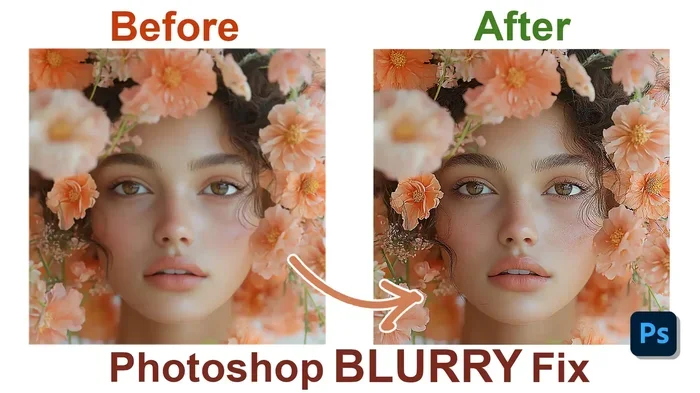
Photoshop is the gold standard for photo editing. It has a dedicated Sharpen tool and several sharpening filters. The Unsharp Mask and Smart Sharpen options give you precise control. You can adjust amount, radius, and threshold for perfect results.
Photoshop also has the Camera Raw filter. This tool lets you sharpen specific areas of your photo. You can paint sharpness only where you need it. This is perfect for fixing blurry faces while keeping the background natural.
GIMP (Free Alternative)
GIMP is a powerful free alternative to Photoshop. It offers sharpening filters like Unsharp Mask and Sharpen. The interface takes a little time to learn, but the results are excellent. GIMP handles most blur fix tasks very well.
Lightroom Classic
Lightroom has a dedicated Clarity and Sharpness panel. You can adjust masking to sharpen only edges. This prevents noise from appearing in smooth areas like skies. Lightroom is great for batch processing multiple blurry photos at once.
Topaz Sharpen AI
Topaz Sharpen AI is a specialized tool for fixing blur. It uses artificial intelligence to distinguish between blur types. It can remove motion blur, focus blur, and softness automatically. The results are often better than traditional sharpening methods. However, it does require a paid subscription.
Quick Tips for Sharper Photos
Preventing blur is just as important as fixing it. These quick tips help you take sharper photos from the start. Follow these simple habits and your photos will look better right away.
- Hold your camera steady: Tuck your elbows close to your body. Breathe out gently before pressing the shutter.
- Use a tripod: A tripod eliminates hand shake completely. It is essential for night photography and long exposures.
- Increase shutter speed: Faster shutter speeds freeze motion. Try at least 1/125 for handheld shots.
- Focus on the eyes: In portrait photography, sharp eyes make or break the photo. Always focus on the nearest eye.
- Clean your lens: A quick wipe with a soft cloth removes dust and smudges. This alone can improve sharpness significantly.
- Shoot in good light: More light lets you use faster shutter speeds. Bright conditions naturally reduce blur.
- Use burst mode: Taking multiple shots increases your chances of getting one sharp image. Pick the best one later.
Quick Tip: The Rule of Thumb
Your shutter speed should never be slower than the focal length of your lens. If you are shooting at 50mm, keep your speed at 1/50 or faster. This simple rule prevents most hand shake blur.
Common Mistakes That Make Blur Worse
When trying to fix blurry pictures online, people often make mistakes. These errors can damage your photo beyond repair. Here are the most common pitfalls to avoid.
Over Sharpening
Adding too much sharpness creates ugly halos around objects. Edges look harsh and artificial. The photo starts to look grainy and noisy. Less is always more when sharpening.
Applying Sharpening to the Wrong File
Always work on a copy of your original file. Sharpening permanently changes pixel data. If you make a mistake, you cannot undo it on the original. Keep your unedited file safe at all times.
Ignoring Noise Reduction
Sharpening amplifies noise in your photos. If you sharpen without reducing noise first, the result looks terrible. Always reduce noise before applying sharpening. Most editing tools let you do both in sequence.
Using the Wrong Tool for Heavy Blur
Basic sharpening tools cannot fix severe blur. If your photo is very blurry, a simple sharpening filter will not help much. You need AI powered tools or professional software for heavy blur removal.
Forgetting to Resize After Sharpening
Sharpening looks different at different sizes. An image that looks perfect on screen may look over sharpened when printed. Always check your photo at the final output size before finishing.
Share and Print Your Fixed Photos Safely
Once you have fixed your blurry pictures online, you will want to share and print them. Sharing photos online comes with some risks you should know about. Being careful protects your privacy and your images.
Before you share any photo on social media or through messaging apps, remember that not all platforms are safe. Some platforms collect your data or host harmful content. Always use trusted platforms when sharing your fixed photos with others. If you are meeting someone new online and planning to exchange photos, be aware of the potential risks involved. Understanding the dangers of meeting people online helps you stay safe while sharing your restored images with new connections.
After fixing your photos, you may want to organize them into folders for easy access. Keeping your photo library organized saves time when you need to find specific images later. You can also easily copy photos to email and manage your pictures folder to keep everything in order. This way your fixed photos are always ready when you need them.
If you plan to print your restored images, you might wonder about different print formats. Polaroid prints have a unique vintage charm that many people love. You can get your pictures printed as polaroids to give your restored photos a special and nostalgic look. Many online printing services offer polaroid style prints that work beautifully with sharpened images.
When to Seek Professional Help
Not every blurry photo can be fixed at home. Some situations call for professional photo restoration services. Here are signs that you need expert help.
- Severe motion blur: The entire image is smeared beyond recognition.
- Old damaged photos: Scratches, tears, and decades of decay affect the image.
- Very low resolution: The photo is too small to salvage with basic tools.
- Important memories: Family photos or once in a lifetime moments deserve expert care.
- Commercial use: You need flawless results for business or marketing purposes.
Professional restorers use advanced AI and manual techniques. They can achieve results that are impossible with free online tools. The cost varies but is often worth it for precious memories. Many services offer before and after samples so you can judge their skill.
Comparison Table: Online Tools vs Desktop Software
Choosing the right tool depends on your needs and skill level. Here is a comparison to help you decide.
| Feature | Online Tools | Desktop Software |
|---|---|---|
| Cost | Mostly free | Free to expensive |
| Ease of Use | Very easy | Moderate to advanced |
| Sharpening Control | Basic to moderate | Advanced and precise |
| AI Features | Common in modern tools | Available in premium software |
| Batch Processing | Limited | Full support |
| Internet Required | Yes | No |
| Best For | Quick fixes and beginners | Detailed editing and pros |
Both online tools and desktop software have their place. Start with free online tools for quick fixes. Move to desktop software when you need more control and better results.
Final Thoughts on Fixing Blurry Pictures
Fixing blurry pictures online has never been more accessible. Free tools powered by AI make it possible for anyone to restore clarity to their favorite photos. You do not need to be a professional photographer or editor to get great results.
Start with the simple online tools mentioned in this guide. Try Fotor, Canva, or Pixlr for quick fixes. Move to desktop software like Photoshop or GIMP when you need more control. And remember to follow the prevention tips to avoid blur in the first place.
The key is to be patient and gentle with your edits. Over sharpening ruins photos just as much as blur does. Take your time, compare before and after versions, and trust your eyes. With practice, you will develop an instinct for what each photo needs.
Your memories deserve to look their best. Whether it is a family portrait, a vacation snapshot, or a special event photo, every image matters. Use the methods in this guide to bring your blurry photos back to life. Share them proudly, print them beautifully, and cherish them for years to come.
Frequently Asked Questions
Can I fix blurry pictures online for free?
Yes, many free online tools can fix blurry pictures effectively. Tools like Fotor, Canva, and Pixlr offer free sharpening features. For more advanced results, Let Us Enhance and Clipdrop also have free options with some limitations.
What is the best free tool to fix blurry pictures?
Fotor and Let Us Enhance are among the best free options. Fotor is great for quick fixes while Let Us Enhance uses AI for smarter results. Both tools require no download and work directly in your browser.
Can AI tools really fix severely blurry photos?
Yes, modern AI tools can work wonders on blurry photos. Tools like Topaz Sharpen AI and Let Us Enhance use machine learning to reconstruct details. However, extremely blurry photos may still have some limitations. The results depend on the original image quality and the type of blur.
How do I prevent photos from going blurry in the first place?
Use a faster shutter speed and hold your camera steady. A tripod is the best prevention tool. Always focus on your subject’s eyes and shoot in good lighting conditions. Clean your lens regularly to avoid haze and softness.
Does fixing a blurry photo reduce its quality?
Mild sharpening usually does not reduce quality noticeably. However, over sharpening can introduce noise and artifacts. Always sharpen on a copy of your original file. Use the lowest effective setting to maintain the best quality.
Can I print blurry photos after fixing them online?
Yes, once you fix blurry pictures online, you can print them in various formats. For a unique look, you can even get your pictures printed as polaroids. Just make sure your final image has enough resolution for the print size you want. A resolution of at least 300 DPI is recommended for quality prints.
=== CONCLUSION ===
Fix blurry pictures online with confidence using the methods shared in this guide. From free web tools to professional software, there is a solution for every level of blur and every budget. Start with the quick online enhancers, explore desktop software for deeper control, and always follow best practices to protect your photo quality.
Remember that prevention and good shooting habits go hand in hand with fixing blur. Keep these tips in mind for your next photo session. Your images will look sharper, clearer, and more vibrant than ever before.