How Can I Display My Iphone Screen Onto A Projector
Displaying your iPhone screen on a projector is simpler than most people think. You can use a lightning-to-HDMI adapter for a wired connection or mirror wirelessly with AirPlay and Apple TV. This guide covers every method, from budget-friendly options to premium setups, so you can show your iPhone screen on a projector with confidence.
Key Takeaways
- Wired connections using a lightning-to-HDMI adapter are the most reliable way to display your iPhone on a projector.
- Wireless mirroring via AirPlay or Apple TV offers freedom from cables but needs a stable Wi-Fi connection.
- Adapter compatibility matters — always check your iPhone model before buying a cable or dongle.
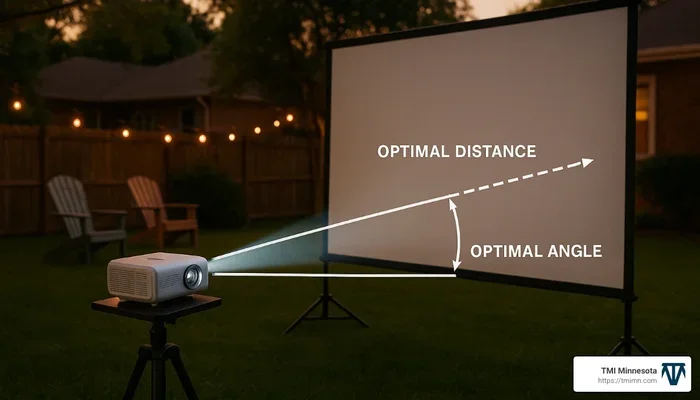
- Projector placement and brightness affect how clearly your iPhone screen appears on the big display.
- Audio can be routed through the projector or kept on your iPhone depending on your setup.
- Black cloth or a dedicated screen improves projection quality significantly.
📑 Table of Contents
- How Can I Display My Iphone Screen On A Projector
- Why Display Your Iphone On A Projector
- Method 1: Use A Lightning To Hdmi Adapter (Wired Connection)
- Method 2: Wireless Mirroring With AirPlay
- Method 3: Use A Streaming Device With Your Projector
- Choosing The Right Projector For Iphone Display
- Tips For The Best Iphone Projection Experience
- Common Mistakes To Avoid
- Expert Insights: Wired vs Wireless
- Final Thoughts
How Can I Display My Iphone Screen On A Projector
Want to put your iPhone content on a big screen? Whether you are hosting a movie night, giving a presentation, or just want to share photos with friends, displaying your iPhone screen on a projector is a game changer. The good news is that you do not need expensive equipment to make it happen. There are several straightforward methods that work with almost any projector and iPhone combination.
In this guide, we walk you through every option step by step. You will learn about wired adapters, wireless mirroring, and even some pro tips that make your setup look professional. By the end, you will know exactly which method fits your needs and budget best.
Why Display Your Iphone On A Projector
People connect their iPhones to projectors for many reasons. Movies look amazing on a big wall. Presentations become more engaging when everyone can see the screen. And sharing travel photos or videos with a group feels totally different on a large display compared to a small phone screen.
Here are some common reasons people want to show their iPhone screen on a projector:
- Movie nights outdoors — project films on a white wall or portable screen for a cinema feel.
- Business presentations — display slides, demos, or spreadsheets to a room full of people.
- Photo and video sharing — show vacation clips or family photos at gatherings.
- Gaming on the big screen — play iPhone games with a larger display for a more immersive experience.
- Educational settings — teachers and tutors can share content with an entire classroom.
No matter your reason, the methods below will help you get it done right.
Method 1: Use A Lightning To Hdmi Adapter (Wired Connection)
The most popular and reliable way to connect your iPhone to a projector is with a wired adapter. This method works with almost every projector that has an HDMI input. You simply plug one end into your iPhone and the other into the projector.
What You Need
- Apple Lightning to Digital AV Adapter — this is Apple’s official adapter and works flawlessly.
- An HDMI cable — standard HDMI cable to connect the adapter to your projector.
- A projector with HDMI input — most modern projectors have at least one HDMI port.
Here is how to set it up:
- Plug the lightning end of the adapter into your iPhone.
- Connect the HDMI cable to the adapter.
- Plug the other end of the HDMI cable into your projector.
- Switch your projector to the correct HDMI input source.
- Your iPhone screen should now appear on the projector.
This wired method gives you a stable connection with no lag. It is perfect for presentations where you cannot afford any interruption. If you want to learn more about connecting your phone to a projector using a cable, check out our guide on connecting your phone to a projector with a USB cable for additional cable-based options.
Pros and Cons of Wired Connection
- Pros: No lag, stable connection, works with almost all projectors, no Wi-Fi needed.
- Cons: Limited by cable length, adapter adds bulk, you cannot move freely around the room.
Method 2: Wireless Mirroring With AirPlay
If you want to ditch the cables, AirPlay is your best friend. This built-in Apple feature lets you mirror your iPhone screen wirelessly to a compatible device. The most common setup involves an Apple TV connected to your projector.
How AirPlay Mirroring Works
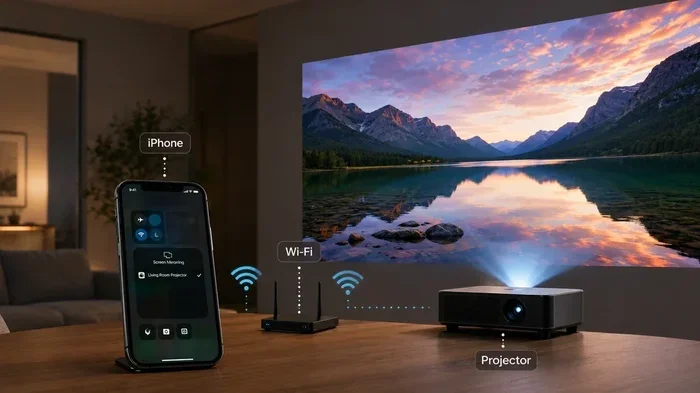
AirPlay sends your iPhone screen over your Wi-Fi network to a receiving device. The receiving device then displays what is on your iPhone in real time. This means you can move around the room freely while still controlling what appears on the big screen.
Setting Up AirPlay
- Connect your Apple TV to the projector using an HDMI cable.
- Make sure both your iPhone and Apple TV are on the same Wi-Fi network.
- Open the Control Center on your iPhone by swiping down from the top right corner.
- Tap the Screen Mirroring button.
- Select your Apple TV from the list of available devices.
- Enter the passcode if prompted, and your screen will appear on the projector.
Wireless mirroring is fantastic for casual use and movie nights. However, it does depend on a strong Wi-Fi signal. If your projector does not support AirPlay directly, you can also use a Bluetooth transmitter for your projector to extend connectivity options.
Pros and Cons of Wireless Mirroring
- Pros: No cables needed, freedom of movement, easy to set up, works great for casual sharing.
- Cons: Requires stable Wi-Fi, slight delay possible, needs a compatible receiver device like Apple TV.
Method 3: Use A Streaming Device With Your Projector
Not everyone wants to buy an Apple TV. The good news is that several streaming devices can help you cast your iPhone screen to a projector. These small devices plug into your projector’s HDMI port and connect to your Wi-Fi network.
Popular Streaming Options
- Google Chromecast — affordable and works well for casting content from your iPhone.
- Amazon Fire TV Stick — supports screen mirroring and runs many apps.
- Roku Streaming Stick — another solid option with easy setup.
Most of these devices have a built-in screen mirroring feature. You simply connect the stick to your projector, download the corresponding app on your iPhone, and follow the on-screen instructions. If you are curious about using specific streaming devices with a projector, our article on using a Roku with a projector covers this in detail.
These options are especially useful if your projector does not have smart features built in. They turn any projector into a smart display that can receive wireless content from your iPhone.
Choosing The Right Projector For Iphone Display
Not all projectors are created equal. Some projectors handle iPhone content beautifully, while others struggle with brightness or resolution. Here is what to look for when choosing a projector for your iPhone setup.
Brightness Matters
Projector brightness is measured in lumens. For indoor use, a projector with at least 2,000 lumens works well. If you plan to use it during the day or in a bright room, aim for 3,000 lumens or more. A brighter projector makes your iPhone screen appear clearer and more vibrant on the wall or screen.
Resolution and Compatibility
Most modern projectors support 1080p resolution, which is perfect for iPhone content. iPhones output high-quality video, so you want a projector that can display it without downscaling. Look for projectors that support 1080p or even 4K for the best results.
Input Options
Make sure your projector has the right inputs for your chosen connection method. HDMI is the standard for wired connections. Some projectors also offer USB ports, VGA inputs, or even wireless connectivity built in. The more input options you have, the more flexible your setup becomes.
| Projector Feature | Why It Matters | Minimum Recommendation |
|---|---|---|
| Brightness | Affects image clarity in different lighting | 2,000 lumens for indoor use |
| Resolution | Determines sharpness of projected image | 1080p (Full HD) |
| HDMI Ports | Needed for wired iPhone connection | At least 1 HDMI port |
| Built-in Wi-Fi | Enables wireless mirroring without extra devices | Wi-Fi 5 or newer |
| Portability | Makes it easy to move between rooms | Under 5 lbs for portable use |
Tips For The Best Iphone Projection Experience
Getting your iPhone connected to a projector is only half the battle. Here are some practical tips that make a huge difference in how your content looks and feels.
Use a Dark Room
Projectors work best in dim or dark environments. Ambient light washes out the projected image and makes it harder to see details. Close your curtains, turn off overhead lights, and enjoy a much clearer picture of your iPhone display on the projector.
Optimize Your Projector Screen
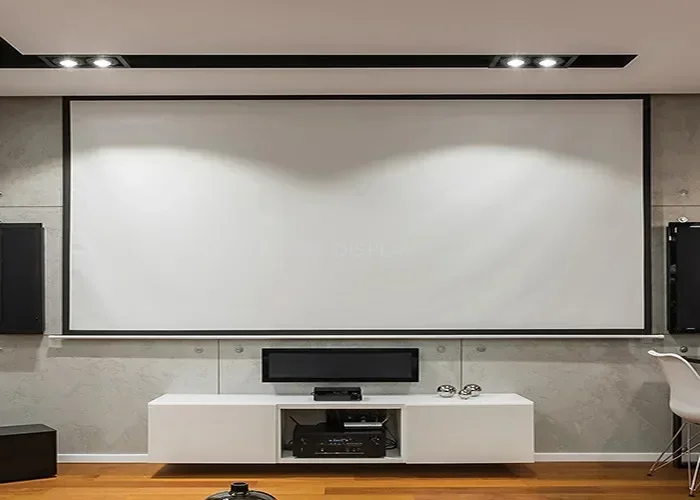
If you do not have a dedicated projector screen, a white wall works fine. But for even better results, consider using a black cloth for projector use. A dark surface enhances contrast and makes colors pop. This simple trick can transform a mediocre projection into something that looks professional.
Manage Your Audio
Some projectors have built-in speakers, but they are often weak. If you want better sound, you can route audio through the projector’s audio output or use external speakers. For wireless options, you can connect Bluetooth speakers to your iPhone directly while the screen is mirrored to the projector.
Keep Your iPhone Charged
Screen mirroring drains your battery faster than normal use. Keep your iPhone plugged in during long sessions. You can use a USB-C charger if your iPhone model supports it, or stick with a lightning cable for older models.
Adjust Display Settings on Your iPhone
Before you start projecting, go to your iPhone settings and adjust the brightness and text size. A slightly lower brightness setting reduces eye strain for your audience. Larger text makes presentations easier to read from a distance.
Common Mistakes To Avoid
Even with the right equipment, people make mistakes that ruin their projection experience. Here are the most common pitfalls and how to avoid them.
- Using the wrong adapter. Not all adapters work with every iPhone model. Always double-check compatibility before purchasing.
- Ignoring Wi-Fi quality. Wireless mirroring stutters on weak connections. Make sure your Wi-Fi signal is strong in the room where you are projecting.
- Forgetting to switch the projector input. It sounds obvious, but many people plug everything in and forget to change the projector source to HDMI.
- Projecting in a bright room. This is the number one reason projections look washed out. Always dim the lights if possible.
- Using a low-quality cable. Cheap HDMI cables can cause signal issues. Invest in a good quality cable for the best results.
- Not updating your software. Make sure your iPhone and any receiving device are running the latest software version for smooth compatibility.
If you are wondering about other projector-related topics, our guide on mounting your projector off center offers helpful setup advice for getting the best image placement.
Expert Insights: Wired vs Wireless
Choosing between wired and wireless connections depends on your specific needs. Here is a quick comparison to help you decide.
- Wired connections are best for presentations, gaming, and situations where reliability is critical. There is zero lag and no interference.
- Wireless connections are ideal for casual movie nights and photo sharing. They offer convenience and freedom of movement.
- Hybrid setups use both methods. Keep a wired adapter as a backup in case the wireless connection drops.
For most home users, wireless mirroring is the go-to option because it is simple and cable-free. For professionals who need a flawless display every time, a wired connection provides peace of mind.
Remember that you can also explore using your projector as a television replacement for a complete home entertainment setup. This opens up even more ways to enjoy your iPhone content on the big screen.
Final Thoughts
Displaying your iPhone screen on a projector is easier than you probably think. Whether you choose a simple lightning-to-HDMI adapter or go wireless with AirPlay, the process is straightforward and rewarding. You do not need to be tech-savvy to pull it off. Just pick the method that suits your situation, gather the right equipment, and follow the steps we outlined above.
The key is to start simple. Try a wired connection first if you want reliability. Then experiment with wireless options once you are comfortable. Soon you will be projecting your iPhone screen like a pro — at movie nights, work meetings, and family gatherings alike.
With the right setup, your iPhone becomes a powerful content source for any projector. The possibilities are endless, from streaming movies to sharing your latest vacation videos. So grab your adapter or fire up AirPlay, and start projecting today.
Frequently Asked Questions
Can I display my iPhone screen on any projector?
Most projectors with an HDMI input will work with a lightning-to-HDMI adapter. If your projector only has VGA or other inputs, you may need an additional converter. Wireless methods require a compatible receiver like Apple TV or a streaming stick connected to the projector.
Do I need an Apple adapter to connect my iPhone to a projector?
Apple’s official lightning-to-Digital AV adapter is the most reliable option. However, third-party adapters from reputable brands also work well. Just make sure the adapter supports video output and is compatible with your iPhone model.
Why is my projected iPhone screen blurry?
Blurriness is usually caused by low projector resolution, incorrect input settings, or a weak Wi-Fi signal for wireless connections. Make sure your projector supports at least 1080p, switch to the correct HDMI input, and check your Wi-Fi strength if mirroring wirelessly.
Can I use a USB cable to connect my iPhone to a projector?
Standard USB cables do not carry video signals from iPhones. You need a lightning-to-HDMI adapter or a wireless mirroring solution. Some newer projectors with USB-C inputs may support direct connection if your iPhone uses USB-C, but this is still uncommon.
Is there a lag when wirelessly mirroring my iPhone to a projector?
There can be a slight delay with wireless mirroring, especially if your Wi-Fi signal is weak. For most casual uses like watching movies or sharing photos, this delay is barely noticeable. For gaming or presentations where timing matters, a wired connection eliminates lag completely.
Can I charge my iPhone while projecting to a projector?
Yes, most lightning-to-HDMI adapters pass through charging power. You can plug a USB charger into the adapter while your iPhone is connected to the projector. This keeps your battery topped up during long viewing sessions.