How Can I Reconnect My Alexa Device Quickly and Easily
Reconnecting your Alexa device is simpler than you think. This guide walks you through quick fixes, Bluetooth pairing, Wi-Fi troubleshooting, and common mistakes to get your smart speaker back online fast. You will learn proven methods to reconnect your Alexa device in minutes, whether it is an Echo speaker, a Bluetooth accessory, or a smart home hub.
Your Alexa device just went silent. The screen is dark, or worse, it is showing that dreaded offline message. You ask it a question, and nothing happens. It is frustrating, right? You are not alone. Thousands of people face Alexa connectivity issues every single day. The good news is that reconnecting your Alexa device is usually quick and painless. In this guide, you will learn exactly how to get your smart speaker back up and running. We will cover simple fixes, Bluetooth pairing, Wi-Fi troubleshooting, and much more.
Whether you use your Echo device for music, smart home control, or just asking random questions, a disconnected Alexa is useless. This article gives you everything you need. You will find step-by-step instructions, practical tips, and expert insights. Let us dive in and get your Alexa voice service working again.
Key Takeaways
- Restart Your Device First: A simple reboot solves most Alexa connectivity issues instantly.
- Check Your Wi-Fi Network: Your wireless connection is the most common culprit for disconnections.
- Use the Alexa App: The app gives you full control over reconnecting Alexa with just a few taps.
- Bluetooth Pairing Matters: Knowing how to pair your Alexa device via Bluetooth saves time and frustration.
- Avoid Common Mistakes: Things like wrong passwords and outdated apps cause most reconnection failures.
- Factory Reset as Last Resort: A reset can fix stubborn problems when nothing else works.
📑 Table of Contents
- Why Does My Alexa Device Disconnect?
- How to Reconnect Your Alexa Device Step by Step
- Common Alexa Connectivity Problems and Fixes
- How to Make Your Alexa Device Work with Other Devices
- Quick Tips to Keep Your Alexa Device Connected
- When to Factory Reset Your Alexa Device
- Expert Insights on Alexa Connectivity
- Key Takeaways
Why Does My Alexa Device Disconnect?
Before we fix the problem, it helps to understand why it happens. Alexa disconnections are more common than you might think. Several factors can cause your smart speaker to lose connection. Knowing the root cause helps you pick the right fix.
Weak Wi-Fi Signal
The most common reason for Alexa connectivity issues is a weak wireless connection. If your Echo device is far from your router, the signal gets weak. Walls, floors, and even microwaves can interfere with your Wi-Fi network. When the signal drops, your Alexa device goes offline.
Software Glitches
Like any tech device, Alexa can experience software hiccups. A frozen process or a buggy update can cause your Amazon Echo to stop responding. These glitches are usually temporary and easy to fix.
Network Changes
Did you recently change your Wi-Fi password? Or maybe you got a new router? Any change to your wireless network can break the connection between your smart home device and the internet. Your Alexa device needs to be reconfigured after such changes.
Bluetooth Interference
If you use your Alexa device as a Bluetooth speaker, interference from other devices can cause disconnections. Other wireless devices nearby, like phones or laptops, can crowd the Bluetooth signal and cause problems.
How to Reconnect Your Alexa Device Step by Step
Now that you know why disconnections happen, let us fix them. Below are the most effective methods to reconnect your Alexa device. Start with the first method and work your way down. Most people find success with just the first few steps.
Method 1: Restart Your Alexa Device
The simplest fix is often the best one. Restarting your Echo device clears out temporary glitches and refreshes the wireless connection. Here is how to do it:
- Unplug your Alexa device from the power outlet.
- Wait for about 30 seconds. Count them out if you need to.
- Plug the device back in firmly.
- Wait for the light ring to turn solid or pulse blue.
- Say “Alexa” and see if she responds.
This method works for almost all Amazon Echo models. If your device was just experiencing a minor software freeze, a restart will bring it right back. Many users skip this step, but it solves the problem more often than not.
Method 2: Check Your Wi-Fi Network
If restarting did not work, the next step is to check your Wi-Fi network. Your Alexa device needs a stable internet connection to function. Here is what to do:
- Check if other devices can connect to the same Wi-Fi network.
- Restart your router by unplugging it for 30 seconds.
- Move your Echo device closer to the router if possible.
- Check for network congestion. Too many devices on one network can slow things down.
Sometimes your wireless connection is fine but your router needs a fresh start. This is one of the most overlooked Alexa troubleshooting steps. A quick router reboot can do wonders for your smart home device connectivity.
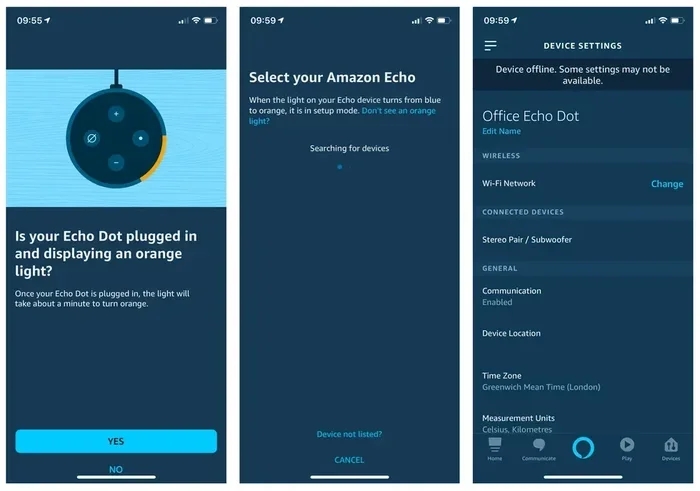
Method 3: Use the Alexa App to Reconnect
The Alexa app is your best friend when it comes to reconnecting Alexa. It gives you direct access to all your device settings. Here is how to use it:
- Open the Alexa app on your phone or tablet.
- Tap the “Devices” icon at the bottom of the screen.
- Select your Echo device from the list.
- Tap the gear icon to open settings.
- Scroll down and tap “Wi-Fi Network.”
- Select your network and enter your password.
- Wait for the device to reconnect.
This method is especially helpful when you have changed your Wi-Fi network password or switched to a new router. The app walks you through the entire Alexa setup process again, making it foolproof.
Method 4: Reconnect via Bluetooth
Many people use their Alexa device as a Bluetooth speaker. If your Bluetooth connection dropped, you need to pair it again. You can also use Alexa as a Bluetooth speaker by following these steps:
- Open the Alexa app and go to “Devices.”
- Select your Echo device and tap the gear icon.
- Scroll down and tap “Bluetooth Devices.”
- Tap “Pair a New Device.”
- Put your phone or tablet in pairing mode.
- Select your device from the list on the Alexa screen.
Once paired, your Alexa device will stream audio directly to your phone or tablet. This is great for listening to music or podcasts. If you want to learn more about using Alexa with Bluetooth, check out Can I Use Alexa As A Bluetooth Speaker for additional tips.
Common Alexa Connectivity Problems and Fixes
Not all Alexa connectivity issues are the same. Different problems need different solutions. Below are the most common issues people face and how to fix them.
Alexa Says “Sorry, I’m Having Trouble”
This error usually means your Alexa device cannot reach Amazon’s servers. It could be a Wi-Fi issue or a server outage. Try these steps:
- Check Amazon’s service status online to see if there is a known outage.
- Restart your router and modem.
- Move your Echo device closer to the router.
- Check your internet speed using a phone or computer.
Most of the time, this error clears up after a router restart. Amazon servers rarely go down, but when they do, you just have to wait.
Alexa Won’t Connect to a New Wi-Fi Network
Switching networks can be tricky. Your smart home device might not pick up the new wireless connection right away. Here is how to force it:
- Open the Alexa app and go to “Devices.”
- Select your Echo device and tap settings.
- Choose “Change Wi-Fi Network.”
- Follow the on-screen prompts to connect to the new network.
- Make sure you enter the correct password.
Double-checking your password is important. A single wrong character will prevent your Alexa device from connecting. This is one of the most common Alexa troubleshooting mistakes people make.
Alexa Keeps Dropping the Bluetooth Connection
If you use your Alexa device with a Bluetooth speaker or another Bluetooth device, frequent drops can be annoying. Try these fixes:
- Move the Bluetooth device closer to your Echo.
- Reduce interference from other wireless devices.
- Unpair and re-pair the Bluetooth device.
- Update the Alexa app to the latest version.
Bluetooth range is limited. If your devices are too far apart, the signal weakens and drops. Keeping them within 15 to 20 feet of each other works best for a stable wireless connection.
How to Make Your Alexa Device Work with Other Devices
One of the best things about Alexa is how well it works with other smart devices. You can extend its functionality by connecting it to TVs, stereos, and more. Here are some popular setups.
Connecting Alexa to Your TV
You can make your TV work with Alexa using a Bluetooth adapter. This lets you control your TV with voice commands. If you want to learn more about this, check out Can I Make My Tv Bluetooth With An Adapter. You can also use Can I Use A Bluetooth Adapter On My Tv for detailed pairing instructions.
Using your Alexa device as a smart home hub for your TV opens up a lot of possibilities. You can change channels, adjust volume, and even search for shows using just your voice.
Connecting Alexa to Your Stereo System
Want to use your old stereo with Alexa? You can turn your stereo into Bluetooth and pair it with your Echo device. This gives your old audio system a smart upgrade. For more details, visit Can I Turn My Stereo Into Bluetooth.
This is a great way to breathe new life into aging audio equipment. Instead of buying a new smart speaker, you can use your existing stereo and control it with Alexa voice commands.
Alexa for Smart Home Control
Your Alexa device can control lights, thermostats, locks, and more. The smart home device ecosystem works best when everything stays connected. Keeping your wireless connection stable is key to a seamless smart home experience.
Quick Tips to Keep Your Alexa Device Connected
Prevention is always better than cure. Here are some quick tips to keep your Alexa device connected and running smoothly:
- Keep your firmware updated. Amazon releases updates that fix bugs and improve connectivity.
- Place your Echo device in a central location away from walls and metal objects.
- Use a strong Wi-Fi network. Consider a mesh router if your home is large.
- Restart your router regularly. A weekly reboot keeps your wireless connection fresh.
- Avoid overloading your network. Too many connected devices can slow things down.
- Check the Alexa app for notifications about service outages or updates.
These simple habits go a long way. Most Alexa connectivity issues can be prevented with a little routine maintenance. Your smart speaker will stay online and ready to help whenever you need it.
When to Factory Reset Your Alexa Device
If none of the above methods work, a factory reset might be your answer. This wipes all settings and starts fresh. It should be your last resort, but it often fixes stubborn connectivity issues. Here is how to do it:
- Locate the reset button on your Echo device. It is usually a small pinhole on the bottom or back.
- Press and hold the button with a paperclip for about 20 seconds.
- Wait for the light ring to turn orange, then blue.
- The device will restart and enter setup mode.
- Open the Alexa app and follow the Alexa setup prompts to reconnect.
After a factory reset, you will need to reconfigure your Wi-Fi network and all your preferences. Make sure you have your network name and password handy before starting. This method resolves nearly all Alexa troubleshooting issues that simpler methods cannot fix.
Expert Insights on Alexa Connectivity
Tech experts agree that most Alexa connectivity issues stem from three things: weak Wi-Fi, outdated software, and network interference. Keeping your wireless connection strong and your device updated prevents the vast majority of disconnections. Experts also recommend placing your Echo device at least a few feet away from microwaves, cordless phones, and baby monitors. These devices operate on the same 2.4 GHz frequency as most Wi-Fi networks and can cause interference. A dedicated smart home network or a dual-band router can also help reduce conflicts and keep your smart home device running smoothly at all times.
Key Takeaways
- Restart First: A simple reboot clears most temporary glitches and refreshes your wireless connection.
- Check Wi-Fi: Your Wi-Fi network is the foundation of Alexa connectivity. Keep it stable.
- Use the Alexa App: The app gives you direct control over reconnecting Alexa to any network.
- Bluetooth Pairing: Knowing how to pair your Alexa device via Bluetooth is essential for audio streaming.
- Avoid Common Mistakes: Wrong passwords, outdated apps, and interference cause most reconnection failures.
- Factory Reset as Last Resort: A reset can fix stubborn problems when nothing else works.
- Preventive Maintenance: Regular updates and smart placement keep your smart speaker connected.
Reconnecting your Alexa device does not have to be a headache. With the right steps, you can get your Echo device back online in just a few minutes. Start with a simple restart, check your Wi-Fi network, and use the Alexa app for more advanced fixes. If those do not work, a factory reset will almost always solve the problem. The key is to stay calm and work through the steps one at a time. Your Alexa voice service will be up and running before you know it.
Remember, Alexa connectivity issues happen to everyone. They are not a sign of a broken device. They are just a normal part of owning a smart home device. With the tips in this guide, you are now equipped to handle any disconnection like a pro. Keep this page bookmarked for the next time your Alexa device goes offline. You will be back up and running in no time.
Frequently Asked Questions
Why does my Alexa device keep disconnecting from Wi-Fi?
Your Alexa device may keep disconnecting due to a weak Wi-Fi signal, network congestion, or an outdated router firmware. Moving your Echo device closer to the router and restarting your modem often fixes the issue. You can also check for too many devices sharing the same wireless connection.
How long does it take to reconnect an Alexa device?
Most Alexa reconnections take less than five minutes. A simple restart usually does the trick. If you need to reconfigure your Wi-Fi network settings through the app, it might take a few extra minutes.
Can I reconnect my Alexa device without the app?
Yes, you can reconnect your Alexa device without the app by using voice commands if it is still partially connected. However, the Alexa app provides the most reliable and complete reconnection experience, especially for setting up new networks or Bluetooth devices.
What should I do if my Alexa device shows offline in the app?
First, check if your Wi-Fi network is working on other devices. Then restart your Echo device by unplugging it for 30 seconds. If it still shows offline, use the Alexa app to re-enter your Wi-Fi network credentials and reconnect.
Does a factory reset delete my Alexa settings?
Yes, a factory reset erases all your Alexa device settings, including Wi-Fi passwords, routines, and paired Bluetooth devices. You will need to set up your smart home device again from scratch after the reset.
Can Bluetooth interference cause my Alexa to disconnect?
Absolutely. Other Bluetooth devices, wireless routers, and even microwaves can interfere with your Alexa device’s wireless connection. Reducing the number of active wireless devices nearby and keeping your Echo close to your paired device helps maintain a stable Bluetooth pairing.