How Can I Slow Down My Internet Speed Without Paying
You can slow down your internet speed for free using simple router settings, device controls, and network adjustments. Whether you want to reduce bandwidth usage, manage data caps, or limit speed for specific devices, these methods work on most home networks. Learn proven internet speed control techniques that anyone can apply without extra costs.
Have you ever wanted to slow down my internet speed on purpose? It sounds strange, right? Most people want faster speeds all the time. But there are real reasons you might want to reduce your connection speed. Maybe you have a data cap and want to avoid overage charges. Perhaps you need to limit speed for a specific device in your home. Or maybe you are testing how your network behaves under different conditions.
The good news is that you do not need to pay anyone to throttle your connection. You can slow down internet speed using free built-in tools on your router and devices. This guide walks you through every method that works. No subscriptions. No extra fees. Just practical steps you can try right now.
Whether you want to reduce bandwidth for streaming, limit download speeds, or control how much data your kids use, you will find answers here. Let us dive into the world of internet speed control and explore how easy it really is.
Key Takeaways
- Router settings let you limit speed: You can cap bandwidth for specific devices using Quality of Service (QoS) features built into most routers.
- Device-level controls work too: Both Windows and mobile devices offer settings to reduce internet speed on a per-device basis.
- Switching Wi-Fi bands helps: Forcing a connection to 2.4 GHz instead of 5 GHz naturally reduces speed and range.
- Free tools exist for speed throttling: Several no-cost apps and built-in features let you manage bandwidth without spending money.
- Common mistakes slow you down too much: Over-throttling can break essential services, so always test after making changes.
📑 Table of Contents
Why You Might Want to Slow Down Your Internet Speed
Before we get into the how, let us talk about the why. Understanding your reason helps you pick the right method. Slowing down your connection is not about being lazy with technology. It is about taking control of your network.
Here are common reasons people want to reduce their internet speed:
- Data cap management: Many internet plans have monthly data limits. By reducing speed, you use less data overall. This helps you avoid overage fees.
- Testing and troubleshooting: Sometimes you need to see how your network performs under slower conditions. This helps identify problems.
- Fair usage across devices: If one device hogs all the bandwidth, slowing it down gives other devices a fair share.
- Parental controls: Slower speeds on certain devices can limit streaming and gaming for kids.
- Security purposes: Reducing speed can limit how fast someone can download large files on a shared network.
No matter your reason, the methods below will help you achieve bandwidth control without spending a dime. Each approach targets a different part of your network setup.
How to Slow Down Internet Speed on Your Router
Your router is the brain of your home network. Most modern routers have built-in features that let you manage and limit speed. This is the most effective way to control bandwidth across your entire network.
Accessing Your Router Settings
First, you need to log into your router. Open a web browser and type your router’s IP address into the address bar. Common addresses are 192.168.1.1 or 192.168.0.1. Check the sticker on the back of your router if you are not sure.
Enter your username and password. If you never changed these, the default info is usually printed on that same sticker. Once logged in, look for sections labeled “QoS,” “Bandwidth Control,” or “Traffic Management.”
Setting Bandwidth Limits
Quality of Service (QoS) is the key feature here. QoS lets you set rules for how much speed each device gets. Here is how to use it:
- Find the QoS section in your router settings.
- Enable QoS if it is not already on.
- Add a device by its MAC address or IP address.
- Set a maximum bandwidth limit for that device.
- Save your settings and restart the router.
This method gives you precise speed cap internet control. You can set different limits for different devices. For example, you might want your smart TV to get full speed while limiting your guest laptop.
If you want to learn more about managing your connection speeds, you can also explore how to boost your upload speed for a better understanding of how bandwidth works in both directions.
Changing Wi-Fi Frequency Bands
Another simple trick is to change your Wi-Fi frequency band. Most routers broadcast on both 2.4 GHz and 5 GHz bands. The 5 GHz band is faster but has shorter range. The 2.4 GHz band is slower but reaches further.
By forcing a device to connect to the 2.4 GHz band, you naturally reduce its speed. This is a great way to slow down Wi-Fi for specific devices without changing any complex settings. If you want to learn how to do this on your phone, check out how you can force your phone to use 2.4 GHz Wi-Fi.
Slowing Down Internet on Specific Devices
Sometimes you only want to reduce speed on one device, not your whole network. Both computers and phones have built-in settings that help with this.
Using Windows Network Settings
On a Windows PC, you can limit bandwidth using the Group Policy Editor. Here is the process:
- Press Windows Key + R to open the Run dialog.
- Type gpedit.msc and press Enter.
- Navigate to Computer Configuration > Administrative Templates > Network > QoS Packet Scheduler.
- Double-click “Limit reservable bandwidth.”
- Set it to Enabled and change the bandwidth limit to a low percentage, like 5%.
This reserves almost no bandwidth for that device, effectively reducing internet speed on device level. It works great for desktop computers that stay in one place.
Using Mac Network Preferences
On a Mac, you can use the Network Link Conditioner tool. This is a developer tool, but anyone can use it:
- Download Xcode from the Mac App Store (it is free).
- Go to Xcode > Open Developer Tool > More Developer Tools.
- Download the Additional Tools for Xcode.
- Install Network Link Conditioner from the downloaded package.
- Select a slow network profile to reduce your speed.
This gives you a simple slider to limit download speed and reduce upload speed on your Mac. It is perfect for testing or managing usage.
Reducing Speed on Mobile Devices
On phones and tablets, you can use data saver modes. Both Android and iOS have built-in features:
- Android: Go to Settings > Network & Internet > Data Saver. Turn it on to restrict background data.
- iPhone: Go to Settings > Cellular > Low Data Mode. This reduces speed and saves data.
These settings do not cut your speed as dramatically as router-level controls. But they are easy to use and work well for basic data usage control.
Free Apps and Tools to Throttle Your Connection
If you prefer software solutions, several free tools can help you manage your network speed. These apps work at the device level and give you fine-grained control.
NetLimiter for Windows
NetLimiter is a popular free tool that lets you set speed limits for individual apps. You can cap how much bandwidth Chrome uses, or limit your torrent client. The free version gives you basic controls that work well for most users.
GlassWire for Monitoring
GlassWire is another free tool that helps you watch your bandwidth usage. While it does not throttle speed directly, it shows you which apps use the most data. This knowledge helps you decide what to slow down. You can then use your router or OS settings to apply limits.
Built-In OS Features
Do not overlook what is already on your computer. Both Windows and macOS have built-in network management tools. Windows has the Shared Experiences feature that limits bandwidth for peer-to-peer updates. macOS has automatic graphics quality reduction that uses less network data. These small changes add up over time.
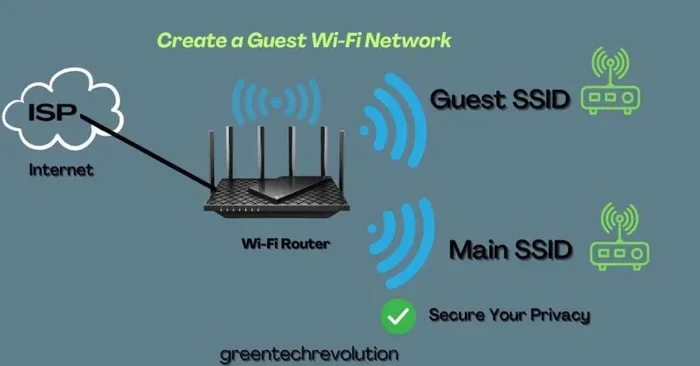
For broader network management, understanding how to manage your router settings helps a lot. You might want to change the SSID on your router to better organize your network and apply different speed rules to different networks.
Router Configuration Tricks to Reduce Speed
Your router has several hidden settings that can naturally reduce speed. These tricks work without any extra software or cost.
Lowering the MTU Size
MTU stands for Maximum Transmission Unit. This setting controls the size of data packets sent over your network. Lowering the MTU size makes each packet smaller, which slows down overall throughput. Most routers default to 1500. Try lowering it to 1400 or even 1300. This will noticeably reduce speed without breaking your connection.
Disabling Fast Routing
Many modern routers have a “Fast Routing” or “Accelerated Mode” feature. This feature uses hardware acceleration to push data faster. Disabling it forces the router to use software processing, which is slower. You can usually find this setting under Advanced > WAN Settings or Performance.
Reducing Wi-Fi Channel Width
Wi-Fi channel width affects speed directly. A 40 MHz channel is faster than a 20 MHz channel. By changing your channel width to 20 MHz, you cut the maximum speed in half. This is a simple but effective way to decrease internet bandwidth without touching any device settings.
You can also reduce the transmit power on your router. Lowering the signal strength means the connection is weaker and slower. This is a blunt but effective method for network speed limiter purposes. If you want to learn more about managing signal strength, check out how to increase your Wi-Fi signal — understanding signal strength helps you know how to reduce it too.
Common Mistakes When Trying to Slow Down Internet
Even with good intentions, people make mistakes when trying to throttle their connection. Avoid these pitfalls to get the results you want.
Over-Throttling
The biggest mistake is setting limits too low. If you reduce speed to almost nothing, you will break essential services. Your video calls will drop, your smart home devices will disconnect, and your security cameras may stop working. Always leave enough bandwidth for critical devices.
Forgetting to Test After Changes
Many people make a change and never check if it worked. Always run a speed test after adjusting settings. Use free tools like Speedtest.net or Fast.com. Compare results before and after your changes. This confirms your internet throttling methods are working correctly.
Ignoring QoS Priority Conflicts
If you set QoS rules that conflict with each other, neither rule works properly. For example, giving one device full speed while limiting another to 10% can create unfair network conditions. Make sure your rules work together harmoniously.
Not Saving Router Settings
This sounds obvious, but it happens all the time. After changing router settings, always click Save or Apply. Then restart the router to make sure the changes take effect. Without saving, your slow connection settings will disappear when the router reboots.
Conclusion
Slowing down your internet speed without paying is easier than most people think. You have many free options at your fingertips. From router QoS settings to device-level controls, each method gives you different levels of precision.
Start by identifying why you want to reduce speed. Then pick the method that fits your goal. Use router settings for whole-network control. Use device settings for targeted limits. Use free apps for app-specific throttling. And always test your changes to make sure they work.
Remember that internet speed management is about balance. You want to slow things down enough to meet your goals without breaking essential services. With the tips in this guide, you have everything you need to take control of your bandwidth. Try one method today and see how much better you can manage your home network.
Frequently Asked Questions
Can I slow down my internet speed for free?
Yes, absolutely. Your router and devices already have built-in settings that let you limit speed without paying anything. QoS on your router, data saver modes on your phone, and bandwidth limits on your computer are all free tools you can use right now.
Will slowing down my internet hurt my router?
No, reducing speed will not damage your router. These settings simply limit how much data passes through at one time. Your router will continue working normally. The only difference is that connected devices get less bandwidth.
How do I know if my speed throttling is working?
Run a speed test before and after making changes. Use free tools like Speedtest.net or Fast.com. If your download and upload speeds have dropped to your target levels, your settings are working correctly.
Can I slow down internet speed on just one device?
Yes, you can. Use device-level settings like Data Saver on Android, Low Data Mode on iPhone, or Network Link Conditioner on Mac. You can also use router QoS settings to assign specific bandwidth limits to individual devices by their MAC address.
What is the best way to reduce bandwidth for streaming?
The best approach is to use QoS settings on your router to limit the bandwidth for your streaming device. You can also force the device to connect to the 2.4 GHz band instead of 5 GHz, which naturally reduces streaming quality and speed.
Is bandwidth throttling the same as slowing down internet speed?
Yes, bandwidth throttling is just a technical term for intentionally reducing internet speed. Whether you call it throttling, limiting, or capping, the goal is the same: to control how fast data moves through your network.