How Can I Tell If My iPhone Is Actually Using Wi Fi 6
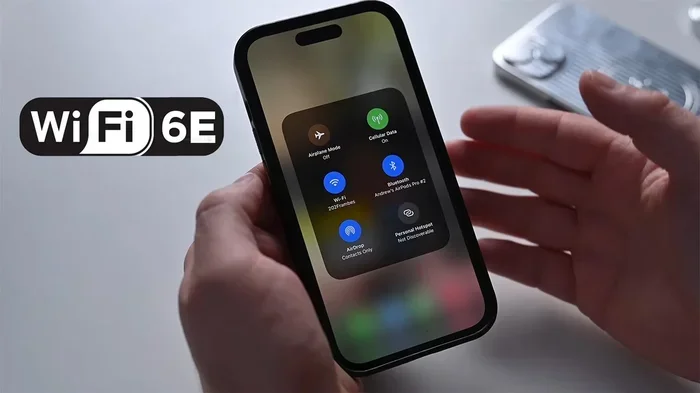
You can tell if your iPhone is using Wi-Fi 6 by checking your iPhone model, looking at your router settings, and running a speed test. Wi-Fi 6 offers faster speeds, better battery life, and improved performance in crowded areas. This guide shows you exactly how to confirm your connection and get the most out of it.
This is a comprehensive guide about How Can I Tell If Iphone Is Using Wi Fi 6.
Key Takeaways
- Check your iPhone model: Only iPhone 11 and newer support Wi-Fi 6.
- Look at your router: You need a Wi-Fi 6 router to get Wi-Fi 6 speeds.
- Check network settings: Your iPhone shows the connection type in Settings under Wi-Fi details.
- Run a speed test: Fast speeds confirm you are on Wi-Fi 6.
- Update your devices: Keep both iPhone and router updated for best performance.
- Wi-Fi 6 is worth it: It brings faster speeds and better battery life to your iPhone.
[FEATURED_IMAGE_PLACEHOLDER]
Have you ever wondered if your iPhone is really using Wi-Fi 6? It is a fair question. With all the talk about faster wireless speeds and better connections, you want to make sure your phone is actually getting the best performance possible. The truth is, many people have Wi-Fi 6 routers but are still connected to older wireless standards without even knowing it.
In this guide, we will walk you through every step to find out if your iPhone is using Wi-Fi 6. We will cover how to check your iPhone model, how to verify your connection type, how to confirm your router supports the latest standard, and what to do if you are not getting Wi-Fi 6 speeds. By the end, you will know exactly where you stand with your wireless connection.
Wi-Fi 6 is the newest wireless standard, also known as 802.11ax. It brings faster speeds, lower latency, and better performance when multiple devices are connected at the same time. If you have an iPhone 11 or newer, your device supports this technology. But supporting it and actually using it are two different things. Let us get into the details so you can tell for sure.
What Is Wi-Fi 6 and Why Should You Care?
Before we dive into checking your connection, it helps to understand what Wi-Fi 6 actually is. Wi-Fi 6 is the sixth generation of Wi-Fi technology. It is also called 802.11ax by engineers. It replaced Wi-Fi 5, which most people know as 802.11ac.
Wi-Fi 6 brings several big improvements over older standards:
- Faster speeds: Wi-Fi 6 can reach speeds up to 9.6 Gbps. That is much faster than Wi-Fi 5.
- Better performance in crowds: If you live in an apartment building or have many smart home devices, Wi-Fi 6 handles them much better.
- Improved battery life: Your iPhone uses less power when connected to Wi-Fi 6 thanks to a feature called Target Wake Time.
- Lower latency: This means less lag when gaming, streaming, or video calling.
- More efficient data handling: Wi-Fi 6 uses technologies like OFDMA and MU-MIMO to send data to multiple devices at once.
So why does this matter for your iPhone? If you are paying for fast internet but your phone is stuck on an older wireless standard, you are leaving speed and performance on the table. Knowing how to check your connection is the first step to getting the most out of your device and your internet plan.
Also worth noting, Wi-Fi 6 works alongside the latest WPA3 security protocol. This means your connection is not just faster but also more secure. If you want to learn more about managing your wireless settings, you might also want to check if you can see your Wi-Fi password on your iPhone for easier network management.
How to Check If Your iPhone Supports Wi-Fi 6
The first step is confirming your iPhone can even use Wi-Fi 6. Not every iPhone model supports it. Here is how to find out.
iPhone Models That Support Wi-Fi 6
The following iPhone models support Wi-Fi 6:
- iPhone 11 (all versions, including Pro and Max)
- iPhone 12 (all versions, including Mini, Pro, and Pro Max)
- iPhone 13 (all versions)
- iPhone 14 (all versions)
- iPhone 15 (all versions)
If you have an iPhone X, iPhone XR, iPhone XS, or any model older than the iPhone 11, your device does not support Wi-Fi 6. It will connect to Wi-Fi 5 or older standards instead. There is no way to add Wi-Fi 6 support through a software update because it requires new hardware inside the phone.
How to Find Your iPhone Model
Not sure which model you have? Here is a quick way to check:
- Open the Settings app on your iPhone.
- Tap General.
- Tap About.
- Look for the Model Name or Model Number field.
You can also check the back of your phone for the model number. It starts with an A followed by numbers, like A2341. You can look up that number online to confirm your model.
If your iPhone does support Wi-Fi 6, great! Now let us move on to the next step. If it does not, you can still enjoy great Wi-Fi speeds with Wi-Fi 5. You might also want to learn how to increase your Wi-Fi signal to get the best performance from whatever standard your phone supports.
How to Verify Your iPhone Is Actually Connected to Wi-Fi 6
So your iPhone supports Wi-Fi 6. But are you actually using it? This is where things get interesting. Many people have Wi-Fi 6 routers but their phones connect to older standards. Let us check.
Check Your Router Settings
The easiest way to confirm your iPhone is on Wi-Fi 6 is to check your router. Log into your router’s admin panel. You can usually do this by typing your router’s IP address into a web browser. Common addresses are 192.168.1.1 or 192.168.0.1.
Once logged in, look for the connected devices list. It should show what wireless standard each device is using. If your iPhone shows 802.11ax, you are on Wi-Fi 6. If it shows 802.11ac, you are on Wi-Fi 5.
Every router interface is different, but most brands like Netgear, ASUS, TP-Link, and Linksys have a similar layout. Look for sections labeled Connected Devices, Device List, or Wireless Status.
Check Your iPhone Network Settings
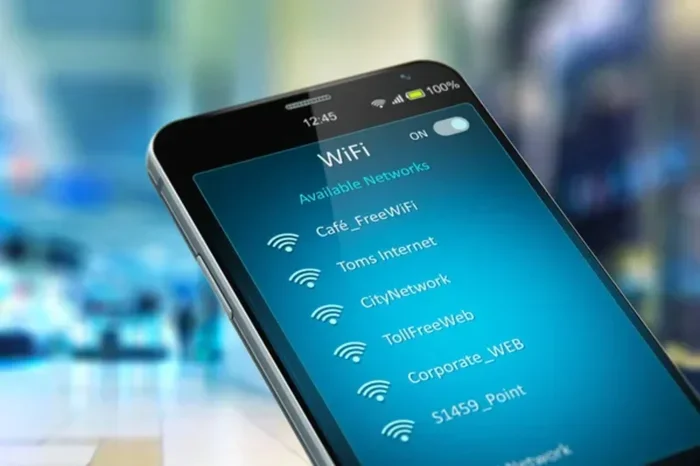
Your iPhone does not directly display “Wi-Fi 6” in its settings. However, you can check the connection speed and router details:
- Open Settings.
- Tap Wi-Fi.
- Tap the info icon (i) next to your connected network.
- Look for the Router IP address and connection details.
This screen shows you your IP address, subnet mask, and router address. While it does not explicitly say “Wi-Fi 6,” it confirms you are connected to your network. To really know what standard you are on, you need to check the router itself.
If you ever need to look up your Wi-Fi password to share with a friend or connect another device, you can check how to see your Wi-Fi password on your iPhone. This is helpful when managing your home network.
Run a Speed Test
A practical way to check if you are getting Wi-Fi 6 speeds is to run a speed test. Open your browser or use a speed test app. Wi-Fi 6 should deliver speeds well above 300 Mbps on a good connection. If you are getting speeds close to your internet plan, you are likely on Wi-Fi 6 or a strong Wi-Fi 5 connection.
Keep in mind that your internet speed also depends on your internet plan and your ISP. A speed test helps you understand if your connection is performing as it should. If you are not getting the speeds you expect, your router settings or placement might need adjustment.
How to Make Sure Your Router Supports Wi-Fi 6
Even if your iPhone supports Wi-Fi 6, you need a Wi-Fi 6 router to use it. Here is how to confirm your router supports the latest standard.
Check Your Router Model
Look at the bottom or back of your router. The model number is printed on a sticker. Search that model number online. The product page will clearly state if it supports Wi-Fi 6.
Common Wi-Fi 6 routers include:
- Netgear Nighthawk AX series
- ASUS RT-AX series
- TP-Link Archer AX series
- Linksys Max-Stream AX series
- Google Nest Wi-Fi (second generation and newer)
If your router does not support Wi-Fi 6, you will need to upgrade to enjoy the benefits. Routers are not expensive these days, and a Wi-Fi 6 router can make a huge difference in your home network.
Check Your Router Settings
Log into your router’s admin panel and look for wireless settings. If you see an option for 802.11ax or Wi-Fi 6, your router supports it. Some routers also let you choose between Wi-Fi 5 and Wi-Fi 6 modes. Make sure it is set to the latest standard.
You may also want to check your router’s frequency band settings. Wi-Fi 6 works on both 2.4 GHz and 5 GHz bands. If you are curious about the differences between these bands, you can learn how to change your Wi-Fi from 5 GHz to 2.4 GHz. Sometimes switching bands can improve your connection quality.
Troubleshooting: Why Your iPhone Might Not Connect to Wi-Fi 6
If you have a Wi-Fi 6 iPhone and a Wi-Fi 6 router but your phone is not connecting to Wi-Fi 6, do not worry. This is a common issue and usually easy to fix.
Restart Your Devices
The simplest fix often works. Restart your iPhone and your router. This clears temporary connection issues and forces both devices to re-negotiate the best available connection.
Update Your Software
Make sure your iPhone is running the latest version of iOS. Go to Settings > General > Software Update to check. Also, check if your router has a firmware update available. Router manufacturers release updates that improve compatibility and performance.
Check for Interference
Physical barriers and electronic devices can interfere with your Wi-Fi signal. Thick walls, microwaves, baby monitors, and even humidity can affect your wireless signal. If you live in a humid area, you might be surprised to learn that humidity can actually weaken your Wi-Fi signal.
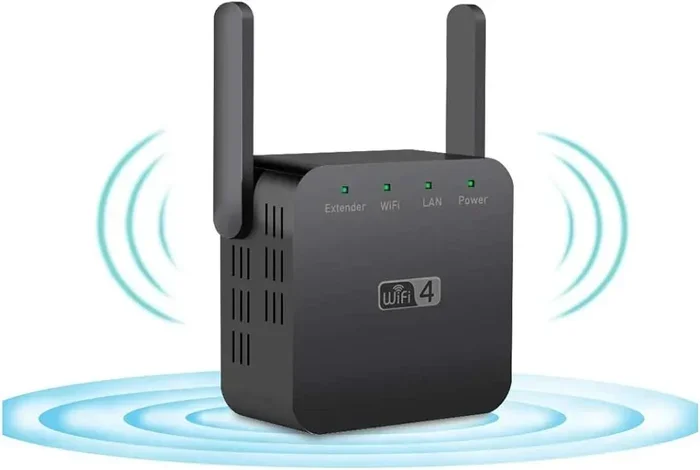
Try moving closer to your router and see if your connection improves. You can also try to increase your Wi-Fi signal strength by repositioning your router or using a Wi-Fi extender.
Forget and Reconnect to the Network
Sometimes your iPhone saves old network settings that cause problems. Here is how to fix it:
- Go to Settings > Wi-Fi.
- Tap the info icon (i) next to your network.
- Tap Forget This Network.
- Reconnect by entering your password.
This forces your iPhone to establish a fresh connection with your router, which often resolves connection issues.
How to Get the Most Out of Wi-Fi 6 on Your iPhone
Once you confirm your iPhone is on Wi-Fi 6, you want to make sure you are getting the best experience possible. Here are some tips.
Enable WPA3 Security
Wi-Fi 6 supports WPA3, the latest wireless security protocol. Check your router settings and make sure WPA3 is enabled. This keeps your network secure while also allowing your iPhone to use the full Wi-Fi 6 feature set.
Place Your Router Strategically
Your router placement matters a lot. Keep it in a central location in your home. Avoid placing it in closets, behind TVs, or in corners. The more open space around your router, the better your signal will be.
If you have a large home, you might want to consider a mesh Wi-Fi system. This extends coverage throughout your house without losing speed. You can also use a Wi-Fi extender if a mesh system is not an option right now.
Limit Connected Devices
One of Wi-Fi 6’s best features is handling many devices at once. But if your router is overloaded, even Wi-Fi 6 will slow down. Disconnect devices you are not using. This frees up bandwidth for your iPhone and other active devices.
Use the 5 GHz Band When Possible
Wi-Fi 6 works on both 2.4 GHz and 5 GHz bands. The 5 GHz band offers faster speeds but shorter range. The 2.4 GHz band reaches farther but is slower. For the best experience with your iPhone, use the 5 GHz band when you are close to your router.
Run Regular Speed Tests
Make it a habit to run speed tests every few weeks. This helps you track your connection quality and catch problems early. If your speeds drop significantly, it might be time to troubleshoot your network or contact your internet provider.
Conclusion
Now you know exactly how to tell if your iPhone is using Wi-Fi 6. You learned which iPhone models support it, how to check your router, and how to troubleshoot common issues. Wi-Fi 6 is a fantastic technology that brings faster speeds, better battery life, and improved performance to your iPhone.
The key is making sure both your iPhone and your router support the standard. If either device is older, you will not get Wi-Fi 6 speeds no matter what. But if you have the right equipment, you are set to enjoy one of the best wireless experiences available today.
Take a few minutes today to check your connection. You might be surprised by what you find. And once you confirm you are on Wi-Fi 6, you can sit back and enjoy faster downloads, smoother streaming, and a more reliable connection throughout your home.
Frequently Asked Questions
How do I know if my iPhone is connected to Wi-Fi 6?
Your iPhone does not show “Wi-Fi 6” directly in its settings. The best way to confirm is to check your router’s admin panel. Look for the connected device list and see if it shows 802.11ax for your iPhone. You can also run a speed test. Wi-Fi 6 speeds are typically well above 300 Mbps on a good connection.
Which iPhone models support Wi-Fi 6?
iPhone 11 and all newer models support Wi-Fi 6. This includes iPhone 11, 12, 13, 14, and 15, along with their Pro and Max variants. Older models like iPhone X, XR, and XS do not support Wi-Fi 6 because they lack the necessary hardware.
Do I need a special router to get Wi-Fi 6 on my iPhone?
Yes, you need a Wi-Fi 6 router to get Wi-Fi 6 speeds. Your iPhone can only connect to Wi-Fi 6 if the router also supports it. Check your router model online or log into its admin panel to confirm it supports 802.11ax.
Can I force my iPhone to use Wi-Fi 6?
You cannot force your iPhone to use Wi-Fi 6 if your router does not support it. However, you can make sure your router is set to use the latest wireless standard. Also, keep your iPhone and router software updated for the best compatibility.
Why is my iPhone not connecting to Wi-Fi 6 even though I have a Wi-Fi 6 router?
This can happen if your iPhone software is outdated, if your router firmware needs updating, or if there is interference from other devices. Try restarting both your iPhone and router, updating your software, and moving closer to the router. Forgetting the network and reconnecting can also help.
Is Wi-Fi 6 worth upgrading to?
Absolutely. Wi-Fi 6 offers faster speeds, better performance with many devices, lower latency, and improved battery life. If you have an iPhone 11 or newer and a Wi-Fi 6 router, you are getting the best wireless experience available. It is especially helpful in homes with many smart devices or in crowded areas like apartments.