How Do I Activate The Wi Fi Driver On Windows 11 PC
Activating the Wi-Fi driver on Windows 11 is easier than most people think. Whether your wireless connection disappeared after an update or your PC simply won’t detect any networks, this guide walks you through every fix. You will learn how to check driver status, activate hidden adapters, and update drivers in just a few minutes.
Your Windows 11 PC just sits there, showing that little flying airplane icon, and you know something is wrong with your Wi-Fi driver. You try clicking on the network icon, but nothing happens. No networks appear. No connection. It is frustrating, right?
Here is the good news. Activating the Wi-Fi driver on a Windows 11 PC does not require a computer science degree. Most of the time, it is a simple toggle or a quick update away. In this guide, we will walk you through every method that actually works. We will cover checking your driver status, enabling hidden adapters, updating outdated drivers, and fixing the most common problems people run into.
By the end of this article, you will know exactly how to get your wireless connection back up and running. Let us dive in.
Key Takeaways
- Device Manager is your best friend: It lets you see and activate your Wi-Fi driver in seconds.
- Hidden adapters are common culprits: A disabled network adapter is often the reason Wi-Fi stops working on Windows 11.
- Updating drivers solves most issues: Outdated drivers cause connection problems, and a simple update can restore full functionality.
- Multiple methods work: You can activate the driver through Device Manager, Settings, or manufacturer tools.
- Restart after every change: Always reboot your PC after updating or activating a driver to ensure changes take effect.
- Signal strength matters too: Once your driver is active, consider optimizing your Wi-Fi signal for the best performance.
📑 Table of Contents
- What Is a Wi-Fi Driver and Why Does It Matter?
- How to Check If Your Wi-Fi Driver Is Active on Windows 11
- Step-by-Step Guide to Activate the Wi-Fi Driver on Windows 11
- Common Wi-Fi Driver Problems on Windows 11
- How to Update Your Wi-Fi Driver for Better Performance
- Quick Tips to Keep Your Wi-Fi Driver Running Smoothly
- When Should You Seek Professional Help?
- Conclusion
What Is a Wi-Fi Driver and Why Does It Matter?
A Wi-Fi driver is a small piece of software that acts as a translator between your computer and your wireless adapter. Think of it like a bridge. Without it, your PC cannot talk to the wireless hardware inside your machine. The driver tells your system how to send and receive wireless signals, connect to networks, and maintain a stable wireless connection.
On Windows 11, the operating system handles most driver installations automatically. But sometimes things go wrong. An update might disable your adapter. A driver might become corrupted. Or the driver might simply be missing from your system entirely. When any of these happen, your Wi-Fi connectivity drops, and you are left scrambling for answers.
Understanding what the driver does helps you troubleshoot faster. Instead of guessing, you can target the exact problem. And that is exactly what this guide helps you do.
How to Check If Your Wi-Fi Driver Is Active on Windows 11
Before you try anything else, you need to know the current state of your wireless adapter. Windows 11 gives you several ways to check this. Here are the two fastest methods.
Method 1: Use Device Manager
Device Manager is the built-in tool that shows every piece of hardware connected to your PC. To check your Wi-Fi driver status:
- Right-click the Start button on your taskbar.
- Select Device Manager from the menu.
- Click on the arrow next to Network adapters to expand the list.
- Look for your wireless adapter. It usually has “Wireless,” “Wi-Fi,” or “WLAN” in the name.
If you see a yellow triangle with an exclamation mark, the driver has a problem. If the adapter name is grayed out, it is disabled. If it looks normal, the driver is active and working.
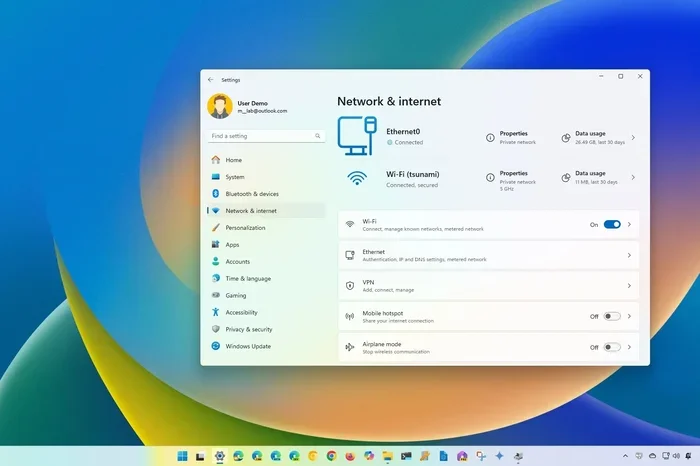
Method 2: Check Through Windows Settings
You can also check your network status through Settings:
- Press Windows + I to open Settings.
- Click on Network and internet.
- Look at the Wi-Fi section on the left side.
- If it shows “Wi-Fi is off,” your driver may be disabled.
Both methods give you a clear picture of what is happening with your wireless adapter. If the driver is disabled or missing, move on to the next section.
Step-by-Step Guide to Activate the Wi-Fi Driver on Windows 11
Now that you know how to check your driver status, let us get it activated. There are several ways to do this, and we will cover each one.
Step 1: Enable the Adapter in Device Manager
This is the most common fix and works in most situations:
- Open Device Manager (right-click Start, then select Device Manager).
- Expand Network adapters.
- Right-click your wireless adapter.
- Select Enable device from the menu.
- Wait a few seconds and check if your Wi-Fi icon comes back.
If the Enable option is grayed out, try clicking Uninstall device first, then restart your PC. Windows 11 will automatically reinstall the driver when it boots back up.
Step 2: Turn Wi-Fi On Through Settings
Sometimes the driver is fine, but the Wi-Fi toggle is simply turned off:
- Open Settings and go to Network and internet.
- Find the Wi-Fi option on the left panel.
- Toggle the switch to On.
This simple step often solves the problem without any driver work at all. Many people overlook it.
Step 3: Use the Airplane Mode Toggle
Windows 11 has a quick-access airplane mode that disables all wireless connections. To turn it off:
- Click the network icon in your taskbar (bottom-right corner).
- Look for the airplane icon.
- Click it to turn airplane mode off.
You can also access this from Settings under Network and internet. If airplane mode is on, your wireless network adapter will not work, no matter what.
Step 4: Update or Reinstall the Driver
If enabling the device does not work, the driver itself might be outdated or corrupted:
- Open Device Manager.
- Expand Network adapters.
- Right-click your wireless adapter and select Update driver.
- Choose Search automatically for drivers.
- Follow the on-screen instructions.
If the automatic search does not find anything, visit your PC manufacturer’s website. Brands like Dell, HP, Lenovo, and ASUS all provide driver downloads for their specific models. Download the latest wireless LAN driver for your model and install it.
You can also use Windows Update to grab driver updates. Go to Settings, then Windows Update, and click Check for updates. Sometimes the right driver is hiding there.
Common Wi-Fi Driver Problems on Windows 11
Even after activation, some people still face issues. Here are the most common problems and how to fix them.
Wi-Fi Driver Missing from Device Manager
If you cannot find a wireless adapter in Device Manager at all, the driver is either not installed or your hardware is not being detected. Try these steps:
- Click Action in Device Manager and select Scan for hardware changes.
- Restart your PC and check again.
- Check if your wireless switch on the laptop keyboard is turned off (many laptops have a physical or function-key switch).
If the adapter still does not appear, you may need to download the driver from your manufacturer’s support page. A missing driver often happens after a major Windows 11 update or a clean installation of the operating system.
Wi-Fi Keeps Disconnecting After Activation
A driver that activates but then drops the connection is usually an outdated driver. Go back to Device Manager, right-click your adapter, and choose Update driver. If that does not work, uninstall the driver completely and restart your PC. Windows 11 will reinstall a fresh copy.
Sometimes the issue is not the driver at all. Interference from other devices, router placement, or even humidity affecting Wi-Fi signal can cause disconnects. If your driver is working fine but the connection is unstable, consider moving closer to your router or checking your router settings.
Wi-Fi Driver Rolled Back After a Windows Update
Windows 11 sometimes pushes driver updates through Windows Update that are not compatible with your hardware. If your Wi-Fi stopped working right after a system update, you can roll back the driver:
- Open Device Manager.
- Expand Network adapters.
- Right-click your wireless adapter and select Properties.
- Go to the Driver tab.
- Click Roll Back Driver.
This reverts the driver to the previous version, which might be more stable. If the Roll Back option is grayed out, uninstall the driver and install the latest version from your manufacturer’s website instead.
How to Update Your Wi-Fi Driver for Better Performance
Keeping your driver up to date does more than fix problems. It can also improve your wireless connection speed and stability. Newer drivers often include bug fixes, better power management, and support for the latest Wi-Fi standards.
There are three ways to update your driver on Windows 11:
- Windows Update: Go to Settings, then Windows Update, and check for optional updates. Drivers sometimes hide there.
- Manufacturer Website: Visit your laptop or motherboard manufacturer’s support page, enter your model number, and download the latest wireless driver.
- Third-Party Tools: Tools like Driver Easy or Snappy Driver Installer can scan your system and update all drivers automatically. Use these with caution and only download from official sources.
We recommend the manufacturer website method for the most reliable results. Third-party tools can sometimes install the wrong version or bundle unwanted software.
Once your driver is updated, restart your PC. Then check if your connection is faster and more stable. You can also check your Wi-Fi signal strength to see if there is any improvement. If you are still experiencing weak signals after updating your driver, there are other steps you can take to boost your wireless performance.
Quick Tips to Keep Your Wi-Fi Driver Running Smoothly
Prevention is always better than cure. Here are some simple habits that keep your wireless adapter and driver in great shape:
- Keep Windows 11 updated: Microsoft regularly releases driver and stability patches through Windows Update.
- Avoid sketchy driver download sites: Always get drivers from the manufacturer or through Windows Update.
- Restart your PC regularly: This clears temporary glitches and allows driver updates to fully apply.
- Check for hardware switches: Many laptops have a physical Wi-Fi switch or a function key combo that can disable the adapter.
- Run the Windows Network Troubleshooter: Go to Settings, System, Troubleshoot, and run the network adapter troubleshooter. It catches issues you might miss.
These small habits save you hours of frustration down the road. A well-maintained driver means a reliable wireless network connection every single day.
When Should You Seek Professional Help?
Most Wi-Fi driver issues are easy to fix at home. But sometimes the problem points to something deeper. If you have tried every method in this guide and your wireless adapter still does not show up, the hardware itself might be failing. Similarly, if you notice that your Wi-Fi signal drops frequently even with a strong driver, the issue might be with your router or your environment.
Consider visiting a repair shop if you suspect hardware failure. They can test your wireless card and replace it if needed. Also, if you are setting up a new network or dealing with connectivity in a larger space, you might want to explore options like getting a Wi-Fi extender or checking if you can get Wi-Fi without a router using alternative methods.
For those managing home networks, changing your router’s SSID or channel settings can also help reduce interference. If you are curious about how to customize your network name, you can learn how to change the SSID on your router for a cleaner and more secure setup.
Conclusion
Activating the Wi-Fi driver on your Windows 11 PC does not have to be a headache. You now know how to check your driver status, enable disabled adapters, update outdated drivers, and fix the most common problems. The key is to start simple: check Device Manager, toggle airplane mode off, and make sure the Wi-Fi switch is on. From there, you can move on to driver updates and more advanced troubleshooting.
Most people solve their Wi-Fi problems within minutes using the steps in this guide. The Wi-Fi driver is the foundation of your wireless connection. Keep it updated, keep it enabled, and your PC will stay connected reliably.
Try these steps today. Your wireless connection is just a few clicks away from being fully restored.
Frequently Asked Questions
Why is my Wi-Fi driver not showing up in Device Manager?
This usually happens when the driver is completely missing or your wireless hardware is not being detected. Try scanning for hardware changes in Device Manager, or restart your PC. If it still does not appear, download the driver directly from your PC manufacturer’s support page.
Can I activate the Wi-Fi driver without internet access?
Yes. You can use Device Manager to enable a disabled adapter, or you can download the driver on another device and transfer it via USB drive. Windows 11 also has a built-in driver store that can reinstall drivers without needing a live internet connection.
How do I know if my Wi-Fi driver needs updating?
If your wireless connection keeps dropping, runs slower than usual, or your PC cannot detect any networks, the driver might be outdated. You can also check the driver date in Device Manager. If it is over a year old, an update is likely a good idea.
Is it safe to use third-party driver update tools?
Some tools are safe, but others bundle unwanted software or install incorrect drivers. Always use official manufacturer websites or Windows Update for the safest experience. If you use a third-party tool, stick to well-known brands and read reviews first.
What should I do if my Wi-Fi driver keeps disabling itself?
This can happen due to power management settings. Go to Device Manager, right-click your wireless adapter, select Properties, then the Power Management tab, and uncheck Allow the computer to turn off this device to save power. This stops Windows from accidentally disabling your adapter.
Can a Windows 11 update break my Wi-Fi driver?
Yes. Sometimes Windows 11 updates push driver changes that conflict with your hardware. If your Wi-Fi stops working after an update, try rolling back the driver in Device Manager or downloading the latest version from your manufacturer’s website.
=== INTERNAL LINKS ===
If you are dealing with wireless connectivity issues beyond just driver activation, these related guides can help:
- Need stronger coverage throughout your home? Learn how to increase your Wi-Fi signal for better performance.
- Looking for alternative ways to get online? Find out if you can get Wi-Fi without a router using different methods.
- Want to personalize your home network? Here is how you can change the SSID on your router for a cleaner setup.
- Experiencing band-related connection issues? Check out how to force your device to use the 2.4 GHz band for better compatibility.