Do You Need A Router With Cox Gateway For Your Home
A Cox Gateway combines your modem and router into one device, but you might still need a separate router depending on your home size, internet speed plan, and connectivity needs. This guide walks you through when the built-in gateway is enough and when adding your own wireless router makes sense for better Wi-Fi coverage and network performance.
Setting up home internet can feel confusing. You get a box from Cox, plug it in, and hope for the best. But then the question hits you: do you actually need a separate router with your Cox Gateway? The answer is not as simple as yes or no.
Your Cox Gateway is a clever little device. It works as both a modem and a router in one box. That means it talks to Cox’s network and also sends Wi-Fi to your phones, laptops, and smart TVs. For many people, this setup works just fine. But for others, it falls short. In this article, we will break down everything you need to know about whether you need a separate router with your Cox Gateway.
We will cover what a Cox Gateway actually does, when it is enough on its own, and when you should add a router or even a mesh system. By the end, you will know exactly what your home network needs and how to get the best internet experience.
Key Takeaways
- Cox Gateway is an all-in-one device: It handles both modem and router functions, but may lack range for larger homes.
- You might not need a separate router: If you live in a small apartment or home, the Cox Gateway alone can handle basic internet needs.
- Adding a router improves coverage: A separate wireless router eliminates dead zones and boosts network speed in bigger spaces.
- Router placement matters: Even with a great device, poor placement kills your Wi-Fi signal and slows things down.
- Mesh systems are a great option: If you need whole-home coverage, you can connect a mesh router to your Cox Gateway for seamless internet.
- Check your internet plan: Your ISP plan speed should match your router’s capabilities to get the most out of your connection.
- Changing router settings is easy: You can tweak your network name, password, and channels without calling your internet service provider.
📑 Table of Contents
What Is A Cox Gateway And How Does It Work
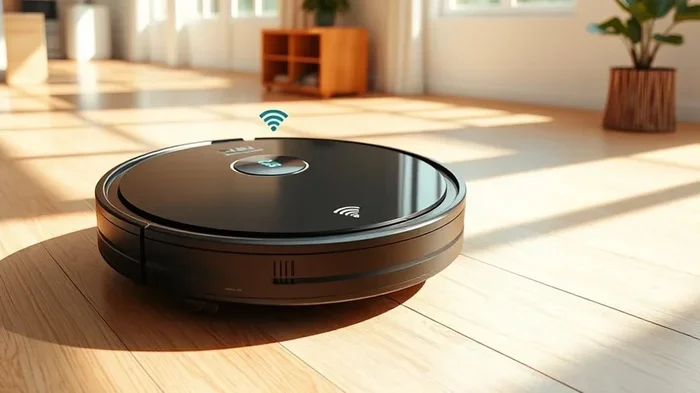
A Cox Gateway is a device provided by Cox Communications. It combines two important pieces of equipment into one box. First, it acts as a modem. This is the part that connects to Cox’s network and brings the internet into your home. Second, it acts as a router. This is the part that sends the internet signal to your devices through Wi-Fi or ethernet cables.
When you sign up for Cox internet, they often give you this gateway device. It saves you from buying two separate pieces of equipment. The gateway handles the connection to the outside world and then shares that connection with everything inside your home.
How The Modem Part Works
The modem side of the gateway talks directly to Cox’s network. It receives the internet signal from their cables or fiber lines. This signal then gets converted into data your devices can use. Without a modem, your home would have no way to access the internet at all.
Cox uses specific types of gateways depending on your area and plan. Some use cable technology, while others use different methods. The gateway you receive matches the type of internet service you signed up for. If you want to learn more about buying your own modem instead, you can check if you can buy a modem and have internet on your own.
How The Router Part Works
The router side takes the internet signal from the modem and shares it. It creates a Wi-Fi network that your phone, tablet, laptop, and smart home devices can connect to. It also assigns local IP addresses to each device. Think of it like a traffic cop directing cars to the right streets.
The router also lets multiple devices use the internet at the same time. Without a router, you could only plug one device directly into the modem. That would be very inconvenient for most households today.
When The Cox Gateway Is Enough
Not everyone needs a separate router. In many cases, the Cox Gateway works perfectly well on its own. Here are some situations where you can skip buying extra equipment.
You Live In A Small Space
If you live in an apartment or a small home, the Cox Gateway’s built-in Wi-Fi might cover everything just fine. Small spaces mean fewer walls for the signal to pass through. The gateway’s router can push Wi-Fi throughout the entire area without much trouble.
For a studio apartment or a one-bedroom place, you probably will not notice any weak spots. The signal reaches every room easily. In this case, spending extra money on a router would not give you much benefit.
You Have Light Internet Usage
If your household mostly browses the web, checks email, and watches light video content, the gateway handles this easily. Light usage does not push the router to its limits. The built-in hardware works well for everyday tasks like scrolling social media or streaming a single show.
You Only Have A Few Connected Devices
Every router has a limit on how many devices it can handle at once. The Cox Gateway works great if you have a handful of devices connected. A few phones, a laptop, and maybe a smart speaker are no problem. The gateway keeps everything running smoothly without breaking a sweat.
When You Do Need A Separate Router
Sometimes the Cox Gateway just is not enough. There are clear signs that tell you it is time to add a router to your setup. Let us look at when this happens.
You Live In A Larger Home
This is the number one reason people need a separate router. The Cox Gateway’s built-in Wi-Fi has limited range. In a large house with multiple floors and thick walls, the signal struggles to reach every room.
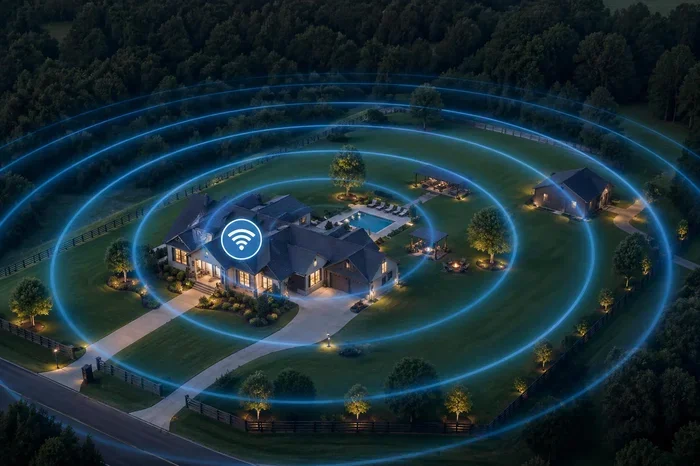
You might notice dead zones. These are spots where the Wi-Fi signal drops to nothing. Maybe your bedroom upstairs gets no signal while the living room works fine. A separate router with stronger antennas can push the signal much farther and cover more area.
You Have Many Connected Devices
Modern homes have a lot of smart devices. Smart TVs, phones, tablets, laptops, gaming consoles, smart thermostats, security cameras, and smart speakers all compete for bandwidth. The Cox Gateway was not designed to handle a heavy load of devices all at once.
When too many devices connect, your network slows down. Pages take longer to load. Videos buffer. A better router can manage all these connections without slowing the network speed down. It prioritizes traffic and keeps things running smoothly.
You Need Faster Internet Speeds
If you pay for a fast internet plan, the gateway might not be able to deliver all that speed. Older gateway models have slower processors and weaker Wi-Fi standards. They can bottleneck your connection even if your internet plan offers high speeds.
A modern router supports the latest Wi-Fi standards like Wi-Fi 6. These routers can handle much faster speeds and more devices. If you have a gigabit plan or higher, a separate router lets you actually get the speeds you are paying for.
You Want Better Security Features
The Cox Gateway provides basic security. But a separate router often comes with better features. You get advanced firewall settings, parental controls, and guest network options. These features help protect your home network and give you more control over who connects.
Setting Up A Router With Your Cox Gateway
If you decide to add a router, the setup process is straightforward. You do not need to be a tech expert. Here is how it works.
Bridge Mode: The Key To Using Your Own Router
Most Cox Gateways have a feature called bridge mode. When you turn this on, the gateway stops acting as a router. It only acts as a modem. This lets your separate router take over the Wi-Fi duties.
Bridge mode is important because without it, you get two routers fighting for control. This causes conflicts and connection problems. Enabling bridge mode makes everything work together smoothly.
To enable bridge mode, you usually log into the gateway’s admin page. Look for a setting called “bridge mode” or “passthrough mode.” Turn it on, save your changes, and then connect your router to the gateway using an ethernet cable.
Placement Tips For Your Router
Where you put your router matters a lot. Here are some quick tips:
- Put it in a central location: This helps the signal reach every room evenly.
- Keep it elevated: Place it on a shelf or mount it on a wall. Signals travel better downward.
- Avoid walls and metal objects: Thick walls and metal block Wi-Fi signals. Keep the router out in the open.
- Stay away from microwaves and baby monitors: These devices interfere with Wi-Fi signals.
- Do not hide it in a closet: Closed spaces weaken the signal significantly.
Good placement can make a huge difference. Even a cheap router performs better when placed correctly. If you want to change your network name or password after setup, you can learn how to change the SSID on your router through the admin panel.
Mesh Systems: A Great Upgrade Option
If you have a larger home and need whole-house coverage, a mesh Wi-Fi system is an excellent choice. A mesh system uses multiple nodes placed around your home. Each node sends the Wi-Fi signal further, creating a seamless blanket of coverage.
How Mesh Systems Work With Cox Gateways
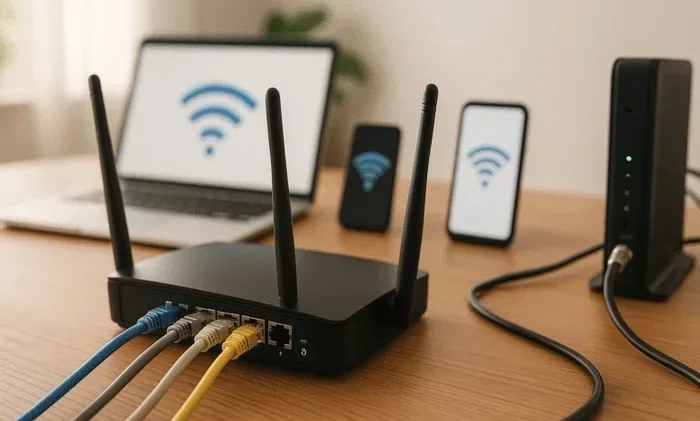
You can connect a mesh system to your Cox Gateway. First, put the gateway in bridge mode. Then connect the mesh router to the gateway using an ethernet cable. The mesh nodes spread the signal throughout your home.
Mesh systems are great because they eliminate dead zones completely. Every room gets strong Wi-Fi. You also get one network name, so your devices switch smoothly between nodes as you move around the house.
If you are considering a mesh setup, you can also connect a mesh router to an existing router. This is a common setup that works well with Cox Gateways too.
Popular Mesh Systems To Consider
There are many mesh systems on the market. Some popular options include Google Nest Wifi, TP-Link Deco, and Netgear Orbi. Each has its strengths. Google Nest is easy to set up and looks great. TP-Link Deco offers solid performance at a budget price. Netgear Orbi delivers top-tier speed and coverage for power users.
When choosing a mesh system, make sure it matches your internet plan speed. If you have a fast plan, get a mesh system that supports the latest Wi-Fi standards. Otherwise, you will not see the full benefit of your internet speed.
Common Mistakes People Make With Cox Gateway Setup
Many people make avoidable mistakes when setting up their Cox Gateway. Here are some common ones and how to fix them.
Not Changing Default Login Credentials
The Cox Gateway comes with default admin passwords. Leaving these unchanged is a security risk. Anyone on your network could access your router settings. Change the admin password as soon as you set up the device. Use a strong, unique password that you do not use anywhere else.
Placing The Gateway In A Bad Spot
People often hide their gateway in a cabinet or behind a TV. This blocks the Wi-Fi signal and weakens coverage. The gateway needs to be in an open, central location to work its best. Even if you add a separate router later, the gateway’s placement still matters for the initial signal strength.
Ignoring Firmware Updates
Firmware updates fix bugs and improve security. Many people never update their gateway’s firmware. Check for updates regularly in the admin panel. Keeping your device updated ensures the best performance and security.
Using Too Many Extension Devices
Some people stack Wi-Fi extenders on top of extenders. This creates a messy setup with slow speeds. Each extender cuts the bandwidth in half. A better approach is to use a single mesh system or a quality router instead of multiple cheap extenders.
Do You Really Need A Router With Cox Gateway
The answer depends on your situation. For small homes with light usage, the Cox Gateway alone works fine. For larger homes, heavy usage, or fast internet plans, a separate router makes a big difference.
Think about your needs honestly. Do you have dead zones? Is your internet slow when everyone is online? Do you have more than five or six connected devices? If you answered yes to any of these, a router upgrade is worth it.
If you are not sure whether your current setup is working well, run a speed test in different rooms. Compare the results to your internet plan speed. If the speeds are much lower in certain areas, you need better coverage. A Wi-Fi booster or a mesh system can help fill in the gaps.
Remember that your Cox Gateway is a good starting point. It gives you basic internet access out of the box. But as your needs grow, adding a router or mesh system can transform your home network experience.
Conclusion
So do you need a router with your Cox Gateway? The short answer is: it depends on your home and your needs. For small spaces and light usage, the gateway is enough. For larger homes, many devices, and fast internet plans, a separate router or mesh system is a smart investment.
Your Cox Gateway handles the basics well. But it has limits. Understanding those limits helps you make the right choice for your home network. Whether you stick with the gateway alone or add a router, the goal is the same: fast, reliable internet everywhere in your home.
Take some time to evaluate your setup. Check your coverage, count your devices, and review your internet plan. With the right equipment in place, you will enjoy a smooth and fast internet experience every single day.
Frequently Asked Questions
Can I use my own router with a Cox Gateway?
Yes, you can. You just need to enable bridge mode on the Cox Gateway first. This turns off the gateway’s router functions and lets your separate router handle Wi-Fi. Connect your router to the gateway with an ethernet cable and you are good to go.
Do I need a separate router if I have a Cox Gateway?
Not always. If you live in a small space with light internet usage, the Cox Gateway alone is enough. But if you have a larger home, many devices, or need faster speeds, adding a router improves your experience significantly.
What happens if I do not use bridge mode when adding a router?
Without bridge mode, two routers will conflict with each other. You may get double NAT issues, slow speeds, and connection drops. Always enable bridge mode on the Cox Gateway before connecting a separate router.
Can a Wi-Fi booster help with Cox Gateway coverage?
Yes, a Wi-Fi booster can extend your signal to areas with weak coverage. However, a mesh system or a better router is a more reliable long-term solution. Boosters work best as a quick fix for small dead zones.
How do I know if my Cox Gateway is working properly?
Run a speed test in different rooms and compare results to your internet plan speed. If speeds are close to what you pay for everywhere, your gateway is working well. Slow or inconsistent speeds may mean you need a router upgrade or better placement.
Is it better to buy or rent a router for use with Cox?
Buying your own router saves money in the long run. Cox charges a monthly rental fee for their gateway. Over time, owning your own router pays for itself. Just make sure the router you buy is compatible with Cox’s network and supports your internet plan speed.