How Do I Connect My Bluetooth Audio Transmitter Easily
A Bluetooth audio transmitter lets you send sound wirelessly from any device to your headphones, speakers, or car stereo. Connecting one is simple once you know the right steps for pairing, powering on, and selecting the correct input source. This guide walks you through the entire process with clear instructions, common fixes, and pro tips for the best wireless audio experience.
A Bluetooth audio transmitter is one of the handiest little gadgets you can add to your setup. It takes sound from a non-wireless device and sends it out over Bluetooth to your headphones, speakers, or stereo. Whether you want to listen to your TV privately at night or make your old car stereo wireless, a transmitter makes it happen.
But here is the thing. Many people buy these devices and then struggle with the setup. The good news is that connecting a Bluetooth audio transmitter does not have to be complicated. With the right guidance, you can be up and running in just a few minutes.
In this guide, we will walk you through every step of the process. We will cover how to pair your transmitter, which inputs to use, how to get the best sound quality, and how to fix common problems. By the end, you will feel confident setting up your own wireless audio transmitter like a pro.
Key Takeaways
- Easy Pairing Process: Most Bluetooth audio transmitters follow a simple three-step connection of powering on, entering pairing mode, and connecting from your device.
- Multiple Input Options: You can connect transmitters via AUX, USB, or optical inputs depending on your source device.
- Sound Quality Matters: Choosing the right Bluetooth codec like aptX or AAC greatly improves your wireless audio experience.
- Range and Interference: Keeping your transmitter within 30 feet and away from Wi-Fi routers helps maintain a stable connection.
- Versatile Use: Bluetooth transmitters work with TVs, car stereos, speakers, and headphones for a truly wireless setup.
- Troubleshooting Is Simple: Most connection issues can be fixed by resetting the device, updating firmware, or moving closer to the transmitter.
📑 Table of Contents
- What Is a Bluetooth Audio Transmitter?
- Step-by-Step Guide to Connect Your Bluetooth Audio Transmitter
- Best Uses for a Bluetooth Audio Transmitter
- Tips for Getting the Best Sound Quality
- Common Problems and How to Fix Them
- Comparison: Bluetooth Transmitter vs Bluetooth Receiver
- Expert Tips for a Seamless Wireless Audio Setup
- Conclusion
What Is a Bluetooth Audio Transmitter?
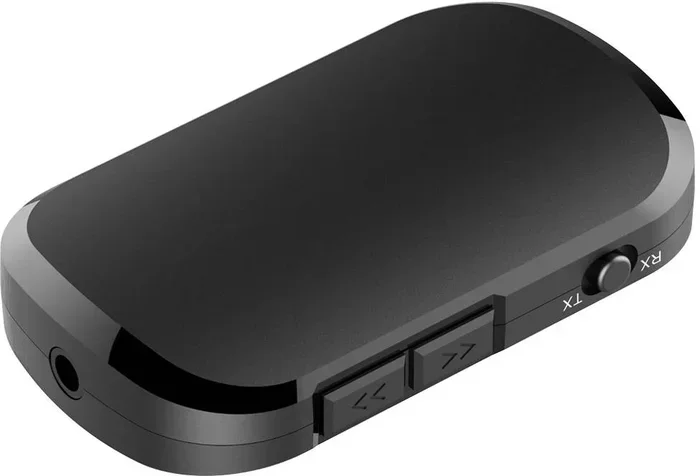
A Bluetooth transmitter is a small device that receives an audio signal from a source and sends it wirelessly to a Bluetooth-enabled receiver. Think of it as a bridge between your non-wireless device and your wireless headphones or speakers. It opens up a whole new world of freedom when you are listening to audio.
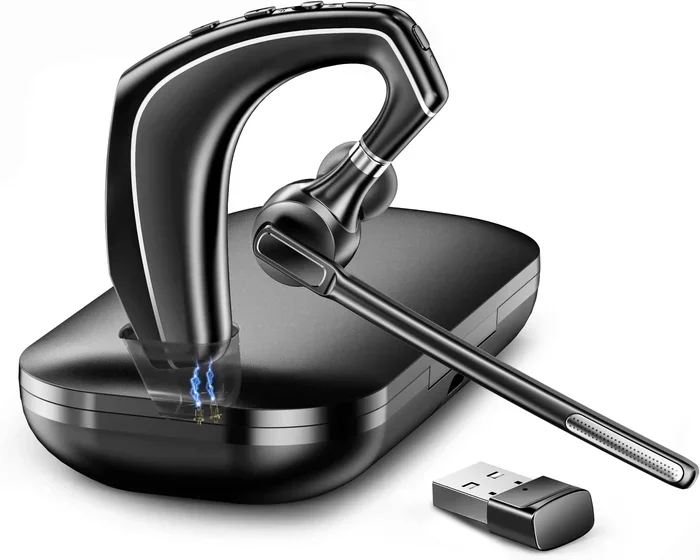
These devices come in different shapes and sizes. Some are small dongles that plug directly into a USB port. Others are larger units with multiple input options like AUX cables, optical cables, or USB connections. The type you choose depends on what devices you want to connect and how you plan to use them.
The way a Bluetooth audio transmitter works is actually quite simple. It takes the analog or digital audio signal from your TV, computer, or stereo and converts it into a Bluetooth signal. That signal then travels through the air to your Bluetooth headphones, speaker, or receiver. The whole process happens in real time, so you get sound with very little delay.
Step-by-Step Guide to Connect Your Bluetooth Audio Transmitter
Connecting your Bluetooth audio transmitter is easier than most people think. Follow these steps carefully and you will have wireless audio in no time. Each step builds on the one before it, so do not skip ahead.
Step 1: Choose the Right Input Source
Before you do anything else, figure out where your transmitter is going to plug in. Most transmitters offer multiple input options. The most common ones are AUX (3.5mm jack), USB, and optical (TOSLINK). Look at the device you want to connect and check what ports are available.
- AUX Input: This is the most universal option. Almost every TV, phone, and music player has a 3.5mm headphone jack. You just plug a standard AUX cable from the device into the transmitter.
- USB Input: Great for computers and some smart TVs. The transmitter draws power from the USB connection in many cases. You can also find a USB Bluetooth dongle for TVs that have a USB port but no AUX out.
- Optical Input: This gives the best digital audio quality. It is ideal for TVs and home theater systems that have an optical output. You will need an optical cable, which is sometimes called a TOSLINK cable.
For example, if you want to make your TV wireless for Bluetooth headphones, an optical input usually gives the cleanest sound. But if your TV only has a headphone jack, an AUX cable works perfectly fine.
Step 2: Power On the Transmitter
Once you have plugged in the right cable, it is time to power up your transmitter. Some transmitters use USB for power, which means they turn on automatically when you plug them in. Others need their own power source, like a wall adapter or batteries.
Look for a power LED light on the device. This light usually turns solid blue or white when the transmitter is on and ready. If your transmitter came with a wall plug, now is a good time to use it. A stable power source ensures consistent performance and better Bluetooth connectivity.
Quick tip: If you are using batteries, make sure they are fresh. Weak batteries can cause dropouts and poor sound quality. For a permanent setup, always use the wall adapter or USB power.
Step 3: Put the Transmitter into Pairing Mode
This is the step where most people get stuck. Putting a transmitter into pairing mode is how it announces to other devices that it is ready to connect. The method varies by brand, but most transmitters use a similar process.
Usually, you need to press and hold the power button or a dedicated Bluetooth button for about 5 to 7 seconds. The LED light will start flashing, typically blue and red or just blue. That flashing light means the transmitter is in pairing mode and visible to other devices.
Check your transmitter manual if you are unsure. The pairing process is different for every model. Some transmitters even have a dedicated Bluetooth button that you press once to enter pairing mode. Once the light starts flashing, move on to the next step.
Step 4: Pair With Your Bluetooth Device
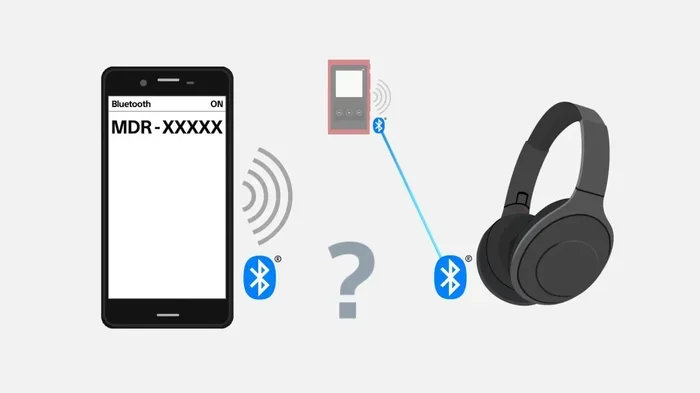
Now go to the device you want to receive the audio. This could be your wireless headphones, Bluetooth speaker, or car stereo. Turn on Bluetooth on that device and set it to search for new devices.
Your transmitter should appear in the list of available devices. The name will usually be something like “BT Transmitter” or whatever brand name the manufacturer used. Tap or click on it to pair.
Once paired, the LED light on the transmitter usually stops flashing and stays solid. You may also hear a short confirmation tone. At this point, audio from your source device should start flowing wirelessly to your Bluetooth device. Try playing some music or turning on your TV to test it out.
Step 5: Adjust Volume and Settings
After pairing, you may need to adjust the volume on both devices. Start with the source device (like your TV) at about 70% volume. Then use the volume controls on your Bluetooth headphones or speaker to fine-tune the level. This two-step volume approach gives you the best control and prevents distortion.
Some transmitters also let you choose a Bluetooth codec. This is the format used to compress and send audio wirelessly. Codecs like aptX, aptX HD, and AAC offer better sound quality than the standard SBC codec. Check your transmitter settings to see if you can switch to a higher-quality codec for improved wireless streaming.
Best Uses for a Bluetooth Audio Transmitter
A Bluetooth audio transmitter is incredibly versatile. People use them in many different situations to add wireless capability to devices that were never designed for it. Here are the most popular and practical uses.
Making Your TV Wireless
One of the most common reasons people buy a transmitter is to watch TV with wireless headphones. This is especially helpful for people who live with family members or roommates. You can enjoy your shows at full volume without disturbing anyone else in the house.
To set this up, plug the transmitter into your TV using an AUX cable or optical cable. Then pair your Bluetooth headphones with the transmitter. You can now listen to your TV privately through your headphones. You can also use a USB Bluetooth dongle on your TV if your TV supports USB connectivity.
Adding Bluetooth to Your Car Stereo
If your car does not have Bluetooth built in, a transmitter can change your driving experience. You plug the transmitter into your car radio’s AUX port or cigarette lighter for power. Then you pair your phone with the transmitter and stream music wirelessly.
Some people also use a transmitter to make their car radio Bluetooth capable without replacing the entire unit. This is a much cheaper option than buying a new head unit. You get all the benefits of wireless music streaming without the expensive upgrade.
Using Old Speakers or Stereos Wirelessly
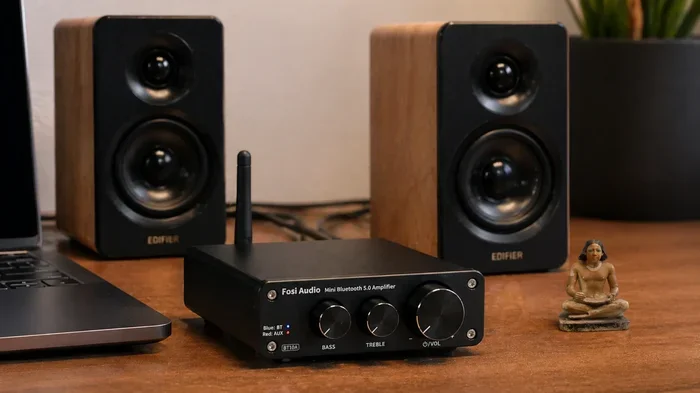
Do you have a pair of great speakers that only have a wired input? A transmitter can make them wireless. Plug the transmitter into the speaker’s AUX input, pair it with your phone, and enjoy wireless music. You can also turn your stereo into Bluetooth with a simple transmitter setup.
This works great for outdoor speakers, desktop speakers, and even older home theater systems. It gives your existing equipment a new life without needing to buy replacements.
Tips for Getting the Best Sound Quality
Not all Bluetooth audio setups sound the same. A few simple tweaks can make a big difference in the quality of your wireless audio. Here are some tips to help you get the best possible experience from your transmitter.
- Stay Within Range: Bluetooth works best within about 30 feet (10 meters). If you walk too far from the transmitter, the signal weakens and you may hear dropouts or static.
- Avoid Interference: Wi-Fi routers, microwaves, and other wireless devices can interfere with your Bluetooth signal. Keep your transmitter away from these devices for a cleaner connection.
- Use the Right Codec: If your transmitter supports aptX or AAC, switch to it in the settings. These codecs deliver much better sound than the default SBC codec. Your Bluetooth audio quality will improve noticeably.
- Keep Firmware Updated: Some transmitters have updatable firmware. Check the manufacturer’s website for updates. New firmware can improve range, stability, and sound quality.
- Charge Your Devices: Low battery on either the transmitter or your Bluetooth headphones can cause audio glitches. Keep both devices well charged for the best experience.
These small changes can transform your wireless audio from frustrating to fantastic. The difference is especially noticeable when you are listening to music with complex audio like classical or jazz.
Common Problems and How to Fix Them
Even with the best setup, you might run into issues from time to time. Here are the most common problems people face with Bluetooth transmitters and simple ways to fix them.
Transmitter Won’t Pair With My Device
This is the most common issue and it is usually easy to fix. First, make sure your transmitter is in pairing mode. The LED light should be flashing. If it is not, press and hold the Bluetooth button again for 5 to 7 seconds.
Next, check that Bluetooth is turned on in your device. Sometimes Bluetooth turns off accidentally. Also, make sure your device is not already connected to another Bluetooth device. Disconnect from other devices and try again. If it still does not work, restart both the transmitter and your device and try once more.
Audio Keeps Cutting Out
Intermittent audio is usually caused by distance or interference. Move closer to the transmitter and make sure nothing is blocking the signal between the two devices. Walls, furniture, and even your body can weaken the Bluetooth signal.
Also check if other wireless devices nearby are causing interference. Turn off your Wi-Fi router temporarily to see if that fixes the issue. If you are using your transmitter in a car, try moving it to a different location away from other electronic devices.
Poor Sound Quality or Static Noise
Bad sound quality can come from several sources. First, check your cable connections. A loose AUX or optical cable can introduce static or crackling sounds. Try unplugging and replugging the cables firmly.
If the cables are fine, try switching Bluetooth codecs in your transmitter settings. Also, lower the volume on your source device. Playing audio at maximum volume often causes distortion. If you are using a USB Bluetooth dongle, make sure it is plugged into a powered USB port and not a hub.
Transmitter Won’t Turn On
If your transmitter does not power on, check the power source first. Try a different USB port or wall adapter. If you are using batteries, replace them with fresh ones. Also check if the power cable is damaged or loose.
Some transmitters have a small reset button. Press it with a paperclip to reset the device. If none of these steps work, the transmitter may be defective. Contact the manufacturer for a replacement or refund.
Comparison: Bluetooth Transmitter vs Bluetooth Receiver
People often confuse transmitters and receivers, but they do opposite things. Understanding the difference helps you choose the right device for your needs.
| Feature | Bluetooth Transmitter | Bluetooth Receiver |
|---|---|---|
| What It Does | Sends audio wirelessly from a source | Receives wireless audio on a device |
| Direction of Signal | Source to headphones/speakers | Phone/laptop to speaker |
| Common Use | TV to wireless headphones | Phone to wired speaker |
| Input Options | AUX, USB, Optical | Usually 3.5mm AUX out |
| Power Source | USB or batteries | USB powered |
| Example Setup | TV + transmitter + Bluetooth headphones | Phone + receiver + wired speaker |
In short, a transmitter sends audio out wirelessly. A receiver takes wireless audio in and plays it through wired speakers. Make sure you buy the right one for your setup. Buying the wrong type is a common mistake that wastes time and money.
Expert Tips for a Seamless Wireless Audio Setup
After helping many people set up their wireless audio equipment, here are a few expert insights that can save you time and frustration.
Buy a transmitter with low latency. Latency is the delay between the audio leaving the source and reaching your ears. Low-latency transmitters use codecs like aptX Low Latency to reduce this delay. This is especially important if you are watching videos or playing games where audio and video need to stay in sync.
Place your transmitter in a central location. If you are using the transmitter in a room, keep it near the center of where you sit. This gives you the best signal coverage in all directions. Avoid hiding it inside a cabinet or behind furniture, as this weakens the Bluetooth signal significantly.
Consider your use case carefully. If you just want to listen to music from your phone on wireless speakers, a simple transmitter works great. But if you want to make your car stereo wireless, look for a transmitter designed for car use with a built-in microphone for hands-free calls. You can also connect your phone to a projector with a USB cable if you want a bigger screen experience alongside your wireless audio.
Keep your devices clean. Dust and debris can build up on cable connections and Bluetooth antennas. Wipe down your transmitter and cables regularly with a dry cloth. This small habit can prevent many connection issues over time.
Conclusion
Setting up a Bluetooth audio transmitter is one of the easiest ways to add wireless capability to your favorite devices. Whether you want to listen to your TV privately, make your car stereo wireless, or breathe new life into old speakers, a transmitter makes it all possible. The process is straightforward once you know the steps, and the results are well worth the effort.
Remember to choose the right input, keep your devices within range, and use the best Bluetooth codec your transmitter supports. If you run into problems, the troubleshooting tips in this guide should help you resolve them quickly. With a little patience, you will be enjoying crystal-clear wireless audio in no time.
So go ahead and set up your Bluetooth audio transmitter today. You will wonder how you ever lived without wireless audio. The freedom and convenience it brings to your daily routine is truly something special.
Frequently Asked Questions
Can I use a Bluetooth transmitter with any TV?
Most modern TVs work with a Bluetooth audio transmitter. You just need to check what audio outputs your TV has. If your TV has an AUX jack, optical port, or USB output, you can connect a transmitter. For TVs with limited options, a USB Bluetooth dongle can work as a great alternative to add wireless capability.
How far can I be from the Bluetooth transmitter?
Most Bluetooth transmitters work within a range of about 30 feet (10 meters). This range can vary depending on the model and the environment. Walls, furniture, and other electronic devices can reduce the effective range. For the best experience, stay within a clear line of sight to the transmitter.
Can I connect multiple Bluetooth headphones to one transmitter?
Some transmitters support multipoint or dual-device connections, but most only connect to one device at a time. If you want to share audio with a friend, look for a transmitter specifically designed for multi-device pairing. Otherwise, you will need to connect one pair of headphones at a time.
Do I need an app to use a Bluetooth transmitter?
Most Bluetooth transmitters do not require an app. They work right out of the box with basic Bluetooth pairing. However, some advanced models may have companion apps that let you adjust settings like codec selection or firmware updates. Check the product manual to see if your specific model needs an app.
Can I use a Bluetooth transmitter to make my old car stereo wireless?
Yes, absolutely. A Bluetooth transmitter is one of the easiest and most affordable ways to add wireless streaming to your car stereo. Simply plug the transmitter into your car’s AUX port or power it via the cigarette lighter. Then pair your phone with the transmitter and enjoy wireless music while driving.
Why is there a delay between the video and audio when using a transmitter?
This delay, called latency, happens because the audio signal needs to be encoded and sent wirelessly. Standard Bluetooth codecs like SBC have higher latency. Using a transmitter that supports aptX Low Latency or similar codecs can significantly reduce this delay. This is especially important when watching videos or playing games where audio and video need to stay perfectly in sync.