How Do I Clear My Cache On Xbox One Without Losing Data
Clearing your cache on Xbox One is a simple fix for slow loading, glitches, and network errors. You can clear the cache without losing your games, saves, or any personal data. This guide walks you through every method safely and step by step.
If your Xbox One is acting slow, freezing, or throwing random error codes, a cache problem might be to blame. The cache is temporary data your console stores to help things load faster. But over time, that data can build up and cause more harm than good. The good news is that clearing your cache on Xbox One is easy, and you will not lose anything important in the process.
Many gamers worry that clearing the cache means deleting their games or saved progress. That is simply not true. Your games, achievements, and account information all stay safe on Microsoft servers or your hard drive. What gets removed is just the temporary junk files that your console no longer needs. Think of it like clearing out your closet of old receipts and broken items while keeping your favorite clothes.
In this guide, we will walk you through every method to clear your Xbox One cache without losing data. Whether you are dealing with slow loading screens, network connection problems, or glitchy game behavior, we have you covered. Each step is simple enough for beginners but detailed enough for anyone who wants a thorough clean. Let us get your console running like new again.
Key Takeaways
- Safe Process: Clearing the cache on Xbox One does not delete your games, save files, or account data.
- Multiple Methods: You can clear cache through power cycling, network settings, or a full system reset.
- Performance Boost: A cleared cache helps your console run faster and fix common loading issues.
- No Data Loss: Following the right steps ensures all your content stays intact and safe.
- Quick Fix: Most cache clearing methods take less than 10 minutes to complete.
- Preventive Maintenance: Regular cache clearing keeps your Xbox One running smoothly over time.
📑 Table of Contents
- Why You Should Clear Your Xbox One Cache
- What Happens When You Clear the Cache
- Method 1: The Power Cycle Method (Easiest and Safest)
- Method 2: Clearing Network Cache Through Settings
- Method 3: The Full System Reset (Keep My Games and Apps)
- Method 4: Clearing Cache via a Full Power Cycle with External Storage
- How Often Should You Clear Your Cache?
- Common Mistakes to Avoid When Clearing Cache
- Expert Tips for Keeping Your Xbox One Running Smoothly
- When to Seek Further Help
- Conclusion
Why You Should Clear Your Xbox One Cache
Your Xbox One constantly downloads and stores small pieces of data in the background. These files help the console open apps faster and load game content more quickly. But when too many of these files pile up, they can actually slow things down instead of speeding them up.
Signs Your Cache Needs Clearing
How do you know it is time to clear the cache? Watch for these common signs:
- Slow loading times when opening games or apps.
- Random freezes or crashes during gameplay.
- Network errors that keep popping up even with a good internet connection.
- Failed downloads or updates that get stuck halfway.
- Glitchy menus or strange visual bugs on the dashboard.
- Error codes like 0x8007000E or 80190190 that refuse to go away.
If you notice any of these issues, a cache clear might be the fix you need. It is one of the first troubleshooting steps we recommend before trying anything more complex. And the best part is that it takes just a few minutes.
What Happens When You Clear the Cache
Understanding what clearing the cache actually does can ease any worries you might have. The cache stores temporary files like app thumbnails, game previews, and network connection data. When you clear it, your console simply removes these temporary files and rebuilds them fresh when needed.
Here is what stays safe and what gets removed:
- Kept: Installed games, save files, achievements, account settings, and downloaded content.
- Removed: Temporary app data, old network connection logs, corrupted preview files, and outdated system caches.
Think of it this way. Your Xbox One is like a kitchen. The cache is the pile of dirty dishes that stack up during cooking. Clearing the cache is washing those dishes so you have a clean workspace. You are not throwing away your pots, pans, or recipes. You are just making sure everything runs smoothly again.
Method 1: The Power Cycle Method (Easiest and Safest)
The power cycle method is the most common way to clear cache on Xbox One. It does not delete anything and takes less than five minutes. This method forces the console to rebuild its temporary files from scratch.
Step-by-Step Instructions
- Press and hold the Xbox button on your controller for about 5 seconds to turn off the console.
- Unplug the power cable from the back of the console.
- Wait at least 30 seconds. This gives the console time to fully discharge and clear the cache.
- Plug the power cable back in and press the Xbox button to turn the console on.
- Check your games and apps. Everything should still be there, and the console should feel snappier.
This method works because the Xbox One stores a lot of its temporary cache in its active memory. When you fully power down and unplug, that memory clears out completely. It is the safest method because nothing gets deleted. You can do this as often as you want without any risk.
Quick Tip: If you want an even deeper clean, try holding the power button for 10 seconds after unplugging. This forces a full hard reset that clears even more temporary data.
Method 2: Clearing Network Cache Through Settings
If your Xbox One is having network issues, clearing the network cache can help. This method targets the temporary internet connection data your console stores. It will not affect your Wi-Fi password or your account login. Everything stays safe.
Step-by-Step Instructions
- Press the Xbox button on your controller to open the guide.
- Go to Settings, then select General.
- Navigate to Network Settings and select Advanced Settings.
- Select IP Settings and choose Automatic (DHCP).
- Restart your console by holding the Xbox button and selecting Restart.
After restarting, your Xbox One will rebuild its network cache with fresh data. This often fixes connection drops, slow download speeds, and NAT type warnings. If your Xbox One connect to Wi-Fi issues persist after this, you may also want to restart your router.
Quick Tip: You can also clear the network cache by going to Settings, selecting Network, and choosing the “Test Network Stats” option. This refreshes your connection data without needing to restart.
Method 3: The Full System Reset (Keep My Games and Apps)
For stubborn cache problems that do not go away with the methods above, a full system reset is the next step. The Xbox One gives you the option to reset the console while keeping all your installed games and apps. This is the most thorough way to clear Xbox One cache without losing data.
Step-by-Step Instructions
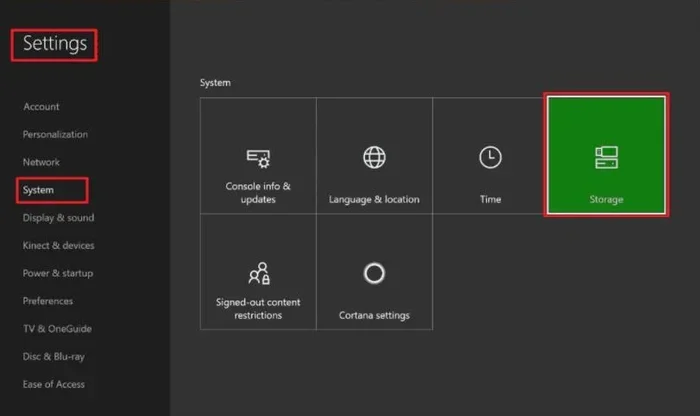
- Go to Settings and select System.
- Choose Storage and then select Console.
- Select Reset and Keep My Games and Apps.
- Confirm your choice when prompted.
- Wait for the console to reset. This process can take 20 to 30 minutes.
During the reset, your console will wipe the system cache and restore the operating system to a clean state. All your games, save data, and apps remain untouched. Once the reset is complete, sign back into your account and everything will be right where you left it.
Important Note: Make sure you are signed into your Microsoft account before starting the reset. This ensures your games and save data sync properly after the process finishes. If you have any games stored on external USB drives, those will also remain safe.
Method 4: Clearing Cache via a Full Power Cycle with External Storage
If you use external hard drives or USB storage with your Xbox One, you might want to take an extra step. Sometimes cache data can build up on external drives too. Clearing everything with a full power cycle ensures a complete refresh.
Step-by-Step Instructions
- Turn off your Xbox One completely using the controller.
- Unplug all external USB devices including hard drives and memory units.
- Unplug the power cable from the console.
- Wait one full minute before plugging anything back in.
- Reconnect external storage and power on the console.
This method ensures that any temporary files stored on both the internal drive and external devices are fully cleared. When you reconnect your external storage, the console will recognize it and rebuild the cache fresh. Your games and save files on the external drive will still be there waiting for you.
Some gamers also like to check their Xbox One storage before doing a cache clear. Go to Settings, then Storage, to see what is taking up the most space. This can help you decide if a cache clear is really needed or if you need to offload some games instead.
How Often Should You Clear Your Cache?
There is no set schedule for clearing your Xbox One cache. However, we recommend doing it every few months as a preventive measure. Here are some situations where a cache clear makes sense:
- After a major system update. Updates sometimes leave behind old cache files that conflict with new software.
- When you notice slow performance. If your console feels sluggish, a cache clear can bring back the speed.
- Before and after a big game download. This helps keep your network cache clean and your downloads running smoothly.
- When you get strange error codes. Many common Xbox One errors are caused by corrupted cache files.
Think of cache clearing like brushing your teeth. You do not need to do it every hour, but doing it regularly keeps everything healthy. A quick power cycle every month or two can prevent most cache-related problems before they start.
Common Mistakes to Avoid When Clearing Cache
Even though clearing the cache is safe, there are a few mistakes people make that can cause problems. Avoid these to keep your console running smoothly:
- Do not unplug the console while it is still on. Always fully shut it down first. A sudden power loss during a cache write can corrupt files.
- Do not skip the waiting period. That 30-second pause after unplugging is important. It lets the console fully discharge and clear the cache properly.
- Do not confuse cache clearing with factory reset. A factory reset deletes everything. The methods in this guide keep your data safe.
- Do not clear cache while downloading a game. Wait for downloads to finish first to avoid interrupting the process.
- Do not ignore error codes. If errors keep appearing after clearing the cache, there may be a deeper issue that needs attention.
By following these simple precautions, you can clear your cache confidently and without any worries. Your Xbox One will thank you with faster load times and smoother gameplay.
Expert Tips for Keeping Your Xbox One Running Smoothly
Beyond just clearing the cache, there are a few habits that keep your Xbox One in top shape. These small practices can prevent cache problems before they even start:
- Restart your console weekly. A simple restart clears out temporary memory and keeps things running fast.
- Keep your console updated. System updates often include performance improvements and cache management fixes.
- Use a wired connection when possible. If your Xbox One connect to Wi-Fi keeps dropping, a direct Ethernet cable provides a more stable connection and fewer cache-related network issues.
- Keep at least 10% of your storage free. A full hard drive can cause cache problems and slow down your console significantly.
- Close background apps properly. Always quit apps using the controller guide instead of just switching away. This prevents leftover cache data from building up.
These habits take very little time but can save you from a lot of troubleshooting headaches down the road. A well-maintained console runs better and lasts longer.
When to Seek Further Help
Most cache-related issues resolve after trying the methods in this guide. However, if you still experience problems, there might be a deeper hardware issue. Here are signs that you should contact Xbox Support:
- Persistent error codes that do not go away after a cache clear.
- Console overheating even after a full shutdown and restart.
- Hard drive failures where games will not load or install properly.
- Network issues that persist even after resetting your router and console.
Xbox Support can run deeper diagnostics and help you resolve hardware-level problems. Most of the time though, a simple cache clear is all you need. Start with the methods in this guide and you will likely solve the problem in minutes.
For those who also game on other platforms, keeping your devices optimized helps too. If you ever wonder whether you can stream your Steam Deck to your TV for a bigger screen experience, that is a great way to get more out of your gaming setup without adding extra hardware.
Conclusion
Clearing your cache on Xbox One without losing data is one of the simplest and most effective ways to keep your console running at its best. Whether you use the power cycle method, the network settings reset, or the full system reset, your games and save files stay completely safe throughout the process. A cleared cache means faster load times, fewer errors, and a smoother gaming experience overall.
Make cache clearing part of your regular console maintenance routine. Just like cleaning your TV screen or dusting your controller, it keeps things in great shape. Try the methods in this guide today and feel the difference in your Xbox One performance. Your console will run faster, smoother, and more reliably than it has in a long time.
If you ever need help with other Xbox or tech questions, we are here to help. Keep exploring and keep gaming!
Frequently Asked Questions
Does clearing the cache delete my saved games on Xbox One?
No, clearing the cache does not delete your saved games. Your save files are stored separately from temporary cache data. All your progress, achievements, and game data remain completely safe after a cache clear.
How long does it take to clear the cache on Xbox One?
The power cycle method takes less than 5 minutes. The full system reset method takes about 20 to 30 minutes. Most cache clearing methods are quick and do not require a lot of your time.
Can I clear the cache while a game is installed on my Xbox One?
Yes, you can clear the cache with games still installed. The process only removes temporary files and does not touch your installed games or their data. You can even play your games immediately after clearing the cache.
Why does my Xbox One keep building up cache files?
Your Xbox One constantly stores temporary data to speed up app loading and game performance. Over time, these files accumulate and can become outdated or corrupted. Regular cache clearing helps prevent this buildup and keeps your console running smoothly.
Is it safe to clear the cache every week?
Yes, it is safe but not necessary. Clearing the cache too frequently does not cause any harm, but it also does not provide extra benefits. Once a month or every few months is usually enough to keep your console running at its best.
What is the difference between clearing cache and factory resetting Xbox One?
Clearing the cache only removes temporary files and keeps all your games, apps, and settings intact. A factory reset wipes everything and restores the console to its original out-of-the-box state. Always choose the cache clearing methods first before considering a factory reset.