How Do I Completely Delete A Bluetooth Device For Good
Deleting a Bluetooth device completely means removing it from your paired devices list and clearing any saved pairing data. Whether you want to remove an old phone, a broken speaker, or a used car stereo, this guide shows you exactly how to delete a Bluetooth device on every major platform. Follow these simple steps to free up slots, fix connection issues, and keep your bluetooth settings clean and organized.
You know that moment when your Bluetooth list is packed with old devices you no longer use? Maybe it is a broken speaker from a garage sale, a former roommate’s headphones, or a car stereo you replaced last year. Whatever the reason, learning how to completely delete a Bluetooth device is one of those simple tech skills that makes your life so much easier.
When you remove a Bluetooth device properly, you do more than just hide it from your screen. You clear the pairing memory, free up connection slots, and often fix annoying bluetooth connection issues at the same time. This guide walks you through every method, on every device, so you can unpair a Bluetooth device with total confidence.
Let us get into it. No fluff. No confusing tech talk. Just clear, simple steps to help you delete a Bluetooth device for good.
Key Takeaways
- Deleting a Bluetooth device frees up pairing slots and improves device performance
- Removing paired devices is different from just turning Bluetooth off — you need to actively unpair them
- Each platform (Windows, Mac, Android, iPhone) has its own simple method for bluetooth device removal
- Clearing bluetooth cache and resetting settings helps resolve stubborn connection problems
- You can reconnect a deleted device anytime by putting it back into pairing mode
📑 Table of Contents
- Why You Should Delete Old Bluetooth Devices
- How to Delete a Bluetooth Device on Windows
- How to Delete a Bluetooth Device on Mac
- How to Delete a Bluetooth Device on Android
- How to Delete a Bluetooth Device on iPhone and iPad
- How to Delete a Bluetooth Device from Car Stereos and Speakers
- Common Bluetooth Deletion Problems and How to Fix Them
- Should You Delete or Just Ignore a Bluetooth Device?
- Can You Reconnect a Deleted Bluetooth Device?
- Final Thoughts on Deleting Bluetooth Devices
Why You Should Delete Old Bluetooth Devices
It is tempting to just leave old devices sitting in your paired devices list. They are not hurting anything, right? Well, not exactly. Here is why cleaning up your bluetooth device list matters more than you think.
It Frees Up Pairing Slots
Most devices can only handle a limited number of active Bluetooth connections at once. When your list is full of devices you do not even own anymore, you might not be able to pair something new. Deleting old pairings opens up space for the devices you actually use every day.
It Fixes Connection Problems
Stale pairings can cause Bluetooth troubleshooting headaches. Your phone might try to auto-connect to a device that is turned off or out of range. This drains battery and causes lag. Removing unused devices keeps your wireless connection smooth and responsive.
It Boosts Security
Every saved device is a potential access point. If you sold or lost a device that was previously paired, someone could potentially reconnect to your system. Removing Bluetooth devices you no longer control is a smart security habit.
How to Delete a Bluetooth Device on Windows
Windows makes it pretty straightforward to remove a Bluetooth device. Whether you are on Windows 10 or Windows 11, the process is almost identical. Here is how to do it step by step.
Method 1: Remove Through Settings
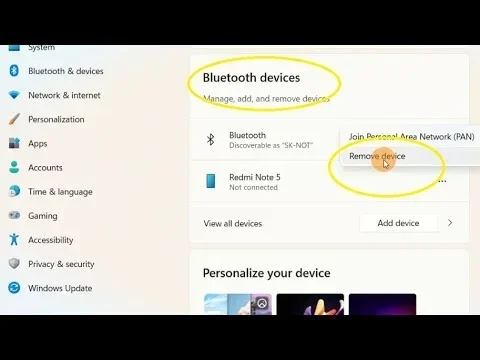
Open the Start menu and go to Settings > Bluetooth & devices. You will see a list of all your paired Bluetooth devices. Find the one you want to remove, click the three dots next to it, and select Remove device. Confirm the action, and it is gone.
This method works for keyboards, mice, speakers, headphones, and anything else connected via Bluetooth. If the device does not show up, try turning Bluetooth off and back on again. Sometimes a simple Bluetooth reset makes the device reappear in the list.
Method 2: Remove Through Device Manager
If the device is still causing issues even after you remove it from the Bluetooth menu, you can dig deeper. Right-click the Start button and open Device Manager. Look for the device under Bluetooth or Other devices. Right-click it and select Uninstall device. This removes the Bluetooth driver and any cached data associated with that device.
After uninstalling, restart your computer. Windows will rebuild its bluetooth cache fresh. This is especially helpful when a device keeps showing up even after you try to delete it.
Method 3: Delete via Command Line (Advanced)
For power users, you can use the Device Manager command line tools to force-remove stubborn Bluetooth entries. This is useful when a device is stuck or grayed out. However, most users will find Method 1 or Method 2 more than enough.
Quick Tip: Before deleting any Bluetooth device, make sure it is turned off and out of range. Some devices will try to reconnect during the deletion process, which can cause errors.
How to Delete a Bluetooth Device on Mac
Mac users have a clean and simple way to forget Bluetooth devices. Apple keeps the process intuitive, so you should not need any technical experience.
Step-by-Step Removal
Click the Apple menu and go to System Settings (or System Preferences on older macOS versions). Click Bluetooth in the sidebar. Find the device you want to delete. Click the X button next to it, or hover over the device name and click Forget This Device. Confirm the action.
Your Mac will immediately remove the device from the bluetooth pairing list. If you ever need it again, you can always put it back into pairing mode and reconnect. But for now, it is gone for good.
Clearing Bluetooth Cache on Mac
Sometimes Macs hold onto old device data even after you remove them. To clear the Bluetooth cache on a Mac, you can reset the Bluetooth module. Hold down Shift + Option and click the Bluetooth icon in the menu bar. Select Reset the Bluetooth module. This clears all cached pairing data and refreshes your Bluetooth device management.
How to Delete a Bluetooth Device on Android
Android phones and tablets make it easy to unpair a Bluetooth device in just a few taps. The exact steps may vary slightly depending on your phone brand, but the general process is the same.
Standard Android Method
Open Settings and tap Connected devices or Bluetooth (the label varies by brand). Find the device you want to delete. Tap the gear icon or Settings next to it. Select Forget or Unpair. The device will disappear from your bluetooth device list.
Force Remove a Stubborn Device
If a device refuses to delete, try turning Bluetooth off, restarting your phone, and then trying again. You can also clear the Bluetooth app cache by going to Settings > Apps > Bluetooth > Storage > Clear Cache. This wipes any temporary data that might be causing the problem.
What About Bluetooth Adapters on Android?
If you use a Bluetooth adapter with your Android device, removing the adapter also removes all devices paired through it. You will need to re-pair everything if you reconnect the adapter later. Keep this in mind before you delete a Bluetooth device connected through a dongle or adapter.
How to Delete a Bluetooth Device on iPhone and iPad
Apple devices handle Bluetooth device removal in a straightforward way. Here is how to get it done on your iPhone or iPad.
Step-by-Step Guide
Open Settings and tap Bluetooth. Find the device in the list. Tap the info icon (i) next to it. Scroll down and tap Forget This Device. Confirm your choice.
That is it. The device is removed from your paired devices list. Your iPhone will no longer try to auto-connect to it, and the pairing data is cleared from your device memory.
When Forget Does Not Work
On rare occasions, an iPhone might not let you forget a device. If this happens, try toggling Bluetooth off and back on. You can also reset all Bluetooth settings by going to Settings > General > Transfer or Reset iPhone > Reset > Reset Network Settings. Note that this will clear all saved Wi-Fi networks too, so make sure you know your Wi-Fi passwords first.
How to Delete a Bluetooth Device from Car Stereos and Speakers
Car stereos and portable speakers often store Bluetooth pairings differently than phones and computers. Here is how to handle them.
Car Stereos
Most car stereos let you delete Bluetooth pairings from their own settings menu. Go to the Bluetooth or Phone menu on your stereo. Look for a list of paired devices. Select the device you want to remove and choose Delete or Forget. Some stereos require you to hold down the device name for a few seconds to access the delete option.
If you are replacing your car stereo or switching to a new system, you might want to remove all Bluetooth devices at once. Check your stereo manual for a “clear all pairings” or “reset Bluetooth” option.
Portable Bluetooth Speakers
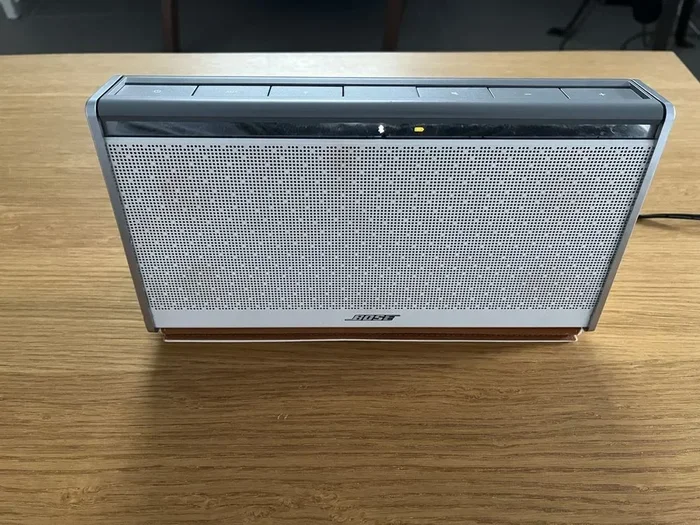
Most Bluetooth speakers let you delete paired devices through their companion app or by holding down a button combination. For example, many JBL and Bose speakers let you unpair a device by holding the Bluetooth button for 5 to 10 seconds. Check your speaker’s manual for the exact steps.
Turning a Stereo Into Bluetooth
If you are using a Bluetooth adapter to add wireless capability to an older stereo, removing the device works the same way as removing any other Bluetooth connection. Go into the stereo’s Bluetooth menu, find the device, and select delete. If you are exploring options for upgrading your stereo setup, check out how to turn my stereo into Bluetooth for more ideas.
Common Bluetooth Deletion Problems and How to Fix Them
Sometimes things do not go smoothly. Here are the most common issues people run into when trying to delete a Bluetooth device, and how to solve them.
The Device Will Not Show Up in the List
This usually happens because the device is out of range or turned off. Turn it on and bring it close to your device. If it still does not appear, try toggling Bluetooth off and back on. On Windows, you can also try scanning for new devices to force the list to refresh.
The Device Keeps Reappearing After Deletion
A stubborn device that keeps coming back usually has a lingering Bluetooth driver or cached data. On Windows, use Device Manager to fully uninstall the device. On Mac, reset the Bluetooth module. On phones, clear the Bluetooth app cache. This should permanently remove the ghost entry.
You Cannot Forget the Device on iPhone
If your iPhone will not let you forget a device, try updating iOS to the latest version. Sometimes bugs in older software versions prevent proper Bluetooth device management. A restart can also help. As a last resort, resetting network settings will clear all Bluetooth pairings at once.
Deleting a Device Breaks Another Device
Some devices share a Bluetooth adapter or connection hub. Deleting one device from the list might affect others. Before you delete anything, make sure you know which devices share the same Bluetooth source. If you are using a USB Bluetooth dongle, removing all pairings from it will affect every device connected through it.
Expert Insight: If you are dealing with a Bluetooth adapter on a TV or car system, removing the adapter entirely (physically unplugging it) is the most thorough way to clear all pairings at once. You can learn more about using Bluetooth adapters on different devices by reading about using a Bluetooth adapter on your TV or using a USB Bluetooth dongle on your TV.
Should You Delete or Just Ignore a Bluetooth Device?
Not every old device needs to be deleted. Here is a simple way to decide.
Delete the Device If
- You no longer own or use the device
- It is broken or damaged beyond repair
- You sold or gave it away to someone else
- It is causing Bluetooth connection issues or slowing down your system
- You need to free up pairing slots for a new device
Keep the Device If
- You plan to use it again soon
- It belongs to someone you live with and share devices with
- It is a backup device you might need in an emergency
The bottom line is that a clean bluetooth device list leads to better performance, fewer headaches, and stronger security. When in doubt, delete it. You can always reconnect later if needed.
Can You Reconnect a Deleted Bluetooth Device?
Yes! Deleting a device does not erase its Bluetooth capabilities. The device itself still has its own Bluetooth identity. To reconnect, simply put the device back into pairing mode and select it from your device’s Bluetooth menu. It will create a fresh pairing and work as if it was brand new.
This is great news if you accidentally delete a device or decide you want to use an old one again. Just remember that any custom settings or preferences from the old pairing will be lost. You will need to set them up again from scratch.
For example, if you remove a Bluetooth device like a car stereo and want to reconnect it later, you will need to go through the pairing process again. The same applies to headphones, speakers, keyboards, and any other wireless connection device.
Some devices also support multiple pairings at once. If you delete one pairing but the device supports several, you might be able to reconnect without losing all your settings. Check your device manual for details on Bluetooth device management and multi-point connections.
Final Thoughts on Deleting Bluetooth Devices
Completely deleting a Bluetooth device is one of those simple maintenance tasks that keeps your tech running smoothly. It takes just a few minutes, and the benefits are immediate. Your device list stays organized, your connections stay strong, and your security stays intact.
Whether you are cleaning up an old phone, resetting a car stereo, or tidying up your laptop’s Bluetooth settings, the steps are simple and universal. Follow the guide for your specific device, and you will have that old, unused device gone for good.
Take a few minutes today to go through your paired Bluetooth devices list. Delete anything you do not recognize or no longer use. Your devices will thank you for it. And if you ever need to reconnect something, you know it is always just a few taps away.
For more tips on managing your Bluetooth connections and other tech solutions, explore our other guides on topics like uninstalling Bluetooth and connecting various devices wirelessly. Keeping your tech ecosystem clean and efficient starts with knowing the basics — and now you have them.
Frequently Asked Questions
Will deleting a Bluetooth device delete any files or data from it?
No. Removing a Bluetooth device from your list only deletes the pairing information on your end. It does not erase any files, photos, or data stored on the Bluetooth device itself. The device will work normally once you pair it again with your system.
How do I delete a Bluetooth device that keeps showing up after I remove it?
This usually means there is cached data or a lingering driver. On Windows, use Device Manager to fully uninstall the device. On Mac, reset the Bluetooth module. On phones, clear the Bluetooth app cache. Restarting your device after these steps usually resolves the issue completely.
Can I delete all Bluetooth devices at once?
On most platforms, you need to delete each device individually. However, you can reset all Bluetooth settings to clear everything at once. On iPhone, this is done through Settings > General > Transfer or Reset > Reset Network Settings. On Windows, you can remove all devices from the Bluetooth menu one by one or reset Bluetooth through Device Manager.
Do I need to turn off the Bluetooth device before deleting it?
It is not strictly required, but it is a good practice. Turning the device off and keeping it out of range prevents it from trying to reconnect during the deletion process. This avoids errors and ensures the device removal goes smoothly.
Can I reconnect a Bluetooth device after I delete it?
Absolutely. Deleting a device only removes the pairing record from your device. The Bluetooth device itself is unchanged. To reconnect, simply put it back into pairing mode and select it from your Bluetooth menu. It will create a fresh pairing.
Is it safe to delete Bluetooth devices I no longer own?
Yes, it is not only safe but recommended. Removing devices you no longer own protects your security and privacy. If the device was previously paired with your system, someone who finds it could potentially try to reconnect. Deleting the pairing eliminates that risk entirely.