How Do I Access My Asus Router From The Internet Remotely
Accessing your Asus router from the internet remotely is easier than you think. You can manage your network settings, check connected devices, and adjust configurations from anywhere in the world. This guide walks you through every method, from the web interface to the Asus Router app, with clear steps and essential security tips.
Have you ever been away from home and suddenly wondered if you left your Asus router settings unchanged? Or maybe you need to reboot your router but don’t want to bother someone at home. The good news is that you can access your Asus router from the internet remotely. It’s a straightforward process once you know the steps. In this guide, I’ll show you exactly how to do it, whether you’re using a laptop, phone, or tablet.
Remote router access is a game-changer for home network management. You can check connected devices, update router settings, and even adjust parental controls from across the globe. This guide covers every method available for Asus router remote access, including the web interface, the mobile app, and advanced options like dynamic DNS. Let’s dive in.
Key Takeaways
- Remote access lets you manage your Asus router from any device, anywhere: You don’t need to be at home to adjust settings or troubleshoot issues.
- You can use both a web browser and the Asus Router app: Each method offers different levels of control and convenience.
- Setting up dynamic DNS or a VPN is key for reliable remote connections: These tools keep your access stable even when your IP address changes.
- Security is critical when enabling remote access: Strong passwords, two-factor authentication, and updated firmware protect your network from threats.
- Port forwarding and remote management settings must be configured correctly: Incorrect setup is the most common reason remote access fails.
- You can monitor your network and connected devices in real time: This helps you spot unauthorized users and manage bandwidth effectively.
📑 Table of Contents
- Understanding Remote Access for Your Asus Router
- How To Find Your Asus Router’s IP Address
- Setting Up Remote Access on Your Asus Router
- Securing Your Remote Access Connection
- Common Remote Access Problems and How To Fix Them
- Comparing Remote Access Methods
- Pro Tips for Managing Your Asus Router Remotely
- Final Thoughts
Understanding Remote Access for Your Asus Router
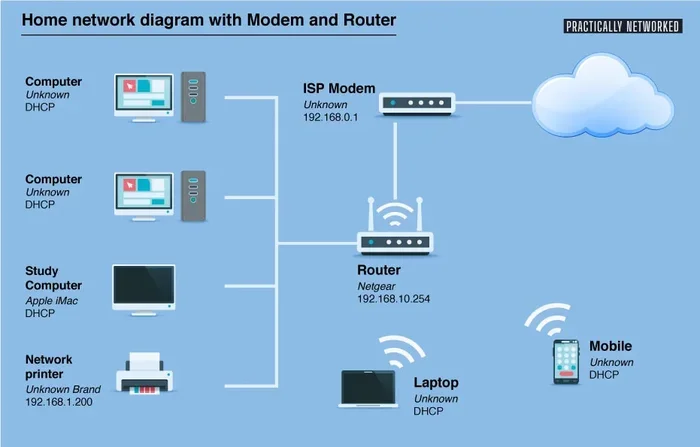
Before you start, it helps to understand what remote access actually means. When you access your router locally, you’re connected to the same network. Remote access means you connect to your router over the internet, from outside your home network. Think of it like checking your email from a coffee shop instead of your desk.
Your Asus router supports several remote access methods. Each has its own benefits. Some methods are simpler, while others offer more control. I’ll walk you through each one so you can pick what works best for your needs.
Why Would You Need Remote Access?
There are plenty of reasons to access your router remotely. Maybe you want to check if your kids are using too much bandwidth. Perhaps you need to update firmware while you’re at work. Or you might want to see if a stranger is using your wireless network. Whatever the reason, remote access gives you peace of mind and real-time control.
Some people also use remote access to manage smart home devices. If you have devices like smart lights or a smart thermostat connected to your network, you can check their status through the router. It’s all connected, and having remote access puts you in charge.
How To Find Your Asus Router’s IP Address
Every router has an IP address, and you need it to access the admin panel remotely. Think of the IP address as your router’s home address on the network. Without it, you can’t get in. Here’s how to find it.
On most Asus routers, the default IP address is 192.168.1.1 or 192.168.0.1. You can find this on the sticker at the bottom of your router. It’s also listed in the user manual. If you’ve changed it before and forgot, don’t worry. You can reset it to default by pressing the reset button on the back of the router for about 10 seconds.
To double-check your current IP address on a Windows computer, open the Command Prompt and type ipconfig. Look for the Default Gateway number. On a Mac, go to System Preferences, then Network, and look at your connection details. Your router’s IP is listed there.
Once you know your router’s local IP address, you can use it to access the admin panel. But remember, this only works when you’re on the same network. For true remote access, you’ll need additional setup, which I’ll cover below.
Setting Up Remote Access on Your Asus Router
Now for the main part. Setting up remote access on your Asus router involves a few key steps. Each step builds on the last, so follow them in order. I’ll keep it simple and avoid unnecessary jargon.
Method 1: Using the Asus Router Web Interface
The web interface is the most direct way to manage your router. Here’s how to set it up for remote access.
- Log in to your Asus router’s admin panel locally. Type the IP address into your browser.
- Go to the Administration tab.
- Look for the Remote Management or Web Remote Access option.
- Enable remote management and set a custom port number. The default is usually 8080.
- Create a strong admin password if you haven’t already.
- Save your settings and restart the router.
Once this is done, you can access your router from anywhere by typing your public IP address followed by the port number into a browser. For example, if your public IP is 203.0.113.50 and your port is 8080, you’d type 203.0.113.50:8080 into the browser bar.
This method works well, but there’s a catch. Your public IP address can change, especially if you have a dynamic IP from your internet provider. That’s where dynamic DNS comes in handy. More on that soon.
Method 2: Using the Asus Router App
The Asus Router app is probably the easiest way to manage your router remotely. It’s available for both Android and iOS devices. Here’s what you need to do.
- Download the Asus Router app from the Google Play Store or Apple App Store.
- Connect to your home Wi-Fi network.
- Open the app and it should automatically detect your router.
- Log in with your admin credentials.
- Once connected, you can access all router settings from your phone.
The app lets you check connected devices, run speed tests, update firmware, and even set up parental controls. It’s a powerful tool that puts your entire network management toolkit in your pocket. If you’ve ever wanted to control your home devices from afar, this app makes it possible.
One thing to keep in mind: the app works best when you’re connected to your home network. For full remote access outside your home, make sure remote management is enabled in the router settings first.
Method 3: Using Dynamic DNS (DDNS)
If your internet provider gives you a dynamic IP address, your public IP changes over time. This makes remote access tricky because you can’t remember a new IP every time it changes. Dynamic DNS solves this problem.
DDNS gives your router a permanent hostname that updates automatically whenever your IP changes. Asus routers support several DDNS services, including No-IP, DynDNS, and Asus’s own DDNS service. Here’s how to set it up.
- Log in to your router’s admin panel locally.
- Go to the WAN or Internet tab.
- Find the DDNS section.
- Enable DDNS and choose a service provider.
- Create an account with the DDNS provider if needed.
- Enter your credentials and save.
After setup, you can access your router by typing your DDNS hostname into a browser, no matter where you are. It’s much more reliable than using a changing IP address. This is the method I recommend for most users who want consistent remote access.
Method 4: Using a VPN for Secure Remote Access
If you want the most secure way to access your router remotely, a VPN is the way to go. A VPN creates an encrypted tunnel between your device and your home network. It’s like building a private road that only you can use.
Asus routers with VPN server capabilities let you connect to your home network securely from anywhere. Once connected through the VPN, your device acts as if it’s at home. You can access the router’s admin panel, smart home devices, and even shared files on your network.
Setting up a VPN on an Asus router requires a few extra steps, but the security benefits are worth it. You can find VPN setup options under the VPN section of your router’s admin panel. OpenVPN and WireGuard are both supported on newer Asus models.
Securing Your Remote Access Connection
Remote access is incredibly useful, but it also opens a door to your network. If someone unauthorized gets in, they can see your connected devices, change settings, or even slow down your internet. Security should be your top priority.
Use Strong, Unique Passwords
Never use the default admin password that came with your router. Create a strong password with at least 12 characters, mixing uppercase letters, lowercase letters, numbers, and symbols. If you have trouble remembering passwords, consider using a trusted password manager.
Enable Two-Factor Authentication
If your Asus router supports it, turn on two-factor authentication. This adds an extra layer of protection. Even if someone guesses your password, they still can’t get in without the second factor, like a code sent to your phone.
Keep Your Firmware Updated
Asus regularly releases firmware updates that patch security vulnerabilities. Check for updates at least once a month. You can do this through the router admin panel or the Asus Router app. Keeping your firmware current is one of the simplest and most effective security steps you can take.
Limit Remote Access to Specific IP Addresses
Some Asus routers let you restrict remote access to specific IP addresses. This means only your home IP or a list of trusted IPs can connect to the router admin panel. This is an advanced feature, but it adds a strong layer of protection.
Disable Remote Access When Not Needed
If you don’t need remote access every day, turn it off when you’re done. This minimizes the window of opportunity for attackers. It’s a simple habit that makes a big difference.
Common Remote Access Problems and How To Fix Them
Even with proper setup, you might run into issues. Here are the most common problems and their solutions.
Can’t Connect to the Router Remotely
This usually happens because remote management isn’t enabled, or the port is blocked. Double-check that remote management is turned on in your router settings. Also, make sure your internet provider isn’t blocking the port you chose. If you’re using a VPN, ensure the VPN connection is active.
Connection Keeps Dropping
If your connection drops frequently, your IP address might be changing. Switch to dynamic DNS to get a stable hostname. Also, check your internet connection at home. A weak local connection can cause remote access problems too.
Slow Response Times
Remote access speed depends on your internet connection. If your upload speed is slow, the router interface might take longer to load. You can try boosting your upload speed by contacting your internet provider or upgrading your plan. A wired connection at your home router can also improve stability.
Forgot Admin Password
If you forgot your admin password, you’ll need to factory reset the router. Press and hold the reset button for about 10 seconds. This restores all settings to default, including the default password. You’ll need to set up your router again from scratch, so keep your ISP credentials handy.
Port Forwarding Issues
Sometimes you need to forward specific ports for remote access to work properly. Check your router’s port forwarding settings under the WAN or Advanced Setup section. Make sure the port you’re forwarding matches the port you set for remote management.
Comparing Remote Access Methods
Not sure which method to use? Here’s a quick comparison of the main remote access options for Asus routers.
| Method | Ease of Setup | Security Level | Best For |
|---|---|---|---|
| Web Interface | Medium | Moderate | Users who want full control from a browser |
| Asus Router App | Easy | Moderate | Quick checks and everyday management |
| Dynamic DNS | Medium | Moderate | Users with dynamic IP addresses |
| VPN | Advanced | High | Users who prioritize security and privacy |
Each method has its place. For most users, the Asus Router app combined with dynamic DNS offers the best balance of ease and reliability. If security is your main concern, a VPN is the clear winner.
Pro Tips for Managing Your Asus Router Remotely
A few extra tips can make your remote management experience much smoother. Here are some things I’ve learned from helping people with their router setups.
- Bookmark your remote access URL: Save your DDNS hostname or public IP address in your browser bookmarks. It saves time when you need quick access.
- Use a dedicated device for remote management: Consider using a tablet or old phone just for router management. This keeps your remote access separate from your daily devices.
- Check your router logs regularly: Remote access lets you view logs from anywhere. Review them occasionally to spot unusual activity.
- Set up alerts for new devices: Many Asus routers let you get notifications when a new device connects. This helps you catch unauthorized users quickly.
- Keep your router’s placement in mind: If your router is in a basement or far corner, your signal might be weak. Consider adding an antenna to your Wi-Fi router to improve coverage throughout your home.
These small habits add up over time. They keep your network fast, secure, and easy to manage from anywhere.
Final Thoughts
Accessing your Asus router from the internet remotely is a skill that pays off quickly. Whether you use the web interface, the mobile app, dynamic DNS, or a VPN, you have the power to manage your network from anywhere in the world. The key is to set it up correctly and keep it secure.
Start with the basics. Find your router’s IP address, enable remote management, and pick a method that suits your comfort level. Then layer on security measures like strong passwords and firmware updates. Once you have it working, you’ll wonder how you ever managed without it.
Remember, your router is the gateway to your entire home network. Taking control of it remotely means you’re always in charge, even when you’re not at home. Follow the steps in this guide, and you’ll be managing your Asus router like a pro in no time.
Frequently Asked Questions
Can I access my Asus router remotely without setting up dynamic DNS?
Yes, you can access your router remotely using your public IP address and a custom port. However, if your IP address changes frequently, you’ll need to find your new IP each time. Dynamic DNS makes this process automatic and much more convenient.
Is it safe to enable remote management on my Asus router?
It can be safe if you take the right precautions. Use a strong, unique password, enable two-factor authentication if available, and keep your firmware updated. Disabling remote access when you don’t need it adds another layer of protection.
Can I access my Asus router remotely using a phone?
Absolutely. The Asus Router app works on both Android and iOS devices. You can manage your router settings, check connected devices, and run diagnostics right from your phone. Just make sure remote management is enabled in your router settings first.
What’s the difference between remote management and port forwarding?
Remote management lets you access your router’s admin panel from outside your network. Port forwarding directs incoming traffic on a specific port to a device inside your network. They serve different purposes, but both involve opening connections through your router’s firewall.
Will remote access slow down my internet connection?
No, remote access itself uses very little bandwidth. The router admin interface loads quickly even on slow connections. However, if many devices are using your network heavily, you might notice slight delays when accessing the router remotely.
Can I access my Asus router remotely if I use a VPN?
Yes, and it’s actually the most secure way to do it. A VPN encrypts your connection and makes it appear as if you’re at home. Once connected to your home VPN, you can access the router admin panel and all connected devices safely.
=== CONCLUSION ===
Managing your Asus router remotely is one of the most practical things you can do for your home network. It saves time, gives you control, and helps you keep your network secure. Whether you choose the simple Asus Router app, the flexibility of dynamic DNS, or the security of a VPN, you now have everything you need to get started.
Take a few minutes today to set up remote access. You’ll thank yourself the next time you need to check on something while you’re away from home. With the right setup, your router is always just a few taps away.