How Do I Connect Multiple Bluetooth Speakers To My Iphone
Connecting multiple Bluetooth speakers to your iPhone is easier than you think. With the right setup, you can fill any room with rich, wireless sound for parties, movie nights, or everyday listening. This guide walks you through every method, from native iPhone features to third-party apps, so you can get started quickly.
Have you ever wanted to fill your entire room with music from your iPhone? Maybe you are hosting a party, setting up an outdoor gathering, or simply want richer sound in your living room. Connecting multiple Bluetooth speakers to your iPhone can transform how you listen to music, watch movies, and even take calls.
The good news is that you do not need expensive equipment or technical expertise. Whether you own two portable Bluetooth speakers or a full home stereo system, you can link them together for a bigger, bolder sound. This guide covers every method you need, from simple Bluetooth pairing to advanced app-based setups. By the end, you will know exactly how to get your speakers working together with your iPhone.
We will also share practical tips, common mistakes to avoid, and troubleshooting steps for when things do not go as planned. Let us dive in and get your audio setup running.
Key Takeaways
- Multiple connection methods exist: You can pair speakers using AirPlay, Bluetooth multipoint, or third-party apps depending on your speaker brand.
- Preparation matters: Updating your iPhone and placing speakers close together ensures a smooth pairing process.
- Third-party apps unlock more control: Apps like AmpMe and SoundSeeder let you sync speakers seamlessly for a true multi-room experience.
- Common issues are fixable: Most connection problems stem from distance, firmware, or interference, and they have simple solutions.
- Audio quality improves with placement: Proper speaker positioning and keeping devices within range dramatically enhances your listening experience.
📑 Table of Contents
- Understanding How Bluetooth Speakers Connect to iPhone
- Preparing Your iPhone and Speakers for Setup
- Step-by-Step Guide to Connecting Multiple Bluetooth Speakers
- Tips for Better Audio Quality and Sync
- Common Mistakes to Avoid When Connecting Multiple Speakers
- Troubleshooting Common Connection Issues
- Final Thoughts
Understanding How Bluetooth Speakers Connect to iPhone
Before you start connecting speakers, it helps to understand how Bluetooth works with your iPhone. Bluetooth is a wireless technology that sends audio signals between devices over short distances. Your iPhone acts as the source, and your speakers receive the signal and turn it into sound.
When you connect one speaker, your iPhone sends audio to that single device. But when you want multiple speakers, things get a little more interesting. Your iPhone can connect to more than one Bluetooth device at a time, but the way audio splits between them depends on the method you use.
How Bluetooth Pairing Works
Bluetooth pairing is the process of two devices recognizing each other and establishing a connection. Your iPhone searches for nearby Bluetooth devices, finds your speaker, and then links them together. Once paired, the devices remember each other and reconnect automatically when they are in range.
Most modern iPhones support Bluetooth 5.0 or later, which offers a stronger signal and longer range. The typical Bluetooth range is about 30 feet, though walls and obstacles can reduce this. Keeping your speakers close to your iPhone helps maintain a stable connection.
Native iPhone Features for Multiple Speakers
Apple has built some helpful features into iOS that make connecting multiple speakers easier. AirPlay is one of the most powerful tools for this. With AirPlay, you can stream audio to multiple compatible speakers at the same time. You do not need any extra apps or cables.
Another native feature is the ability to connect to different Bluetooth devices for different tasks. For example, you might have your iPhone connected to a speaker for music while your headphones stay connected for calls. This is called Bluetooth multipoint and it works on many newer iPhone models.
If you want to learn more about how your iPhone handles USB connections, check out our article on Can I Connect My iPhone to a USB for additional connectivity tips.
Preparing Your iPhone and Speakers for Setup
Before you start pairing, a little preparation goes a long way. Taking a few minutes to get everything ready will save you time and frustration later.
Update Your iPhone Software
Make sure your iPhone is running the latest version of iOS. Apple regularly releases updates that fix Bluetooth connectivity bugs and improve performance. To check for updates, go to Settings, tap General, and then tap Software Update.
Keeping your software current also ensures compatibility with newer speaker models. Some older iPhone models may not support the latest Bluetooth features, but most devices from the last few years work well with multi-speaker setups.
Charge Your Speakers and iPhone
Nothing ruins a setup session like a dead battery. Charge all your speakers and your iPhone fully before you begin. Low battery levels can cause weak Bluetooth signals and unexpected disconnections.
If you plan to use your speakers outdoors, consider bringing a portable charger. This way, you can keep the music going all day without worrying about power.
Place Your Speakers Strategically
Speaker placement affects both sound quality and connection stability. Put your speakers within 10 to 15 feet of your iPhone for the best results. If you are setting up for a party, place speakers at different spots in the room but keep them close enough to maintain a solid Bluetooth connection.
Avoid placing speakers near metal objects, microwaves, or Wi-Fi routers. These can cause wireless interference and weaken your Bluetooth signal. A clear line of sight between your iPhone and speakers helps too.
Step-by-Step Guide to Connecting Multiple Bluetooth Speakers
Now for the fun part. Here are the different methods you can use to connect multiple speakers to your iPhone. Each method works with different types of speakers, so pick the one that fits your setup.
Method 1: Using AirPlay for Wireless Multi-Speaker Audio
AirPlay is Apple’s built-in wireless streaming technology. It lets you send audio to multiple AirPlay-compatible speakers at the same time. Most modern smart speakers from brands like HomePod, Bose, and Sonos support AirPlay.
Here is how to use AirPlay for multiple speakers:
- Make sure all your speakers are on the same Wi-Fi network as your iPhone.
- Open the app you want to play music from, such as Apple Music or Spotify.
- Tap the AirPlay icon (it looks like a triangle with circles on top).
- Select Multiple Speakers or choose your speakers individually.
- Adjust the volume for each speaker as needed.
AirPlay is one of the easiest ways to get multi-speaker audio without downloading anything extra. The sound stays in sync across all speakers, which makes it ideal for even coverage throughout a room.
Method 2: Using Bluetooth Multipoint Connection
Some Bluetooth speakers support a feature called dual pairing or stereo mode. This lets you connect two of the same brand speakers to your iPhone and use them as a left and right pair. It creates a wider soundstage and feels more like a real stereo system.
Here is how to set up dual speakers using Bluetooth:
- Turn on both speakers and put them in pairing mode.
- On your iPhone, go to Settings and tap Bluetooth.
- Find the first speaker in the list and tap it to connect.
- Once connected, put the second speaker in pairing mode.
- Your iPhone should detect the second speaker. Tap it to connect.
- Check your speaker manufacturer’s guide for specific stereo pairing instructions.
Not all speakers support this feature. Brands like JBL, Bose, and Sony often include stereo pairing in their apps. If your speakers do not support dual Bluetooth connection natively, do not worry. There are other options below.
Method 3: Using Third-Party Apps for Multi-Speaker Sync
When your speakers do not support native multi-device connection, third-party apps come to the rescue. These apps use a combination of Bluetooth and Wi-Fi to sync multiple speakers together. They work with speakers from different brands, which gives you a lot of flexibility.
Here are some popular apps you can try:
- AmpMe: This app lets you sync multiple Bluetooth speakers to play the same music. It works with both iPhone and Android devices. You simply open the app, select your speakers, and start playing music.
- SoundSeeder: Similar to AmpMe, SoundSeeder connects your phone to multiple speakers over Wi-Fi. It is great for parties because you can add or remove speakers on the fly.
- Bose Connect: If you own Bose speakers, their official app makes it easy to pair two speakers for stereo sound or shared listening.
These apps are free to download and use. They handle the tricky part of keeping all speakers in sync, so you do not have to worry about audio delays or lag.
For another way to expand your Bluetooth setup, you might want to check out how you can use Alexa as a Bluetooth speaker to add another audio source to your room.
Method 4: Using a Bluetooth Transmitter or Adapter
A Bluetooth transmitter is a small device that plugs into your speaker’s audio input. It receives the Bluetooth signal from your iPhone and sends it to the speaker. This is a great option for older speakers that do not have Bluetooth built in.
To use a Bluetooth transmitter with multiple speakers:
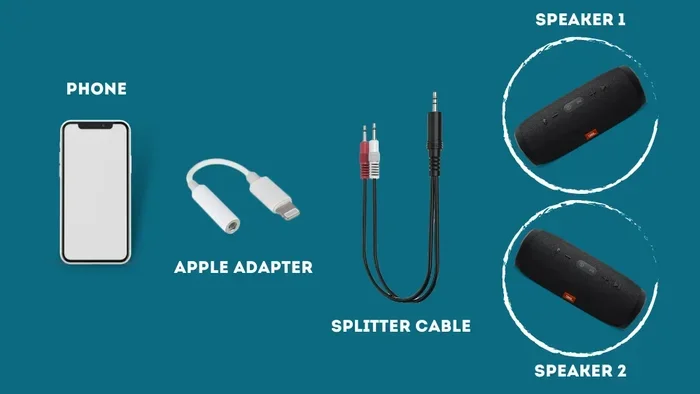
- Plug a Bluetooth transmitter into each speaker’s audio input (usually a 3.5mm jack or RCA port).
- Pair each transmitter with your iPhone through Bluetooth settings.
- Play your music, and the iPhone will send the signal to all connected transmitters.
This method works well with non-Bluetooth speakers, including older stereo systems. You can also use this setup to connect speakers from different brands together. If you want to learn more about adapting your audio devices, our article on Can I Turn My Stereo Into Bluetooth has helpful tips.
Tips for Better Audio Quality and Sync
Once you have your speakers connected, you want the best sound possible. Here are some practical tips to improve your setup.
Keep Speakers Close Together
The closer your speakers are to each other, the better they stay in sync. If one speaker is too far away, you might notice a slight delay in the audio. This is called audio lag and it can make music sound off.
For the best results, keep all speakers within 15 feet of each other and within range of your iPhone. This is especially important when using third-party apps that rely on Bluetooth.
Use the Same Brand When Possible
Speakers from the same brand often pair more smoothly with each other. They share the same firmware and Bluetooth protocols, which reduces connection issues. If you can, try to match your speakers by brand for the easiest setup.
However, if you already have mismatched speakers, do not worry. Third-party apps like AmpMe handle different brands just fine.
Adjust Volume Levels Manually
When using multiple speakers, the volume might not be even across all of them. Some speakers may sound louder than others depending on their size and placement. Take a few minutes to adjust the volume on each speaker individually until they sound balanced.
Most speaker apps let you control volume from your phone, which makes this process much easier.
Reduce Wireless Interference
Other wireless devices can interfere with your Bluetooth connection. Wi-Fi routers, microwaves, baby monitors, and even USB 3.0 devices can cause Bluetooth dropouts. Try to keep your speakers away from these devices.
If you notice connection issues, move your iPhone and speakers away from other electronics. Switching your Wi-Fi channel on your router can also help reduce interference.
Consider Using an External Bluetooth Adapter
If your iPhone has limited Bluetooth range or you want a stronger connection, a Bluetooth adapter can help. These small devices plug into your speaker’s audio input and boost the Bluetooth signal. They are especially useful for larger rooms or outdoor setups.
If you are interested in using Bluetooth adapters with other devices like your TV, check out our guide on Can I Make My TV Bluetooth With an Adapter for more ideas.
Common Mistakes to Avoid When Connecting Multiple Speakers
Even with the best setup, mistakes can happen. Here are some common errors people make when connecting multiple Bluetooth speakers and how to avoid them.
Connecting Too Many Speakers at Once
Your iPhone can only handle so many Bluetooth connections at once. Trying to connect five or more speakers can overload the connection and cause dropouts. Stick to two or three speakers for the best experience. If you need more coverage, consider using a Bluetooth transmitter hub instead.
Ignoring Firmware Updates
Speaker manufacturers release firmware updates that fix bugs and improve Bluetooth performance. If your speakers are not connecting properly, check the manufacturer’s app for updates. A simple firmware update can often solve connection problems.
Forgetting to Put Speakers in Pairing Mode
This sounds obvious, but it happens all the time. You need to put each speaker in pairing mode before your iPhone can find it. Look for a blinking light or a voice prompt that says the speaker is ready to pair. If you skip this step, your iPhone will not detect the speaker.
Placing Speakers Too Far from the iPhone
Bluetooth has a limited range, and walls and furniture weaken the signal. If your speakers are in different rooms or on opposite sides of a large house, the connection may drop. Keep all speakers in the same room or within a reasonable distance from your iPhone.
Not Checking App Compatibility
Not all third-party apps work with all speakers. Before you download an app, check that it supports your speaker brand and model. Some apps work better with specific types of speakers, so read the reviews before committing.
Troubleshooting Common Connection Issues
Sometimes things do not work the first time. Here are solutions to the most common problems you might face.
Speakers Keep Disconnecting
If your speakers keep cutting out, the first thing to check is distance. Move your iPhone closer to the speakers and see if the connection improves. Also, make sure nothing is blocking the signal between your devices.
Restarting both your iPhone and your speakers can also fix temporary glitches. Simply turn them off, wait a few seconds, and turn them back on. This clears the Bluetooth cache and often resolves connection issues.
Audio Is Out of Sync Between Speakers
When one speaker plays sound a split second before the other, it is called audio sync delay. This happens because Bluetooth has a slight latency. To fix it, try moving the speakers closer together. If you are using a third-party app, check its settings for a sync or delay adjustment option.
Using Wi-Fi-based apps like SoundSeeder instead of pure Bluetooth can also reduce sync issues, since Wi-Fi has a faster data transfer rate.
iPhone Does Not Detect the Speaker
If your iPhone does not see your speaker in the Bluetooth list, try these steps:
- Turn off Bluetooth on your iPhone and turn it back on.
- Reset your speaker by holding down the power button for 10 seconds.
- Put the speaker back in pairing mode.
- Remove old Bluetooth pairings from your iPhone by going to Settings, tapping Bluetooth, and forgetting the device.
If none of these steps work, your speaker may have a hardware issue or may not be compatible with your iPhone model. In that case, check the manufacturer’s website for compatibility information.
Poor Sound Quality
If the sound is muffled or distorted, try moving your iPhone closer to the speakers. Bluetooth audio quality can degrade when the signal is weak. Also, check if any other devices are using the same Wi-Fi network, as this can interfere with wireless audio streaming.
For the best sound quality, use speakers that support aptX or AAC codecs. These are advanced Bluetooth audio formats that deliver clearer, richer sound compared to older codecs.
Final Thoughts
Connecting multiple Bluetooth speakers to your iPhone opens up a world of possibilities. Whether you are throwing a party, setting up a backyard movie night, or just want better sound in your living room, the methods in this guide will help you get there. From native AirPlay features to third-party apps and Bluetooth transmitters, you have plenty of options to choose from.
Start with the simplest method that works for your speakers and upgrade to more advanced setups as you get comfortable. Remember to keep your devices updated, place your speakers thoughtfully, and avoid common mistakes like overloading your Bluetooth connection.
With the right setup, you can turn any room into an immersive audio space. So grab your speakers, fire up your iPhone, and start enjoying music the way it was meant to be heard.
Frequently Asked Questions
Can I Connect More Than Two Bluetooth Speakers to My iPhone?
Yes, you can connect more than two speakers, but it depends on the method you use. AirPlay supports multiple speakers on the same network, and apps like AmpMe can handle several devices. However, connecting too many speakers at once may cause audio lag or disconnections. Stick to two or three speakers for the best experience.
Do All Bluetooth Speakers Support Stereo Pairing?
No, not all Bluetooth speakers support stereo pairing. This feature is more common in speakers from brands like JBL, Bose, and Sony. Check your speaker’s manual or the manufacturer’s app to see if stereo pairing is supported. If not, you can still use both speakers for shared listening with a third-party app.
Why Does My Audio Sound Delayed When Using Multiple Speakers?
Audio delay, also called latency, happens because Bluetooth takes a fraction of a second to transmit sound. When speakers are far apart or there is interference, the delay becomes more noticeable. Moving speakers closer together, reducing wireless interference, or using Wi-Fi-based apps like SoundSeeder can help fix this issue.
Can I Mix Different Brands of Bluetooth Speakers Together?
Yes, you can mix different brands using third-party apps like AmpMe or SoundSeeder. These apps connect to multiple speakers regardless of brand and sync them together. However, native stereo pairing usually only works with matching speakers from the same brand.
Do I Need Wi-Fi to Connect Multiple Bluetooth Speakers?
You do not always need Wi-Fi. Pure Bluetooth connections work without Wi-Fi, but AirPlay requires all speakers to be on the same Wi-Fi network. Third-party apps like AmpMe use Wi-Fi for syncing, so having a stable Wi-Fi connection improves performance for multi-speaker setups.
Will Connecting Multiple Speakers Drain My iPhone Battery Faster?
Yes, connecting multiple Bluetooth speakers uses more battery than connecting just one. The iPhone has to maintain separate connections and stream audio to each device. To preserve battery, keep your speakers close to your iPhone and consider using a portable charger for longer listening sessions.