How Can I Mirror My Ipad To My Tv Without Apple Tv
Mirroring your iPad to your TV without Apple TV is easier than you think. You can use an HDMI adapter, wireless streaming devices like Chromecast or Roku, or smart TV built-in features to cast your iPad screen. This guide covers every method so you can pick the best option for your setup.
Have you ever wanted to show something on your iPad but wished it was on a bigger screen? Maybe you want to watch a movie, share photos, or play a game with friends. Mirroring your iPad to your TV without Apple TV is totally possible, and you don’t need to be a tech expert to do it.
There are several ways to get your iPad screen onto your TV. Some methods use cables and adapters, while others work wirelessly. Each approach has its own benefits depending on what you need. In this guide, we’ll walk you through every option step by step.
Whether you have a smart TV, a basic set, or a projector, there’s a solution that fits. iPad screen mirroring without Apple TV opens up a world of possibilities. Let’s dive in and find the best method for you.
Key Takeaways
- Wired HDMI adapters offer the most reliable and lag-free iPad screen mirroring experience.
- Wireless methods like AirPlay alternatives let you cast without extra hardware beyond a smart TV or streaming stick.
- Third-party apps can fill the gap when built-in mirroring options don’t work with your TV.
- Setting up your connection is straightforward and takes just a few minutes with the right cable or adapter.
- Troubleshooting common issues like lag or no audio is simple with a few quick fixes.
- You don’t need Apple TV to enjoy big-screen viewing from your iPad.
📑 Table of Contents
- Why Mirror Your Ipad To Your Tv Without Apple Tv
- Methods To Mirror Your Ipad Without Apple Tv
- Using An Hdmi Adapter For Wired Mirroring
- Wireless Mirroring Options Without Apple Tv
- Step-By-Step Guide To Ipad Screen Mirroring
- Troubleshooting Common Mirroring Issues
- Expert Tips For The Best Mirroring Experience
- Key Takeaways
Why Mirror Your Ipad To Your Tv Without Apple Tv
Apple TV is a great device, but it’s not always necessary. Many people already have a TV that can receive content from an iPad. Mirroring your iPad to your TV without Apple TV saves you money and lets you use what you already own.
Here are some common reasons people want to do this:
- Watching movies or shows on a bigger screen for a better viewing experience.
- Presenting slides or photos during a meeting or family gathering.
- Playing mobile games on a large display for more fun.
- Sharing videos from social media with a group of people.
- Using your iPad as a second screen for extended workspace.
The good news is that you don’t need expensive equipment to make it happen. Wireless screen mirroring and wired connections both work well. The right choice depends on your TV type and what you plan to do.
Methods To Mirror Your Ipad Without Apple Tv
There are three main ways to mirror your iPad to your TV without Apple TV. Each method works differently, and some are better suited for certain situations than others.
Method 1: Using An Hdmi Adapter (Wired Connection)
A wired connection is the most reliable way to mirror your iPad. You simply plug an adapter into your iPad and connect an HDMI cable to your TV. This method gives you a direct, stable connection with no lag or interference.
Here’s what you need:
- A Lightning to HDMI adapter or USB-C to HDMI adapter (depending on your iPad model).
- An HDMI cable long enough to reach your TV.
- A TV with an HDMI input port.
To set this up, plug the adapter into your iPad, connect the HDMI cable, and switch your TV to the correct input. Your iPad screen will appear on your TV immediately. This method works great for presentations, movie watching, and gaming. If you’ve ever wondered can I connect my phone to HDMI TV, the process is very similar.
The main advantage of a wired connection is stability. You won’t experience any drops in quality or delays. The downside is that you’re tethered to your TV by a cable, which limits your movement.
Method 2: Wireless Mirroring With Smart TV Features
Many modern smart TVs support screen mirroring natively. If your TV is a smart TV, you might not need any extra hardware at all. Both Android and iOS devices can connect to smart TVs using built-in wireless protocols.
Here’s how to do it:
- Make sure your iPad and TV are on the same Wi-Fi network.
- Open the Control Center on your iPad by swiping down from the top-right corner.
- Tap the Screen Mirroring button (it looks like two overlapping rectangles).
- Select your TV from the list of available devices.
- Enter the code if your TV asks for one.
That’s it! Your iPad screen is now on your TV. This method works well for casual sharing and streaming. However, wireless mirroring can sometimes experience lag or quality issues, especially on crowded networks.
If your TV doesn’t support AirPlay natively, you can still use wireless methods. Some TVs work with apps like AllCast or Replica that enable screen casting. These apps act as a bridge between your iPad and your TV.
Method 3: Using A Streaming Device Or Dongle
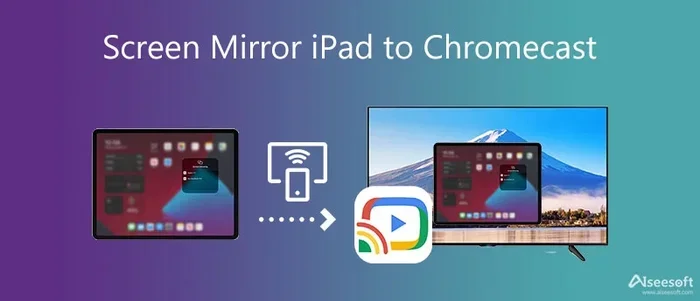
Streaming devices like Chromecast, Roku, or Fire TV Stick are excellent alternatives to Apple TV. These small devices plug into your TV’s HDMI port and connect to your Wi-Fi network. They allow you to cast content from your iPad to your TV wirelessly.
Here’s how Chromecast iPad mirroring works:
- Plug the Chromecast into your TV’s HDMI port.
- Connect it to your Wi-Fi network using the Google Home app.
- Open the app or content you want to cast on your iPad.
- Tap the Cast icon (a rectangle with Wi-Fi waves in the corner).
- Select your Chromecast device from the list.
Roku devices work similarly. You can use the Roku app on your iPad to control your TV and cast content. Fire TV Stick also supports screen mirroring from iPads through its built-in features.
Streaming devices are affordable and versatile. They give you access to many apps and services beyond just mirroring. If you’re curious about connecting your iPhone to USB, the same principles apply to iPad connections.
Using An Hdmi Adapter For Wired Mirroring
Let’s take a closer look at the wired HDMI adapter method because it’s the most popular and reliable option for mirroring your iPad to your TV. Understanding the different types of adapters helps you choose the right one.
Choosing The Right Adapter For Your Ipad Model
Not all iPads use the same connector. The adapter you need depends on your iPad model.
| iPad Model | Connector Type | Adapter Needed |
|---|---|---|
| iPad Pro 11-inch (3rd gen and newer) | USB-C | USB-C to HDMI adapter |
| iPad Pro 12.9-inch (3rd gen and newer) | USB-C | USB-C to HDMI adapter |
| iPad (6th gen and newer) | Lightning | Lightning to HDMI adapter |
| iPad Air (3rd gen and newer) | USB-C | USB-C to HDMI adapter |
| iPad mini (5th gen and newer) | Lightning | Lightning to HDMI adapter |
| Older iPad models | Lightning or 30-pin | Lightning or 30-pin to HDMI adapter |
Make sure you buy a high-quality adapter from a reputable brand. Cheap adapters can cause signal drops, poor image quality, or no sound. Look for adapters that are MFi certified (Made for iPhone/iPad) for the best results.
Setting Up Your Wired Connection
Setting up a wired connection is simple and fast. Follow these steps:
- Plug the HDMI adapter into the charging port on your iPad.
- Connect one end of the HDMI cable to the adapter.
- Connect the other end of the HDMI cable to an available HDMI port on your TV.
- Switch your TV to the correct HDMI input using your remote.
- Your iPad screen should now appear on your TV.
If you don’t see your screen, try unplugging the adapter and plugging it back in. Sometimes the connection needs a fresh start. You can also try a different HDMI port on your TV.
One great thing about wired mirroring is that it supports audio output too. Your TV speakers will play the sound from your iPad. This is perfect for watching movies or listening to music on a bigger scale.
Wireless Mirroring Options Without Apple Tv
Wireless mirroring gives you the freedom to move around. You’re not stuck to a cable, which makes it great for casual use and sharing with others. There are several ways to mirror your iPad wirelessly.
Using AirPlay With A Compatible Smart TV
AirPlay is Apple’s built-in wireless streaming technology. Many smart TVs from Samsung, LG, Sony, and Vizio support AirPlay natively. If your TV is AirPlay compatible, you can mirror your iPad directly without any extra devices.
To use AirPlay:
- Open Control Center on your iPad.
- Tap Screen Mirroring.
- Choose your TV from the list.
AirPlay works well for most everyday tasks. It handles videos, photos, and apps smoothly. The connection is stable as long as you have a strong Wi-Fi signal. If you’re wondering about other wireless setups, mirroring your iPhone to a projector uses a similar process.
Using A Wireless Display Adapter
Wireless display adapters like the Microsoft Wireless Display Adapter or Belkin Miracast dongle plug directly into your TV’s HDMI port. These devices create a wireless bridge between your iPad and your TV.
Here’s how they work:
- Plug the adapter into your TV’s HDMI port and USB power source.
- Connect the adapter to your Wi-Fi network.
- On your iPad, use the Screen Mirroring feature to connect to the adapter.
Wireless display adapters are great because they work with almost any TV, even older models that aren’t smart TVs. They’re also portable, so you can take them when you travel.
Using Third-Party Apps For Screen Casting
When built-in options don’t work or aren’t available, third-party apps come to the rescue. Apps like Replica, AirScreen, and LetsView allow you to cast your iPad screen to your TV over Wi-Fi.
These apps work by installing a receiver on your smart TV or streaming device. Once the receiver is set up, you can cast from your iPad using the app. Most of these apps are free or have free versions with basic features.
Third-party apps are useful when your TV doesn’t support AirPlay or when you need extra features like recording your screen. They’re also helpful if you want to connect USB to HDMI through an intermediary device for more flexibility in your setup.
Step-By-Step Guide To Ipad Screen Mirroring
Now that you know the different methods, let’s walk through a complete setup guide. This section gives you a clear path regardless of which method you choose.
Step 1: Check Your Tv’s Capabilities
Before you start, figure out what your TV can do. Does it have HDMI ports? Is it a smart TV? Does it support AirPlay or screen mirroring? Knowing your TV’s capabilities helps you pick the right method.
Check the back or side of your TV for HDMI ports. Look in your TV’s settings menu for wireless or screen mirroring options. If your TV has built-in Chromecast or Roku, you’re in luck.
Step 2: Gather Your Equipment
Depending on your chosen method, you may need:
- The right adapter for your iPad model.
- An HDMI cable.
- A streaming device like Chromecast or Roku.
- A wireless display adapter.
- A third-party casting app.
Make sure your HDMI cable is in good condition. A damaged cable can cause flickering or no signal at all. If you’re going wireless, ensure both your iPad and TV are on the same network.
Step 3: Connect And Test
Once you have everything ready, set up your connection and test it. Try mirroring a video or photo first to make sure everything works. Check for audio, image quality, and any lag.
If you notice issues, try these quick fixes:
- Restart both your iPad and TV.
- Check your Wi-Fi connection and switch to a less crowded network band.
- Unplug and replug your cables.
- Update your iPad software to the latest version.
Troubleshooting Common Mirroring Issues
Even with the best setup, you might run into problems sometimes. Here are the most common issues and how to fix them.
No Signal On Your Tv
If your TV shows no signal, check the HDMI cable connections first. Make sure the adapter is firmly plugged into your iPad. Try a different HDMI port on your TV. Sometimes switching inputs and back again refreshes the connection.
Poor Image Quality Or Lag
Wireless mirroring can suffer from lag, especially on busy networks. Try switching your Wi-Fi to the 5GHz band for a faster connection. If you’re using a wired connection and still see quality issues, try a different HDMI cable or adapter.
No Audio From Your Tv
If your video plays but there’s no sound, check your iPad’s volume settings. Make sure your TV is not muted. In some cases, you may need to go to your iPad’s Settings, then General, then AirPlay & Handoff, and select your TV as the audio output device.
Screen Mirroring Keeps Disconnecting
Intermittent disconnections usually mean a weak Wi-Fi signal. Move your router closer to your TV or use a Wi-Fi extender. For wired connections, check that all cables are secure and undamaged.
Expert Tips For The Best Mirroring Experience
Here are some pro tips that make a big difference in your mirroring setup:
- Use a high-speed HDMI cable for the best picture quality. Look for cables rated at HDMI 2.0 or higher.
- Keep your iPad charged or plugged in during long mirroring sessions to avoid battery drain.
- Close unnecessary apps on your iPad before mirroring. This frees up resources and reduces lag.
- Use a VPN cautiously since it can sometimes interfere with wireless casting.
- Update your TV firmware regularly to ensure compatibility with the latest mirroring standards.
- Place your router near your TV for the strongest wireless signal possible.
These small tips add up to a much smoother experience. Whether you’re mirroring for work or entertainment, a little preparation goes a long way.
Key Takeaways
- Wired HDMI adapters give you the most reliable and lag-free iPad screen mirroring experience.
- Wireless methods like AirPlay, Chromecast, and Roku offer convenience and freedom of movement.
- Third-party apps fill the gap when built-in options don’t work with your specific TV setup.
- Choosing the right adapter depends on your iPad model and connector type.
- Troubleshooting is straightforward for most common mirroring problems.
- You don’t need Apple TV to enjoy big-screen content from your iPad.
Mirroring your iPad to your TV without Apple TV opens up a world of possibilities. You can watch movies, share photos, play games, and present content on a much larger screen. The method you choose depends on your TV type, your budget, and how you plan to use it.
Wired connections offer reliability and quality. Wireless methods offer convenience and flexibility. Third-party apps give you extra options when nothing else works. With the right approach, your iPad becomes a powerful media tool that reaches far beyond its own screen.
Try the method that fits your setup best. You’ll be enjoying your iPad content on the big screen in no time. Happy mirroring!
Frequently Asked Questions
Can I mirror my iPad to any TV without Apple TV?
Yes, you can mirror your iPad to most TVs without Apple TV. You can use an HDMI adapter for a wired connection, AirPlay for smart TVs that support it, or a streaming device like Chromecast or Roku. The method you choose depends on what ports and features your TV has.
Is wireless mirroring as good as wired mirroring?
Wired mirroring is generally more stable and has less lag. Wireless mirroring is more convenient but can experience quality drops or delays depending on your Wi-Fi network. For the best experience, use a wired connection when possible and wireless for casual viewing.
Do I need any special apps to mirror my iPad to my TV?
Not always. If your TV supports AirPlay natively, you don’t need any apps. For wireless devices like Chromecast, you can use the built-in Cast feature. Third-party apps like Replica or AirScreen are helpful when your TV doesn’t support AirPlay or other built-in mirroring options.
Why is there no sound when I mirror my iPad to my TV?
No sound during mirroring is usually caused by incorrect audio output settings. Check that your TV is not muted and that the correct HDMI input is selected. You may also need to go to your iPad’s Settings, then General, then AirPlay & Handoff, and ensure your TV is selected as the audio output device.
Can I use a USB-C to HDMI adapter with older iPad models?
USB-C to HDMI adapters only work with iPad models that have a USB-C port. Older iPad models with a Lightning connector need a Lightning to HDMI adapter. Check your iPad model before purchasing an adapter to make sure you get the right one.
Does mirroring my iPad to my TV use a lot of battery?
Yes, screen mirroring can drain your iPad battery faster than normal use. The iPad is constantly sending its display data to the TV, which uses extra processing power. To conserve battery, keep your iPad plugged in during long mirroring sessions and close apps you’re not using.