Does B550 Support Wireless WiFi Without Extra Hardware
The B550 chipset does not come with WiFi built in by default. You will need to add a WiFi card or use an external adapter to get wireless connectivity on a B550 board. However, many B550 motherboards from brands like ASUS, MSI, and Gigabyte do include WiFi as a premium feature on select models. In this guide, we break down exactly how B550 WiFi works, what you need to add, and how to choose the right option for your setup.
If you are building or upgrading a PC with an AMD B550 motherboard, one question keeps coming up: does B550 support wireless WiFi? The short answer is no, not right out of the box. The B550 chipset itself does not have WiFi built into it. But that does not mean you are stuck with cables forever. There are several easy ways to add wireless connectivity to your B550 board, and we will walk you through every option.
Whether you are a gamer, a remote worker, or just someone who hates dealing with ethernet cables, understanding your WiFi options on a B550 platform matters. In this article, we will cover everything you need to know. We will look at why B550 boards do not have WiFi by default, which models do include it, and how you can add wireless support yourself. By the end, you will know exactly what to buy and what to avoid.
The B550 chipset is one of the most popular choices for AMD AM4 builds. It supports PCIe 4.0, fast RAM speeds, and great value. But when it comes to wireless WiFi, things get a little tricky. Let us break it all down so you do not end up confused or stuck with the wrong board.
Key Takeaways
- The B550 chipset itself does not include WiFi: You must add a WiFi card or module for wireless connectivity.
- Some B550 boards come with WiFi built in: Premium models from top brands include WiFi at no extra cost.
- PCIe WiFi cards are the most common upgrade: They offer strong performance and easy installation.
- USB WiFi adapters work as a budget option: They are simple to set up but may have slower speeds.
- WiFi 6 support is available on newer B550 boards: This gives you faster wireless speeds and better efficiency.
- Always check the motherboard specs before buying: Not every B550 board has the same wireless features.
📑 Table of Contents
- What Is the B550 Chipset and Why Does It Not Include WiFi?
- Does Every B550 Motherboard Have WiFi?
- How to Add WiFi to a B550 Motherboard
- WiFi Standards Supported by B550 Boards
- Common Mistakes When Adding WiFi to a B550 Board
- Expert Tips for the Best Wireless Performance on B550
- How B550 WiFi Compares to Other Chipsets
- Final Verdict: Does B550 Support Wireless WiFi?
What Is the B550 Chipset and Why Does It Not Include WiFi?
The AMD B550 chipset was released in 2020 as a mid-range option for AM4 processors. It replaced the older B450 and offers better features like native PCIe 4.0 support for NVMe SSDs and GPUs. But here is the thing. The B550 chipset was designed with wired connectivity in mind. It includes USB ports, SATA connections, and PCIe lanes. But it does not have a built-in WiFi radio or antenna.
This is not unique to B550. Most motherboard chipsets from AMD and Intel do not include WiFi directly. Instead, manufacturers add WiFi modules to specific board designs as an extra feature. That is why some B550 boards have WiFi and others do not. It all comes down to the board design, not the chipset itself.
How Chipsets Work with Wireless Features
A chipset is basically the brain that connects all your parts. It handles communication between the CPU, RAM, storage, and peripherals. But WiFi requires a special radio transmitter and antenna. These components take up space and cost money. So manufacturers only include them on boards that are priced higher to include those extras.
Think of it like a car. The base model might not have heated seats. But the luxury version does. The same idea applies to motherboard WiFi. The B550 chipset is the base model. WiFi is the luxury add-on that only some boards include.
Does Every B550 Motherboard Have WiFi?
No. Not every B550 motherboard comes with WiFi. In fact, most budget B550 boards do not include wireless support. But several mid-range and high-end B550 boards from major brands do offer built-in WiFi. Here is how you can tell the difference.
How to Check if Your B550 Board Has WiFi
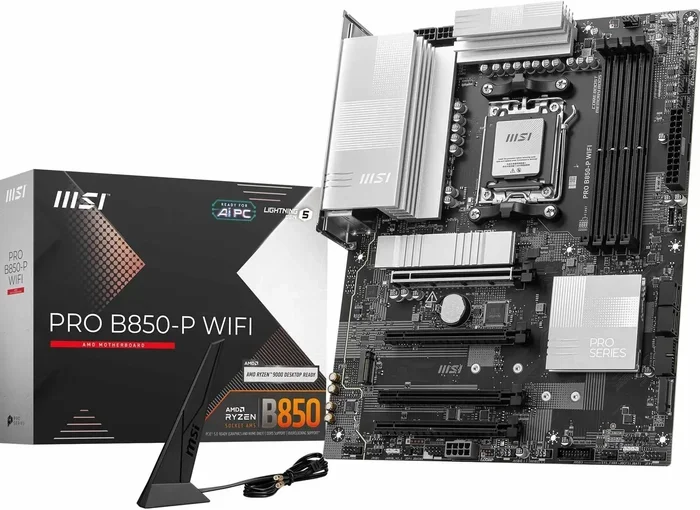
The easiest way to check is to look at the motherboard box or the product listing online. If the board has WiFi, it will almost always say so in the name. For example, boards with “WiFi” or “Wireless” in the model name usually include it. Look for names like the MSI MAG B550 Tomahawk WiFi or the ASUS ROG Strix B550-F Gaming WiFi.
You can also check the back I/O panel. If you see a WiFi antenna connector or a wireless module listed in the specs, your board has WiFi. Another quick way is to look at the specifications page on the manufacturer’s website. Under the network section, it will list the WiFi standard if it is supported.
Popular B550 Boards with Built-In WiFi
Here are some well-known B550 motherboards that include WiFi right out of the box:
- MSI MAG B550 Tomahawk WiFi – A popular choice with solid WiFi 5 support.
- ASUS ROG Strix B550-F Gaming WiFi – Great for gamers who want wireless without extra hardware.
- Gigabyte B550 AORUS Pro WiFi – Offers strong wireless performance and great build quality.
- MSI B550-A PRO WiFi – A solid budget option with WiFi included.
If you already own a B550 board without WiFi, do not worry. You can still add wireless support. Let us look at how to do that next.
How to Add WiFi to a B550 Motherboard
If your B550 board does not have WiFi built in, you have two main options. You can add a PCIe WiFi card or use a USB WiFi adapter. Both methods work well, but they have different advantages. Let us break them down.
Option 1: PCIe WiFi Card
A PCIe WiFi card is the best way to add wireless support to your B550 board. You simply plug it into a PCIe slot on your motherboard. These cards offer strong performance, good range, and stable connections. Most PCIe WiFi cards support the latest WiFi standards, including WiFi 6 and WiFi 6E.
Setting up a PCIe WiFi card is straightforward. You open your PC case, find an available PCIe slot, and gently push the card in. Then you install the drivers that come with the card or download them from the manufacturer’s website. Within minutes, your PC will be connected to your wireless network.
One thing to keep in mind. Some PCIe WiFi cards also include Bluetooth support. This is great if you want to connect wireless keyboards, mice, or headphones without a separate Bluetooth adapter. Just make sure the card you buy has Bluetooth if you need it.
When shopping for a PCIe WiFi card, look for ones that support WiFi 6 (802.11ax) for the best speeds. These cards can deliver speeds up to 2.4 Gbps on a 5 GHz band. If you want even faster speeds, WiFi 6E cards are also available now.
Option 2: USB WiFi Adapter
A USB WiFi adapter is a simple and affordable alternative. You plug it into any USB port on your B550 board, and you are good to go. These adapters are great for people who do not want to open their PC case or who do not have an available PCIe slot.
USB WiFi adapters come in different shapes and sizes. Some are small and barely noticeable. Others are larger and offer better performance. The trade-off is that USB adapters usually have slower speeds than PCIe cards. They also rely on your USB port for power, which can sometimes limit performance.
If you go the USB route, look for adapters that support at least WiFi 5 (802.11ac) for decent speeds. Some newer adapters support WiFi 6, but they tend to be more expensive. For most everyday tasks like browsing, streaming, and video calls, a USB WiFi adapter works just fine.
Which Option Should You Choose?
Here is a quick comparison to help you decide:
- PCIe WiFi Card: Better speeds, more stable connection, includes Bluetooth on many models. Requires opening your PC case and using a PCIe slot.
- USB WiFi Adapter: Easy to set up, portable, and affordable. Slower speeds and less stable than PCIe cards.
For most users, a PCIe WiFi card is the better choice. It gives you the best performance and the most reliable connection. If you are on a tight budget or just need a quick fix, a USB adapter will do the job.
WiFi Standards Supported by B550 Boards
Not all WiFi is the same. Different WiFi standards offer different speeds and features. Understanding these standards helps you choose the right equipment for your B550 setup.
WiFi 5 (802.11ac)
WiFi 5 is the most common standard found on B550 boards with built-in WiFi. It offers speeds up to 1.7 Gbps on the 5 GHz band. For most home users, WiFi 5 is more than enough. It handles streaming, gaming, and video calls with ease.
WiFi 6 (802.11ax)
WiFi 6 is the newer standard and offers significant improvements. It provides faster speeds, better efficiency, and lower latency. WiFi 6 can reach speeds up to 2.4 Gbps. It also handles multiple devices better, which is great if you have a lot of smart home gadgets.
If you are into wireless networking and want the best performance, look for B550 boards that support WiFi 6. Many newer B550 boards now include WiFi 6 as a standard feature. You can also add a WiFi 6 PCIe card to older B550 boards that only have WiFi 5.
WiFi 6E and Future Standards
WiFi 6E is an extension of WiFi 6 that adds support for the 6 GHz band. This gives you even more bandwidth and less interference. A few high-end B550 boards now support WiFi 6E. But this is still rare and usually found on premium models.
As for future standards like WiFi 7, they are still in early stages. Most B550 boards will not support WiFi 7 natively. But you can always upgrade your WiFi card or adapter as new standards emerge.
How WiFi Standards Affect Your Speed
Here is a simple breakdown of how different WiFi standards compare:
- WiFi 4 (802.11n): Up to 600 Mbps. Very outdated and slow.
- WiFi 5 (802.11ac): Up to 1.7 Gbps. Good for most users.
- WiFi 6 (802.11ax): Up to 2.4 Gbps. Fast and efficient.
- WiFi 6E: Up to 2.4 Gbps on the 6 GHz band. The newest widely available standard.
The higher the standard, the faster your wireless speeds. But your internet plan and router also matter. A WiFi 6 card will not help if your router only supports WiFi 5.
Common Mistakes When Adding WiFi to a B550 Board
Adding WiFi to a B550 board is simple, but people make mistakes all the time. Here are some common errors to avoid.
Buying the Wrong WiFi Card
Not all WiFi cards are the same. Some only support 2.4 GHz, while others support both 2.4 GHz and 5 GHz. Always check the specs before you buy. If you want the best performance, get a card that supports the 5 GHz band and at least WiFi 5 or WiFi 6.
Another mistake is buying a card that does not fit your PCIe slot. Most WiFi cards use a PCIe x1 slot. But some larger cards may need more space. Check your motherboard manual to see which slots are available.
Forgetting to Install Drivers
This sounds obvious, but many people forget to install the drivers after adding a WiFi card. Without the right drivers, your PC will not recognize the card. Always install the drivers that come with your WiFi card or download the latest version from the manufacturer’s website.
Placing the Antenna Poorly
If your WiFi card comes with external antennas, where you place them matters. Keep them upright and away from metal objects. Avoid tucking them behind your PC case. Good antenna placement can make a big difference in your signal strength and speed.
Ignoring Bluetooth Needs
Some WiFi cards do not include Bluetooth. If you plan to use wireless peripherals like a keyboard, mouse, or headset, make sure your card has Bluetooth built in. Otherwise, you will need a separate Bluetooth adapter.
These mistakes are easy to avoid with a little research. Take your time, check the specs, and you will have a smooth wireless setup on your B550 board.
Expert Tips for the Best Wireless Performance on B550
Want to get the most out of your B550 WiFi setup? Here are some expert tips that make a real difference.
- Use the 5 GHz band when possible: It is faster and less crowded than 2.4 GHz. If your router supports it, always connect to the 5 GHz network for better speeds.
- Update your WiFi drivers regularly: Manufacturers release driver updates that improve performance and fix bugs. Check for updates every few months.
- Position your router wisely: Keep your router in a central location, away from walls and metal objects. This helps your B550 board get a stronger signal.
- Consider a WiFi mesh system: If you have a large home, a single router may not cover every room. A mesh system like the ones you can learn about at Can I Get Pocket WiFi in Japan can help extend coverage throughout your home.
- Check your router settings: Sometimes slow WiFi is not about your hardware. Updating your router firmware or changing the channel can improve your connection.
- Use a WiFi analyzer app: These apps show you which channels are least crowded. Switching to a less congested channel can boost your speeds significantly.
These tips apply whether you use a built-in B550 WiFi module or an add-on card. They help you squeeze every bit of performance out of your wireless connection.
How B550 WiFi Compares to Other Chipsets
How does B550 WiFi stack up against other chipsets? Let us take a quick look.
- B450: Older chipset with no WiFi support on most models. Similar to B550 in terms of needing an add-on for wireless.
- X570: AMD’s high-end chipset for AM4. Some X570 boards include WiFi, but they tend to cost more than B550 boards.
- B650: The newer AM5 chipset. Some B650 boards include WiFi 6E and even WiFi 7 support. If you want the latest wireless features, B650 is worth considering.
- A520: Budget AM4 chipset. Almost no models include WiFi. You will definitely need an add-on for wireless.
If you are already on B550, you are in a great spot. You get PCIe 4.0 support and plenty of WiFi options at a good price. You do not need to upgrade to a newer chipset just for WiFi.
Final Verdict: Does B550 Support Wireless WiFi?
The answer is both yes and no. The B550 chipset itself does not have WiFi built in. But many B550 motherboards from top brands do include WiFi as a feature. If your board does not have WiFi, adding it is easy and affordable with a PCIe card or USB adapter.
Before you buy anything, check your board’s specs. If it already has WiFi, you are all set. If not, a PCIe WiFi card is the best way to go for most users. It gives you fast speeds, stable connections, and often Bluetooth support too.
Wireless connectivity is more important than ever. Whether you are streaming movies, gaming online, or working from home, having a reliable WiFi connection makes everything better. The B550 platform gives you all the tools you need to get there. You just need to know which path to take.
So the next time someone asks, does B550 support wireless WiFi, you can give them a confident answer. It might not be built in by default, but getting WiFi on a B550 board is easy, affordable, and well worth it.
Take a moment to review your current setup. Check if your B550 board has WiFi. If not, pick the right WiFi card or adapter for your needs. You will be surfing the web wirelessly in no time.
And if you ever need to connect to WiFi on the go or set up a portable hotspot, remember that options like Can I Buy My Own Portable WiFi are always available for when you are away from your home network.
Frequently Asked Questions
Can I use WiFi 6 on a B550 motherboard?
Yes, you can use WiFi 6 on a B550 motherboard. Some B550 boards come with WiFi 6 built in. If your board does not have WiFi 6, you can add a WiFi 6 PCIe card or USB adapter to get it. Just make sure your router also supports WiFi 6 for the best results.
Do I need a special PCIe slot for a WiFi card?
No, most WiFi cards use a standard PCIe x1 slot. These slots are available on almost all B550 motherboards. Just check your motherboard manual to confirm which slots are free. You do not need any special slot type.
Is a USB WiFi adapter as good as a PCIe WiFi card?
USB WiFi adapters are convenient but generally slower and less stable than PCIe cards. A PCIe card connects directly to the motherboard and usually offers better speeds and range. For the best wireless performance, a PCIe card is the better choice.
Can I add Bluetooth to my B550 board without WiFi?
Yes, some Bluetooth adapters work independently of WiFi. You can buy a USB Bluetooth adapter and plug it into your B550 board. This lets you connect wireless peripherals like keyboards and headphones without adding a WiFi card.
Why does my B550 board not have WiFi even though it says “wireless” in the name?
Some B550 boards include the word “wireless” in their name but only refer to Bluetooth support. Always check the full specifications on the manufacturer’s website. Look specifically for WiFi standards like WiFi 5 or WiFi 6 to confirm wireless internet support.
Can I improve my B550 WiFi speed without buying new hardware?
Yes, you can improve your WiFi speed without new hardware. Try updating your WiFi drivers, switching to the 5 GHz band, changing your router channel, and repositioning your router closer to your PC. These free steps can make a noticeable difference in your connection quality.
=== CONCLUSION ===
So, does B550 support wireless WiFi without extra hardware? The B550 chipset does not include WiFi by default, but many B550 motherboards from brands like MSI, ASUS, and Gigabyte do come with WiFi built in. If your board does not have WiFi, adding it is simple and affordable. A PCIe WiFi card gives you the best performance, while a USB adapter works well for budget setups.
Understanding your options helps you make the right choice. Whether you are building a new PC or upgrading an existing one, you now know exactly how to get wireless WiFi working on your B550 board. Pick the right WiFi standard, avoid common mistakes, and enjoy a strong wireless connection.
Take action today. Check your B550 board specs, choose the right WiFi solution, and get connected. Your wireless setup is just a few steps away.