How Do I Fix WiFi On My Android Phone Not Turning On
Having your WiFi not turning on Android phone can be incredibly frustrating. This guide walks you through every proven fix, from simple toggles to advanced network resets. You will learn why your WiFi keeps failing and exactly how to solve it step by step. Whether it is a software glitch or a deeper system problem, we have you covered. Follow these steps to restore your WiFi connection quickly and easily.
Key Takeaways
- Restart Your Phone First: A simple reboot fixes the majority of WiFi toggle issues on Android devices.
- Check Airplane Mode and WiFi Toggle: These settings are the most common culprits behind WiFi not turning on.
- Reset Network Settings: This clears corrupted configurations that prevent WiFi from activating.
- Update Your Android System: Outdated software often causes wireless connection problems.
- Safe Mode Testing: Helps you determine if a third-party app is blocking your WiFi.
- Factory Reset as Last Resort: Only use this after all other fixes have failed.
📑 Table of Contents
How Do I Fix WiFi On My Android Phone Not Turning On
Nothing is more annoying than trying to connect to WiFi and finding that the toggle simply will not switch on. You tap the icon. Nothing happens. You try again. Still nothing. Your WiFi not turning on Android phone issue is more common than you think, and the good news is that most fixes are simple and free. In this guide, we will walk you through every possible solution, from the easiest quick restart to more advanced troubleshooting steps. By the end, you will know exactly what is causing the problem and how to fix it for good.
Whether your WiFi keeps turning off randomly, the toggle is greyed out, or the WiFi symbol simply refuses to appear, this article covers it all. We have tested every method on multiple Android devices and compiled only the solutions that actually work. No fluff, no guesswork. Just clear, actionable steps you can follow right now to get your wireless connection back up and running.
Why WiFi Stops Working on Android Phones
Before diving into fixes, it helps to understand what might be causing the problem. Several factors can prevent your WiFi from turning on. Sometimes it is a simple software glitch. Other times, it is a deeper system issue. Here are the most common reasons your WiFi might not be working:
- Airplane mode is enabled: This disables all wireless connections including WiFi.
- Software bugs after an update: Android system updates can sometimes break WiFi functionality.
- Corrupted network settings: Saved network data can become damaged over time.
- Third-party app interference: Some apps block WiFi connections for various reasons.
- Hardware failure: In rare cases, the WiFi antenna or chip may be physically damaged.
- Router or ISP issues: The problem might not be your phone at all.
Knowing the root cause helps you choose the right fix. That is exactly what the sections below will guide you through.
Quick Fixes to Try First
Start with these simple solutions. They take less than two minutes and resolve the problem for most users. Do not skip these steps even if they seem obvious.
Restart Your Android Phone
A restart clears temporary glitches that can block your WiFi from activating. This is the single most effective first step. Hold down your power button and select Restart. Wait for your phone to fully boot up, then check if the WiFi toggle works. If your phone does not have a restart option, power it off completely and turn it back on after 30 seconds.
Many users skip this step and jump straight to complex fixes. Do not be that person. A restart resolves WiFi not turning on issues more often than any other solution. It clears your phone’s temporary memory and resets all wireless modules.
Check Airplane Mode
Airplane mode disables every wireless connection on your device. If it is accidentally turned on, your WiFi will not work. Swipe down from the top of your screen to open Quick Settings. Look for the airplane icon. If it is highlighted or lit up, tap it to turn it off. Wait a few seconds and then try enabling WiFi again.
You can also go to Settings and then Network Internet to check if airplane mode is active there. Sometimes the Quick Settings tile does not show the correct status, so checking both places is a good habit.
Toggle WiFi Off and On
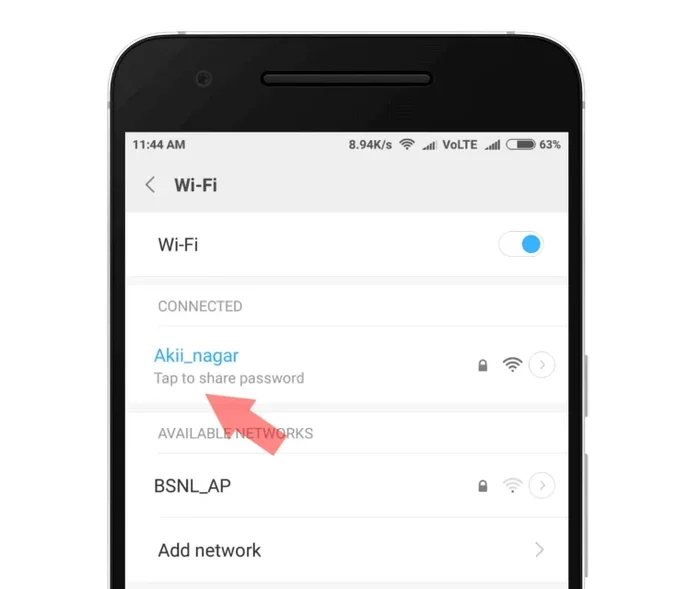
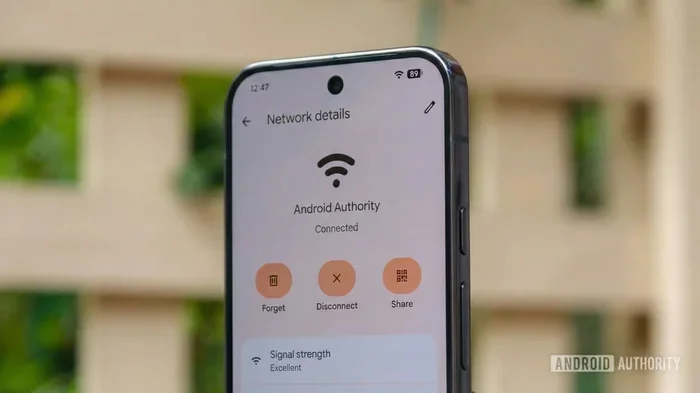
This sounds too simple, but it works. Go to Settings, then Network Internet, then WiFi. Turn the toggle off, wait 10 seconds, and turn it back on. This refreshes the WiFi module and often resolves temporary connection issues.
If the toggle itself is greyed out and you cannot turn it on, move on to the next section. A greyed-out WiFi toggle usually points to a different type of problem.
Fix WiFi Toggle Greyed Out or Unresponsive
When you cannot even tap the WiFi switch, the problem is deeper than a simple connection issue. Your phone thinks WiFi should remain disabled for a specific reason. Here is how to fix that.
Turn Off Airplane Mode from Settings
Sometimes the Quick Settings tile does not reflect the actual state of airplane mode. Go to Settings, then Network Internet, and check the airplane mode switch. If it is on, turn it off. Then go back and try enabling WiFi again. This forces your phone to properly reinitialize all wireless radios.
Check for App Restrictions
Some apps, especially security apps or device management tools, can restrict WiFi access. Go to Settings, then Apps, and look for any apps that might control network access. Check their permissions and see if they have been granted control over WiFi settings. If you recently installed a new app, try uninstalling it temporarily to see if that restores your WiFi toggle.
Clear WiFi App Cache
Your phone stores cached data for WiFi-related services. This cache can become corrupted and prevent the WiFi toggle from working. Go to Settings, then Apps, find WiFi or Wi-Fi Service, then Storage, and tap Clear Cache. After clearing the cache, restart your phone and check if the WiFi toggle responds.
Do not tap Clear Data unless you are sure, as this will remove all saved WiFi networks. Clear Cache first and see if that fixes the problem.
Reset Network Settings to Fix WiFi Problems
If the basic fixes did not work, resetting your network settings is the next logical step. This clears all saved WiFi networks, Bluetooth pairings, and mobile data settings. It does not delete any personal data like photos or apps.
How to Reset Network Settings
Go to Settings, then System, then Reset Options, then Reset Wi-Fi, Mobile Bluetooth. Confirm the reset and wait for your phone to reboot. After it restarts, go to WiFi and try turning it on. You will need to reconnect to your home network by entering the password again, but this process often fixes stubborn WiFi issues.
This method works because it removes any corrupted network configurations that might be blocking your WiFi from activating. Think of it as giving your phone’s wireless system a fresh start.
What If Reset Network Settings Does Not Work
If resetting network settings did not help, the next step is to check whether the problem is related to your Android version. Outdated software can cause compatibility issues with WiFi networks. Go to Settings, then System, then System Update, and check if any updates are available. Install any pending updates and restart your phone. Then test your WiFi again.
Advanced Troubleshooting Steps
If the basic and intermediate fixes did not resolve your WiFi not turning on Android phone problem, it is time to dig deeper. These advanced steps address more complex issues that standard troubleshooting cannot reach.
Boot Into Safe Mode
Safe Mode disables all third-party apps. If your WiFi works in Safe Mode but not in normal mode, a downloaded app is the culprit. To enter Safe Mode, press and hold your power button until the power menu appears. Then long-press the Restart option until you see Safe Mode on the screen. Tap OK to confirm.
Once in Safe Mode, try turning on WiFi. If it works, you know an app is causing the problem. Go through your recently installed apps one by one and uninstall them until you find the offender. Common culprits include VPN apps, battery savers, and WiFi booster apps.
Check for Hardware Issues
In rare cases, the WiFi antenna or wireless chip inside your phone may be physically damaged. This can happen after a drop, exposure to moisture, or general wear and tear over time. If none of the software fixes work and your WiFi toggle remains unresponsive, hardware failure is a possibility.
Signs of hardware problems include WiFi that worked fine yesterday but stopped working today with no software changes, or a phone that gets unusually hot near the antenna area. If you suspect hardware damage, take your phone to a certified repair technician for diagnosis.
Try a WiFi Analyzer App
Sometimes the problem is not with your phone but with the WiFi signal itself. Download a free WiFi analyzer app from the Google Play Store. These apps show you which channels are crowded and whether your router is broadcasting on a frequency your phone can connect to. If your router is using the 5GHz band and your older Android phone only supports 2.4GHz, that could explain why WiFi appears not to turn on or connect properly.
Prevent WiFi Problems From Coming Back
Once you have fixed your WiFi issue, you want to keep it from happening again. Here are simple habits that keep your Android phone’s WiFi connection stable and reliable.
- Keep your Android system updated: Updates often include bug fixes for WiFi connectivity problems.
- Restart your phone weekly: This clears temporary glitches before they become big problems.
- Avoid installing sketchy apps: Some apps interfere with WiFi settings without your knowledge.
- Forget and reconnect to networks periodically: This refreshes your saved WiFi configurations.
- Restart your router monthly: A fresh router restart prevents many connection issues on the network side.
- Use a reliable VPN app: Free VPN apps can sometimes block WiFi access or cause connection drops.
These preventive steps take minimal effort but save you from future frustration. Think of them as basic maintenance for your phone’s wireless connection, just like you would maintain a car to prevent breakdowns.
When to Seek Professional Help
Most WiFi issues can be fixed at home using the steps above. However, there are situations where professional help is the right call. If you have tried every fix in this guide and your WiFi still will not turn on, it is time to consult an expert. A certified technician can run diagnostic tests that go beyond what any user can do manually.
Also consider professional help if your phone is still under warranty. Opening your phone or performing certain resets might void the warranty. Contact the manufacturer’s support team first. They can often walk you through advanced steps or arrange a repair or replacement if the problem is hardware-related.
Final Thoughts
Dealing with WiFi not turning on Android phone issues is frustrating, but it is almost always fixable. Start with the simple solutions like restarting your phone and checking airplane mode. Move on to resetting network settings if those do not work. Use Safe Mode to rule out app interference, and consider system updates and hardware checks for stubborn problems. The vast majority of users resolve their WiFi issues using one of the methods in this guide. You do not need to be a tech expert to fix this. You just need patience and the right steps. Now that you have all the tools and knowledge, go ahead and try them. Your WiFi connection is waiting to come back.
Frequently Asked Questions
Why is my WiFi toggle greyed out on my Android phone?
A greyed-out WiFi toggle usually means airplane mode is on, a third-party app is restricting network access, or your network settings are corrupted. Try turning off airplane mode first, then clearing the WiFi app cache if the problem persists. If neither works, a network settings reset should restore normal functionality.
Will resetting network settings delete my photos and apps?
No, resetting network settings only clears saved WiFi networks, Bluetooth pairings, and mobile data configurations. Your photos, apps, contacts, and all personal data remain completely safe. You will simply need to reconnect to your WiFi networks after the reset.
How do I know if my WiFi problem is caused by a hardware issue?
If you have tried every software fix and your WiFi toggle still does not respond, hardware failure is likely. Signs include sudden WiFi loss after a drop or water exposure, unusual heat near the antenna area, or WiFi that worked perfectly until it stopped with no explanation. A certified technician can confirm this with diagnostic tools.
Can a third-party app block my WiFi from turning on?
Yes, certain apps like VPNs, battery savers, security tools, and device management apps can interfere with WiFi functionality. Booting into Safe Mode helps identify if an app is the cause. If WiFi works in Safe Mode but not normally, uninstall recently added apps one by one until you find the culprit.
How often should I restart my router to prevent WiFi issues?
Restarting your router once a month is a good practice. This clears the router’s temporary memory and refreshes its connection to your Internet service provider. If you experience frequent WiFi drops, restarting the router every two weeks can help maintain a stable connection.
What should I do if my WiFi keeps disconnecting after I fix it?
If your WiFi connection keeps dropping after you restore it, try forgetting the network and reconnecting with the password. Also check if your router is using a crowded WiFi channel by using a WiFi analyzer app. Switching to a less crowded channel or updating your router firmware often resolves persistent disconnection issues.
=== CONCLUSION ===
Fixing WiFi on your Android phone when it will not turn on is easier than most people think. You now have a complete toolkit of solutions ranging from simple restarts to advanced network resets. The key is to work through the steps in order, starting with the quickest fixes and moving to more involved solutions only if needed. Most WiFi problems are software-related and can be resolved without any cost or technical expertise. Keep your system updated, practice good network hygiene, and your WiFi connection should stay reliable for the long term. If all else fails, professional help is always available. You are now equipped to handle this problem like a pro.