How Do I Link My Phone To My Tv With These Simple Steps
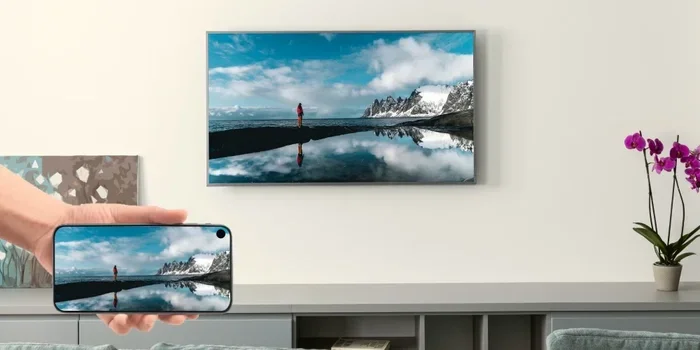
Want to know how do I link my phone to my TV? This guide walks you through every method — from wireless screen mirroring to wired HDMI connections — so you can stream, share, and enjoy your phone content on a bigger screen. Whether you have an Android, iPhone, or smart TV, you will find clear steps that work for your setup.
Have you ever wanted to watch something from your phone on a bigger screen? Maybe it is a funny video, a photo slideshow, or a movie you are streaming. How do I link my phone to my TV is one of the most searched tech questions today. The good news is that it is much easier than most people think. You do not need expensive equipment or technical skills. This guide covers every method you can use, so keep reading to find the one that works best for you.
Whether you own an Android phone or an iPhone, and whether your TV is a smart TV or a basic set, there is a way to connect them. You can go wireless with screen mirroring, use a simple cable, or add a small streaming device. Each method has its own benefits. Some are faster, some give better picture quality, and some are more convenient. By the end of this article, you will know exactly which method fits your needs. Let us dive in.
Key Takeaways
- Wireless screen mirroring lets you cast your phone display to your TV without any cables.
- HDMI adapters offer a reliable wired connection for stable, high-quality playback.
- Streaming devices like Chromecast and Apple TV make linking your phone to your TV easy and fast.
- Smart TV built-in features like AirPlay and Miracast work right out of the box.
- Bluetooth and Wi-Fi Direct provide alternative wireless options for certain TV models.
- Common mistakes like wrong Wi-Fi networks or outdated software can cause connection failures.
📑 Table of Contents
- Why Link Your Phone to Your TV?
- Method 1: Wireless Screen Mirroring
- Method 2: Using an HDMI Cable and Adapter
- Method 3: Streaming Devices Like Chromecast and Apple TV
- Method 4: Using Your Smart TV’s Built-In Features
- Method 5: Bluetooth and Wi-Fi Direct Connection
- Common Mistakes and How to Fix Them
- Expert Insights and Pro Tips
- Which Method Is Right for You?
- Frequently Asked Questions
- Conclusion
Why Link Your Phone to Your TV?
Before we get into the steps, let us talk about why this is so useful. Linking your phone to your TV opens up a world of possibilities. You can share photos with family on the big screen during gatherings. You can watch YouTube videos, TikTok clips, or Netflix shows without straining your eyes on a tiny phone screen. Gamers can play mobile games on a larger display. Presenters can show slides or videos during meetings. The list goes on.
Another big reason is convenience. Your phone is your remote control. You can scroll, search, and control playback directly from your device. This means no fumbling with TV remotes or typing passwords with a remote control. Everything stays in your hands — literally.
Method 1: Wireless Screen Mirroring
Wireless screen mirroring is the most popular way to link your phone to your TV without cables. It sends your phone screen to your TV over your home Wi-Fi network. Both devices need to be on the same network for this to work.
How Screen Mirroring Works
Screen mirroring uses a technology called Miracast for most Android phones and Google Cast for Chromecast-enabled TVs. iPhones use AirPlay, which is Apple’s built-in wireless display protocol. When you mirror your screen, everything you do on your phone appears in real time on your TV. You can scroll, tap, and even play games.
How to Mirror an Android Phone
Follow these simple steps to cast from an Android device:
- Make sure your phone and TV are connected to the same Wi-Fi network.
- Open the Settings app on your phone.
- Look for Connected Devices, Display, or Cast depending on your phone brand.
- Tap Cast or Screen Mirroring.
- Select your TV from the list of available devices.
- Wait for the connection to establish. You should see your phone screen on the TV.
Most modern Android phones have this feature built in. Brands like Samsung, Google Pixel, and OnePlus all support native screen mirroring. If your phone does not have it, you can download a free app from the Google Play Store.
How to Mirror an iPhone
If you use an iPhone, the process is just as simple thanks to AirPlay:
- Connect your iPhone and your Apple TV or AirPlay-compatible TV to the same Wi-Fi network.
- Open the Control Center by swiping down from the top right of your screen.
- Tap the Screen Mirroring icon.
- Choose your TV from the list.
- Enter the code if your TV asks for one.
That is it. Your iPhone screen is now showing on your TV. You can stream videos, share photos, or browse the web on the big screen.
Quick Tips for Wireless Mirroring
- Use a strong Wi-Fi signal for the best performance. A weak connection causes lag or stuttering.
- Turn off battery saving mode on your phone, as it can interfere with mirroring.
- Close unnecessary apps to free up memory and improve responsiveness.
Method 2: Using an HDMI Cable and Adapter
Sometimes wireless is not the best option. Maybe your Wi-Fi is slow, or you need a rock-solid connection for gaming or presentations. In these cases, a wired HDMI connection is the way to go. Linking your phone to your TV with an HDMI adapter gives you the most stable and highest-quality display.
What You Need
Here is what you will need for a wired connection:
- An HDMI adapter that matches your phone type. For iPhones, you need a Lightning to HDMI adapter. For Android phones, you need a USB-C to HDMI adapter.
- A standard HDMI cable.
- An available HDMI port on your TV.
Step-by-Step Setup
Follow these steps to set up a wired connection:
- Plug the HDMI adapter into your phone’s charging port.
- Connect the HDMI cable to the adapter.
- Plug the other end of the HDMI cable into an open HDMI port on your TV.
- Switch your TV to the correct HDMI input using your remote.
- Your phone screen should now display on your TV.
This method works with almost every phone and TV. You do not need Wi-Fi at all. The picture quality is excellent, and there is no lag or delay. This makes it ideal for gaming and presentations.
Which Adapter Should You Buy?
Not all adapters are the same. Apple makes its own official Lightning to HDMI adapter, which works perfectly but costs more. Third-party adapters are cheaper and work well for most people. For Android phones, brands like Anker, Amazon Basics, and Samsung make reliable USB-C to HDMI adapters. Always check compatibility before buying.
Method 3: Streaming Devices Like Chromecast and Apple TV
If your TV is not smart or does not support wireless mirroring, a streaming device can bridge the gap. These small gadgets plug into your TV’s HDMI port and connect to your Wi-Fi. They give your TV smart features and make it easy to cast your phone to your TV.
Google Chromecast
Chromecast is one of the most popular streaming devices. It costs around $30 and works with both Android and iPhone. Here is how to use it:
- Plug the Chromecast into your TV’s HDMI port.
- Connect it to your Wi-Fi network using the Google Home app.
- Open a supported app on your phone, like YouTube or Netflix.
- Tap the Cast icon in the app.
- Your content will play on the TV.
Chromecast also supports full screen mirroring from Android phones. You can mirror your entire phone display, not just specific apps.
Apple TV
Apple TV is the premium option for iPhone users. It costs more but offers excellent quality and a smooth experience. AirPlay works seamlessly with Apple TV, so you can mirror your iPhone or stream content from any supported app. Apple TV also supports apps like Netflix, Hulu, and Disney+ directly.
Roku and Fire TV Stick
Roku and Amazon Fire TV Stick are two other great options. Both support screen mirroring from Android phones. Roku has a built-in screen mirroring feature you can enable in settings. Fire TV Stick supports casting from certain apps but has limited full mirroring support compared to Chromecast.
| Device | Price Range | Phone Compatibility | Screen Mirroring |
|---|---|---|---|
| Google Chromecast | $30 – $50 | Android, iPhone | Full mirroring supported |
| Apple TV | $130 – $180 | iPhone, iPad | Full mirroring via AirPlay |
| Roku | $30 – $50 | Android, iPhone | Mirroring supported on most models |
| Fire TV Stick | $25 – $55 | Android, iPhone | Limited mirroring support |
Method 4: Using Your Smart TV’s Built-In Features
Many modern smart TVs come with built-in casting features. You may not need any extra devices at all. Linking your phone to your TV can be as simple as using the TV’s native wireless display option.
Samsung Smart TVs
Samsung TVs support Screen Mirroring through their Smart View feature. To use it:
- Turn on your Samsung TV and make sure it is connected to Wi-Fi.
- On your phone, pull down the notification panel.
- Tap Smart View or Screen Mirroring.
- Select your Samsung TV from the list.
LG Smart TVs
LG TVs use Screen Share, which supports Miracast for Android devices. iPhones can use AirPlay with LG webOS TVs that support it. The feature is usually found in the TV’s input or connection settings.
Sony, TCL, and Other Brands
Most other smart TV brands support either Miracast or AirPlay. Check your TV’s settings menu for a Screen Mirroring or Wireless Display option. If your TV does not have this built in, you can still use a streaming device like Chromecast to add the feature.
Method 5: Bluetooth and Wi-Fi Direct Connection
Not all TV connections rely on Wi-Fi or HDMI. Bluetooth and Wi-Fi Direct are two alternative methods you can try. These work best for audio streaming and certain types of media playback.
Bluetooth Connection
Bluetooth is not ideal for video because of bandwidth limitations. However, it works well for streaming audio to your TV or a connected soundbar. To pair via Bluetooth:
- Go to your TV’s Bluetooth settings.
- Put the TV in pairing mode.
- On your phone, go to Bluetooth settings.
- Find your TV and tap to pair.
This method is great for listening to music or podcasts on your TV speakers without cables.
Wi-Fi Direct
Wi-Fi Direct creates a direct connection between your phone and TV without needing a router. Some Samsung and LG TVs support this. You can find the option in your TV’s network settings. Wi-Fi Direct gives you a more stable connection than regular Wi-Fi mirroring because it does not share bandwidth with other devices.
Common Mistakes and How to Fix Them
Even with the right method, things can go wrong. Here are the most common issues people face when they try to link their phone to their TV and how to fix them.
Devices Not Finding Each Other
The most common reason is that your phone and TV are not on the same Wi-Fi network. Double-check both devices. Also, make sure your TV’s wireless display feature is turned on. Some TVs hide this feature in a submenu, so look carefully in the settings.
Poor Video Quality or Lag
Lag and stuttering usually happen when the Wi-Fi signal is weak. Move your router closer to your TV, or use a wired HDMI connection instead. You can also lower the screen resolution on your phone to reduce the data load.
Connection Keeps Dropping
Interference from other devices can cause drops. Try turning off other wireless devices temporarily. Also, make sure your phone and TV firmware are up to date. Software updates often fix connection bugs.
Audio and Video Are Out of Sync
This happens with wireless mirroring sometimes. It is caused by processing delay. Using a wired HDMI connection eliminates this problem completely. If you must go wireless, try reducing the resolution or closing background apps on your phone.
Expert Insights and Pro Tips
Expert tip: Always update your phone and TV software before trying to connect. Updates often include fixes for connectivity issues and new features for screen sharing. A simple restart of both devices can also solve many problems.
Another pro tip is to use a dedicated streaming device instead of built-in mirroring when possible. Devices like Chromecast and Apple TV are optimized for casting and give you a smoother experience than most built-in TV features. They also receive regular updates that keep them compatible with the latest phones and apps.
If you are in a rental apartment or dorm where you cannot access router settings, Wi-Fi Direct or Bluetooth pairing can be a lifesaver. These methods do not require you to join the same network, which makes them very convenient for temporary setups.
Which Method Is Right for You?
Choosing the right method depends on your needs. Here is a quick guide:
- For casual video watching: Use wireless screen mirroring or a streaming device like Chromecast.
- For gaming or presentations: Use an HDMI cable and adapter for zero lag.
- For audio only: Use Bluetooth to connect your phone to your TV or soundbar.
- For smart TV users: Use your TV’s built-in casting feature first. It is the simplest option.
- For the best overall experience: Invest in a streaming device like Apple TV or Chromecast.
No single method is perfect for everyone. Try a few and see which one fits your lifestyle. Most people find that wireless mirroring works well for everyday use, while HDMI is better for serious gaming or professional presentations.
Frequently Asked Questions
Can I link my phone to any TV?
Yes, you can link almost any phone to any TV. If your TV has an HDMI port, you can use an adapter. If your TV is a smart TV, you can use wireless mirroring or a streaming device. Even older TVs without smart features can work with a simple HDMI adapter or a streaming stick plugged into the HDMI port.
Does linking my phone to my TV use a lot of data?
Not really. When you mirror your screen over Wi-Fi, the data stays on your local network and does not use your internet data plan. However, if you are streaming online content like Netflix, that content uses data from your internet connection, not your phone’s data plan.
Is screen mirroring the same as casting?
They are similar but not the same. Screen mirroring sends your entire phone screen to the TV in real time. Casting sends a specific app or content to the TV, and your phone becomes a remote control. Casting usually gives better quality and lets you use your phone while the content plays on the TV.
Why is my wireless connection lagging?
Lag usually happens because of a weak Wi-Fi signal or network congestion. Make sure both devices are close to your router. Also, check if other devices are using heavy bandwidth, like someone downloading a large file. Switching to a wired HDMI connection will completely eliminate lag.
Can I connect my phone to my TV without Wi-Fi?
Yes. You can use an HDMI cable and adapter, which does not need Wi-Fi at all. Some TVs also support Wi-Fi Direct or Bluetooth pairing, which create a direct connection without requiring a router or internet connection.
Do I need a smart TV to connect my phone?
No, you do not need a smart TV. Any TV with an HDMI port can work with a streaming device or an HDMI adapter. You can turn any TV into a smart TV by adding a Chromecast, Fire TV Stick, or Apple TV. These devices are affordable and easy to set up.
Conclusion
Learning how do I link my phone to my TV is a skill that makes your devices work together beautifully. You have many options, from simple wireless mirroring to reliable HDMI cables and affordable streaming devices. The best method depends on your TV, your phone, and what you want to do. Wireless mirroring is perfect for everyday sharing, HDMI gives you the best quality for gaming and presentations, and streaming devices add smart features to any TV.
Start with the method that matches your setup. Try wireless mirroring first since it requires no extra equipment. If it does not work well for you, try an HDMI adapter or a streaming device. Once you get it working, you will wonder how you ever managed without it. Your phone and TV working together opens up a whole new way to enjoy your favorite content. So go ahead, pick a method, and start streaming today.