How Do I Put My Phone On Hdmi Mode for a Bigger Screen
How Do I Put My Phone On HDMI Mode is a simple process that lets you display your phone screen on a larger TV or monitor. Whether you want to watch videos, play games, or share photos, connecting your phone via HDMI gives you a bigger and clearer picture. This guide walks you through every step, from picking the right cable to troubleshooting common issues. You will learn about wired and wireless options that fit any phone and budget. By the end, you will know exactly how to get your phone on HDMI mode and enjoy a bigger screen experience.
There is something magical about watching your favorite shows or sharing photos on a screen that fills the entire room. If you have ever wanted to do that with your phone, you are in the right place. How Do I Put My Phone On HDMI Mode is one of the most searched questions by people who want a bigger, better viewing experience. The good news is that it is simpler than you might think.
Connecting your phone to a TV or monitor through HDMI opens up a world of possibilities. You can stream movies, play mobile games on a large display, or even use your phone as a presentation tool. Whether you have a newer smartphone with a USB-C port or an older device, there is a way to make it work. This guide covers everything you need to know, from the cables you need to the steps you will follow.
By the time you finish reading, you will feel confident about setting up your own phone-to-TV connection. We will walk you through each step clearly and simply. No tech expertise is required. Let us get started and help you enjoy your phone content on a much bigger screen.
Key Takeaways
- HDMI mode lets you cast your phone screen to a TV or monitor for a much bigger viewing experience.
- You need the right cable or adapter depending on your phone model and port type.
- USB-C to HDMI adapters are the most common solution for modern smartphones.
- Wireless options like Chromecast work well if you prefer a cable-free setup.
- Common issues like no signal are usually easy to fix with simple troubleshooting.
- Adjusting display settings on your phone ensures the best picture quality on the big screen.
- Not all phones support HDMI output natively, so check compatibility first.
📑 Table of Contents
What Is HDMI Mode on a Phone?
HDMI mode on a phone means using a connection to send video and audio from your device to a larger display. Think of it as turning your small phone screen into a big TV screen. The HDMI cable carries both high-definition video and sound in one simple connection.
How HDMI Mode Works on Your Device
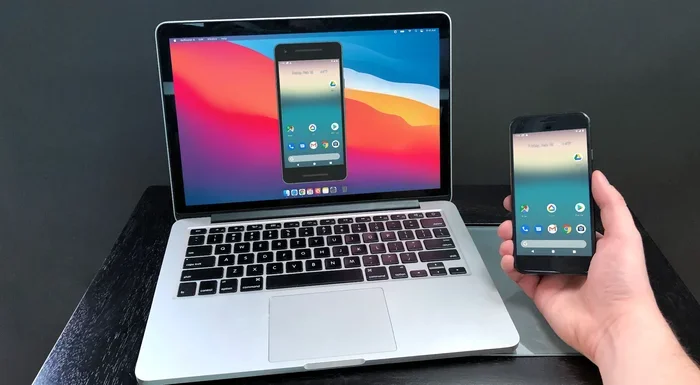
When you enable HDMI output on your phone, it takes everything shown on your screen and sends it to the TV or monitor. This is called screen mirroring or display mirroring. Your phone becomes a remote control while the TV shows exactly what is on your phone.
The process relies on your phone having a way to send video out. Newer phones use USB-C ports, while some older models use micro-USB or even a special digital audio output. The video output travels through the cable to the display device.
Some phones support HDMI-compatible connections natively. This means you can plug in a cable and it just works. Other phones need a small adapter or dongle to convert the signal. Either way, the goal is the same: a bigger screen for your content.
Which Phones Support HDMI Output
Most modern Android phones support HDMI output through USB-C. iPhones do not have a direct HDMI port, but you can use a Lightning to HDMI adapter. Some older phones used MHL technology, which is now less common.
Here are some general guidelines:
- Android phones with USB-C: Use a USB-C to HDMI adapter for direct connection.
- iPhones with Lightning: Use a Lightning to HDMI adapter cable.
- Older Android phones with micro-USB: You may need an MHL adapter or a specific cable.
- Phones without HDMI support: Use wireless casting methods instead.
Always check your phone manufacturer’s website to confirm HDMI output support before buying any cables or adapters.
What You Need to Connect Your Phone to a Bigger Screen
Getting your phone connected to a TV starts with having the right tools. The good news is that you do not need expensive equipment for most setups. A simple cable or adapter is usually all it takes.
Wired Connection Options
Wired connections give you the most reliable smartphone connectivity. There is no lag, no buffering, and no Wi-Fi dependency. Here are the main options:
- USB-C to HDMI adapter: The most popular choice for newer Android phones. Just plug one end into your phone and the other into the TV.
- Lightning to HDMI cable: Designed for iPhones. Apple’s official adapter works great, but there are also affordable third-party options.
- MHL cable: An older standard for phones with micro-USB ports. Less common now but still works with some devices.
- USB-C to HDMI cable: A single cable that does not need a separate adapter. Works with phones that support HDMI-alt mode.
A cable connection like these gives you a stable, high-quality picture. You do not need to worry about Wi-Fi signal strength or interference.
Wireless Alternatives
Not everyone wants to deal with cables. Wireless options let you cast phone to TV without any physical connection. Here are the most popular choices:
- Chromecast: A small device that plugs into your TV’s HDMI port and connects to your Wi-Fi network.
- Apple AirPlay: Built into iPhones and Apple TVs for seamless wireless streaming.
- Miracast: A wireless standard built into many TVs and Android phones for direct screen mirroring.
- Smart TV apps: Many modern TVs have built-in apps that let you mirror your phone screen over Wi-Fi.
Wired vs. Wireless: Which Is Right for You?
Choosing between wired and wireless depends on your needs. Here is a quick comparison:
| Feature | Wired (HDMI) | Wireless (Chromecast/AirPlay) |
|---|---|---|
| Video Quality | Best (uncompressed) | Good (compressed over Wi-Fi) |
| Latency | Near zero | Small delay possible |
| Setup Ease | Plug and play | Requires Wi-Fi setup |
| Cable Needed | Yes | No |
| Price | $5 to $25 | $30 to $150 |
| Best For | Gaming, presentations | Streaming, casual viewing |
For the best picture quality and zero lag, a wired HDMI connection wins. For convenience and freedom of movement, wireless is the way to go.
Quick Tip: Always buy name-brand or well-reviewed adapters. Cheap knockoff adapters can cause flickering, poor quality, or connection drops.
How Do I Put My Phone On HDMI Mode? Step-by-Step Guide
Now that you know what you need, let us walk through the actual process. How Do I Put My Phone On HDMI Mode is easier than most people expect. Follow these steps and you will be watching big-screen content in minutes.
Step 1: Check Your Phone’s Ports
Before buying anything, look at the bottom of your phone. Do you see a USB-C port, a Lightning port, or a micro-USB port? This determines which adapter or cable you need to buy.
Also check if your phone supports HDMI output natively. Most modern Android phones do. iPhones need an adapter. If you are not sure, search your phone model online with the words “HDMI output support.”
Step 2: Get the Right Cable or Adapter
Once you know your port type, get the matching adapter. Here is what to look for:
- USB-C phone: Buy a USB-C to HDMI adapter or a USB-C to HDMI cable.
- Lightning iPhone: Buy a Lightning to HDMI adapter cable.
- micro-USB phone: Look for an MHL adapter or a micro-USB to HDMI converter.
Make sure the adapter supports the resolution you want. Most adapters handle 1080p easily. Some support 4K, which is great for very sharp picture quality.
Quick Tip: If your phone supports screen extension, you can use the TV as a second screen. This is great for multitasking or giving presentations while keeping your phone screen private.
Step 3: Connect to the TV or Monitor
Plug the adapter into your phone first. Then connect the HDMI end of the cable into an available HDMI port on your TV. Use any open port — HDMI 1, HDMI 2, HDMI 3, it does not matter.
Make sure both ends are plugged in firmly. A loose connection is the most common reason for “no signal” problems.
Step 4: Switch to the Correct HDMI Input
Turn on your TV and use the remote to switch to the right HDMI input. Press the “Input” or “Source” button on your TV remote and select the HDMI port you plugged into. If you used HDMI port 2, select HDMI 2.
Your TV screen should now show your phone’s display. If you see nothing, do not worry — we will cover troubleshooting in a later section.
Step 5: Adjust Your Display Settings
Once connected, go to your phone’s display settings. Look for options like “Cast,” “HDMI output,” or “Screen mirroring.” You may also find resolution settings where you can choose between 1080p and 4K output.
Some phones let you choose between mirroring the screen or extending it. Screen mirroring shows the same thing on both screens. Screen extension uses the TV as a separate display, which is useful for presentations or multitasking.
Expert Insight: If your TV shows a black border around your phone screen, go to your phone’s display settings and look for “Full Screen” or “Scale” options. Adjusting these can make the image fill the entire TV screen properly.
Wireless Alternatives to HDMI Mode
Not every situation calls for a cable. Sometimes you want flexibility, or your phone simply does not support wired HDMI output. Wireless alternatives have gotten much better in recent years and are a great option for many users.
Using Chromecast and Similar Devices
Google Chromecast is one of the most popular ways to mobile casting without cables. You plug a small Chromecast device into your TV’s HDMI port and connect it to your home Wi-Fi. Then you can send content from your phone to the TV with a few taps.
The process works like this:
- Plug Chromecast into your TV’s HDMI port.
- Connect Chromecast to your Wi-Fi network using the Google Home app.
- On your phone, open a supported app like YouTube or Netflix.
- Tap the Cast icon and select your Chromecast device.
- Your content now plays on the big screen.
Chromecast works with both Android and iPhone. It is affordable, reliable, and does not require any special adapters.
Screen Mirroring Over Wi-Fi
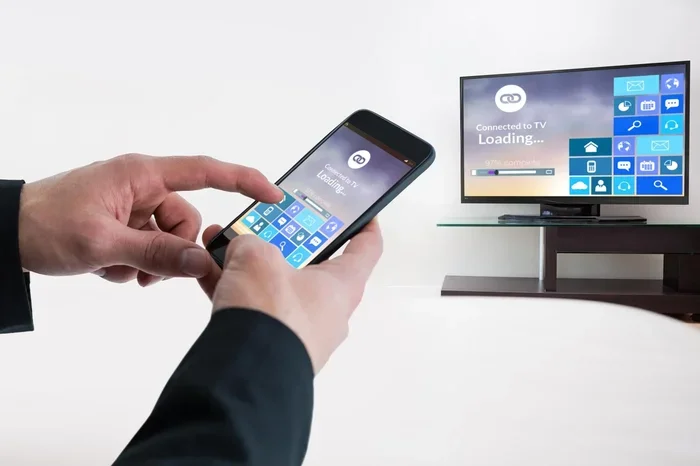
Most modern Smart TVs have built-in screen mirroring. This lets you mirror your entire phone screen wirelessly. On Android, look for the “Cast” or “Smart View” option in your quick settings. On iPhone, use AirPlay.
The quality of wireless display mirroring depends on your Wi-Fi speed. A strong 5 GHz connection gives you the best experience. If your Wi-Fi is slow or crowded, you might notice a slight delay or lower quality.
When to Choose Wireless Over Wired
Wireless works best for streaming content like Netflix, YouTube, or Spotify. It is also great when you do not want cables running across the room. However, for gaming or situations where you need zero lag, a wired HDMI connection is still the better choice.
Quick Tip: If wireless casting lags or stutters, try moving closer to your Wi-Fi router or switching to a 5 GHz network band. This often solves most wireless streaming issues.
Common Problems and How to Fix Them
Even with the right setup, you might run into issues. Here are the most common problems people face when connecting their phone to a TV via HDMI, and how to solve them.
No Signal on the TV Screen
This is the most common issue and it is usually easy to fix. First, check that both ends of the cable are plugged in firmly. Then make sure your TV is set to the correct HDMI input. Try unplugging the cable and plugging it back in. Sometimes simply restarting both your phone and TV solves the problem.
If you still see no signal, your adapter might not be compatible with your phone model. Try a different adapter or cable. Not all adapters work with all phones, even if the port type matches.
Poor Picture or Video Quality
If your picture looks fuzzy or stretched, check your phone’s display settings. Make sure the output resolution matches your TV’s capabilities. A 1080p TV cannot display 4K content, and trying to force it can cause quality issues.
Also check your cable quality. A cheap or damaged HDMI cable can cause signal loss. Replace it with a high-speed HDMI cable rated for the resolution you want. For 4K content, make sure your cable is rated for HDMI 2.0 or higher.
Audio Issues When Connected via HDMI
Sometimes the video shows up fine but there is no sound. This usually happens when the TV is not set as the audio output device. Go to your phone’s sound settings and look for an HDMI or external speaker option. Select it to route audio through the TV.
On some phones, you need to disable Bluetooth first. Bluetooth audio can override the HDMI audio output, causing silence on the TV.
Expert Insight: If audio still does not work, try disconnecting and reconnecting the HDMI cable while the TV is on. Some TVs need a fresh signal detection to switch audio output properly.
Tips for the Best Viewing Experience
Once your phone is connected and working, a few simple tweaks can make a huge difference in how your content looks and feels on the big screen.
Adjust Resolution and Display Settings
Go to your phone’s settings and find the display or screen mirroring section. Set the output resolution to match your TV’s native resolution. For most modern TVs, this is 1080p. For 4K TVs, set it to 4K if your phone and adapter support it.
You can also adjust brightness and contrast on the TV itself for the best picture. Your phone’s screen brightness does not affect the TV output, so feel free to turn your phone brightness all the way down to save battery.
Keep Your Phone Cool During Long Sessions
Streaming video or playing games through HDMI can make your phone warm. If your phone gets too hot, it may reduce performance or even disconnect the HDMI output. Keep your phone in a well-ventilated spot, and consider removing thick cases during long viewing sessions.
Some phones have a “performance mode” or “gaming mode” that helps manage heat. You can find this in your phone’s settings under battery or device care options.
Use a High-Quality Cable for Best Results
Not all HDMI cables are the same. A high-speed HDMI cable rated for 4K and 60Hz will give you the best picture and sound quality. Cheap cables may work for basic viewing but can cause issues with high-resolution content.
Look for cables that are certified by HDMI Licensing LLC. These cables meet strict quality standards and will work reliably with your setup. A good cable usually costs between $5 and $15 and lasts for years.
Conclusion
How Do I Put My Phone On HDMI Mode is a question with a straightforward answer. Whether you use a USB-C to HDMI adapter, a Lightning to HDMI cable, or a wireless casting device, the goal is the same: enjoy your phone’s content on a bigger, better screen. The steps are simple, the equipment is affordable, and the results are impressive.
Start by checking your phone’s ports and buying the right adapter. Follow the step-by-step guide to connect everything. If you run into issues, the troubleshooting tips in this article will help you get back on track. And remember, wireless options like Chromecast or AirPlay are great alternatives if you prefer to skip the cables entirely.
Now that you know how to set up HDMI mode on your phone, you can enjoy movies, games, photos, and presentations on the big screen anytime you want. Try it tonight and see the difference for yourself. Once you experience your phone content on a large display, you will wonder how you ever managed without it.
Frequently Asked Questions
Can any phone connect to HDMI?
Most modern Android phones with USB-C ports can connect to HDMI using an adapter. iPhones need a Lightning to HDMI adapter. However, some budget or older phones may not support HDMI output at all. Check your phone’s specifications online to confirm before purchasing any cables or adapters.
Do I need a special cable to connect my phone to a TV?
Yes, you need either a USB-C to HDMI adapter, a Lightning to HDMI cable for iPhones, or an MHL adapter for older micro-USB phones. Some phones also support a single USB-C to HDMI cable without a separate adapter if they have HDMI-alt mode built in.
Why is my phone not showing on the TV when connected via HDMI?
The most common reasons are a loose cable connection, the TV being set to the wrong HDMI input, or the adapter not being compatible with your phone model. Try unplugging and replugging the cable, switching TV inputs, and restarting both devices. If the problem persists, try a different adapter or cable.
Can I use HDMI mode wirelessly?
Yes, you can achieve similar results wirelessly using devices like Chromecast, Apple AirPlay, or built-in Smart TV screen mirroring. Wireless options do not use a physical HDMI cable from your phone, but the Chromecast device itself plugs into your TV’s HDMI port. Wireless casting is convenient but may have slight lag compared to a wired connection.
Does putting my phone on HDMI mode drain the battery?
Yes, sending video output through HDMI uses more battery than normal phone use. Streaming or gaming on a connected phone can drain the battery faster. To reduce battery drain, keep your phone plugged into a charger while using HDMI mode, and lower your phone’s screen brightness since the TV display is what you will be watching.
What is the difference between HDMI mode and screen mirroring?
HDMI mode typically refers to a wired connection that sends your phone’s screen to a TV through an HDMI cable. Screen mirroring usually refers to a wireless connection using Wi-Fi to display your phone screen on a TV. Both achieve the same goal of showing your phone content on a bigger screen, but wired HDMI generally offers better quality and zero lag.