How Do I Reset My Ai Robot Vacuum And Fix Common Issues
Resetting your AI robot vacuum is one of the easiest ways to solve stubborn problems like freezing, navigation errors, and unresponsive controls. Whether you need a soft reset or a full factory reset, this guide walks you through every method clearly and simply. You will also learn how to fix common issues without a reset and keep your vacuum running at its best.
Your AI robot vacuum is supposed to make your life easier. It maps your home, avoids obstacles, and cleans your floors while you relax. But sometimes, things go wrong. The vacuum stops moving. The app freezes. Error codes pop up on the screen. When that happens, the first thing many people try is a reset. And honestly, that is a great instinct.
Resetting your AI robot vacuum can fix a surprising number of problems. From software glitches to communication errors with your Wi-Fi network, a reset often brings your smart vacuum back to life. But not all resets are the same. Some are quick power cycles. Others are full factory resets that erase your settings. Knowing which one to use and when to use it makes all the difference.
In this guide, we will walk you through every type of reset. We will cover soft resets, factory resets, and brand-specific methods. We will also tackle the common issues that drive people to search for a reset in the first place. By the end, you will know exactly how to get your AI robot vacuum working again. No guesswork. No frustration. Just clear, simple steps you can follow right now.
Key Takeaways
- Soft resets are quick fixes: Most minor glitches resolve with a simple power cycle or button combo in under two minutes.
- Factory resets wipe your settings: Always back up your cleaning schedule and Wi-Fi details before performing a full reset.
- Not all problems need a reset: Dirty sensors, full dustbins, and stuck wheels often cause the same symptoms as software errors.
- Brand-specific steps matter: Different AI robot vacuum brands use different reset methods, so always check your model first.
- Prevent future issues: Regular maintenance and timely software updates reduce the need for frequent resets.
- Contact support when needed: Hardware failures and persistent error codes may require professional help beyond a simple reset.
📑 Table of Contents
Why You Need to Reset Your AI Robot Vacuum
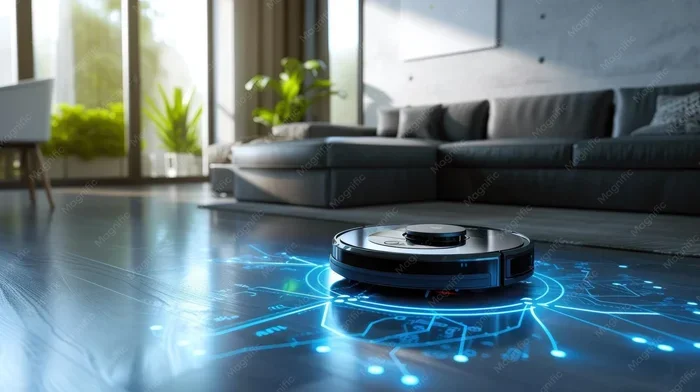
AI robot vacuums are essentially small computers on wheels. They run software, connect to Wi-Fi, and process sensor data in real time. Like any computer, they can encounter bugs, memory glitches, and software conflicts. A reset clears those problems and gives the system a fresh start.
Here are the most common reasons you might need to reset your robot vacuum:
- The vacuum freezes or becomes unresponsive. The buttons on the device or the app stop working. You cannot start a cleaning cycle.
- Navigation errors occur. The vacuum gets stuck in one spot, bumps into walls constantly, or fails to map your home correctly.
- Wi-Fi connectivity drops. The vacuum keeps disconnecting from your home network or will not connect at all.
- Error codes appear on the display. Codes like E1, E2, or E3 pop up and the manual does not explain them clearly.
- After a software update. Sometimes a firmware update causes unexpected behavior that a reset can fix.
- The vacuum ignores commands. You tell it to clean, but it does nothing or starts and stops randomly.
Each of these problems has a solution. And in many cases, a reset is the fastest and most effective fix. The key is understanding which type of reset to use for each situation.
Soft Reset vs Factory Reset
Not all resets are created equal. A soft reset is like restarting your phone. It refreshes the system without deleting any data. A factory reset wipes everything back to the original settings. You lose your cleaning maps, schedules, and Wi-Fi connections.
Always try a soft reset first. Only move to a factory reset if the soft reset does not solve the problem. This approach saves time and prevents you from losing important settings unnecessarily.
How to Factory Reset Your AI Robot Vacuum Step by Step
A factory reset is the most powerful troubleshooting tool you have. It returns your vacuum to the exact state it was in when you first took it out of the box. But the exact steps vary by brand and model. Below, we cover the general process and then look at some popular brands.
General Steps for Most AI Robot Vacuums
Most AI robot vacuums follow a similar reset process. Here is what to do in most cases:
- Turn off the vacuum. Press and hold the power button until the device shuts down completely.
- Unplug the charging dock. Disconnect the dock from the wall outlet. This ensures no power flows to the vacuum during the reset.
- Press and hold the reset button. Many models have a small reset pinhole on the bottom or back. Use a paperclip or SIM ejector tool to press it.
- Turn the vacuum back on. While holding the reset button, plug the dock back in and power on the vacuum.
- Release the button after the LED light flashes. The flashing light confirms the reset is in progress.
- Wait for the startup sound. The vacuum will beep once or twice when the reset is complete.
After the reset, you will need to reconnect the vacuum to your Wi-Fi network and set it up again through the app. This takes about five to ten minutes. Have your Wi-Fi password ready.
Brand-Specific Reset Methods
Different brands use different reset methods. Here are the most common ones:
- Roomba (iRobot): Press and hold the Clean button and the Spot button together for about 10 seconds. The light ring will swirl, indicating the reset is working.
- Ecovacs Deebot: Hold the Power button and the Spot Clean button simultaneously for five seconds. The robot will speak a confirmation message.
- Roborock: Press and hold the Home button and the Spot Clean button for eight seconds. The robot will restart and enter pairing mode.
- Shark Robot Vacuum: Hold the Clean button and the Dock button together for 10 seconds until you hear a beep.
- Dyson 360: Turn the vacuum off, then hold the power button for 20 seconds. Release and wait for the lights to flash.
Always check your user manual for the exact reset method for your specific model. The steps above cover the most common methods, but there can be slight variations.
Common Issues That Require a Reset
Before you reset your vacuum, it helps to understand what problem you are trying to solve. Some issues clearly need a reset, while others might have a simpler fix. Let us look at the most common problems people face with their AI robot vacuums.
The Vacuum Keeps Getting Stuck
If your robot vacuum keeps hitting the same furniture or getting trapped in the same spot, the mapping data may be corrupted. A reset clears the old map and forces the vacuum to create a new one. This is especially common after you have moved furniture around your home.
Before resetting, check the wheels and sensors. Sometimes a simple cleaning fix solves the problem. But if the vacuum is stuck in a loop or keeps returning to the same stuck point, a reset is your best bet.
Wi-Fi Keeps Disconnecting
Wi-Fi problems are one of the top reasons people search for how to reset their AI robot vacuum. If the vacuum connects, then disconnects, then connects again, the software connection is likely glitching.
A factory reset clears the old Wi-Fi profile and forces a fresh connection. Make sure your router is close to the vacuum’s charging dock. Walls and thick floors can weaken the signal and cause repeated disconnections.
Error Codes Keep Appearing
Error codes like E1, E2, E3, or E4 can mean different things depending on the brand. Common causes include:
- Cliff sensor blockage: Dust or dirt covers the sensors on the bottom of the vacuum.
- Brush motor error: The main brush or side brush is tangled with hair or string.
- Dustbin full: The vacuum thinks the dustbin is full even when it is empty.
- Battery failure: The battery is not charging properly or has degraded over time.
If cleaning the sensors and brushes does not fix the error, a reset can clear the false error signals and restart the system cleanly.
The Vacuum Will Not Start
A vacuum that refuses to start can be very frustrating. Before you assume the worst, try a soft reset first. Turn the vacuum off, unplug the dock, wait 30 seconds, and power it back on. If that does not work, move to a factory reset.
Sometimes the issue is a drained battery that will not hold a charge. In that case, a reset alone will not help, and you may need a replacement battery.
How to Fix Common Problems Without a Full Reset
Here is an honest truth: not every problem requires a reset. Many issues that make people think their vacuum is broken can be solved with simple maintenance. Before you go through a full factory reset, try these quick fixes first.
Clean the Sensors
AI robot vacuums rely on several sensors to navigate your home. The cliff sensors on the bottom, the LiDAR sensor on top, and the camera sensors all need to stay clean. Wipe them gently with a soft, dry cloth every week or two. Dirty sensors cause the vacuum to think there are stairs where there are none, or to bump into walls it should easily avoid.
Empty and Clean the Dustbin
A full dustbin triggers error codes and can reduce suction power dramatically. Empty the dustbin after every cleaning cycle or when the app notifies you. Wash the filter every two to four weeks and let it dry completely before putting it back. A clogged filter also causes the vacuum to overheat and shut down unexpectedly.
Check the Brushes
Hair, string, and small debris can wrap around the main brush and side brushes. When the brushes cannot spin freely, the vacuum slows down, makes loud noises, or stops working entirely. Cut away any tangled hair with scissors and rinse the brush rollers under water once a month.
Update the Software
Most AI robot vacuums connect to the app for software updates. These updates fix bugs, improve navigation, and add new features. If your vacuum is acting strangely, open the app and check for pending updates. Installing the latest firmware can solve many problems without any reset at all.
Restart the Charging Dock
Sometimes the problem is not the vacuum but the charging dock. Unplug the dock from the wall, wait 30 seconds, and plug it back in. This simple step resets the power supply and can fix issues with the vacuum not charging or not connecting to the dock.
Tips to Keep Your AI Robot Vacuum Running Smoothly
Prevention is always better than cure. With a few simple habits, you can reduce the number of times you need to reset your AI robot vacuum. Here are the best tips we recommend.
- Keep the software updated. Check the app weekly for firmware updates. These often include bug fixes that prevent the exact problems that lead to resets.
- Clean the vacuum regularly. A weekly cleaning routine for sensors, brushes, and filters keeps everything running smoothly.
- Place the dock in an open area. The dock needs clear space on all sides for the vacuum to dock and charge properly. Keep it away from stairs and tight corners.
- Avoid scheduling too many cycles. Running the vacuum multiple times a day can overheat the battery and strain the software. Once or twice a day is usually enough.
- Reset the Wi-Fi connection if needed. If your home network changes, reconfigure the vacuum through the app rather than letting it try to reconnect to an old network.
- Restart the vacuum weekly. A simple power off and on once a week keeps the software fresh and prevents minor glitches from building up.
When to Perform a Soft Reset vs a Factory Reset
Use this simple guide to decide which type of reset you need:
- Soft reset when: The vacuum is slow, the app is laggy, or a single cleaning cycle failed. A soft reset takes 30 seconds and keeps all your settings.
- Factory reset when: The vacuum has persistent errors, the mapping is completely wrong, or the Wi-Fi will not reconnect after multiple attempts. A factory reset takes five to ten minutes and erases all saved data.
Think of a soft reset as a quick nap and a factory reset as a full weekend recovery. Use the nap for small issues and the full recovery for big problems.
When to Contact Customer Support Instead
Sometimes a reset is not enough. If you have tried both a soft reset and a factory reset and the problem persists, it is time to reach out for help. Here are the signs that your vacuum may have a hardware issue that a reset cannot fix:
- The battery will not charge at all. Even after a reset and a full charging cycle, the battery level stays at zero or drops immediately.
- The vacuum makes grinding or clicking noises. These sounds usually mean a motor or gear is physically damaged.
- The display screen is cracked or unresponsive. A hardware screen issue cannot be fixed with software resets.
- The vacuum keeps returning to the same error code. If the same error appears immediately after a reset, the underlying problem is not software-related.
- The vacuum will not move at all. Even after a full reset, if the wheels do not respond, there may be a motor or motherboard failure.
Most manufacturers offer warranties that cover these types of issues. Check your warranty status before paying for repairs. Many brands also have excellent customer support teams that can walk you through advanced troubleshooting steps over the phone or chat.
Key Takeaways
- Start with a soft reset: A simple power cycle fixes most minor glitches in seconds without losing any settings.
- Factory resets are powerful but thorough: Always back up your cleaning maps and Wi-Fi details before wiping your vacuum to factory settings.
- Try basic maintenance first: Dirty sensors, full dustbins, and tangled brushes often cause the same symptoms as software errors.
- Know your brand’s reset method: Each AI robot vacuum brand has its own reset button combo. Check your manual or the brand guide before starting.
- Prevent problems with regular care: Weekly cleaning and monthly software updates keep your vacuum running smoothly and reduce the need for resets.
- Contact support for hardware issues: If resets and maintenance do not solve the problem, the vacuum may need professional repair or a replacement part.
Conclusion
Resetting your AI robot vacuum does not have to be complicated. Whether you need a quick soft reset or a full factory reset, the steps are straightforward and easy to follow. Most problems, from frozen screens to Wi-Fi disconnects and error codes, respond well to a proper reset.
Remember to try the simple fixes first. Clean the sensors. Empty the dustbin. Check the brushes. Update the software. Many issues clear up without any reset at all. But when those steps do not work, you now have the knowledge to reset your vacuum confidently and get it back to cleaning your floors.
The best way to avoid future problems is simple maintenance and regular software updates. Keep your vacuum clean, keep the app updated, and give it a quick restart once a week. These small habits go a long way in keeping your AI robot vacuum running at its best for years to come.
Now you know exactly how to reset your AI robot vacuum and fix the common issues that come with it. Put this guide to use, and your vacuum will be back to work in no time.
Frequently Asked Questions
How long does it take to reset an AI robot vacuum?
A soft reset takes less than a minute. A factory reset usually takes five to ten minutes, including the time needed to reconnect to Wi-Fi and set up the vacuum again in the app. The actual reset process itself is very quick, but the setup afterward adds a few extra minutes.
Will resetting my robot vacuum delete my cleaning maps?
Yes, a factory reset erases all saved cleaning maps and schedules. The vacuum will need to relearn your home layout after the reset. A soft reset, on the other hand, keeps all your maps and settings intact. Always try a soft reset first to avoid losing your data.
How often should I reset my AI robot vacuum?
You should not need to reset your vacuum regularly. A reset is a troubleshooting tool, not a routine maintenance task. If you find yourself resetting the vacuum every week, there is likely an underlying issue that needs a different solution. Check your sensors, brushes, and software updates before reaching for the reset button again.
My robot vacuum reset but still has the same error code. What should I do?
If the error code returns immediately after a reset, the problem is likely hardware-related rather than software-related. Check the sensors, brushes, and dustbin for physical issues. If everything looks clean and the error persists, contact customer support. The vacuum may need a replacement part or professional repair.
Can I reset my AI robot vacuum without the app?
Yes, most AI robot vacuums can be reset directly on the device using button combinations or a reset pinhole. The app is only needed for the initial setup after the reset. You do not need a phone or internet connection to perform the reset itself.
What is the difference between a reboot and a reset on a robot vacuum?
A reboot simply restarts the vacuum’s software while keeping all your settings and maps intact. A reset, especially a factory reset, wipes everything and returns the vacuum to its original out-of-the-box state. Think of a reboot as restarting your computer and a reset as reinstalling the operating system.