How Do I Share Wi Fi From My Mac To My Iphone With Ease
Sharing Wi-Fi from your Mac to your iPhone is simple once you know the right method. Whether you use a USB cable, Bluetooth, or your Mac’s Personal Hotspot, this guide walks you through every step. You will learn the fastest ways to share Wi-Fi from your Mac to your iPhone without needing the password.
Have you ever found yourself standing in a room with your Mac connected to Wi-Fi but your iPhone stuck on cellular data? It happens to all of us. You pay for internet, your Mac is online, and your iPhone is just sitting there with a weak signal. The good news is that sharing Wi-Fi from your Mac to your iPhone is easier than you think.
In this guide, we will walk you through every method step by step. You will learn how to use a USB cable, Bluetooth, and even your Mac’s built-in hotspot feature. We will also cover how to find your Wi-Fi password on your Mac and share it without breaking a sweat. By the end of this article, you will be able to connect your iPhone to the internet using your Mac in under two minutes.
Let us dive right in. No more guessing, no more frustration. Just clear, simple instructions that actually work.
Key Takeaways
- USB Cable Method: The fastest and most reliable way to share your Mac’s internet with your iPhone.
- Bluetooth Sharing: A wireless option that works when you don’t have a cable handy.
- Personal Hotspot: Turn your Mac into a Wi-Fi hub and connect multiple devices.
- Password Recovery: Use Keychain Access to find your saved Wi-Fi password on macOS.
- QR Code Sharing: A quick visual way to connect your iPhone without typing anything.
- Troubleshooting Tips: Fix common issues when sharing Wi-Fi between devices.
📑 Table of Contents
- Why Share Wi-Fi From Your Mac to Your iPhone?
- Method 1: Share Wi-Fi Using a USB Cable
- Method 2: Share Wi-Fi Using Bluetooth
- Method 3: Use Your Mac as a Personal Hotspot
- How to Find Your Wi-Fi Password on Your Mac
- Share Wi-Fi Using a QR Code
- Troubleshooting Common Issues
- Comparison Table: Which Method Should You Use?
- Expert Tips for Seamless Wi-Fi Sharing
- Common Mistakes to Avoid
- How Sharing Wi-Fi Affects Your Devices
- Security Considerations When Sharing Wi-Fi
- Conclusion
Why Share Wi-Fi From Your Mac to Your iPhone?
There are many reasons why you might want to share Wi-Fi from your Mac to your iPhone. Maybe your iPhone has a poor signal. Maybe you are at a coffee shop and the Wi-Fi password is too long to type on your phone screen. Or maybe you just want to save your iPhone’s cellular data. Whatever the reason, knowing how to share internet between your devices is a handy skill.
Here are some common situations where sharing Wi-Fi comes in clutch:
- Weak cellular signal: Your iPhone shows one bar, but your Mac is on strong Wi-Fi.
- No cellular data plan: You are using a basic plan and want to conserve data.
- Long Wi-Fi password: The password has special characters that are hard to type on a phone.
- Multiple devices: You need to connect other devices that do not have Wi-Fi access.
- Traveling: You are in a hotel or airport with limited connectivity options.
When you know how to share Wi-Fi from your Mac to your iPhone, you solve all of these problems at once. It is one of those small tech skills that makes your daily life much smoother.
Method 1: Share Wi-Fi Using a USB Cable
The USB cable method is the most reliable way to share Wi-Fi from your Mac to your iPhone. It is fast, stable, and does not require any special settings. If you have a Lightning or USB-C cable, you are already halfway there.
Step-by-Step Instructions
- Connect your iPhone to your Mac using a USB cable.
- Open System Settings on your Mac (or System Preferences on older macOS versions).
- Click on General and then select Sharing.
- Turn on Internet Sharing in the left sidebar.
- Select your Wi-Fi connection as the source and check the box next to iPhone USB as the destination.
- Click OK to confirm when prompted.
That is it. Your iPhone should now be connected to the internet through your Mac. You will see a small arrow icon at the top of your iPhone screen indicating that it is tethered.
Why This Method Works Best
The USB cable method gives you the fastest data transfer speed. It also uses less battery than Bluetooth or Wi-Fi hotspot sharing. If you are at your desk or working from home, this is the go-to method for sharing Wi-Fi from your Mac to your iPhone.
Quick Tip: Always use an original or certified USB cable. Cheap cables can cause connection drops and slow speeds.
Method 2: Share Wi-Fi Using Bluetooth
Not everyone carries a USB cable everywhere. That is where Bluetooth comes in. You can share Wi-Fi from your Mac to your iPhone wirelessly using Bluetooth tethering. It is not as fast as USB, but it works great when you need a quick connection.
Step-by-Step Instructions
- Turn on Bluetooth on both your Mac and your iPhone.
- Pair your iPhone with your Mac by going to your Mac’s Bluetooth settings and selecting your iPhone.
- Open System Settings on your Mac and go to Sharing.
- Turn on Internet Sharing and select Bluetooth PAN as the destination.
- Click OK to start the connection.
Your iPhone will now connect to the internet through your Mac’s Bluetooth connection. You should see the Bluetooth icon with a network indicator on your iPhone.
Pros and Cons of Bluetooth Sharing
- Pros: No cable needed. Works anywhere within Bluetooth range (about 30 feet).
- Cons: Slower than USB. Uses more battery on both devices.
Bluetooth sharing is perfect for situations where you do not have a cable. It is also great for short-term use when you just need your iPhone online for a quick task.
Method 3: Use Your Mac as a Personal Hotspot
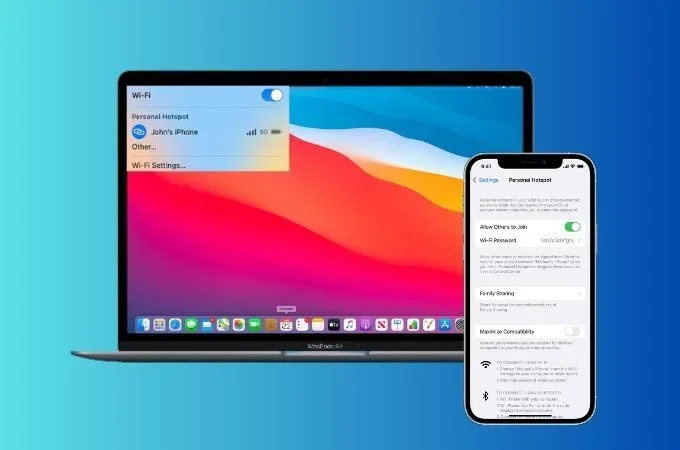
Your Mac can act as a Wi-Fi hotspot, just like your iPhone does. This method lets you share Wi-Fi from your Mac to your iPhone and even to other devices at the same time. It is one of the most versatile options available.
How to Set Up Your Mac as a Hotspot
- Open System Settings on your Mac.
- Go to General and then Sharing.
- Turn on Internet Sharing.
- Choose Wi-Fi as the method to share your connection.
- Click Wi-Fi Options to set a name and password for your hotspot.
- Turn on the hotspot and connect your iPhone to it.
Your Mac will now broadcast a Wi-Fi network. Go to your iPhone’s Wi-Fi settings, find your Mac’s hotspot name, and enter the password. Your iPhone will be online in seconds.
When to Use This Method
The Mac hotspot method is ideal when you need to share internet with multiple devices. It is also great for longer sessions because it does not drain your iPhone’s battery as quickly as tethering over USB or Bluetooth. However, keep in mind that your Mac needs to stay plugged in or have a full battery for extended use.
How to Find Your Wi-Fi Password on Your Mac
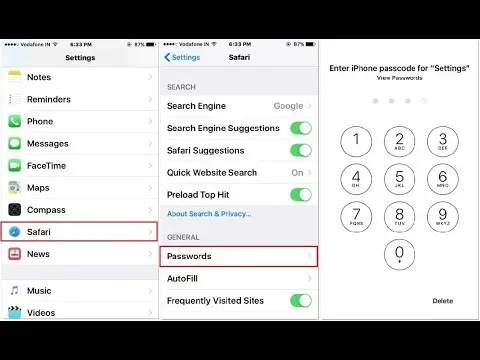
Sometimes the simplest way to share Wi-Fi from your Mac to your iPhone is just to tell your iPhone the password. If you have forgotten the Wi-Fi password, your Mac has it saved. You can find it easily using Keychain Access.
Using Keychain Access to Retrieve Your Password
- Open Spotlight by pressing Command + Space.
- Type Keychain Access and press Enter.
- Search for your Wi-Fi network name in the search bar.
- Double-click the network in the results.
- Check the box that says “Show password.”
- Enter your Mac password when prompted.
The Wi-Fi password will now be visible. You can type it into your iPhone’s Wi-Fi settings to connect directly. This is often the quickest method if both devices are in the same room.
Alternative: Use iCloud Keychain
If you use iCloud Keychain on both your Mac and iPhone, your Wi-Fi passwords sync automatically. This means your iPhone may already have the password saved and will connect without you needing to type anything. Just make sure both devices are signed in with the same Apple ID.
Share Wi-Fi Using a QR Code
Did you know you can share your Wi-Fi password using a QR code? This is one of the coolest and easiest methods to share Wi-Fi from your Mac to your iPhone. It requires no typing and no cables.
How to Generate a QR Code for Your Wi-Fi
- Find your Wi-Fi password using Keychain Access (see the section above).
- Use a free online QR generator like qifi.org or a similar tool.
- Enter your network name, password, and security type (usually WPA2).
- Generate the QR code and display it on your Mac screen.
- Point your iPhone camera at the QR code.
- Tap the notification to connect to the Wi-Fi network.
This method is incredibly fast and works great when you have guests or friends who need to connect. You can also save the QR code image and reuse it anytime.
Quick Tip: You can also use the iPhone’s built-in camera to scan Wi-Fi QR codes. No extra app is needed. Just point and connect.
Troubleshooting Common Issues
Sometimes things do not work as expected. Here are the most common problems when you try to share Wi-Fi from your Mac to your iPhone and how to fix them.
Internet Sharing Is Grayed Out
If the Internet Sharing option is grayed out or unavailable, try these fixes:
- Restart your Mac and try again.
- Check your Wi-Fi connection and make sure it is working.
- Update your macOS to the latest version.
- Reset network settings on both your Mac and iPhone.
iPhone Does Not Connect via USB
If your iPhone does not show up as a USB tethering option, try the following:
- Use a different USB cable. Faulty cables are the number one cause of connection issues.
- Unlock your iPhone and tap “Trust This Computer” if prompted.
- Restart both devices before trying again.
- Check for macOS updates that may fix compatibility issues.
Slow Speeds When Tethering
If your internet is slow when sharing from your Mac, here is what you can do:
- Use a USB connection instead of Bluetooth for faster speeds.
- Move closer to your Wi-Fi router to improve your Mac’s connection.
- Close unnecessary apps on your Mac that may be using bandwidth.
- Restart your router to refresh the internet connection.
Comparison Table: Which Method Should You Use?
| Method | Speed | Battery Impact | Cable Needed? | Best For |
|---|---|---|---|---|
| USB Cable | Fast | Low | Yes | Desk work, fast connections |
| Bluetooth | Medium | Medium | No | Quick wireless sharing |
| Mac Hotspot | Fast | High | No | Multiple devices, long sessions |
| QR Code | N/A | Low | No | Quick password sharing |
| Keychain Password | N/A | Low | No | Manual connection |
As you can see, each method has its strengths. The USB cable method wins for speed and reliability. The Mac hotspot method wins for flexibility. And the QR code method wins for convenience. Choose the one that fits your situation best.
Expert Tips for Seamless Wi-Fi Sharing
Here are some expert insights that will make your share Wi-Fi from Mac to iPhone experience even better:
- Keep your macOS updated. New updates often fix bugs related to internet sharing and improve compatibility.
- Use a USB-C hub if your Mac has limited ports. This gives you more flexibility when connecting cables.
- Turn off Wi-Fi on your iPhone when tethering via USB. This forces your iPhone to use the Mac’s connection and prevents it from switching back to a weak Wi-Fi signal.
- Monitor your data usage. If you are on a limited internet plan, keep an eye on how much data your iPhone is consuming through tethering.
- Use a strong hotspot password. When sharing your Mac as a hotspot, always set a secure password to prevent unauthorized access.
These small tips can make a big difference. They help you get a stable connection, protect your network, and avoid common headaches.
Common Mistakes to Avoid
Even experienced users make mistakes when trying to share Wi-Fi from their Mac to their iPhone. Here are the most common ones and how to avoid them:
- Forgetting to unlock your iPhone. When you connect via USB, your iPhone may ask you to trust the computer. If you skip this step, the connection will not work.
- Using an outdated cable. Old USB cables may not support data transfer properly. Always use a cable that is in good condition.
- Not checking your Mac’s firewall. Your Mac’s firewall settings can block internet sharing. Make sure your firewall allows connections through.
- Ignoring software updates. Both macOS and iOS receive regular updates that fix sharing bugs. Staying updated prevents most issues.
- Leaving Internet Sharing on when not in use. This drains your Mac’s battery. Always turn it off when you are done sharing.
Avoiding these mistakes will save you time and frustration. It keeps your devices running smoothly and your connection stable.
How Sharing Wi-Fi Affects Your Devices
It is worth understanding what happens when you share Wi-Fi from your Mac to your iPhone. Your Mac acts as a bridge between your Wi-Fi router and your iPhone. It receives internet data from the router and passes it along to your iPhone through USB, Bluetooth, or Wi-Fi.
This process uses your Mac’s processing power and battery. If your Mac is plugged in, battery drain is not a concern. But if you are using it on battery power, expect it to drain faster than usual. The same goes for your iPhone. Tethering can use more battery than a normal Wi-Fi connection.
In terms of speed, USB tethering is the fastest. It can reach speeds close to your original Wi-Fi connection. Bluetooth tethering is slower but still usable for browsing and light tasks. Wi-Fi hotspot sharing falls somewhere in between and depends on how far your iPhone is from your Mac.
Security Considerations When Sharing Wi-Fi
When you share your internet connection, you are also sharing your network. It is important to keep security in mind. Here are a few things to keep in mind:
- Use a strong password for your Mac hotspot. Avoid simple passwords like “1234” or “password.”
- Turn off sharing when not in use. Leaving your hotspot on all the time can expose your network to unwanted connections.
- Be careful with public Wi-Fi. If you are sharing a public network connection, be mindful of what data your iPhone is accessing.
- Use a VPN if possible. A virtual private network adds an extra layer of security when tethering your devices.
These precautions keep your data safe and your connection private. They take just a few minutes but offer peace of mind.
Conclusion
Sharing Wi-Fi from your Mac to your iPhone is a simple and useful skill that everyone should know. Whether you use a USB cable, Bluetooth, or your Mac as a hotspot, the process is straightforward and works reliably. You can also retrieve your Wi-Fi password from Keychain Access or share it using a QR code for quick connections.
We covered every method in detail, from the fastest USB tethering to the most convenient QR code sharing. We also looked at troubleshooting tips, common mistakes to avoid, and security considerations to keep your devices safe.
The next time your iPhone is struggling to connect to Wi-Fi, you will know exactly what to do. No more frustration, no more searching for the password. Just a few clicks and your iPhone is online.
Try these methods today and see how easy it is to share Wi-Fi from your Mac to your iPhone. Once you get the hang of it, you will wonder how you ever lived without it.
Frequently Asked Questions
Can I share Wi-Fi from my Mac to my iPhone without a cable?
Yes, you can share Wi-Fi wirelessly using Bluetooth or by turning your Mac into a Wi-Fi hotspot. Both methods work without any cables. Bluetooth is great for quick sharing, while the hotspot method is ideal for longer sessions and multiple devices.
Why is my iPhone not showing up as a USB tethering option?
This usually happens because your iPhone is not trusted or the cable is faulty. Try unlocking your iPhone and tapping “Trust This Computer.” Also, make sure you are using a data-capable USB cable, not just a charging cable. Restarting both devices can also help resolve the issue.
Does sharing Wi-Fi from Mac to iPhone use a lot of data?
It uses the same amount of data that your iPhone would normally use. Your Mac simply passes the internet connection along. However, tethering can cause background apps on your iPhone to use more data than usual. Keep an eye on your usage if you have a limited data plan.
Can I share Wi-Fi from my Mac to multiple devices at once?
Yes, when you use your Mac as a Personal Hotspot, multiple devices can connect at the same time. Just set a strong password for your hotspot to keep your network secure. The number of devices that can connect depends on your Mac’s hardware and network settings.
Is it safe to share Wi-Fi through my Mac?
It is generally safe if you take the right precautions. Always use a strong password for your hotspot, turn off sharing when not in use, and avoid sharing on public networks without a VPN. These simple steps keep your connection secure and your data protected.
What is the fastest way to share Wi-Fi from my Mac to my iPhone?
The fastest method is using a USB cable for internet sharing. USB tethering provides the most stable and quickest connection. It also charges your iPhone while sharing, which is a nice bonus. For most users, the USB method is the best choice for speed and reliability.