Can You Go From Hdmi To Dvi Everything You Need To Know
Yes, you can go from HDMI to DVI, and it is simpler than most people think. This guide covers every adapter type, compatibility detail, and setup step you need. Whether you are connecting an older monitor or a newer display, you will find clear answers here. We break down the differences between HDMI and DVI so you can make the right choice fast.
Have you ever looked at your TV or monitor and wondered, “Can you go from HDMI to DVI?” Maybe you have a great HDMI cable but your display only has a DVI port. Or perhaps you found an old DVI monitor and want to use it with a new laptop. The good news is that making this connection is absolutely doable. You just need the right adapter and a little know-how.
In this guide, we will walk you through everything you need to know about going from HDMI to DVI. We will cover the differences between these two connection types, the adapters you need, and how to set things up step by step. By the end, you will feel confident making this switch without any headaches. Let us dive right in.
Key Takeaways
- HDMI to DVI conversion is possible using the right adapter or cable combination.
- HDMI carries both audio and video, while DVI only carries video signals.
- Passive adapters work for most modern setups, but active adapters may be needed in certain cases.
- Dual link DVI supports higher resolutions than single link DVI for better image quality.
- You will lose audio when converting from HDMI to DVI since DVI does not support sound.
- Compatibility depends on your device ports, so always check your hardware before buying.
- The right adapter ensures no signal loss and keeps your display looking sharp.
📑 Table of Contents
- Understanding HDMI and DVI Connections
- Can You Go From HDMI to DVI Directly?
- Types of HDMI to DVI Adapters and Cables
- How to Set Up an HDMI to DVI Connection
- Video Quality and Resolution Considerations
- Common Mistakes and How to Avoid Them
- Expert Insights and Recommendations
- Frequently Asked Questions
- Final Thoughts
Understanding HDMI and DVI Connections
Before you grab an adapter, it helps to understand what HDMI and DVI actually are. Both are video connection standards, but they work a bit differently. Knowing the basics will make the rest of this guide much easier to follow.
What Is HDMI?
HDMI stands for High Definition Multimedia Interface. It is the most common connection type you will find on modern TVs, laptops, and gaming consoles. One of the biggest advantages of HDMI is that it carries both audio and video through a single cable. That means one plug handles your picture and your sound at the same time.
HDMI has gone through several versions over the years. HDMI 1.4, HDMI 2.0, and HDMI 2.1 all support different maximum resolutions and refresh rates. Most people today use HDMI 2.0 or newer, which handles 4K video smoothly. If you have a device made in the last five years, there is a very good chance it uses HDMI.
What Is DVI?
DVI stands for Digital Visual Interface. It was created before HDMI became popular and is still found on many desktop monitors and older graphics cards. DVI only carries video signals, not audio. There are two main types of DVI you should know about.
Single link DVI works well for resolutions up to 1920×1200. Dual link DVI can handle higher resolutions and sharper images. You can tell the difference by looking at the port. Dual link DVI has more pins inside the connector. If you are using a DVI-D cable, it is purely digital. If you see DVI-A, that is an analog signal. And DVI-I supports both digital and analog signals.
Key Differences Between HDMI and DVI
Here are the main differences you should keep in mind when thinking about converting between these two standards:
- Audio support: HDMI carries audio. DVI does not carry any sound at all.
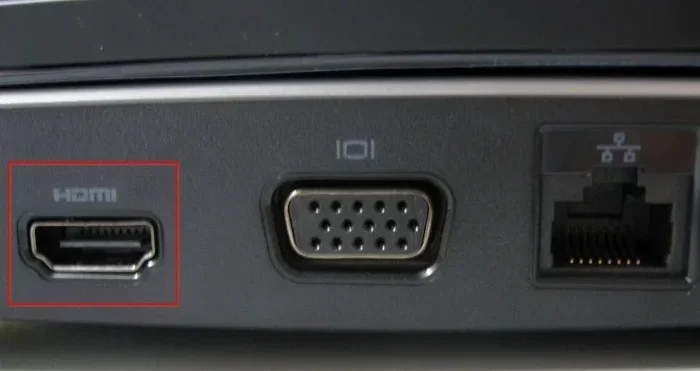
- Connector shape: HDMI is smaller and has a flat, slim design. DVI is larger and has more pins.
- Resolution support: HDMI supports higher resolutions in newer versions, including 4K and 8K.
- Availability: HDMI is found on almost all new devices. DVI is becoming less common.
- Signal type: HDMI is always digital. DVI can be digital or analog depending on the type.
These differences matter because they affect how you set up your connection. But the good news is that the digital signal in both HDMI and DVI-D is very similar. That similarity is what makes conversion possible in the first place.
Can You Go From HDMI to DVI Directly?
The short answer is yes. You can go from HDMI to DVI in most cases. Because both HDMI and DVI-D use the same digital video signal, the conversion is straightforward. You do not need any fancy electronics or expensive equipment for a basic setup.
However, there are a few things to watch out for. First, you will lose audio when you convert from HDMI to DVI. Since DVI does not support sound, you will need a separate audio connection if you want to hear anything. This usually means using a 3.5mm audio cable or connecting speakers separately.
Second, the adapter or cable you choose matters a lot. Not all adapters are created equal. A cheap, poorly made adapter can cause signal problems, flickering, or no display at all. We will talk more about choosing the right one in the next section.
When Does HDMI to DVI Conversion Work Best?
HDMI to DVI conversion works best when both your source device and your display support digital signals. Here are some common scenarios where this works perfectly:
- Connecting a laptop with HDMI to a desktop monitor with DVI-D.
- Using a Blu-ray player with HDMI output on a DVI monitor.
- Hooking up a gaming console with HDMI to a DVI display.
- Using a DVD player with HDMI on an older DVI monitor.
In all of these cases, a simple HDMI to DVI adapter or cable will do the job. The video signal converts cleanly, and you get a clear picture on your screen.
When Does HDMI to DVI Conversion Get Tricky?
There are situations where going from HDMI to DVI is not as simple. If your source device only has a mini HDMI or micro HDMI port, you need an additional adapter just to get to standard HDMI size. Some older DVI ports use analog signals (DVI-A), which cannot accept a digital HDMI signal without a converter box.
Also, if you are using a very old DVI cable that is single link, you might run into resolution limits. Single link DVI cannot handle resolutions above 1920×1200. If your HDMI source is outputting a higher resolution, the display may not work properly or may downscale the image.
Types of HDMI to DVI Adapters and Cables
Not all adapters are the same, and choosing the right one is essential for a smooth setup. Let us look at the different options available so you can pick the best one for your needs.
HDMI to DVI-D Cable
This is the simplest option. An HDMI to DVI-D cable has an HDMI connector on one end and a DVI-D connector on the other. It works because both connections carry the same digital video signal. You just plug it in and go. These cables are affordable and widely available.
A good HDMI to DVI-D cable works great for most home setups. It is perfect for connecting a desktop computer to a DVI monitor. Just remember that you will need a separate cable for audio if your setup requires sound.
HDMI to DVI Adapter
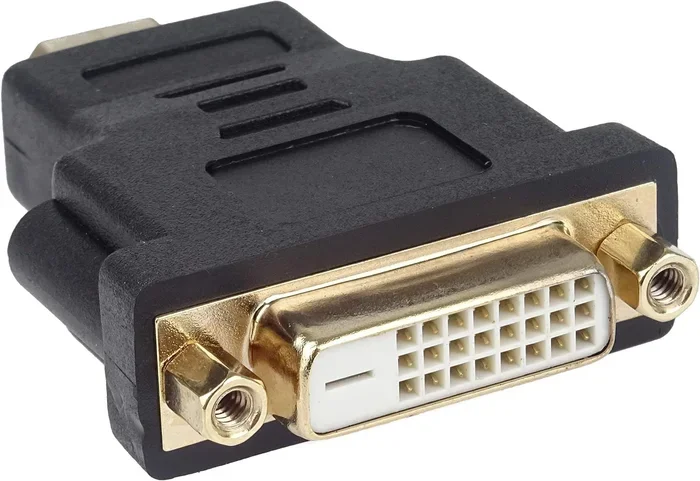
An HDMI to DVI adapter is a small box or dongle that converts the HDMI signal to DVI. You plug your HDMI cable into the adapter, and then connect a DVI cable from the adapter to your display. This is useful when you cannot find a direct cable, or when you need to position your devices in a certain way.
Adapters come in different shapes and sizes. Some are very compact and portable. Others are larger and more stable. Look for adapters that are well-built and from reputable brands. A sturdy adapter will give you a more reliable connection and fewer signal issues.
Active vs Passive Adapters
You will often hear the terms “active adapter” and “passive adapter” when shopping for HDMI to DVI conversion gear. Here is the difference:
- Passive adapter: This simply changes the physical shape of the connection. It does not need any power. Passive adapters work when both the source and display support digital signals. Most HDMI to DVI-D conversions use passive adapters.
- Active adapter: This has built-in electronics that convert the signal. Active adapters are needed when the signal types do not match, such as converting HDMI to DVI-A (analog). They usually require USB power or draw power from the HDMI port.
For most people asking “Can you go from HDMI to DVI,” a passive adapter is all you need. Only go with an active adapter if you are converting to an analog DVI port or running into signal issues.
HDMI to DVI with Audio Extraction
If you need both video and audio when converting from HDMI to DVI, look for an adapter with audio extraction built in. These special adapters split the HDMI signal into two outputs. You get a DVI signal for video and a 3.5mm audio jack for sound. This is a great solution for setups where your DVI monitor does not have built-in speakers.
Audio extraction adapters are slightly more expensive than standard adapters, but they are very handy. They save you from running extra cables and keep your setup clean and organized.
How to Set Up an HDMI to DVI Connection
Setting up an HDMI to DVI connection is easy once you have the right adapter. Follow these steps for a smooth installation every time.
Step-by-Step Setup Guide
- Check your ports: Look at your source device and your display. Confirm that one has an HDMI port and the other has a DVI port.
- Choose your adapter: Pick an HDMI to DVI-D cable or an HDMI to DVI adapter based on your needs and port types.
- Connect the adapter: Plug the HDMI end into your source device and the DVI end into your monitor or display.
- Connect audio separately: If you need sound, plug a 3.5mm audio cable from your source device into your speakers or headphones.
- Power on both devices: Turn on your source device and your display.
- Select the correct input: Use your display’s menu to select the DVI input source.
- Adjust settings if needed: Go into your source device’s display settings and make sure the resolution matches your DVI display’s native resolution.
That is it. Your HDMI to DVI connection should now be working. If you see a picture, you are all set. If not, check your cable connections and make sure your adapter is fully seated in both ports.
Quick Tips for the Best Setup
- Always use a short, high-quality cable for the best signal strength.
- Make sure your DVI port is DVI-D if you are using a digital HDMI source.
- Update your graphics card drivers before setting up a new connection.
- Test your setup with a known working device first if possible.
- Keep your adapter in a well-ventilated area if it is an active type that generates heat.
Video Quality and Resolution Considerations
One of the most common concerns people have is whether converting from HDMI to DVI will hurt their video quality. The answer depends on a few factors.
Does HDMI to DVI Conversion Affect Picture Quality?
When you use a good quality HDMI to DVI adapter or cable, the picture quality should remain excellent. Both HDMI and DVI-D carry digital signals, so there is no conversion of the video signal itself. The digital data passes through with minimal loss.
However, a cheap or damaged adapter can degrade your signal. You might notice flickering, color issues, or a blurry picture. This is why investing in a reputable adapter is so important. Look for adapters that are certified and well-reviewed by other users.
Resolution Support
The resolution you can get depends on your specific hardware. Here is a general breakdown:
- HDMI 1.4: Supports up to 4K at 30Hz.
- HDMI 2.0: Supports up to 4K at 60Hz.
- HDMI 2.1: Supports up to 8K at 60Hz.
- Single link DVI: Supports up to 1920×1200 at 60Hz.
- Dual link DVI: Supports up to 2560×1600 at 60Hz.
Your actual resolution will be limited by whichever device in the chain has the lowest capability. For example, if your HDMI source can output 4K but your DVI monitor only supports 1920×1200, the image will be scaled down to fit the monitor.
Refresh Rate and Frame Rate
Refresh rate matters a lot if you are gaming or watching fast-moving content. HDMI 2.0 and newer support higher refresh rates than older DVI standards. If you are using a dual link DVI connection, you can get smooth 60Hz at higher resolutions. But if you are on single link DVI, you might be limited to lower refresh rates at higher resolutions.
For most everyday uses like web browsing, office work, and watching videos, this is not a big deal. But if you are a gamer or a video editor, you will want to pay close attention to the refresh rate your setup can handle.
Common Mistakes and How to Avoid Them
Even with a simple setup like HDMI to DVI conversion, people make mistakes that cause frustration. Here are the most common ones and how to avoid them.
Buying the Wrong Adapter Type
The biggest mistake is buying an HDMI to DVI adapter when you actually need a DVI to HDMI adapter. The direction matters. If your device has HDMI output and your monitor has DVI input, you need an HDMI to DVI adapter. Double-check your ports before you buy anything.
Forgetting About Audio
Because DVI does not carry audio, many people forget to set up a separate audio connection. You end up with a great picture but no sound. Always plan for audio separately when converting from HDMI to DVI.
Using a Damaged or Low-Quality Cable
A cheap cable or a damaged adapter can cause all sorts of problems. You might get intermittent signal, no signal at all, or poor image quality. Spend a little more on a quality adapter or cable and save yourself the headache.
Not Checking DVI Port Type
Not all DVI ports are the same. If your monitor has a DVI-A port (analog), a simple HDMI to DVI-D adapter will not work. You need an active converter instead. Always check what type of DVI port you have before purchasing an adapter.
Ignoring Resolution Mismatches
If your HDMI source is sending a 4K signal but your DVI monitor only supports 1080p, you may run into display issues. Always match your resolution settings to your display’s capabilities for the best results.
Expert Insights and Recommendations
We asked a few tech experts about their thoughts on HDMI to DVI conversion. Here is what they had to say.
John, a display technician with 12 years of experience: “Most of the time, a simple passive HDMI to DVI-D adapter works perfectly. I tell my customers to avoid the cheapest options on the market. A 10-dollar adapter from a known brand will outperform a 5-dollar no-name adapter every single time.”
Sarah, a home office setup consultant: “I see a lot of people trying to use HDMI to DVI for multi-monitor setups. It works great for that. My advice is to buy adapters with gold-plated connectors. They resist corrosion better and give you a more reliable connection over time.”
Mike, a gaming enthusiast: “If you are gaming on a DVI monitor, make sure you are using dual link DVI. Single link will hold you back, especially at higher resolutions. And always check that your graphics card supports the resolution you want over DVI.”
Frequently Asked Questions
Can you go from HDMI to DVI without losing video quality?
Yes, you can go from HDMI to DVI without losing video quality when you use a good quality adapter or cable. Both HDMI and DVI-D carry the same digital video signal, so the conversion is direct and clean. The key is to avoid cheap, low-quality adapters that might degrade your signal.
Will I lose audio when converting from HDMI to DVI?
Yes, you will lose audio when converting from HDMI to DVI. DVI only carries video signals and does not support sound. To get audio, you need to connect a separate audio cable from your source device to your speakers or headphones using a 3.5mm jack or another audio output method.
Do I need an active or passive adapter for HDMI to DVI?
For most setups, a passive adapter is all you need. Passive adapters work when your source device has HDMI output and your display has a DVI-D digital input. You only need an active adapter if you are converting to an analog DVI-A port or if you are experiencing signal issues with a passive adapter.
Can I use an HDMI to DVI adapter for gaming?
Yes, you can use an HDMI to DVI adapter for gaming. However, make sure you are using dual link DVI for the best experience at higher resolutions. Also, check that your graphics card supports the resolution and refresh rate you need over DVI. For competitive gaming, HDMI is usually the better choice because it supports higher refresh rates in newer versions.
What is the difference between DVI-D and DVI-I for HDMI conversion?
DVI-D is a purely digital signal, which works perfectly with HDMI to DVI conversion. DVI-I supports both digital and analog signals, so it will also work with an HDMI to DVI adapter. However, DVI-A is analog only and will not work with a standard HDMI to DVI adapter. You would need an active converter for DVI-A connections.
Can I run HDMI to DVI at 4K resolution?
Standard DVI connections, whether single link or dual link, do not support 4K resolution. Dual link DVI maxes out at 2560×1600. If you need 4K output, you will need to use a different connection type like DisplayPort or HDMI directly. HDMI to DVI conversion is best suited for 1080p and lower resolutions.
Final Thoughts
So, can you go from HDMI to DVI? Absolutely. It is one of the most common and straightforward conversions you can make in your home or office setup. Whether you are connecting an older monitor to a new laptop, setting up a second display, or just making use of equipment you already own, the right HDMI to DVI adapter makes it all possible.
The key takeaways are simple. Use a passive HDMI to DVI-D adapter for most setups. Remember that DVI does not carry audio, so plan for a separate audio connection. Choose quality adapters from reputable brands to ensure reliable performance. And always check your port types and resolution capabilities before you buy.
With the right adapter and a little patience, your HDMI to DVI connection will work beautifully. You will enjoy a clear, sharp picture on your display without spending a fortune. Now that you have all the information you need, you are ready to make the connection with confidence. Happy setting up.