How Do I Share My Wi Fi Qr Code On My Iphone Easily
Sharing your Wi-Fi QR code on your iPhone is one of the simplest ways to get guests online without typing long passwords. This guide walks you through every method, from built-in iPhone features to third-party apps, so you can share your network quickly and securely. You will learn how to generate a Wi-Fi QR code, scan codes from others, and troubleshoot common issues.
Have you ever had a friend over and spent five minutes trying to tell them your Wi-Fi password? It always seems longer than it should be. You spell it out. They type it wrong. You start over. It is frustrating.
How do I share my Wi-Fi QR code on my iPhone easily? The answer is simpler than you think. Your iPhone can create a QR code for your Wi-Fi network in just a few taps. Anyone who scans that code connects instantly. No password typing needed. No typos. No frustration.
This guide covers everything you need to know. You will learn how to generate a Wi-Fi QR code on your iPhone. You will discover the best apps for sharing. You will also learn how to scan codes from others and fix common problems. Let us get started.
Key Takeaways
- Easy Sharing: You can share your Wi-Fi QR code on your iPhone using built-in features or free apps.
- No Password Typing: QR codes eliminate the need to type long, complicated Wi-Fi passwords.
- Multiple Methods: There are several ways to generate and share a Wi-Fi QR code on iPhone.
- Secure and Quick: QR code sharing is safe and takes only seconds once set up.
- Cross-Platform: Your Wi-Fi QR code works on Android, iPhone, and most modern devices.
- Troubleshooting Tips: Common issues like camera focus and network settings are easy to fix.
📑 Table of Contents
- Why Sharing Wi-Fi With a QR Code Is a Game Changer
- How to Generate a Wi-Fi QR Code on Your iPhone
- How to Scan a Wi-Fi QR Code on iPhone
- Best Apps for Creating Wi-Fi QR Codes on iPhone
- Sharing Your Wi-Fi QR Code: Best Practices
- Common Mistakes to Avoid When Sharing Wi-Fi QR Codes
- Expert Insights on Wi-Fi QR Code Sharing
- Frequently Asked Questions
- Conclusion
Why Sharing Wi-Fi With a QR Code Is a Game Changer
Sharing Wi-Fi through a QR code has changed how we connect devices. Instead of reading out a long string of letters and numbers, you just share a small image. Anyone with a smartphone camera can scan it and connect in seconds.
Here is why this method works so well:
- Speed: Scanning a QR code takes one second. Typing a password takes much longer.
- Accuracy: There are no typos. The code contains all the network details automatically.
- Convenience: You do not need to remember or share your actual Wi-Fi password.
- Security: You control when and how you share your network credentials.
- Compatibility: QR codes work on iPhones, Android phones, and most modern devices.
Whether you are hosting a dinner party or setting up a smart home device, a Wi-Fi QR code makes life easier. It is one of those small things that saves a lot of time.
How iPhone Handles Wi-Fi Sharing
Apple has made sharing Wi-Fi easier over the years. iPhones running iOS 11 or later can share Wi-Fi passwords directly through AirDrop and Messages. But a QR code takes it a step further. It works with any device that has a camera, not just Apple devices.
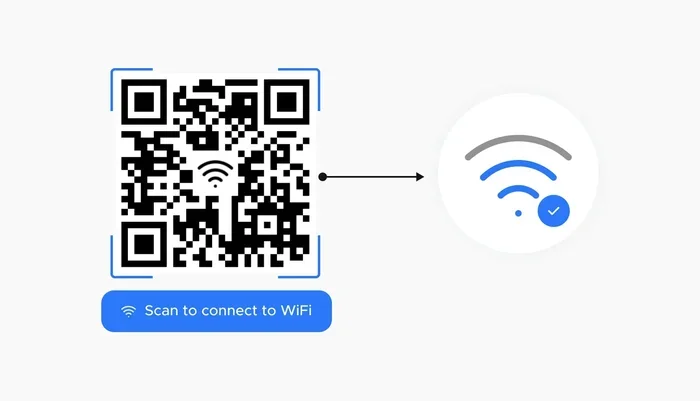
The built-in iPhone feature uses your Wi-Fi network credentials stored in your settings. When you create a QR code, it encodes your network name (SSID), password, and security type into a scannable image. This means your guest’s phone reads all the details at once.
How to Generate a Wi-Fi QR Code on Your iPhone
There are several ways to create a QR code WiFi on your iPhone. Some methods use built-in features. Others rely on free apps. Let us walk through each one.
Method 1: Use a Free QR Code Generator App
This is the most popular method. You download a free app, enter your Wi-Fi details, and the app generates a QR code instantly.
Here is how to do it step by step:
- Open the App Store on your iPhone.
- Search for “Wi-Fi QR code generator.” Many free options are available.
- Download a highly rated app. Look for one with good reviews and no ads.
- Open the app and select “Create Wi-Fi QR Code.”
- Enter your network name (SSID). This is the name of your Wi-Fi network.
- Type in your password. Make sure it is correct.
- Choose your security type. WPA2 is the most common for home networks.
- Tap “Generate.” Your QR code will appear on screen.
- Take a screenshot or save the image to share it.
That is it. You now have a shareable image of your iPhone Wi-Fi QR code. You can send it through Messages, email, or print it out.
Method 2: Use a Website Generator (No App Needed)
If you do not want to download another app, you can use a website. Many free sites let you create a Wi-Fi QR code right in your browser.
Here is what to do:
- Open Safari on your iPhone.
- Go to a QR code generator website. Sites like qifi.org or qrcode-monkey.com work well.
- Enter your Wi-Fi network name and password.
- Select WPA/WPA2 as the encryption type.
- Tap “Generate” or “Create QR Code.”
- Download or screenshot the QR code image.
This method is great because you do not need to install anything. It keeps your phone clean and clutter-free. Many people prefer this approach for its simplicity.
Method 3: Share Wi-Fi Password Directly (For Apple Devices)
If the person you are sharing with also has an iPhone, you can skip the QR code entirely. Apple makes it very easy to share passwords between Apple devices.
Here is how it works:
- Both devices need Wi-Fi and Bluetooth turned on.
- Make sure the other person is in your Contacts app.
- Have them try to connect to your Wi-Fi network.
- Your iPhone will show a prompt asking if you want to share the password.
- Tap “Share Password” and the connection happens instantly.
This built-in feature is fast and secure. However, it only works between Apple devices. If your guest has an Android phone, you will need the QR code method.
How to Scan a Wi-Fi QR Code on iPhone
Scanning a Wi-Fi connection QR code is just as easy as creating one. Your iPhone camera can read QR codes natively. You do not need a special app to scan.
Using the Built-in Camera App
Apple added native QR code scanning in iOS 11. Here is how to use it:
- Open the Camera app on your iPhone.
- Point the camera at the QR code. Hold it steady about 6 to 12 inches away.
- A notification will appear at the top of your screen.
- Tap the notification. Your iPhone will connect to the Wi-Fi network automatically.
That is all it takes. No typing. No searching for network names. Your iPhone handles everything behind the scenes.
Troubleshooting Camera Scanning Issues
Sometimes the camera does not recognize a QR code right away. Here are a few quick fixes:
- Clean your camera lens. A smudge can prevent scanning.
- Hold your phone steady. Movement can blur the code.
- Make sure the QR code is well-lit. Poor lighting causes scanning failures.
- Check your camera settings. Go to Settings, then Camera, and make sure “Scan QR Codes” is turned on.
- Move closer or farther away. The code needs to be in focus at the right distance.
Best Apps for Creating Wi-Fi QR Codes on iPhone
Not all QR code apps are the same. Some are loaded with ads. Others are confusing to use. Here are a few reliable options that make creating a Wi-Fi QR code simple and fast.
Top Recommended Apps
Qrafter: This is one of the most popular QR code apps for iPhone. It creates and scans QR codes with ease. The free version works great for basic Wi-Fi code generation.
QR Code Reader by Scan: This app handles both scanning and creating codes. It has a clean interface and works quickly on older iPhone models.
Wi-Fi QR Code Generator: As the name suggests, this app focuses specifically on Wi-Fi sharing. It is simple, fast, and does exactly what you need.
Kaywa QR Code Generator: A straightforward tool that generates QR codes for Wi-Fi, URLs, text, and more. It is reliable and ad-supported but not overly intrusive.
What to Look for in a QR Code App
When choosing an app, keep these factors in mind:
- Ease of use: The app should be simple to navigate.
- No excessive ads: Too many ads ruin the experience.
- Offline capability: Some apps work without an internet connection.
- Customization options: Some let you change colors or add a logo to your code.
- Privacy: Check that the app does not store or share your Wi-Fi password.
Sharing Your Wi-Fi QR Code: Best Practices
Creating a QR code is only half the battle. You also need to share it effectively. Here are some tips to make the process smooth.
Where to Display Your Wi-Fi QR Code
There are several smart places to keep your share Wi-Fi password QR code:
- Print it and place it near your router. This is great for guests who visit often.
- Save it in your Photos app. You can quickly pull it up when needed.
- Send it through Messages or email. This works well for one-time sharing.
- Add it to your home screen as a shortcut. Some people create a shortcut that opens the QR code image directly.
Security Tips for Wi-Fi QR Codes
While QR codes are convenient, you should be mindful of security:
- Do not share your QR code publicly online. Anyone could use it to access your network.
- Change your Wi-Fi password regularly. If you think someone might have your code, update the password.
- Use a guest network. Most modern routers let you create a separate guest network. Share the QR code for the guest network instead of your main one.
- Keep your QR code private. Only share it with people you trust.
Quick Tips for Smooth Sharing
Follow these simple tips to make your Wi-Fi sharing experience better:
- Test your QR code first. Scan it with another phone before sharing it with guests.
- Make sure your Wi-Fi is working. A QR code will not help if your internet is down.
- Check the expiration. If you change your password, generate a new QR code.
- Use high contrast. Make sure your QR code image is clear and easy to scan.
- Keep the code simple. A clean, uncluttered QR code scans faster and more reliably.
Common Mistakes to Avoid When Sharing Wi-Fi QR Codes
Even simple tasks can go wrong if you are not careful. Here are common mistakes people make with iPhone Wi-Fi QR codes and how to avoid them.
Using the Wrong Security Type
When generating a QR code, you must select the correct security type. Most home networks use WPA2. If you select the wrong one, the code will not work. Double-check your router settings before creating the code.
Forgetting to Update the QR Code
If you change your Wi-Fi password, your old QR code becomes useless. People who saved or printed the old code will not be able to connect. Always generate a new QR code after any password change.
Sharing Low-Quality Images
A blurry or pixelated QR code is hard to scan. Make sure the image is clear and high resolution. If you are printing it, use a good printer and thick paper for durability.
Not Testing Before Sharing
Always scan your own QR code before sending it to someone else. This simple step saves time and prevents frustration. If the code does not work for you, it will not work for your guest either.
Ignoring Network Name Issues
Make sure your network name does not contain special characters that might cause problems. Some QR code generators struggle with unusual characters in the SSID. Stick to simple letters and numbers when possible.
Expert Insights on Wi-Fi QR Code Sharing
Sharing a Wi-Fi QR code is a small thing that makes a big difference. Tech experts agree that QR code sharing is one of the most underused features on smartphones. It saves time, reduces errors, and improves the guest experience.
Network security professionals recommend using guest networks for QR code sharing. This keeps your main network and all connected devices safe. A guest network isolates visitors from your personal files, smart home devices, and other private resources.
Home automation experts also point out that QR codes are essential for smart device setup. Many smart home devices require you to connect them to Wi-Fi during installation. A QR code makes this process much faster, especially when you are setting up multiple devices at once.
The beauty of this approach is its simplicity. You do not need technical knowledge to create or scan a QR code. Anyone with a smartphone can do it in seconds.
Frequently Asked Questions
Can I share my Wi-Fi QR code with Android users?
Yes, absolutely. Android phones can scan Wi-Fi QR codes using their built-in camera or Google Lens. The process works just like on an iPhone. The other person simply scans the code and taps connect.
Do I need an internet connection to create a Wi-Fi QR code?
No. Most QR code generators work offline. You only need the app or website to load once. After that, you can create codes without being connected to the internet.
Is it safe to share my Wi-Fi QR code?
It is safe as long as you share it with trusted people. Anyone with the QR code can connect to your network. If you are concerned, use a guest network instead of sharing your main network credentials.
Can I create a Wi-Fi QR code without downloading an app?
Yes. You can use a website like qifi.org in your Safari browser. These sites generate QR codes right in your browser. No download or installation required.
Why does my QR code not scan properly?
Several things can cause scanning issues. Check that the code is clear and well-lit. Make sure your camera lens is clean. Verify that QR code scanning is enabled in your Camera settings. Also ensure the QR code image is high resolution and not blurry.
How do I update my Wi-Fi QR code after changing my password?
Simply generate a new QR code with your updated password. Delete the old code and share the new one. If you printed the old code, replace it with a fresh printout.
Conclusion
Sharing your Wi-Fi has never been easier. Now you know exactly how do I share my Wi-Fi QR code on my iPhone and use it effectively. Whether you use a free app, a website generator, or Apple’s built-in sharing feature, the process is quick and straightforward.
Your iPhone makes it simple to create a scannable code that gets anyone connected in seconds. You save time, avoid password typos, and offer a smooth experience to your guests. The methods in this guide work for all iPhone models running modern iOS versions.
Remember to keep your QR code secure. Use a guest network when possible. Test your code before sharing. And always update the code when you change your password. These small habits keep your network safe while making sharing effortless.
Try these steps today. The next time someone needs your Wi-Fi, you will have a QR code ready to go. It is one of those small upgrades that makes a big difference in daily life.