Does My Pc Have Built In Bluetooth Here Is How To Check
Finding out if your PC has built in Bluetooth is easier than you think. You can check through Device Manager, your PC settings, or look at your hardware specs. Whether you own a desktop or a laptop, this guide walks you through every method. Built in Bluetooth saves you from buying extra adapters and keeps your setup clean.
Key Takeaways
- Check Device Manager: This is the fastest way to see if your PC has Bluetooth built in.
- Look at your PC specs: Your model number tells you everything about wireless capabilities.
- Bluetooth icons matter: A Bluetooth icon in your system tray means you are good to go.
- Desktops may need adapters: Many desktop PCs do not come with Bluetooth out of the box.
- Built in is better: It saves money and avoids extra dongles cluttering your USB ports.
- Drivers are key: Even if your PC has Bluetooth, missing drivers can stop it from working.
📑 Table of Contents
- Does My PC Have Built In Bluetooth Here Is How To Check
- Why Built In Bluetooth Matters On Your PC
- How To Check If Your PC Has Built In Bluetooth
- Desktop PCs vs Laptops: Bluetooth Availability
- What If Your PC Does Not Have Built In Bluetooth?
- How To Keep Your Bluetooth Working Smoothly
- Can You Use Bluetooth Without The Built In Chip?
- Quick Tips For Buying A Bluetooth Adapter
- Common Mistakes People Make When Checking For Bluetooth
- Expert Insight: The Future Of Bluetooth On PCs
- Final Thoughts
Does My PC Have Built In Bluetooth Here Is How To Check
You just bought a new PC. You want to connect your wireless headphones or maybe your phone for quick file transfers. But wait. Does my PC have built in Bluetooth? You are not alone. This is one of the most common questions people ask when they set up a new computer.
The good news is checking for Bluetooth capability on your PC is simple. You do not need to be a tech expert. In fact, you can find out in just a few minutes using built in tools on your computer. This guide shows you every method that works. Whether you use Windows 10 or Windows 11, we have you covered.
We will walk you through Device Manager, PC settings, and even how to read your hardware specs. By the end of this article, you will know exactly what your PC can do. And if it does not have Bluetooth, we will show you easy fixes too. Let us get started.
Why Built In Bluetooth Matters On Your PC
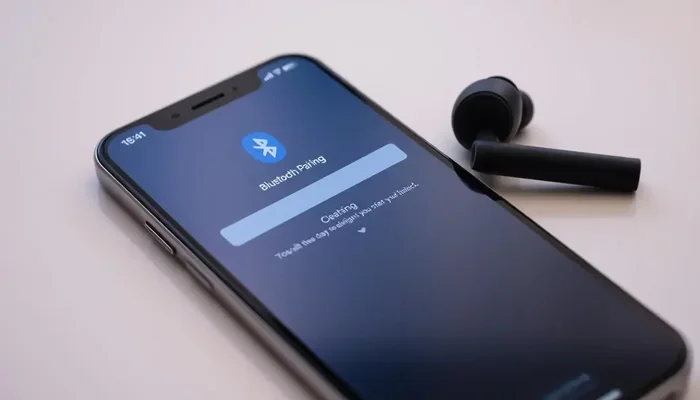
Bluetooth is a wireless technology that lets your devices talk to each other without cables. It is everywhere these days. Your phone uses it. Your headphones use it. Even your smart speaker uses it. So why should your PC be any different?
Having built in Bluetooth on your PC means you can connect wireless devices right out of the box. No extra cables. No extra adapters. No hassle. You just pair and go.
What Can You Do With Bluetooth On A PC?
The list of things you can do is long. Here are some of the most popular uses:
- Wireless headphones and earbuds: Listen to music or take calls without wires.
- Keyboards and mice: Free up your USB ports for other devices.
- File transfers: Send photos or documents from your phone to your PC instantly.
- Game controllers: Connect your Xbox or PlayStation controller wirelessly.
- Printers: Print documents from anywhere in your room without plugging in.
- Speakers: Stream music to a wireless speaker in another room.
All of these become possible when your PC has Bluetooth capability. It is a small chip inside your computer that handles all the wireless communication. Some PCs come with it already installed. Others do not. That is why knowing how to check matters so much.
How To Check If Your PC Has Built In Bluetooth
Now let us get to the real question. How do you actually check if your PC has built in Bluetooth? There are several ways to find out. Each method is simple and takes only a few minutes. You do not need any special tools or software.
Method 1: Use Device Manager
Device Manager is the quickest way to check for Bluetooth on your PC. It shows you every piece of hardware connected to your computer. If Bluetooth is there, you will see it listed.
Here is how you do it:
- Right click on the Start button on your taskbar.
- Select Device Manager from the menu that appears.
- Look for a category called Bluetooth or Bluetooth Radios.
- Click the arrow next to it to expand the list.
If you see a Bluetooth entry, your PC has built in Bluetooth. You may see one or more devices listed under it. This is completely normal. Some PCs have multiple Bluetooth adapters for different wireless functions.
If you do not see a Bluetooth category at all, do not panic just yet. Sometimes the Bluetooth device is hidden. You can click on View at the top of Device Manager and check Show hidden devices. This will reveal any Bluetooth hardware that might not be showing up by default.
Method 2: Check Your PC Settings
Another easy way to find out is through your PC settings. Windows makes it simple to see what wireless features your computer supports.
Follow these steps:
- Open the Settings app. You can press the Windows key and I at the same time.
- Click on Devices or Bluetooth and devices.
- Look for a toggle switch for Bluetooth.
- If you see the option to turn Bluetooth on and off, your PC has it.
If the Bluetooth option is missing entirely from your settings, your PC likely does not have Bluetooth capability. This is a clear sign that you may need to add Bluetooth through other means.
Method 3: Look At Your PC Model Specifications
Every PC has a model number. Whether you bought a Dell, HP, Lenovo, or Asus, your model tells you what features it includes. You can look up your PC specifications online to see if Bluetooth is listed.
Here is how to find your model number:
- Look on the bottom of your laptop for a sticker or engraved text.
- Check the back or side of your desktop tower.
- Open Settings and go to System and then About.
Once you have your model number, go to the manufacturer’s website. Search for your exact model. Look at the full specifications page. You will find a section that lists all the hardware features. Check for Bluetooth in that list. If it says Bluetooth 4.0, 5.0, or 5.3, you are good to go.
This method works great if you want to know your Bluetooth version too. Newer versions like Bluetooth 5.0 and 5.3 offer faster speeds and longer range. So knowing your version can help you decide if your setup is up to date.
Method 4: Look For The Bluetooth Icon In Your System Tray
Your system tray sits at the bottom right corner of your screen, near the clock. If your PC has Bluetooth enabled, you will often see a Bluetooth icon there. It looks like a small “B” made of two arrows.
Click on the upward arrow in your system tray to see hidden icons. If you see the Bluetooth icon, your PC has wireless capability. You can click on it to open Bluetooth settings and pair new devices right away.
Keep in mind that the icon might not always show. If Bluetooth is turned off in your settings, the icon may disappear. But if it is there and active, you know your built in Bluetooth is working.
Desktop PCs vs Laptops: Bluetooth Availability
Not all PCs are created equal when it comes to wireless connectivity. Laptops and desktop PCs differ a lot in how they handle Bluetooth. Understanding this difference helps you set the right expectations.
Laptops Usually Have Bluetooth
Most modern laptops come with built in Bluetooth. Manufacturers know that laptop users want to go wireless. They include Bluetooth chips right on the motherboard. This means you can connect wireless devices without any extra steps.
If you own a laptop made in the last five years, there is a very good chance it has Bluetooth. Even older laptops from around 2015 or 2016 often included it. But if your laptop is really old, you might need to add Bluetooth through a USB adapter.
Desktop PCs Often Lack Bluetooth
Desktop PCs are different. Many desktop computers do not come with Bluetooth capability out of the box. Why? Because desktops are usually designed to stay in one place. They are meant to use wired connections for mice, keyboards, and speakers.
But this does not mean your desktop is stuck without wireless options. You can easily add Bluetooth to a desktop PC. We will talk about how in the next section.
What If Your PC Does Not Have Built In Bluetooth?
So you checked all the methods above. And your PC does not have Bluetooth on your PC. That is okay. You still have great options. You do not need to buy a whole new computer just to go wireless.
Option 1: Buy A USB Bluetooth Adapter
A USB Bluetooth adapter is a small device you plug into your PC’s USB port. It adds Bluetooth capability to any computer in seconds. These adapters are cheap and work great.
You can find a basic Bluetooth 4.0 adapter for under fifteen dollars. If you want faster speeds and better range, look for a Bluetooth 5.0 or 5.3 adapter. These cost a little more but are worth it for smoother connections.
Just plug the adapter into a USB port. Windows will usually install the drivers automatically. You may need to restart your PC once. After that, you can pair any Bluetooth device just like you would on a laptop with built in Bluetooth.
Some people wonder if they can use a Bluetooth adapter on their TV too. The answer is yes, and the same idea applies to PCs. A small adapter opens up a world of wireless possibilities.
Option 2: Use A Bluetooth Transmitter
A Bluetooth transmitter is another option. These devices plug into your PC’s audio jack or USB port. They send audio wirelessly to Bluetooth headphones or speakers. They are great for people who mainly want to go wireless for audio.
However, a Bluetooth transmitter is more limited than a full USB adapter. It mainly handles audio streaming. It does not support file transfers or other Bluetooth features. So if you want full wireless connectivity, a USB adapter is the better choice.
Option 3: Check If You Can Download Bluetooth Drivers
Sometimes your PC actually has Bluetooth hardware, but the drivers are missing or outdated. In this case, you can download the Bluetooth driver from your PC manufacturer’s website.
Go to the support or downloads section of the manufacturer’s site. Enter your PC model number. Look for the latest Bluetooth driver. Download and install it. Restart your PC. The Bluetooth feature should appear in your settings and Device Manager.
You can also download Bluetooth software for your PC through Windows Update. Just go to Settings and click on Windows Update. Check for optional updates. Bluetooth drivers often show up there.
Remember, if your PC truly does not have a Bluetooth chip inside, no driver will create that hardware. You will still need a USB adapter or transmitter to add the feature.
How To Keep Your Bluetooth Working Smoothly
Once you have Bluetooth working on your PC, you want to keep it running well. Bluetooth issues can be frustrating. But most problems are easy to fix with a few simple steps.
Keep Your Drivers Updated
Outdated Bluetooth drivers cause many connection problems. Windows Update usually handles driver updates automatically. But you can also check your manufacturer’s website for the latest versions. Updating your drivers often fixes connection drops and pairing issues.
Keep Devices Close
Bluetooth works best when devices are within a few feet of each other. Walls and other electronics can weaken the signal. If your Bluetooth headphones keep disconnecting, try moving closer to your PC. This simple fix works more often than you might think.
Turn Off And Turn On Bluetooth
This might sound too simple, but it works. Turning Bluetooth off and back on refreshes the connection. You can do this from your PC settings or by clicking the Bluetooth icon in your system tray. A quick toggle often solves minor connectivity problems.
Remove Old Pairings
Your PC can remember many Bluetooth devices at once. But too many saved devices can slow things down. Go to your Bluetooth settings and remove devices you no longer use. This keeps your wireless pairing list clean and your connection fast.
Can You Use Bluetooth Without The Built In Chip?
Yes, you absolutely can. As we covered above, a USB Bluetooth adapter gives your PC full Bluetooth ability. You can connect all the same devices. You get the same wireless experience. The only difference is the adapter sticks out of a USB port.
Some people worry that a Bluetooth adapter will slow down their PC. This is not true. Modern Bluetooth adapters use very little power and processing power. They run in the background without affecting your PC’s performance.
You might also wonder if you can uninstall Bluetooth from your PC. The answer is yes, you can remove Bluetooth drivers or disable the feature. But most people never need to do this. Keeping Bluetooth enabled gives you the flexibility to connect wireless devices whenever you want.
Quick Tips For Buying A Bluetooth Adapter
If you decide to buy a USB Bluetooth adapter, here are some tips to help you choose the right one:
- Look for Bluetooth 5.0 or higher: These versions offer better speed and range.
- Check compatibility: Make sure the adapter works with your version of Windows.
- Choose a reputable brand: Brands like TP-Link, ASUS, and Avantree make reliable adapters.
- Read reviews: Other users share real-world experiences that help you pick the best option.
- Consider your needs: If you only need audio streaming, a basic adapter works fine. For file transfers and multiple device connections, go for a higher-end model.
Buying the right adapter makes a big difference in your wireless experience. Take a few minutes to compare options before you buy.
Common Mistakes People Make When Checking For Bluetooth
Here are some mistakes that trip people up when they try to find out if their PC has Bluetooth capability:
- Confusing Wi-Fi with Bluetooth: Just because your PC has Wi-Fi does not mean it has Bluetooth. These are two separate wireless technologies. Your PC can have one without the other.
- Not checking hidden devices in Device Manager: Bluetooth hardware sometimes hides. Always check for hidden devices before concluding your PC lacks Bluetooth.
- Assuming all laptops have Bluetooth: While most do, some budget laptops still skip Bluetooth. Always verify before you assume.
- Ignoring driver issues: Sometimes the Bluetooth chip is there, but drivers are missing. A missing driver looks the same as no hardware at all.
- Not restarting after installing drivers: Always restart your PC after installing new Bluetooth drivers. This step is essential for the system to recognize the hardware.
Avoiding these mistakes saves you time and frustration. You will find the answer faster and with less confusion.
Expert Insight: The Future Of Bluetooth On PCs
Bluetooth technology keeps getting better. New versions offer faster data transfer and lower power usage. Bluetooth 5.3, the latest version, brings improvements in range and connection stability. As more devices go wireless, having Bluetooth on your PC becomes even more important.
Manufacturers are also making Bluetooth chips smaller and more efficient. This means even thin and light laptops can include Bluetooth without taking up much space. Desktop PCs are also starting to include Bluetooth more often as wireless accessories become the norm.
If you are shopping for a new PC, make sure Bluetooth is on your checklist. It is a feature you will use every day. Going wireless with your keyboard, mouse, headphones, and speakers makes your workspace cleaner and more flexible.
You can also connect your Brother printer via Bluetooth if your PC supports it. This is just one example of how wireless connectivity simplifies your daily tech routine.
Final Thoughts
So, does my PC have built in Bluetooth? Now you know exactly how to find out. You can check Device Manager, your PC settings, your model specifications, or look for the Bluetooth icon in your system tray. Each method is simple and takes just a few minutes.
If your PC has built in Bluetooth, you are ready to connect wireless devices right away. If it does not, a USB Bluetooth adapter is an easy and affordable fix. You do not need to live without wireless connectivity.
Remember to keep your drivers updated and your Bluetooth settings in good shape. A little maintenance goes a long way in keeping your wireless connections strong and stable. With the right setup, your PC can connect to anything from headphones to printers without a single cable.
Now you have all the tools and knowledge you need. Go ahead and check your PC. Get your Bluetooth working, and enjoy the freedom of going wireless. Your setup will thank you for it.
Frequently Asked Questions
How do I know if my PC has Bluetooth?
Open Device Manager by right clicking the Start button. Look for a Bluetooth category in the list. If you see it, your PC has built in Bluetooth. You can also check your PC settings under Devices or Bluetooth and devices for the Bluetooth toggle option.
Can I add Bluetooth to a PC that does not have it?
Yes, you can. Buy a USB Bluetooth adapter and plug it into any available USB port. Windows will usually install the drivers automatically. After a quick restart, you can pair Bluetooth devices just like on a PC with built in Bluetooth.
Why does my PC not show Bluetooth in Device Manager?
There are a few reasons. The Bluetooth driver might be missing or outdated. The device could be hidden. Try clicking View in Device Manager and selecting Show hidden devices. If Bluetooth still does not appear, your PC may not have a Bluetooth chip installed.
Does every laptop have Bluetooth?
Most modern laptops include Bluetooth. But not every laptop has it. Some budget or older models may skip Bluetooth. Always check the specifications of your specific laptop model before you assume it has Bluetooth capability.
What is the difference between Wi-Fi and Bluetooth on a PC?
Wi-Fi connects your PC to the internet through a router. Bluetooth connects your PC to nearby devices like headphones, keyboards, and speakers. They are two separate wireless technologies. Your PC can have one without the other.
How can I update my Bluetooth driver?
Go to Settings and click on Windows Update. Check for optional updates. Bluetooth drivers often appear there. You can also visit your PC manufacturer’s website, enter your model number, and download the latest Bluetooth driver from the support section.
=== CONCLUSION ===
Checking if your PC has built in Bluetooth is quick and easy. You now know four simple methods to find out. Device Manager is the fastest option. PC settings give you a clear yes or no. Checking your model specs tells you everything about your hardware. And the system tray icon gives you a visual confirmation.
Even if your PC does not have Bluetooth today, you have options. A USB adapter can add full Bluetooth capability in minutes. It is affordable, easy to set up, and works with any PC. You do not need to miss out on wireless connectivity.
Keep your Bluetooth drivers updated. Keep your devices close for the best signal. And enjoy the freedom that wireless technology brings to your daily routine. Your PC is ready to connect. All you need to do is check and go.