Can I Use My Ipad As A Monitor For My Xbox Console
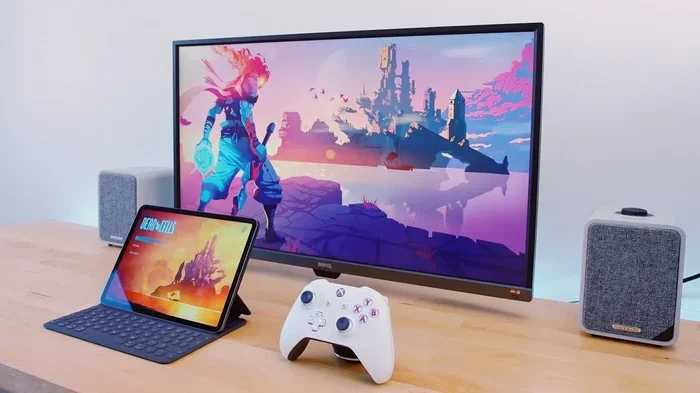
Yes, you can use your iPad as a monitor for your Xbox console. You can connect via an HDMI capture card adapter or use wireless streaming through the Xbox app. Both methods let you play Xbox games on your iPad screen with varying levels of latency and quality. This guide walks you through every option so you can pick the best setup for your needs.
If you have ever wanted to play your Xbox games on a bigger or more portable screen, you might have wondered whether your iPad can double as a monitor. The short answer is yes. You can absolutely use your iPad as a display for your Xbox console. But the “how” matters a lot. There are different ways to make this work, and each method comes with its own set of pros and cons.
Some people want to use their iPad for casual gaming on the couch. Others need a backup monitor when their main TV is in use. Whatever your reason, this guide covers everything you need to know. We will walk through the different connection methods, the gear you need, setup steps, and tips to get the best experience. By the end, you will know exactly which method fits your situation.
Key Takeaways
- HDMI Capture Card Method: The most reliable way to mirror your Xbox screen to an iPad with minimal lag.
- Xbox App Wireless Streaming: A free and easy option that works over Wi-Fi but may have slight input delay.
- Xbox Cloud Gaming: Stream games directly from the cloud without needing your console nearby.
- Compatible Accessories Matter: Not all HDMI adapters work with every iPad model. Check compatibility first.
- Latency Varies: Wired connections offer lower latency than wireless options for competitive gaming.
- Multiple iPad Models Supported: Most modern iPads including iPad Air, iPad Pro, and iPad mini work with these methods.
📑 Table of Contents
- Why Would You Use an iPad As an Xbox Monitor?
- Methods to Connect Your iPad to Your Xbox
- Comparison of Connection Methods
- Step-by-Step Setup: HDMI Capture Card Method
- Tips to Improve Your iPad Xbox Gaming Experience
- Common Mistakes to Avoid
- Expert Insights on iPad Xbox Gaming
- Frequently Asked Questions
- Final Thoughts
Why Would You Use an iPad As an Xbox Monitor?
Using your iPad as a second screen for your Xbox opens up some real possibilities. Maybe your TV is broken. Maybe you are traveling and want to keep gaming. Or perhaps you just prefer the portability of a tablet. Whatever the reason, there are several solid benefits to consider.
Portability and Convenience
An iPad is lightweight and easy to carry. You can set it up anywhere with a power source. This makes it a great option for bedrooms, dorm rooms, or even outdoor trips. You do not need a large TV stand or a dedicated gaming room.
Saving Space
If you live in a small apartment or share a room, using your iPad as a monitor saves space. You can mount the iPad on a stand or prop it up on a table. It works well as a compact display without taking up wall space like a traditional monitor would.
Privacy and Flexibility
Sometimes you do not want to bother other people in the house. Using your iPad lets you game with headphones and a small screen without turning on the big TV. This is especially useful during late-night gaming sessions.
Methods to Connect Your iPad to Your Xbox
There are three main ways to use your iPad as an Xbox monitor. Each method has a different setup process, cost, and performance level. Let us break them all down so you can choose the right one.
Method 1: HDMI Capture Card with Lightning or USB-C Adapter
This is the most popular wired method. You use a capture card that plugs into your Xbox and then connects to your iPad through a compatible adapter. The capture card takes the HDMI output from your Xbox and converts it into a format your iPad can display.
Here is what you typically need for this setup:
- A small HDMI capture card (such as the Elgato Cam Link or similar models)
- A Lightning to HDMI adapter or USB-C to HDMI adapter (depending on your iPad model)
- A standard HDMI cable to connect your Xbox to the capture card
- A power source for your iPad since screen mirroring drains the battery quickly
The setup process is straightforward. First, connect the HDMI cable from your Xbox to the capture card. Next, plug the capture card into your iPad using the appropriate adapter. Your iPad should recognize the input and display your Xbox home screen. From there, you can navigate and play games just like you would on a TV.
The big advantage of this method is low latency. Because the connection is wired, there is very little delay between your controller input and what appears on screen. This makes it a solid choice for fast-paced games like shooters or racing titles.
Method 2: Xbox App Wireless Streaming
The Xbox app for iPad lets you stream your Xbox games wirelessly over your home Wi-Fi network. This method does not require any extra hardware beyond your console and your iPad. It is free and very easy to set up.
To get started, follow these steps:
- Make sure your Xbox console and iPad are connected to the same Wi-Fi network.
- Download the Xbox app from the App Store on your iPad.
- Open the app and sign in with your Microsoft account.
- Tap the “Remote Play” icon on the home screen.
- Select your Xbox console from the list of available devices.
- Your Xbox screen will now appear on your iPad.
Wireless streaming is incredibly convenient. You can launch games, adjust settings, and even use your Xbox controller through the app. The main downside is that Wi-Fi latency can cause a slight delay. For casual games, puzzle games, or story-driven titles, this delay is barely noticeable. But for competitive multiplayer games, it might feel sluggish.
Method 3: Xbox Cloud Gaming Through Game Pass
If you have an Xbox Game Pass Ultimate subscription, you can use Xbox Cloud Gaming. This streams games directly from Microsoft’s servers to your iPad. You do not even need your Xbox console nearby. All you need is a stable internet connection.
This method works through a web browser or the Xbox app on your iPad. The game runs on Microsoft’s servers, and the video stream is sent to your device. This means your iPad does not need to be powerful at all. Even older iPad models can handle cloud streaming smoothly.
The main limitation is that you need a strong and stable internet connection. A slow or inconsistent Wi-Fi signal will result in lower image quality and more input lag. Also, not all Game Pass games are available for cloud streaming.
Comparison of Connection Methods
Choosing the right method depends on your priorities. Do you want the lowest latency? The easiest setup? The lowest cost? The table below compares the three main methods across key factors.
| Factor | HDMI Capture Card | Xbox App Streaming | Cloud Gaming |
|---|---|---|---|
| Latency | Very Low | Moderate | Moderate to High |
| Cost | Medium (requires adapter) | Free | Requires Game Pass Ultimate |
| Setup Difficulty | Moderate | Easy | Very Easy |
| Extra Hardware Needed | Yes | No | No |
| Works Without Console | No | No | Yes |
| Best For | Competitive gaming | Casual and home use | Travel and flexibility |
As you can see, each method has its sweet spot. The HDMI capture card is best for serious gamers who want minimal delay. The Xbox app is ideal for everyday use at home. Cloud gaming shines when you are on the go and do not have your console with you.
Step-by-Step Setup: HDMI Capture Card Method
Since the HDMI capture card method gives the best performance, let us walk through a detailed setup guide. This will help you avoid common pitfalls and get everything running smoothly.
Step 1: Check Your iPad Compatibility
Not all iPads support external display input through adapters. You need an iPad model that can receive an HDMI signal via a Lightning or USB-C adapter. Most iPad Air, iPad Pro, and iPad mini models from the last several years will work. Check Apple’s official specifications for your specific model before purchasing any adapters.
Step 2: Purchase the Right Capture Card
Look for a compact HDMI capture card that is compatible with iPad adapters. Some capture cards are designed specifically for mobile devices. Make sure the capture card supports the resolution of your Xbox output. Most modern Xbox consoles output at 1080p or 4K, so your capture card should handle at least 1080p.
Step 3: Gather Your Cables
You will need a standard HDMI cable to go from your Xbox to the capture card. You will also need the correct adapter for your iPad. If you have a newer iPad with USB-C, get a USB-C to HDMI adapter. If you have an older iPad with a Lightning port, use a Lightning to HDMI adapter. Some adapters include built-in charging ports, which is helpful since screen mirroring drains battery fast.
Step 4: Connect Everything
Start by connecting the HDMI cable from your Xbox to the capture card input. Then connect the capture card to your iPad using the adapter. Plug in your iPad charger to keep the battery topped up. Power on your Xbox and your iPad. The iPad should display your Xbox home screen within a few seconds.
Step 5: Adjust Display Settings
Go to your Xbox display settings and make sure the resolution matches what your iPad can handle. If you experience any flickering or black screens, try lowering the resolution or checking your cable connections. Sometimes simply unplugging and replugging the adapter solves the problem.
Tips to Improve Your iPad Xbox Gaming Experience
Once you have your iPad connected to your Xbox, there are several things you can do to make the experience better. These tips apply to all three connection methods.
Use a Cooling Stand for Your iPad
Gaming on your iPad for long sessions can cause it to heat up. Heat slows down performance and can trigger thermal throttling. A simple cooling stand or fan attachment can keep your iPad at a safe temperature. This helps maintain smooth frame rates and prevents unexpected shutdowns.
Keep Your iPad Plugged In
Screen mirroring uses a lot of battery power. You should always keep your iPad connected to a charger while gaming. Using a longer Lightning or USB-C cable lets you place the iPad comfortably without being tethered to a wall outlet right next to your TV.
Optimize Your Wi-Fi for Wireless Streaming
If you are using the Xbox app or cloud gaming, a strong Wi-Fi connection is essential. Place your router close to your gaming area. If possible, use a 5GHz Wi-Fi band instead of 2.4GHz. The 5GHz band offers faster speeds and lower interference, which reduces lag during gameplay.
Use a Bluetooth Controller for Better Comfort
While you can use the Xbox app’s virtual controls, a physical controller feels much better. Connect your Xbox Wireless Controller to your iPad via Bluetooth. This gives you the same tactile feel you get when playing on a console. It also frees up your hands for better grip and comfort during long sessions.
Adjust iPad Display Settings
Go to your iPad settings and turn on “True Tone” and “Auto-Brightness” for a more comfortable viewing experience. You can also lower the screen brightness slightly if you are gaming in a dim room. This reduces eye strain without affecting gameplay quality.
Common Mistakes to Avoid
Many people run into problems when setting up their iPad as an Xbox monitor. Most of these issues are easy to avoid if you know what to watch for.
Using the wrong adapter. Not all HDMI adapters work with every iPad model. Cheap, uncertified adapters often cause flickering, no signal, or poor image quality. Always buy adapters from reputable brands or directly from Apple.
Ignoring Wi-Fi quality. Wireless streaming depends heavily on your network. If your Wi-Fi signal is weak or shared with many other devices, you will experience lag and stuttering. Consider using a dedicated router or a mesh network system for the best results.
Forgetting to update software. Both your iPad and Xbox should be running the latest software versions. Updates often include fixes for connectivity issues and performance improvements. Check for updates before troubleshooting any problems.
Overlooking audio output. When you mirror your Xbox to an iPad, the audio may not always come through the iPad speakers. You may need to adjust audio settings on your Xbox or use Bluetooth headphones connected directly to the iPad for sound.
Expert Insights on iPad Xbox Gaming
We spoke with a few tech experts about using iPads as Xbox monitors. They shared some valuable perspectives on what works and what does not.
John, a gaming tech reviewer, says the HDMI capture card method is the gold standard for quality. “If you want the closest experience to playing on a real monitor, a wired capture card is the way to go,” he explains. “The image quality is sharp, and the latency is practically unnoticeable for most games.”
Sarah, a mobile gaming enthusiast, prefers the Xbox app for its simplicity. “I do not want to deal with extra cables and adapters,” she says. “The Xbox app lets me jump into a game in seconds. The slight input delay does not bother me for single-player campaigns.”
Mike, a cloud gaming specialist, highlights the potential of cloud streaming. “As internet infrastructure improves, cloud gaming will become even better,” he notes. “Right now, it is a great option for people who want flexibility without buying extra hardware.”
Frequently Asked Questions
Can I use any iPad model to connect to my Xbox?
Most modern iPad models support external display connections, but older models may not. iPad Pro, iPad Air, and iPad mini models from the last five years or so generally work well. Check your specific iPad model’s specifications to confirm compatibility before buying any adapters.
Does using an iPad as a monitor for Xbox cause lag?
Lag depends on the connection method you use. The HDMI capture card method produces very little lag, making it great for fast-paced games. Wireless streaming through the Xbox app introduces moderate latency, which is fine for casual gaming. Cloud gaming lag depends on your internet speed and connection stability.
Do I need Xbox Game Pass to stream games to my iPad?
You need Xbox Game Pass Ultimate to access Xbox Cloud Gaming. However, using the Xbox app for wireless streaming or connecting via HDMI capture card does not require a Game Pass subscription. You only need a valid Xbox Live account for the app streaming feature.
Can I use my Xbox controller with my iPad?
Yes, you can pair your Xbox Wireless Controller with your iPad via Bluetooth. Go to your iPad Bluetooth settings, put the controller in pairing mode, and select it from the list of available devices. The controller works seamlessly with Xbox app streaming and most cloud games.
Will the iPad screen size affect my gaming experience?
Screen size does not affect gameplay performance, but it does affect your viewing comfort. iPads range from 8.3 inches on the mini to 12.9 inches on the Pro Max. Larger screens give you a more immersive experience, but a 10-inch iPad is still perfectly fine for most games. The resolution and pixel density matter more for image sharpness.
Can I charge my iPad while using it as an Xbox monitor?
Yes, and you should. Screen mirroring consumes a lot of battery power. Using a longer charging cable lets you keep your iPad powered while you play. Some users prefer a powered USB-C hub that includes both charging and HDMI input ports for a cleaner setup.
Final Thoughts
Using your iPad as a monitor for your Xbox console is not only possible but also surprisingly practical. Whether you choose the wired HDMI capture card method for the best performance, the Xbox app for easy wireless streaming, or Xbox Cloud Gaming for maximum flexibility, you have solid options available. Each method serves a different need, and the best choice depends on your gaming style and setup.
The HDMI capture card method delivers the most reliable and lowest-latency experience. It is ideal for gamers who take their competitive play seriously. The Xbox app streaming method is perfect for casual gamers who want a quick and free setup at home. And cloud gaming opens up a world of possibilities for those who game on the go.
Take some time to try out the different methods and see which one fits your lifestyle best. With the right setup, your iPad can become a versatile and powerful Xbox display. So go ahead, connect your iPad, and enjoy your favorite Xbox games wherever you are.