How Do I Use My iPhone As A SD Card Reader Made Easy
Using your iPhone as a SD card reader is simple and saves you from carrying extra devices. With the right adapter, you can read SD card iPhone files directly and transfer photos, videos, and documents in seconds. This guide covers everything from choosing the best adapter to managing files like a pro.
Have you ever wondered how do I use my iPhone as a SD card reader? The good news is that it is much easier than most people think. With the right adapter and a few simple steps, you can read SD card iPhone data directly on your device. This means you can access photos, videos, documents, and other files without needing a computer. In this guide, we will show you exactly how to make it work.
Using your iPhone as a SD card reader opens up a world of convenience. You no longer need to carry around a laptop just to offload files from your camera or drone. Whether you are a professional photographer or someone who just wants to free up space, this method works beautifully. Let us dive into everything you need to know.
By the end of this article, you will understand the different adapters available, the step-by-step connection process, and the best apps for iPhone file management. You will also learn practical tips to avoid common pitfalls. So let us get started and make your iPhone a powerful mobile SD card reader.
Key Takeaways
- Simple Setup: Using your iPhone as a SD card reader requires only an adapter and a few taps. The process is straightforward and works on most iPhone models.
- Right Adapter Matters: Choose a Lightning to SD card reader for older iPhones or a USB-C adapter for newer models. Quality adapters ensure reliable performance.
- Files App Is Your Friend: The built-in Files app handles most SD card tasks without needing extra software. It is powerful, intuitive, and always available.
- Safe Ejection Is Essential: Always eject the SD card through the Files app before disconnecting. This protects your data from corruption.
- Multiple Use Cases: From photography to travel to business presentations, reading SD cards on your iPhone serves many practical purposes.
- Expand Your Workflow: Pair your adapter with apps like Lightroom or VLC for a complete mobile SD card reader experience.
- Invest in Quality: A reliable adapter and properly formatted SD cards make all the difference in speed and reliability.
📑 Table of Contents
Why Use Your iPhone As a SD Card Reader
There are many reasons why people want to use iPhone as SD card reader. The biggest advantage is convenience. You already carry your iPhone everywhere. Why carry an extra device just to read an SD card?
Photographers especially benefit from this setup. After a long shoot, you can quickly transfer files from SD card to iPhone without digging out a laptop. Travel bloggers and videographers also find this incredibly useful. It keeps your workflow fast and simple.
Another big reason is iPhone storage expand. Many iPhones do not have expandable storage built in. By reading files from an SD card and then moving them to cloud storage or deleting them, you free up valuable space. This is especially helpful when you are running low on capacity and need to keep working.
The iPhone camera connection kit was one of the first ways Apple allowed external storage access. Today, modern adapters are smaller, faster, and more reliable. You get the same benefit without the bulky original kit. It is a huge upgrade for anyone who works with SD cards regularly.
Who Benefits Most from This Setup
- Photographers who need to back up photos on the go
- Travelers who want to access files from cameras and drones
- Content creators who work with video and audio files
- Students who need to transfer documents from USB drives
- Business professionals who present files directly from SD cards
What You Need to Get Started
Before you can read SD card iPhone style, you need a few things. The good news is that most of these items are affordable and widely available. You probably already own some of them.
Compatible Adapters
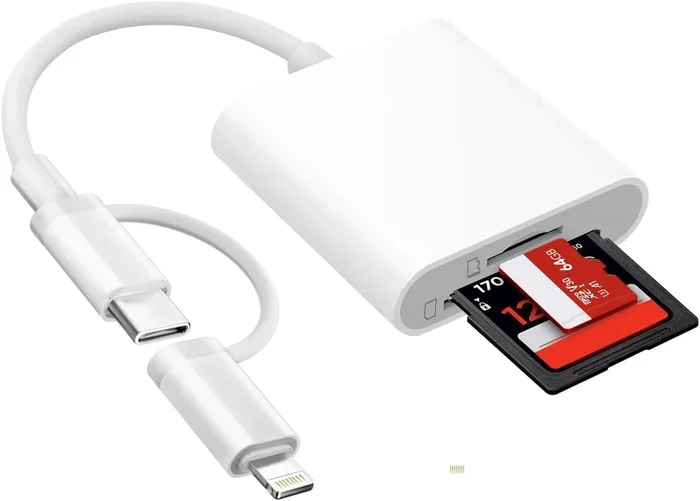
The most important item is an iPhone SD card adapter. Apple sells its own version called the Lightning to SD Card Reader. This is the official adapter and works reliably with most SD cards. It connects to the Lightning port on older iPhones or the USB-C port on newer models.
For iPhone 15 and newer models, you will need a USB-C to SD card adapter. These adapters are small and portable. You can easily slip one into your camera bag or even your wallet. Many third-party options work just as well as Apple’s official version at a lower price.
Recommended Apps
While your iPhone can read files from an SD card natively, having the right apps makes the experience much better. The Files app comes pre-installed on every iPhone and works great for basic file management. It supports browsing, copying, moving, and deleting files with ease.
For photographers, apps like Adobe Lightroom allow you to import photos directly from an SD card. Other popular options include VLC for video files and Documents by Readdle for general file handling. These SD card reader apps give you more control over your files and make organizing much simpler.
Types of SD Cards Supported
Most mobile SD card readers support standard SD cards. This includes SDHC and SDXC formats. Some adapters also support compact flash card iPhone usage with the right reader. Always check the adapter specifications before purchasing to make sure it supports your card type.
| Adapter Type | Compatible iPhones | SD Card Types | Price Range |
|---|---|---|---|
| Lightning to SD Card Reader | iPhone 5 to iPhone 14 | SD, SDHC, SDXC | $10 – $25 |
| USB-C to SD Card Adapter | iPhone 15 and newer | SD, SDHC, SDXC | $8 – $20 |
| Lightning/USB-C Dual Reader | All models | SD, microSD (with adapter) | $15 – $35 |
| SanDisk iXpand Flash Drive | All models | Built-in connector | $20 – $50 |
Step-by-Step: How to Connect an SD Card to iPhone
Now that you have your gear ready, let us walk through the actual process. Following these steps makes iPhone SD card adapter usage quick and painless. You will be reading files in under two minutes.
Step 1: Choose the Right Adapter
First, identify which port your iPhone uses. If you have an iPhone with a Lightning port, grab a Lightning to SD card reader. If you have a newer iPhone 15 or later, you need a USB-C to SD card adapter. Make sure the adapter is certified or from a trusted brand like SanDisk or Apple. Cheap knockoffs can cause connection issues and data loss.
Step 2: Insert the SD Card
Take your SD card and insert it into the adapter. The metal contacts should face down in most readers. You will feel it click into place. Do not force the card if it does not fit easily. Make sure you are inserting it the right way around. If it feels stuck, flip it over and try again.
Step 3: Connect to Your iPhone
Plug the adapter into your iPhone’s charging port. You should see a notification appear on your screen almost immediately. This notification means your iPhone has detected the external storage iPhone device. If nothing happens, try removing and reinserting the adapter.
Step 4: Access Your Files
Open the Files app on your iPhone. Tap on “Browse” at the bottom of the screen. You should see the SD card listed under “Locations.” Tap on it to view all your files. From here, you can open, move, copy, or delete files just like you would on a computer.
Step 5: Transfer or Manage Your Files
To move files, tap “Select” and choose the files you want. Then tap “Copy” or “Move” and choose a destination folder. You can save files to your iPhone’s local storage or to iCloud Drive. For iPhone photo transfer SD card workflows, you can also import directly into the Photos app by tapping “Import” when the SD card is connected. This is especially handy for photographers who want images on their phone right away.
Quick Tip: Always safely eject the SD card before unplugging. In the Files app, tap and hold the SD card name and select “Eject.” This prevents data corruption and keeps your files safe for the next use.
Best SD Card Readers and Adapters for iPhone
Not all adapters are created equal. Some are faster, more durable, or more compact than others. Here is a closer look at the best options for iPhone external storage needs.
Apple Lightning to SD Card Reader
This is Apple’s official adapter and the most reliable option for older iPhones. It supports SDXC cards up to 128GB. The build quality is excellent and it works seamlessly with the iPhone file transfer process. The only downside is the price, which is slightly higher than third-party options. But for reliability and peace of mind, it is hard to beat.
SanDisk iXpand Flash Drive
The SanDisk iPhone adapter is a popular alternative that many people love. It is a flash drive with a Lightning connector built in. You do not need a separate SD card reader. Just plug it in and transfer files. It comes in various storage sizes and works with both Lightning and USB-C models. This is a great option if you want an all-in-one solution.
UGREEN and Anker Adapters
These brands offer excellent budget-friendly options for iPhone file transfer needs. Their USB adapter iPhone products are compact and fast. Many models support both SD cards and USB drives, giving you extra versatility. They are great for people who need a reliable reader without spending a lot of money. Both brands have strong reputations for quality accessories.
RAVPower and Satechi Multi-Port Readers
For power users, multi-port readers are a great investment. These devices offer multiple slots and USB ports in one compact unit. They are perfect for professionals who carry multiple types of memory cards. Brands like RAVPower and Satechi offer some of the best options in this category. They might cost a bit more but save you from carrying several separate adapters.
Tips for Managing Files on Your iPhone
Once you can use iPhone as SD card reader, keeping your files organized becomes important. A few smart habits make a big difference in your daily workflow.
Organize Files into Folders
Create folders in the Files app for different types of content. For example, you might have folders for “Photos,” “Documents,” “Videos,” and “Work Files.” This makes it easy to find what you need later. iPhone file management is much smoother when everything has a place. Take a few minutes to set up a system that works for you.
Use iCloud for Backup
After transferring files from your SD card, consider uploading them to iCloud. This provides a safety net if something happens to your iPhone. You can also free up local storage by keeping older files in iCloud while still accessing them when needed. It is a smart way to balance convenience and storage space.
Delete Files After Transferring
Once you have safely copied files from your SD card to your iPhone or cloud storage, delete them from the card. This keeps the card clean and ready for the next use. It also helps you stay organized and prevents confusion. A clean SD card means faster future transfers and fewer headaches.
Format SD Cards Properly
If you are having trouble reading an SD card, try formatting it. Use your camera or computer to format the card to FAT32 or exFAT. These formats are most compatible with iPhones. Always back up your data before formatting, as this process erases everything on the card. Proper formatting prevents read errors and keeps your SD card reader iPhone experience smooth.
Expert Insight: Professional photographers recommend using high-speed SD cards (UHS-I or UHS-II) for faster iPhone photo transfer SD card speeds. Cheap, slow cards can bottleneck your workflow and cause frustration during transfers. Investing in a quality card saves time and protects your important files.
Common Mistakes to Avoid
Even with the right tools, people make mistakes that cause problems. Here are the most common ones to watch out for when using your iPhone as a SD card reader.
Using Unsupported Card Formats
Not all SD cards work with every adapter. Some older adapters struggle with SDXC cards or cards formatted in unusual ways. Always check compatibility before buying. Stick to standard SDHC or SDXC cards formatted as FAT32 or exFAT for the best results. This simple step prevents a lot of frustration.
Forgetting to Eject Safely
One of the biggest mistakes is unplugging the adapter without ejecting the card first. This can corrupt files and make your SD card unreadable. Always use the “Eject” option in the Files app before pulling the adapter out. It takes just a couple of seconds and protects your data.
Buying Cheap, Uncertified Adapters
Very cheap adapters from unknown brands can be unreliable. They may disconnect during transfers or fail to read certain cards. Investing in a quality adapter from a trusted brand saves you headaches in the long run. Look for adapters with good reviews and certifications from Apple or MFi.
Ignoring Storage Limits
SD cards can hold massive amounts of data. Your iPhone may not have enough space to receive all those files. Check your available storage before transferring large batches of photos or videos. This prevents transfer failures and wasted time. You can check your storage in Settings under General and iPhone Storage.
Not Updating Your iPhone
Apple regularly improves external storage iPhone support through software updates. Keeping your iPhone updated ensures the best compatibility with SD card adapters and the latest file formats. Go to Settings, tap General, and select Software Update to make sure you are running the latest version.
Key Takeaways
- Simple Setup: Using your iPhone as a SD card reader requires only an adapter and a few taps. The process is straightforward and works on most iPhone models.
- Right Adapter Matters: Choose a Lightning to SD card reader for older iPhones or a USB-C adapter for newer models. Quality adapters ensure reliable performance.
- Files App Is Your Friend: The built-in Files app handles most SD card tasks without needing extra software. It is powerful, intuitive, and always available.
- Safe Ejection Is Essential: Always eject the SD card through the Files app before disconnecting. This protects your data from corruption.
- Multiple Use Cases: From photography to travel to business presentations, reading SD cards on your iPhone serves many practical purposes.
- Expand Your Workflow: Pair your adapter with apps like Lightroom or VLC for a complete mobile SD card reader experience.
- Invest in Quality: A reliable adapter and properly formatted SD cards make all the difference in speed and reliability.
Conclusion
Learning how do I use my iPhone as a SD card reader is a skill that pays off quickly. Whether you are a photographer needing to back up shots on location or a traveler wanting to free up camera space, this method works beautifully. The right iPhone SD card adapter and a few simple steps give you instant access to your files.
With adapters ranging from Apple’s official Lightning to SD card reader to compact USB-C options, there is a solution for every iPhone model. Add a few reliable apps and some good file management habits, and you have a powerful portable setup. You no longer need a computer to access your SD card content.
Start with the basics: get a compatible adapter, insert your SD card, and use the Files app to manage your content. Once you see how easy and convenient it is, you will wonder how you ever worked without it. Your iPhone is more capable than you think, and using it as a SD card reader is just one way to unlock its full potential.
Try it today and experience the freedom of iPhone file transfer on the go. Your SD cards and your workflow will thank you. With the right tools and a little practice, you will be reading cards and sharing files like a pro in no time.
Frequently Asked Questions
Can I use any SD card with my iPhone?
Most standard SD cards work fine, but your adapter must support the card format. SDHC and SDXC cards are the most common and widely compatible. Always check your adapter’s specifications to confirm it supports the card type and capacity you plan to use.
Do I need an app to read an SD card on my iPhone?
No, the built-in Files app handles most SD card reading tasks without any extra downloads. However, apps like Adobe Lightroom or VLC can enhance your experience for specific file types like photos and videos. The Files app alone is enough for basic file management and transfers.
What is the difference between Lightning and USB-C SD card adapters?
The Lightning adapter works with older iPhone models that have a Lightning charging port. The USB-C adapter is designed for iPhone 15 and newer models with a USB-C port. Both serve the same purpose but connect to different ports on your device.
Can I transfer videos from an SD card to my iPhone?
Yes, you can transfer videos directly from an SD card to your iPhone. Simply connect the adapter, open the Files app, and copy the video files to your iPhone or iCloud Drive. For best results, use a high-speed SD card to reduce transfer time.
Will using an SD card reader drain my iPhone battery?
Using an SD card reader uses a small amount of battery, similar to any connected accessory. The drain is minimal for short tasks like transferring a few photos. For long transfers, consider keeping your iPhone plugged in to maintain battery levels.
Can I use my iPhone as a SD card reader for a camera?
Absolutely. This is one of the most common use cases. Just remove the SD card from your camera, insert it into the adapter, and connect to your iPhone. You can then import photos directly into the Photos app or manage files through the Files app.