Can Iphone Connect To Alexa And Get Smart Home Control
Yes, your iPhone can connect to Alexa and unlock powerful smart home control right from your palm. You just need the free Alexa app, a stable Wi-Fi connection, and a compatible smart home device. This guide walks you through every step, from initial setup to advanced features, so you can start using voice commands and home automation like a pro.
Key Takeaways
- iPhone and Alexa work together: You can link your Apple device to Amazon’s voice assistant for hands-free smart home management.
- Setup is simple: Downloading the Alexa app and following a few prompts gets you connected in minutes.
- Voice control is the biggest perk: You can manage lights, thermostats, locks, and more using just your voice.
- Alexa skills expand what you can do: Adding skills lets you control music, routines, shopping, and third-party devices.
- Common issues have easy fixes: Wi-Fi problems, app glitches, and compatibility mismatches are usually quick to resolve.
- Apple HomeKit and Alexa can coexist: You don’t have to pick one ecosystem — many devices work with both.
- Security matters: Review your Alexa privacy settings regularly to keep your smart home data safe.
📑 Table of Contents
- Can Iphone Connect To Alexa And Why It Changes Everything
- What Is Alexa and How Does It Work with iPhone
- How to Connect Your iPhone to Alexa Step by Step
- What Can You Do When iPhone Connects to Alexa
- iPhone Alexa vs Siri: Which Voice Assistant Is Better for Smart Home
- Common Problems When iPhone Connects to Alexa (And How to Fix Them)
- Tips to Get the Most Out of Alexa on Your iPhone
- Is It Safe to Connect Your iPhone to Alexa
- Final Thoughts on Connecting iPhone to Alexa
Can Iphone Connect To Alexa And Why It Changes Everything
Here is the short answer: yes, your iPhone can absolutely connect to Alexa. You do not need an Amazon Echo speaker to make it work either. The Alexa app on your iPhone turns your device into a powerful smart home remote. You get voice control, automation, and access to thousands of connected gadgets — all from the device you already carry everywhere.
Smart home technology has grown fast in recent years. More people want to control their lights, locks, cameras, and thermostats from their phones. Apple users often assume they are locked into Siri. But connecting iPhone to Alexa breaks that assumption wide open. You get the best of both worlds: Apple convenience and Amazon’s massive smart home library.
This article covers everything you need to know. From setup to troubleshooting, from basic controls to advanced automations, you will find it all here. Whether you are new to smart home tech or looking to expand your setup, this guide gives you practical, step-by-step help.
What Is Alexa and How Does It Work with iPhone
Alexa is Amazon’s cloud-based voice assistant. It lives inside Echo speakers, Fire TV devices, and thousands of third-party products. But the real magic happens through the Alexa app, which is available for iPhone and iPad. The app acts as a hub. It connects your phone to all your smart devices, no matter what brand they are.
When you open the Alexa app on your iPhone, you see a dashboard of all your connected devices. You can group them by room, create routines, and control them with your voice or touch. The app also handles voice recognition, so Alexa knows who is speaking and can give personalized responses.
The Alexa App on iPhone: What You Get
The free Alexa app brings a lot to the table. Here is what you get when you install it on your iPhone:
- Device control: Turn lights on and off, adjust thermostats, lock doors, and more.
- Voice commands: Talk to Alexa hands-free using the app’s built-in microphone or Bluetooth headphones.
- Smart home grouping: Organize devices by room for easier management.
- Routines: Set up automated sequences like “Good morning” that trigger multiple actions at once.
- Drop In and Calls: Use Alexa to make calls to other Echo devices or Alexa app users.
- Shopping and lists: Add items to your Amazon cart or shopping list with your voice.
How to Connect Your iPhone to Alexa Step by Step
Getting started is straightforward. You do not need any technical skills. Just follow these steps and you will be up and running in under ten minutes.
Step 1: Download the Alexa App
Open the App Store on your iPhone. Search for “Amazon Alexa” and tap Download. The app is free and about 150 megabytes, so it should not take long even on slower connections.
Step 2: Sign In or Create an Amazon Account
Once the app is installed, open it. You will need an Amazon account. If you already shop on Amazon, just sign in. If not, tap “Create Account” and follow the prompts. This account links your iPhone to Alexa’s cloud services.
Step 3: Set Up Your Smart Home Devices
Now it is time to add your smart devices. Tap the “Devices” tab at the bottom of the app. Then tap the plus icon in the top right corner. Choose “Add Device” and select the type of device you want to add — smart plug, light bulb, camera, and so on. Follow the on-screen instructions for each device.
Step 4: Enable Voice Control
To use Alexa hands-free, go to Settings in the app and turn on “Hands-Free Mode.” You can also enable “Alexa Guard,” which listens for unusual sounds like smoke alarms or broken glass when you are away from home.
Step 5: Test Your Connection
Try a simple command. Say “Alexa, turn off the living room light” or “Alexa, what is the weather?” If everything works, you are connected. If not, check your Wi-Fi and make sure your devices are on the same network.
Quick Tip
Keep your iPhone and smart devices on the same Wi-Fi network for the smoothest experience. A dual-band router helps reduce connection drops.
What Can You Do When iPhone Connects to Alexa
Once your iPhone is linked to Alexa, a whole world of smart home control opens up. Here are the most useful things you can do every day.
Control Smart Lights and Plugs
This is the most popular use case. You can turn any smart light on or off with a voice command. Set schedules so lights come on at sunset. Dim them for movie night. Group all the lights in your house and control them with one command like “Alexa, turn off everything.”
Compatible smart light brands include Philips Hue, LIFX, Wyze Bulb, and TP-Link Kasa. Smart plugs from brands like Wemo and Amazon Smart Plug work the same way. Just plug in any regular lamp or appliance and control it through Alexa.
Manage Your Thermostat and Climate
Smart thermostats like Nest, Ecobee, and Honeywell work beautifully with Alexa. You can adjust the temperature from your iPhone without getting up. Create a routine that lowers the heat at bedtime and warms the house before you wake up.
Secure Your Home with Smart Locks and Cameras
Lock your front door from your couch. Check your porch camera when you hear a knock. Alexa integrates with brands like August, Yale, Ring, and Arlo. You can even set up “Alexa Guard” to monitor your home while you are away and send alerts to your iPhone if something seems off.
Play Music and Podcasts
Alexa supports Amazon Music, Spotify, Apple Music, and many other streaming services. Tell Alexa to play your favorite playlist. Control volume with your voice. Skip tracks or pause without touching your phone.
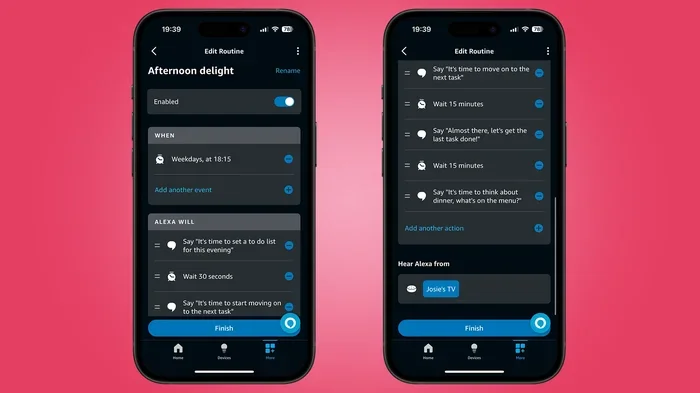
Create Smart Routines
Routines are one of the best features of Alexa. You set a trigger — a time of day, a voice command, or a device action — and Alexa performs a sequence of steps. For example:
- Morning Routine: At 7 AM, Alexa turns on the bedroom lights, reads the news, starts the coffee maker, and adjusts the thermostat.
- Movie Night Routine: Say “Alexa, movie time” and the living room lights dim, the TV turns on, and Spotify starts playing ambient music.
- Goodnight Routine: Say “Goodnight” and all lights turn off, doors lock, and the alarm system arms.
iPhone Alexa vs Siri: Which Voice Assistant Is Better for Smart Home
Apple users often wonder if they should stick with Siri or switch to Alexa for smart home tasks. Both have strengths. Here is a honest comparison to help you decide.
Smart Home Device Compatibility
Alexa supports more smart home devices than Siri. Thousands of brands work with Alexa, from budget plugs to premium security systems. Apple HomeKit has a smaller but high-quality selection. However, when you connect iPhone to Alexa, you get access to both ecosystems in one place.
Voice Recognition and Accuracy
Siri understands natural language very well, especially for iPhone-specific tasks like sending messages or setting calendar reminders. Alexa excels at smart home commands and music control. Both assistants have improved a lot, but Alexa generally handles complex smart home queries better.
Privacy and Data Handling
Apple is known for strong privacy practices. Siri processes more data on your device. Alexa relies more on cloud processing, which means your voice recordings are stored on Amazon’s servers. You can review and delete these recordings anytime in the Alexa app settings.
Hands-Free Use
With an Echo speaker, Alexa is always listening and ready. On iPhone alone, you need to open the app or use the Alexa widget to activate voice commands. This is a small trade-off for the wider device compatibility Alexa offers.
| Feature | Alexa on iPhone | Siri on iPhone |
|---|---|---|
| Smart Home Device Support | Very broad — thousands of brands | Narrower — HomeKit certified devices |
| Voice Control | Hands-free via app or Echo speaker | Hands-free with “Hey Siri” |
| Routines and Automation | Very powerful and customizable | Good but limited to Apple devices |
| Music Streaming | Amazon Music, Spotify, Apple Music | Apple Music, some third-party apps |
| Privacy Controls | Cloud-based, reviewable in app | On-device processing preferred |
| Ease of Setup | Simple, guided in-app setup | Built into iPhone, no extra app needed |
Expert Insight
Many smart home users run both Alexa and Siri. They use Siri for iPhone-specific tasks and Alexa for controlling lights, locks, and thermostats. This dual-assistant approach gives you the widest compatibility and the best of each ecosystem.
Common Problems When iPhone Connects to Alexa (And How to Fix Them)
Even with a simple setup, you might run into issues. Here are the most common problems and how to solve them quickly.
Alexa App Won’t Connect to Devices
If the app cannot find your smart devices, the first thing to check is your Wi-Fi network. Make sure your iPhone and all smart devices are on the same network. Some devices only work on the 2.4 GHz band, not 5 GHz. Try connecting your phone to 2.4 GHz and see if that fixes the issue.
Voice Commands Not Working
If Alexa does not respond to your voice, check that Hands-Free Mode is turned on in the app settings. Also make sure your iPhone’s microphone is not muted. Background noise can sometimes interfere. Move to a quieter room and try again.
Device Keeps Going Offline
A device that frequently disconnects is usually a Wi-Fi signal issue. Move your router closer to the device or add a Wi-Fi extender. Smart plugs and bulbs that are far from the router often lose connection. A mesh network system can help solve this problem.
Alexa Does Not Recognize a Command
This happens when a device name is too similar to another device or a common word. Rename your devices in the Alexa app to use clear, unique names. Instead of “Living Room Light” and “Living Room Lamp,” use “Floor Lamp” and “Ceiling Light.”
Common Mistakes to Avoid
- Skipping firmware updates: Keep all smart devices and the Alexa app updated for the best performance.
- Using generic device names: Alexa struggles when multiple devices share similar names.
- Ignoring Wi-Fi quality: A weak signal causes most smart home connection problems.
- Not enabling skills: Many third-party devices require you to enable a specific Alexa skill before they work.
Tips to Get the Most Out of Alexa on Your iPhone
Once you have everything set up, a few extra tips can take your smart home experience to the next level.
Add Alexa Skills for More Control
Alexa Skills are like apps for Alexa. They add new capabilities to your setup. Want to control your Samsung TV? Enable the Samsung SmartThings skill. Use a Ring doorbell? Enable the Ring skill. Browse the Skills section in the Alexa app to discover new integrations.
Use the Alexa Widget on iPhone
Add the Alexa widget to your iPhone home screen. This gives you quick access to device controls without opening the full app. Swipe right on your lock screen to find the widget and tap any device to control it instantly.
Set Up Drop In for Family Communication
The Drop In feature lets you use Alexa as an intercom. You can Drop In on other Alexa devices in your home or on family members’ phones. This works great for checking on kids or elderly family members without calling them on the phone.
Use Routines to Automate Your Day
The more routines you create, the more you will appreciate how much time and effort Alexa saves you. Start simple with a morning and bedtime routine, then add more as you get comfortable. You can even tie routines to weather changes — for example, close the smart blinds automatically when it starts raining.
Review Your Privacy Settings Regularly
Go to Settings in the Alexa app and check your privacy options. You can review your voice history, delete recordings, and turn off voice purchasing. Taking a few minutes to secure your account keeps your smart home data safe.
Key Takeaways
- Alexa Skills expand functionality: They let you connect devices and services that Alexa does not support out of the box.
- The iPhone widget saves time: Quick access to device controls right from your home screen.
- Drop In is great for families: Instant communication without the hassle of phone calls.
- Routines save effort: One command triggers a whole sequence of actions.
- Privacy settings deserve attention: Regular reviews keep your data secure.
Is It Safe to Connect Your iPhone to Alexa
Privacy and security are valid concerns when you connect any device to a cloud service. Amazon takes data protection seriously, but you should still take steps to protect yourself.
First, use a strong Amazon account password. Enable two-factor authentication for your Amazon account. This adds an extra layer of protection even if someone gets your password.
Second, review your Alexa privacy settings regularly. You can delete all voice recordings or set Alexa to automatically delete them after a certain period. Go to Settings, then Alexa Privacy, and explore the options.
Third, only enable skills from trusted developers. Third-party skills have access to certain data, so stick to well-known brands and read reviews before installing.
Finally, keep your iPhone updated. Apple regularly releases security patches that protect against vulnerabilities. An up-to-date iPhone and the latest version of the Alexa app give you the safest experience.
Final Thoughts on Connecting iPhone to Alexa
Connecting your iPhone to Alexa is one of the easiest ways to level up your smart home setup. You get powerful voice control, access to thousands of devices, and the ability to automate your daily routine — all from the phone you already use every day.
The setup process is simple and takes less than ten minutes. Once connected, the possibilities are nearly endless. You control lights, locks, thermostats, cameras, music, and more with just your voice. The Alexa app puts everything in one clean, easy-to-use interface.
If you have been wondering whether iPhone and Alexa work together, the answer is a clear yes. Give it a try. Download the app, connect your devices, and experience how convenient smart home control can be. You will wonder how you ever managed without it.
Start small. Add one smart plug or one smart bulb. Get comfortable with voice commands. Then expand your setup over time. Before long, you will have a fully connected home that responds to your voice and makes your life easier every single day.
Frequently Asked Questions
Do I need an Amazon Echo speaker to connect Alexa to my iPhone?
No, you do not need an Echo speaker. The free Alexa app on your iPhone gives you full access to Alexa’s features. An Echo speaker just makes it easier to use Alexa hands-free around the house, but it is completely optional.
Will connecting my iPhone to Alexa drain my battery?
Using the Alexa app with Hands-Free Mode on can use more battery than normal. However, the drain is usually minimal if you are not actively using voice commands all day. You can turn off Hands-Free Mode when you do not need it to save battery life.
Can I control Apple HomeKit devices through Alexa on my iPhone?
Some Apple HomeKit devices work with Alexa, but not all of them. You may need to enable a specific Alexa skill or use a bridge device. Check the compatibility list in the Alexa app before purchasing any new smart home device.
Is my voice data stored when I use Alexa on my iPhone?
Yes, Amazon stores voice recordings on its cloud servers to improve Alexa’s accuracy. You can review, delete, or set auto-delete preferences in the Alexa Privacy settings. Amazon also lets you opt out of having your recordings used to train their AI models.
Can I use Alexa on my iPhone without Wi-Fi?
Basic functions like controlling devices already connected to your home network may work without Wi-Fi, but most features require an internet connection. Voice commands, music streaming, and routine automation all need Wi-Fi or cellular data to function.
How many smart devices can I connect to Alexa on my iPhone?
You can connect hundreds of devices to a single Alexa account. There is no strict limit, but having too many devices on one network can slow down performance. If you have a very large smart home setup, consider using a mesh Wi-Fi system for better reliability.