How Do I See Hidden Passwords In Safari on Your iPhone
Wondering how do I see hidden passwords in Safari on your iPhone? This guide walks you through every method to reveal saved passwords in Safari, from the Passwords settings to iCloud Keychain. You will learn how to view, manage, and protect your login credentials with confidence. We cover iOS settings, autofill options, and security best practices so you never get locked out again.
Have you ever been staring at your iPhone, trying to log into a website, only to realize you forgot your password? You know Safari saved it somewhere, but it is hidden behind dots. You are not alone. Millions of iPhone users face this exact problem every single day. The good news is that seeing hidden passwords in Safari is incredibly easy once you know where to look. In this guide, we will walk you through every method step by step. By the end, you will be able to pull up any saved password in seconds.
Safari is Apple’s built-in web browser, and it comes packed with a powerful password manager called iCloud Keychain. This feature saves your usernames and passwords for every website you visit. It then autofills them the next time you need to log in. The whole process is designed to be seamless and secure. But sometimes, you need to actually see the password behind those dots. Maybe you are setting up a new device. Maybe you need to share a login with a family member. Or maybe you just want to double-check what you saved. Whatever the reason, we have you covered.
Key Takeaways
- Easy Access: You can see hidden passwords in Safari directly from your iPhone settings in just a few taps.
- Multiple Methods: There are several ways to reveal saved passwords, including the Passwords menu, iCloud Keychain, and third-party tools.
- Security Matters: Always use Face ID or Touch ID to protect your password vault from unauthorized access.
- Autofill Works Both Ways: Understanding autofill settings helps you manage which sites save your login info automatically.
- Cross-Device Sync: Your Safari passwords sync across all Apple devices when iCloud Keychain is enabled.
- Common Issues Have Simple Fixes: Most password visibility problems are easy to resolve with a quick settings check.
📑 Table of Contents
- Why Safari Hides Your Passwords by Default
- How to See Hidden Passwords in Safari on iPhone
- Managing Your Saved Passwords in Safari
- Understanding Safari Autofill and Password Generation
- Troubleshooting Common Password Visibility Issues
- Best Practices for Safari Password Security
- Quick Tips for Everyday Password Management
- How Safari Passwords Compare to Third-Party Password Managers
- Final Thoughts on Viewing Hidden Passwords in Safari
Why Safari Hides Your Passwords by Default
Apple takes your password security very seriously. That is why Safari hides your saved passwords behind dots or asterisks. This design choice prevents anyone who picks up your phone from casually reading your login details. Even if someone unlocks your phone, they still need Face ID or Touch ID to view saved passwords. This layered approach keeps your personal login information safe from prying eyes.
But there is a balance. Security should not come at the cost of convenience. Apple knows this, which is why they built in simple ways to reveal your passwords when you need them. The key is understanding how the system works and where to find the right settings. Once you know the basics, managing your Safari passwords becomes second nature.
How iCloud Keychain Protects Your Data
iCloud Keychain is the backbone of Safari’s password management system. It stores your usernames, passwords, and even credit card information securely. All of this data syncs across your iPhone, iPad, and Mac using end-to-end encryption. This means that only your trusted devices can read the information. Apple itself cannot access your saved credentials. So when you ask how do I see hidden passwords in Safari, you are tapping into a system that is both convenient and highly secure.
How to See Hidden Passwords in Safari on iPhone
This is the main section you have been waiting for. Here is exactly how to reveal your saved passwords in Safari on your iPhone. We will cover the most common method first, then explore a few alternative approaches. Each method works on iOS 15 and later, including the latest iOS 17 updates.
Method 1: Using the Settings App
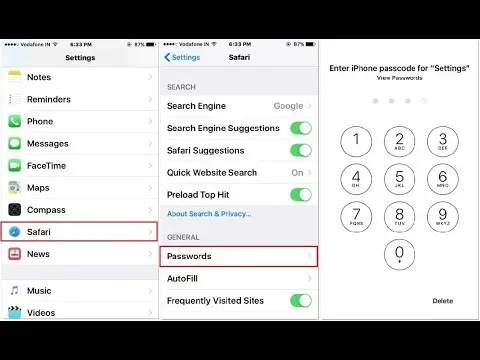
The most straightforward way to view your hidden Safari passwords is through the Settings app. Follow these simple steps:
- Open the Settings app on your iPhone.
- Scroll down and tap on Passwords. You may need to authenticate with Face ID or Touch ID.
- You will see a list of all your saved website credentials.
- Tap on the website you want to check.
- Tap on the username or password field.
- A popup will appear. Toggle on Show Password.
- You will need to authenticate again with Face ID or Touch ID.
- The hidden password will now be visible in plain text.
That is it. This method works for every saved password in Safari. You can repeat these steps for any website or login you need to check.
Method 2: Using the Passwords Settings Directly
Apple also lets you access saved passwords through a dedicated password settings menu. This is essentially the same as Method 1 but accessed slightly differently. Go to Settings, then tap Passwords. From there, you can search for a specific site using the search bar at the top. This is especially helpful if you have dozens of saved passwords and do not want to scroll through all of them.
Method 3: Viewing Passwords from the Safari Browser
You can also check saved passwords without leaving Safari. Here is how:
- Open Safari on your iPhone.
- Tap the AA icon or the three dots at the bottom left of the screen.
- Select Settings from the menu.
- Tap on Passwords.
- Authenticate with Face ID or Touch ID.
- Find the website you want to check.
- Tap the eye icon next to the password field to reveal the hidden password.
This method is great because it lets you stay inside the browser while managing your credentials. It is a quick way to check a password when you are already on a website.
Managing Your Saved Passwords in Safari
Once you know how to see hidden passwords, you might want to do more with them. Safari lets you manage your saved login credentials right from your iPhone. You can edit, delete, or add new passwords whenever you need to.
Editing a Saved Password
Sometimes you need to update a password after changing it on a website. Here is the quick process:
- Go to Settings and tap Passwords.
- Find the website you want to update.
- Tap on the entry to open it.
- Tap Edit in the top right corner.
- Change the password field to your new password.
- Tap Done to save the update.
Safari will automatically use the new password the next time you visit that site. This keeps your saved passwords up to date without any extra effort.
Deleting Unwanted Passwords
If you no longer use a website, it is a good idea to delete its saved password. This reduces clutter and improves your password security. Simply swipe left on the entry in the Passwords list and tap Delete. You can also tap Edit at the top and select the entries you want to remove, then hit Delete.
Adding a New Password Manually
Did you create a new account on a website and want Safari to save it? You can add it manually. Go to Settings, tap Passwords, and tap the plus icon in the top right. Fill in the website URL, username, and password. Safari will then save and autofill this credential going forward.
Understanding Safari Autofill and Password Generation
Safari does more than just store your passwords. It can also generate strong passwords for you when you create new accounts. This is a fantastic feature that helps you avoid weak or reused passwords. When you sign up for a new site, Safari will suggest a random, complex password. It then saves this password automatically to your iCloud Keychain.
How to Enable Password Autofill
To make sure autofill is working properly, check your settings:
- Go to Settings on your iPhone.
- Tap on Passwords.
- Make sure Autofill Passwords is turned on.
- Verify that your Apple ID is linked correctly.
When autofill is enabled, Safari will suggest your saved credentials whenever you tap a login field. This saves time and keeps you from forgetting which password you used for each site.
The Role of Apple ID in Password Management
Your Apple ID ties everything together. iCloud Keychain uses your Apple ID to sync passwords across all your Apple devices. This means a password saved on your iPhone will also appear on your iPad and Mac. As long as you are signed in with the same Apple ID and have iCloud Keychain enabled, your web credentials follow you everywhere.
Troubleshooting Common Password Visibility Issues
Sometimes things do not work as expected. You might try to reveal a password and get stuck. Here are the most common issues and how to fix them.
Password Not Showing Up in the List
If a saved password does not appear in your list, try these steps:
- Make sure you are signed in with the correct Apple ID.
- Check that iCloud Keychain is enabled. Go to Settings, tap your name, then tap iCloud, and make sure Keychain is turned on.
- Restart your iPhone and try again.
- Make sure the website was actually saved in Safari and not in a different browser.
Face ID or Touch ID Not Working
If your biometric authentication fails when you try to reveal a password, you can still access your saved credentials. Use your device passcode instead. You will need to enter your four or six digit code to view the password. If you have not set up a passcode, you should do so right away for security reasons.
Passwords Not Syncing Across Devices
If your Safari passwords are not syncing between your iPhone and Mac, check the following:
- Ensure both devices are connected to Wi-Fi.
- Verify that iCloud Keychain is enabled on both devices.
- Sign out and back into your Apple ID on both devices.
- Check that both devices are running compatible iOS or macOS versions.
Best Practices for Safari Password Security
Being able to see your hidden passwords is only half the battle. You also need to keep them safe. Here are some password security tips every iPhone user should follow.
Use Strong, Unique Passwords
Never reuse the same password across multiple websites. If one site gets breached, hackers could try that same password on your other accounts. Safari’s built-in password generator makes this easy. It creates long, random passwords that are nearly impossible to guess.
Enable Two-Factor Authentication
Two-factor authentication adds an extra layer of protection to your Apple ID. Even if someone gets your password, they still cannot access your account without a verification code. Go to Settings, tap your name, then Passwords & Security, and turn on Two-Factor Authentication.
Review Your Saved Passwords Regularly
Get into the habit of reviewing your saved passwords every few months. Look for any weak or duplicated passwords and update them. This simple routine goes a long way toward keeping your online accounts safe.
Be Careful When Sharing Passwords
If you need to share a password with a family member, use Apple’s built-in password sharing feature. This lets you securely share specific credentials without exposing them to everyone. Avoid sending passwords through text messages or email, as these are not secure.
Quick Tips for Everyday Password Management
Here are some quick tips to make your life easier when working with Safari passwords on iPhone:
- Use the search bar in the Passwords menu to find a specific site quickly.
- Copy a password by tapping and holding the password field, then selecting Copy.
- Use Face ID whenever possible for fast and secure access to your password list.
- Update old passwords that Safari flags as having been involved in a data breach.
- Check for weak passwords by going to Settings, Passwords, and looking for the Security Recommendations section.
How Safari Passwords Compare to Third-Party Password Managers
Safari’s built-in password manager works well for most people. But how does it stack up against third-party options? Here is a quick comparison:
| Feature | Safari iCloud Keychain | Third-Party Managers |
|---|---|---|
| Built into iPhone | Yes | No, requires app |
| Cross-platform support | Apple devices only | Works on all platforms |
| Password generator | Yes | Yes, usually more advanced |
| Free to use | Yes | Often has paid tiers |
| Security | Strong, end-to-end encrypted | Varies by provider |
| Ease of use | Very easy, no setup needed | Requires installation and setup |
For most iPhone users, Safari’s built-in password manager is more than enough. It is convenient, secure, and requires zero extra setup. However, if you use both Apple and Windows devices, a third-party manager like 1Password or Bitwarden might be a better fit.
Final Thoughts on Viewing Hidden Passwords in Safari
Now you know exactly how do I see hidden passwords in Safari on your iPhone. Whether you use the Settings app, the Safari browser menu, or the password search feature, revealing your saved credentials is quick and straightforward. The key is to practice these steps a few times so they become second nature.
Remember that your password security should always come first. Use strong, unique passwords. Enable two-factor authentication. And review your saved passwords regularly. Safari makes all of this easy with its built-in tools. You do not need to download anything extra or change your habits drastically. Just take a few minutes to explore your password settings today. Your future self will thank you the next time you need to log in quickly and without stress.
Stay safe online, keep your credentials organized, and let Safari do the heavy lifting. With the knowledge you now have, managing your passwords has never been easier.
Frequently Asked Questions
Can I see all my saved passwords in Safari at once?
Yes, you can. Go to Settings, tap Passwords, and authenticate with Face ID or Touch ID. You will see a complete list of all your saved website credentials. You can scroll through them or use the search bar to find a specific one quickly.
Is it safe to reveal hidden passwords on my iPhone?
Absolutely. Apple built strong security into the password viewing process. You must authenticate with Face ID, Touch ID, or your device passcode before any password is revealed. As long as you keep your iPhone secure and do not share your passcode, your credentials remain safe.
Will I lose my saved passwords if I reset my iPhone?
No, you will not lose them if iCloud Keychain is enabled. Your passwords are backed up to iCloud and will sync back to your device after a reset. Just make sure you sign in with the same Apple ID and enable iCloud Keychain during setup.
Can I see hidden Safari passwords on my Mac too?
Yes, you can. On a Mac, open Safari, go to Preferences, then Passwords. Authenticate with Touch ID or your Mac password. You will see all your saved Safari passwords there, just like on your iPhone.
Does Safari warn me about weak or compromised passwords?
Yes, it does. Safari includes a Security Recommendations feature that flags weak, reused, or compromised passwords. You can find these alerts in Settings under Passwords. It is a great way to stay on top of your password health.
Can I delete a saved password directly from Safari?
Yes. Go to Settings, tap Passwords, find the website entry, and swipe left to delete it. You can also tap Edit, select the entries you want to remove, and hit Delete. This helps keep your saved credentials list clean and organized.
=== CONCLUSION ===
Understanding how do I see hidden passwords in Safari on your iPhone is an essential skill for anyone who uses the web on Apple devices. It saves time, reduces frustration, and helps you stay in control of your online accounts. We covered multiple methods, from the Settings app to the Safari browser menu, and explored tips for managing and securing your passwords along the way.
Password management does not have to be complicated. Safari’s built-in tools handle the heavy lifting for you. With iCloud Keychain, autofill, and password generation all working together, you can browse the web with confidence. Take a few minutes today to review your saved passwords and make sure everything is in order. Your online security depends on it, and now you have the knowledge to keep it strong.