How Do I Set Bluebeam As My Default PDF Reader Now
Want to make Bluebeam your default PDF reader? This guide shows you exactly how to set Bluebeam as your default PDF reader on Windows and Mac in just a few clicks. You’ll also learn why Bluebeam is a better choice than other PDF viewers for construction, engineering, and design work.
You open a PDF file and it launches in some basic viewer you barely use. It’s frustrating when you need powerful markup tools and all you get is a simple page display. What if you could make Bluebeam your default PDF reader with just a few clicks? This guide will walk you through the exact steps to set Bluebeam as your default PDF reader on both Windows and Mac. You’ll also discover why Bluebeam is a better choice than the built-in PDF viewers and how to fix common issues.
Many professionals use Bluebeam Revu for construction PDFs, engineering drawings, and design documents. Yet they still double-click a PDF and it opens in Adobe Reader or a basic app. That means missing out on Bluebeam Studio collaboration and advanced PDF markup tools. Setting Bluebeam as your default PDF reader changes that. Every PDF you open will launch right into Bluebeam. You’ll save time and work more efficiently.
Did you know that many professionals spend hours each week just waiting for PDFs to load in the wrong app? When you set Bluebeam as your default PDF reader, you reclaim that time. This article covers everything you need. We’ll show you how to set Bluebeam as your default PDF reader on Windows 10 and 11. We’ll also cover the Mac steps. You’ll learn how to troubleshoot if Bluebeam won’t open PDFs by default. Plus, we’ll share quick tips to get the most from Bluebeam as your daily PDF viewer. Let’s get started.
Key Takeaways
- Set Bluebeam as Default PDF Reader on Windows: Use Settings > Apps > Default apps to assign Bluebeam to .pdf files in just a few clicks.
- Set Bluebeam as Default PDF Reader on Mac: Right-click any PDF, choose Get Info, select Bluebeam, and click Change All to make it the default.
- Bluebeam Offers Powerful PDF Markup Tools: It’s built for construction and engineering teams, not just basic reading.
- Bluebeam Studio Enables Real-Time Collaboration: You can markup and share PDFs with your team without leaving the app.
- Troubleshoot If Bluebeam Won’t Open PDFs: Check file associations, repair the installation, or reinstall Bluebeam if defaults don’t stick.
- Make Bluebeam Your Go-To PDF Viewer: Once set, every PDF you double-click will open in Bluebeam automatically, saving you time.
📑 Table of Contents
- What Is Bluebeam and Why Make It Your Default PDF Reader?
- How to Set Bluebeam as Your Default PDF Reader on Windows
- How to Set Bluebeam as Your Default PDF Reader on Mac
- Why Bluebeam Beats Other Default PDF Readers
- Troubleshooting: Bluebeam Not Opening PDFs by Default
- Pro Tips to Maximize Bluebeam as Your Default PDF Reader
- Conclusion
What Is Bluebeam and Why Make It Your Default PDF Reader?
Bluebeam is a PDF solution built for the architecture, engineering, and construction industries. It’s more than a PDF viewer. It’s a powerful tool for reviewing, marking up, and collaborating on documents. When you set Bluebeam as your default PDF reader, you turn every PDF into a workspace.
What Makes Bluebeam Different from Other PDF Readers
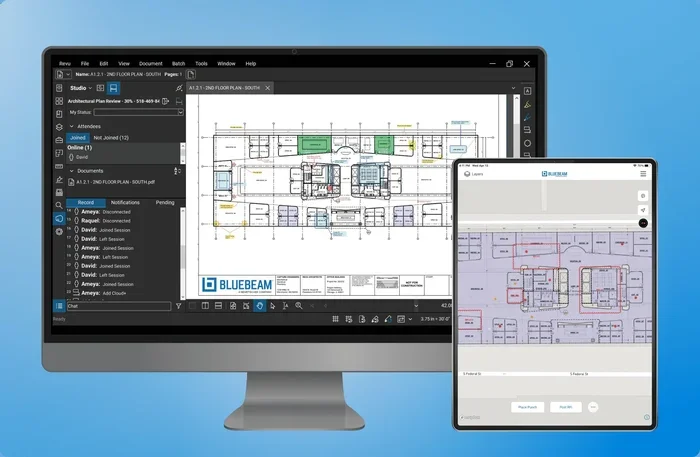
Most PDF readers just display pages. Bluebeam adds real-time PDF collaboration. You can send a PDF to a colleague and both mark it up at the same time. That’s what makes Bluebeam a game-changer for construction PDF reviews. Built-in tools like the Markup Grid and Studio Sessions let teams work together without leaving the app. The Bluebeam eXtreme edition adds even more advanced features like the Hyperlink Tool and Batch Link tool.
Key Benefits of Using Bluebeam as Your Default PDF Viewer
- Faster Workflow: PDFs open instantly in Bluebeam. No need to open a separate program and import the file.
- Advanced Markup Tools: You get cloud-based sticky notes, shapes, and measurement tools right away.
- Seamless Collaboration: Bluebeam Studio lets you share markups with your entire team in real time.
- Better Organization: You can search, bookmark, and extract data from PDFs without extra steps.
- Consistency: Every team member uses the same powerful PDF reader, reducing errors.
When you make Bluebeam your default PDF reader, you unlock these benefits every single time you open a document. It’s a simple change that boosts productivity.
Quick Tip: If you’re new to Bluebeam, take five minutes to explore the Markup Tools panel. You’ll quickly see why so many teams choose Bluebeam over other PDF readers for their daily work.
How to Set Bluebeam as Your Default PDF Reader on Windows
Setting Bluebeam as your default PDF reader on Windows is straightforward. The steps are similar in Windows 10 and Windows 11. You just need to open the Settings app and change the default app for PDF files.
Step-by-Step Guide for Windows 10 and 11
- Open the Settings app. Press the Windows key + I to launch it quickly.
- Click on Apps in the left sidebar. In Windows 11, you might see Apps & features first.
- Select Default apps from the menu.
- Scroll down and find the .pdf file type. Click on the current default app under it.
- A list of installed PDF readers will appear. Choose Bluebeam from the list.
- If you don’t see Bluebeam, click the “Look for an app in the Microsoft Store” link. Or choose “Let me pick from a list of installed apps” and select Bluebeam.
Once you select Bluebeam, every PDF file you double-click will open in Bluebeam. You can also right-click any PDF file, choose Open with > Choose another app, and set Bluebeam as the default for that file type.
Setting Bluebeam as Default for All PDF Files
Sometimes the default app setting doesn’t stick. If PDFs still open in another reader, you can force the change. Follow these steps:
- Right-click a PDF file on your desktop or in File Explorer.
- Select Open with > Choose another app.
- Check the box that says Always use this app to open .pdf files.
- Select Bluebeam from the list and click OK.
This method is a quick fix. It directly tells Windows to use Bluebeam as the default PDF program for all PDF files.
Common Mistake: Don’t forget to restart Bluebeam after changing the default app. Some versions of Bluebeam need a fresh start to recognize the new default setting.
Expert Insight: “Many users don’t realize that Bluebeam has a built-in setting to prompt you to set it as the default PDF reader on first launch. Always check that box when you first open Bluebeam after installation.” – Bluebeam Support Team
How to Set Bluebeam as Your Default PDF Reader on Mac
Mac users have a slightly different path. macOS lets you change the default app for a specific file type or for all PDFs. You’ll use the System Settings or Finder to make Bluebeam your default PDF reader.
Changing the Default PDF App on macOS
- Locate a PDF file you want to open with Bluebeam.
- Right-click (or Control-click) the file and select Get Info.
- In the Info window, find the Open with section.
- Click the dropdown menu and select Bluebeam from the list.
- Click the Change All button below the dropdown.
- macOS will ask you to confirm. Click Continue.
Now every PDF file on your Mac will open in Bluebeam by default. This works for PDFs from email attachments, web downloads, and your local folders.
Handling PDF Files from Email and Browsers
Sometimes PDFs downloaded from a browser still open in Preview or another app. To fix this, you can also change the default PDF reader in your browser settings. For example, in Safari, go to Preferences > General and set the default file viewer to Bluebeam. In Chrome, you might need to check the “Always open PDFs in Bluebeam” option in the Chrome settings under Privacy and Security. This ensures your Bluebeam integration works everywhere you encounter PDFs.
Quick Tip: If Bluebeam doesn’t appear in the Get Info list, make sure Bluebeam is installed and up to date. You can also drag the Bluebeam app to the Applications folder if it’s in the Downloads folder. A quick restart of Finder can also help macOS recognize the new default app.
Common Mistake: On Mac, many users forget to click “Change All.” They set Bluebeam for one file but other PDFs still open in Preview. Always click Change All to make Bluebeam your true default PDF reader.
Why Bluebeam Beats Other Default PDF Readers
You might wonder why you should set Bluebeam as your default PDF reader instead of sticking with Adobe Acrobat or the built-in Preview app. The answer lies in the tools you get for free with every PDF you open.
Bluebeam vs Adobe Acrobat
Adobe Acrobat is a powerful PDF editor, but it’s expensive. Bluebeam offers many of the same markup and collaboration features at a lower cost. Bluebeam is also lighter and faster for reviewing PDFs. If your main need is to read, mark up, and share PDFs, Bluebeam is often the better choice. Many teams use Bluebeam as their default PDF viewer and keep Acrobat installed only for editing.
| Feature | Bluebeam | Adobe Acrobat | Preview (Mac) |
|---|---|---|---|
| Price | Subscription-based (more affordable for teams) | Expensive perpetual or subscription | Free (built-in) |
| Real-Time Collaboration | Yes, via Bluebeam Studio | Yes, via Adobe Document Cloud | No |
| Construction PDF Tools | Yes, built for AEC industry | General purpose | Basic |
| Markup Speed | Very fast, cloud-based | Good, but heavier | Basic |
| Default PDF Reader Setup | Easy on Windows and Mac | Easy | Already default on Mac |
| OCR Capabilities | Yes, with Bluebeam Studio | Yes, advanced OCR | No |
| Cloud Integration | Bluebeam Studio, Dropbox, OneDrive | Adobe Document Cloud | iCloud only |
This table shows why many teams switch to Bluebeam as their default PDF viewer. It’s built for people who work with PDFs every day, not just occasional readers.
Bluebeam vs Preview and Built-in Viewers
The built-in Preview app on Mac and Microsoft Edge’s PDF reader on Windows are convenient. But they lack the advanced PDF annotation tools that Bluebeam provides. When you set Bluebeam as your default PDF reader, you’re choosing a tool designed for professionals. You get measurement tools, custom stamps, and the ability to extract data from PDFs. The Bluebeam PDF reader is not just a viewer—it’s a complete workflow tool.
When to Keep a Secondary PDF Reader
There’s no rule that says you can only have one PDF reader. You might keep Adobe Acrobat for editing PDFs and use Bluebeam as your default for reviewing and collaborating. That’s perfectly fine. The key is to make Bluebeam the default so that opening a PDF always starts with the right tool for your workflow. This is especially helpful for engineering PDF teams who need both reading and editing capabilities.
Quick Tip: If you’re part of a team, suggest that everyone set Bluebeam as their default PDF reader. This ensures consistency when you share PDFs for review. You’ll avoid the confusion of receiving markups in different formats.
Common Mistake: Don’t install Bluebeam and then never change the default app. You’ll keep missing out on its powerful features every time you open a PDF.
Troubleshooting: Bluebeam Not Opening PDFs by Default
Sometimes you follow the steps but Bluebeam still doesn’t open PDFs. Don’t worry. This is a common issue and it’s usually easy to fix.
Common Reasons Bluebeam Won’t Set as Default
- File Association Issues: Windows or Mac might not recognize Bluebeam as a registered PDF handler. This can happen after an update or a fresh install.
- Bluebeam Not Fully Installed: If the installation was interrupted, Bluebeam might not appear in the default app list.
- Permissions: On Mac, you might need to allow Bluebeam to access files in System Settings > Privacy & Security.
- Conflicting Apps: Another PDF reader might have hijacked the default PDF file type. This often happens after installing Adobe Reader or Edge.
Quick Fixes for Default App Issues
- Repair Bluebeam Installation: On Windows, go to Settings > Apps > Apps & features. Find Bluebeam and click Modify. Choose Repair.
- Re-register Bluebeam as a PDF Handler: Open Bluebeam, go to Bluebeam > Settings > Default PDF Reader and make sure the option to set it as default is checked.
- Check File Associations in Windows: Open Settings > Apps > Default apps > Choose default apps by file type. Scroll to .pdf and make sure it’s set to Bluebeam.
- Reset Mac Default Apps: On Mac, you can reset all default apps by going to System Settings > Desktop & Dock. Sometimes a restart is needed for changes to take effect.
If these steps don’t work, try uninstalling and reinstalling Bluebeam. Make sure to download the latest version from the official Bluebeam website. After reinstalling, repeat the steps to set Bluebeam as your default PDF reader. This often resolves hidden file association problems.
Expert Insight: “The most common reason Bluebeam doesn’t appear as a default option is that the installer didn’t run with administrator privileges. Always right-click the installer and select Run as administrator on Windows.” – Bluebeam Support Team
Quick Tip: After repairing or reinstalling Bluebeam, restart your computer. This clears any cached file associations and ensures Windows or macOS recognizes Bluebeam as the default PDF program.
Pro Tips to Maximize Bluebeam as Your Default PDF Reader
Once you’ve set Bluebeam as your default PDF reader, you can fine-tune it to work even better for you. These tips will help you get the most out of Bluebeam every day.
Customizing Bluebeam Default Settings
Bluebeam lets you customize how PDFs open. You can set default markup colors, toolbars, and even default page layouts. To access these settings, open Bluebeam and go to Bluebeam > Settings. Explore the General and Markup tabs. You can set Bluebeam to always open PDFs in a specific window size or to automatically save markups to the cloud. This makes Bluebeam integration seamless with your daily workflow. You can also set Bluebeam to open the last document you were working on, which saves you time when you start your computer.
Using Bluebeam Studio for Collaboration
The real power of Bluebeam comes alive when you use Bluebeam Studio. As your default PDF reader, Bluebeam lets you start a Studio Session right from any PDF. You can invite team members to join and mark up the same document simultaneously. This is perfect for construction PDF reviews where multiple stakeholders need to leave comments. You’ll save hours compared to emailing PDF attachments back and forth. You can also use Bluebeam Studio to conduct markup sessions with clients who don’t have Bluebeam installed—they can join via a web browser.
Quick Tips for Daily Workflow
- Use Keyboard Shortcuts: Learn shortcuts like Ctrl+M (Windows) or Cmd+M (Mac) to quickly open the Markup tools.
- Save Markup Profiles: Create a markup profile for your team so everyone uses the same colors and symbols.
- Batch Process PDFs: Use Bluebeam’s batch tools to rename, extract pages, or convert PDFs in bulk.
- Integrate with Cloud Storage: Connect Bluebeam to your Dropbox, Google Drive, or OneDrive for easy access to PDFs.
- Set Bluebeam to Open at Startup: In Bluebeam settings, you can set it to launch automatically when your computer starts. This ensures it’s always ready as your default PDF viewer.
- Use the Bluebeam PDF Reader for Mobile: Bluebeam also has a mobile app. Set it as your default PDF reader on your phone or tablet to review PDFs on the go.
These small tweaks make a big difference. You’ll wonder how you ever worked without Bluebeam as your default PDF reader.
Common Mistake: Don’t skip software updates. Bluebeam frequently releases updates that improve default PDF handling and fix bugs. Keep Bluebeam up to date to ensure it always opens PDFs by default without issues.
Conclusion
Setting Bluebeam as your default PDF reader is one of the best productivity moves you can make. Whether you’re on Windows or Mac, the steps are simple and the benefits are huge. You’ll open every PDF in a powerful tool designed for markup, collaboration, and review. You’ll save time, reduce frustration, and work more efficiently with your team. Follow the steps in this guide to make Bluebeam your default PDF reader today. Once it’s set, you’ll never go back to basic PDF viewers again. Take a few minutes now to change your default app and experience the difference Bluebeam makes in your daily work.
Frequently Asked Questions
How do I make Bluebeam my default PDF reader on Windows?
Open Settings > Apps > Default apps. Find the .pdf file type and click the current default app. Select Bluebeam from the list. You can also right-click any PDF file, choose Open with > Choose another app, and check “Always use this app to open .pdf files.”
Can I set Bluebeam as the default PDF reader on a Mac?
Yes. Right-click a PDF file, select Get Info, and in the Open with section choose Bluebeam. Then click the Change All button to make Bluebeam the default PDF reader for all PDF files on your Mac.
Why won’t Bluebeam stay as my default PDF reader?
This usually happens due to file association conflicts or an incomplete installation. Try repairing Bluebeam through Windows Settings or reinstalling it. Also check that no other PDF app is overriding the default setting in your browser or system preferences.
Is Bluebeam better than Adobe Acrobat as a default PDF reader?
For most review and collaboration tasks, yes. Bluebeam is faster, lighter, and built for construction and engineering teams. It offers powerful PDF markup tools and Bluebeam Studio for real-time collaboration. Many users set Bluebeam as their default for reviewing and keep Acrobat only for editing.
Does setting Bluebeam as default PDF reader affect how emails open PDFs?
Yes, it does. Once Bluebeam is your default PDF reader, PDF attachments in email clients like Outlook or Apple Mail will open directly in Bluebeam. This ensures you always have access to Bluebeam’s markup and collaboration tools right from your inbox.
Can I use Bluebeam as my default PDF reader on a company network?
Absolutely. You can set Bluebeam as the default PDF reader on each machine through Group Policy or MDM solutions in a corporate environment. This ensures all team members use the same powerful PDF viewer for construction PDFs, engineering drawings, and design reviews.