How Do I Stream Internet From My Phone To My Tv Wirelessly
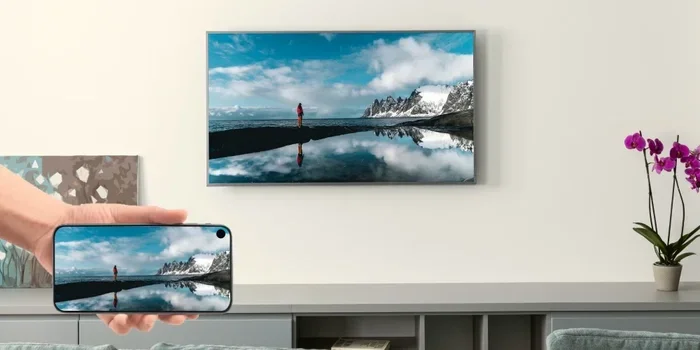
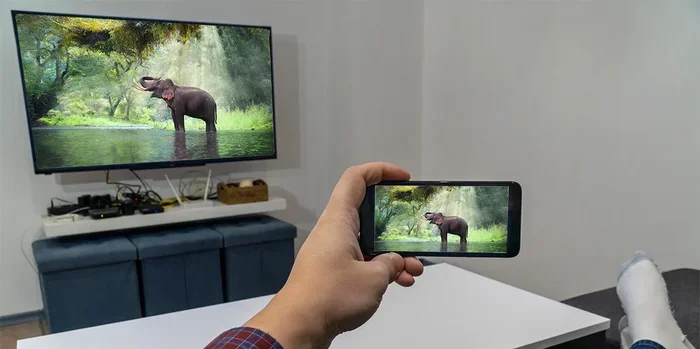
Streaming internet from your phone to your TV wirelessly is easier than you think. Whether you use Chromecast, AirPlay, or built-in smart TV features, you can cast movies, photos, and apps to a big screen in minutes. This guide covers every method so you can pick the one that works best for your setup.
Want to know how do I stream internet from my phone to my TV wirelessly? You are in the right place. This guide walks you through every method, from Chromecast to AirPlay and beyond. You will learn how to cast your favorite shows, photos, and apps to a big screen without any wires. Whether you use an iPhone or an Android phone, there is a simple way to get your content on the TV. Let us dive in and get you streaming in minutes.
Streaming from your phone to your TV has never been easier. Most people do not realize how few steps are involved. You do not need expensive equipment or technical skills. A wireless connection and a few minutes of setup is all it takes. By the end of this article, you will know exactly which method works best for your home.
Key Takeaways
- Multiple Methods Available: You can use Chromecast, AirPlay, smart TV built-in features, or streaming sticks to go wireless.
- No Extra Hardware Needed: Many modern smart TVs have casting built right in, so no extra device is required.
- Wi-Fi Quality Matters: A strong Wi-Fi Direct connection ensures smooth wireless streaming without lag.
- Both iPhone and Android Work: AirPlay works for Apple users, while Chromecast and other apps work for Android.
- Troubleshooting Is Simple: Most streaming lag or audio sync issues can be fixed with basic steps.
- Best Apps Make It Easy: Free and paid casting apps give you more control over what you share.
📑 Table of Contents
- Why Streaming From Your Phone To TV Wirelessly Is A Game Changer
- Top Methods To Stream Internet From Phone To TV Wirelessly
- Comparison Of Wireless Streaming Methods
- Step By Step Guide To Wireless Streaming
- Best Apps For Casting And Screen Mirroring
- Common Problems And How To Fix Them
- Expert Tips For The Best Wireless Streaming Experience
- Conclusion
Why Streaming From Your Phone To TV Wirelessly Is A Game Changer
Gone are the days of tangled cables and limited options. Wireless streaming lets you share anything from your phone to a bigger screen instantly. You can watch YouTube, show vacation photos, or even mirror your entire phone screen. The best part? You do not need to buy a new TV to do it.
The Freedom Of Going Wireless
Wireless streaming gives you total freedom. You are not stuck sitting near a cable or a specific port. You can control what plays right from your phone. This means you can pause, rewind, or change videos without getting up. It also means you can share content with friends and family easily. Screen mirroring makes your TV act like a giant phone screen.
What You Need Before You Start
Before you begin, make sure you have a few things ready. First, your phone and TV need to be on the same Wi-Fi network. This is the most important step. Second, check if your TV supports casting or screen mirroring. Most smart TVs made after 2017 have this built in. If not, you can use a device like Chromecast or Fire TV Stick. Finally, make sure your phone is updated to the latest software version.
Expert Insight: A strong Wi-Fi Direct connection is the backbone of smooth wireless streaming. If your router is old or far from the TV, consider upgrading to a mesh Wi-Fi system. This small change can make a huge difference in streaming quality.
Top Methods To Stream Internet From Phone To TV Wirelessly
There are several ways to get your phone content onto your TV screen. Each method has its own strengths. Let us look at the top options available right now.
Method 1: Using Google Chromecast
Chromecast is one of the most popular ways to stream wirelessly. It is a small device that plugs into your TV’s HDMI port. You control everything from your phone. Chromecast works with both Android and iPhone. You just open a supported app, tap the cast icon, and your content appears on the TV. It supports streaming protocols like DLNA and Miracast for broad compatibility.
One of the best things about Chromecast is its price. You can get a basic model for under 40 dollars. It also supports Google Home voice commands. This means you can say “Hey Google, cast this to the TV” and it works. The setup takes less than five minutes.
Method 2: Using Apple AirPlay
If you have an iPhone, AirPlay is your best friend. It lets you cast to TV wirelessly from any Apple device. You just swipe down from the top right of your screen and tap the AirPlay icon. Select your TV, and you are streaming. AirPlay works with Apple TV and many modern smart TVs from Samsung, LG, and Sony.
AirPlay also supports audio streaming. You can send music from your phone to compatible speakers. The quality is excellent and the connection is very stable. One thing to keep in mind: both your phone and TV need to be on the same Wi-Fi network for AirPlay to work.
Method 3: Using Built-In Smart TV Features
Many smart TVs today have casting built right in. You do not need any extra device. Samsung TVs use Smart View, LG TVs use Screen Share, and Sony TVs support Miracast. These features work just like Chromecast or AirPlay but come free with your TV.
To use these features, open your phone’s wireless display settings. Look for the cast or mirror option. Your TV should appear in the list of available devices. Tap on it, and your screen appears on the big display. This method works great for screen mirroring apps, games, and presentations.
Method 4: Using A Streaming Stick Or Box
Devices like the Roku Streaming Stick and Amazon Fire TV Stick are excellent for wireless streaming. They plug into your TV’s HDMI port and connect to your Wi-Fi network. Both devices support casting from your phone. The Fire TV Stick works best with Android phones, while Roku works well with both platforms.
These devices also give you access to hundreds of streaming apps. You get Netflix, Hulu, Disney Plus, and more all in one place. They are a great option if your TV is not a smart TV. The setup is simple and the streaming quality is top-notch.
Method 5: Using Wi-Fi Direct And Screen Mirroring
Wi-Fi Direct is a feature that lets devices connect without a router. Your phone connects directly to your TV. This is useful if you do not want to share your Wi-Fi password or if your router is far away. Many Android phones support Wi-Fi Direct screen mirroring natively.
To use Wi-Fi Direct, go to your phone’s display settings and look for wireless display or screen mirroring. Your TV should appear as an available device. This method is great for Bluetooth streaming alternatives and for situations where Wi-Fi is not available. Keep in mind that Wi-Fi Direct may have slightly lower streaming quality than a router-based connection.
Comparison Of Wireless Streaming Methods
| Method | Best For | Device Compatibility | Cost | Setup Difficulty |
|---|---|---|---|---|
| Chromecast | Android users and budget setups | Android, iPhone, Chrome browser | 30-50 USD | Easy |
| AirPlay | iPhone and Apple users | iPhone, iPad, Mac, Apple TV | Free (with Apple TV) | Very Easy |
| Smart TV Built-In | Users with modern smart TVs | Android, iPhone (varies by brand) | Free | Very Easy |
| Fire TV Stick | Amazon ecosystem users | Android, iPhone, Fire tablets | 25-60 USD | Easy |
| Wi-Fi Direct | No router access needed | Most Android phones | Free | Moderate |
| Roku | Users wanting many streaming apps | Android, iPhone, Roku app | 30-50 USD | Easy |
Step By Step Guide To Wireless Streaming
Now that you know the methods, let us walk through the setup process. Follow these steps and you will be streaming in no time.
Setting Up Chromecast
First, plug your Chromecast into the TV’s HDMI port. Connect the power cable and turn on the TV. Download the Google Home app on your phone. Follow the on-screen instructions to connect Chromecast to your Wi-Fi network. Once set up, open any supported app like YouTube or Netflix. Tap the cast icon (it looks like a small rectangle with Wi-Fi waves). Select your Chromecast device. Your content starts playing on the TV immediately.
Quick Tip: If your Chromecast does not show up, make sure both your phone and Chromecast are on the same Wi-Fi network. Restart your router if needed. Also, check that Google Home has location permissions enabled on your phone.
Setting Up AirPlay
For iPhone users, AirPlay setup is super simple. Make sure your iPhone and your TV (or Apple TV) are on the same Wi-Fi network. Open the Control Center by swiping down from the top right corner of your screen. Tap the Screen Mirroring button. It looks like two overlapping rectangles. Select your TV from the list. A code may appear on your TV screen. Enter that code on your iPhone to confirm the connection.
You are now mirroring your iPhone screen to the TV. You can open any app, photo, or video and it will appear on the big screen. To stop, go back to the Control Center and tap Stop Mirroring. It really is that easy.
Using Smart TV Apps
Most smart TVs come with a companion app for your phone. Samsung has the SmartThings app. LG uses LG ThinQ. Sony has Video & TV SideView. Download the app that matches your TV brand. Follow the setup instructions inside the app. Once connected, you can use your phone as a remote and access casting features directly.
These apps often include extra features like voice search and content recommendations. They make navigating your smart TV much easier than using the remote control alone. Many users find that the phone app is actually faster and more convenient than the TV remote.
Best Apps For Casting And Screen Mirroring
The right apps make wireless streaming much more enjoyable. Here are the best options for both Android and iPhone users.
Free Casting Apps You Should Try
- Google Home: The official app for Chromecast users. It lets you cast media, control volume, and manage your devices.
- AirPlay (Built-In): No download needed for iPhone users. It is already on your device and works seamlessly with supported TVs.
- Samsung SmartThings: Great for Samsung TV owners. It offers full screen mirroring and device control.
- AllConnect: This app supports DLNA and Miracast. It works with many different TV brands and streaming devices.
- LocalCast: A solid casting app for Android users. It supports many file formats and connects to Chromecast easily.
Premium Streaming Apps Worth The Investment
- Netflix: Offers HD and 4K streaming with great audio sync. Works perfectly with all casting methods.
- Disney Plus: Supports wireless streaming in 4K HDR. The cast icon is easy to find in the app.
- YouTube Premium: Allows background play and offline downloads. Casting to TV is smooth and reliable.
- Plex: Lets you stream your own media library to your TV. Great for people with large collections of movies and music.
Common Mistake: Many people try to cast a video using a browser on their phone. This often causes streaming lag and poor quality. Always use the native app for the service you want to watch. The native app has built-in casting support that browsers do not have.
Common Problems And How To Fix Them
Even with the best setup, you might run into issues. Here are the most common problems and their solutions.
Fixing Streaming Lag And Delay
Streaming lag is frustrating but usually easy to fix. First, check your Wi-Fi signal strength. If your router is far from the TV, move it closer or add a Wi-Fi extender. Second, reduce the number of devices using your network. Too many devices can slow down your wireless streaming. Third, lower the streaming quality in the app settings. Switching from 4K to 1080p can reduce lag significantly.
If you are using screen mirroring, the lag might be higher than with native casting. This is normal because mirroring sends the entire screen rather than just the video stream. For the best experience, use the cast icon within apps instead of full screen mirroring when possible.
Solving Audio Sync Issues
When the audio and video are out of sync, it ruins the viewing experience. This is a common issue with wireless streaming. The most common cause is a slow or unstable Wi-Fi connection. Try restarting your router and your streaming device. This often fixes audio sync problems immediately.
Another fix is to adjust the audio delay settings in your TV. Most smart TVs have an audio delay or lip sync option in the settings menu. Increase or decrease the delay until the audio matches the video. If you are using Bluetooth streaming for audio, try switching to Wi-Fi based audio output instead. Bluetooth has more latency than Wi-Fi streaming.
Expert Insight: Audio sync issues are more common with older TVs and streaming devices. If you have an older smart TV, consider using a dedicated streaming stick like Chromecast or Fire TV Stick. These devices have better processors and handle streaming protocols more efficiently than built-in TV hardware.
When Your Phone Won’t Connect To The TV
This is one of the most common complaints. If your phone does not find your TV, start by checking the basics. Make sure both devices are on the same Wi-Fi network. This sounds obvious but it is the cause of most connection problems. Restart both your phone and your TV. Sometimes a simple reboot fixes everything.
If you are still having trouble, check your TV’s screen mirroring or casting settings. Make sure the feature is turned on. On some TVs, you need to enable Wi-Fi Direct in the network settings. Also, make sure your phone’s software is up to date. Older phone software may not support newer streaming protocols. If none of these work, try forgetting the Wi-Fi network on both devices and reconnecting from scratch.
Expert Tips For The Best Wireless Streaming Experience
Follow these tips to get the most out of your wireless streaming setup. These are practical steps that make a real difference.
Optimize Your Wi-Fi For Streaming
Your Wi-Fi network is the foundation of good wireless streaming. Place your router in a central location in your home. Keep it away from walls, microwaves, and other electronics that can cause interference. If you have a dual-band router, connect your streaming devices to the 5 GHz band. It is faster and less crowded than the 2.4 GHz band.
Consider using Wi-Fi Quality of Service (QoS) settings on your router. This prioritizes streaming traffic over other internet activities. The result is smoother playback and less streaming lag. If you have a large home, a mesh Wi-Fi system can eliminate dead zones and ensure strong signal everywhere.
Keep Your Devices Updated
Software updates often include improvements for wireless streaming and screen mirroring. Keep your phone, TV, and any streaming devices updated to the latest firmware. Updates fix bugs, improve audio sync, and boost streaming quality. They also add support for new streaming protocols and features.
On Android phones, go to Settings and then System Updates. On iPhones, go to Settings and then General and then Software Update. For your TV and streaming devices, check the settings menu for firmware updates. Making this a habit every few weeks keeps everything running smoothly.
Quick Tips For Better Quality
- Use the cast icon inside apps instead of full screen mirroring for better streaming quality.
- Close background apps on your phone before streaming. This frees up memory and processing power.
- Restart your devices once a week. This clears cache and prevents connection issues.
- Use an ethernet connection for your TV if possible. It provides a more stable connection than Wi-Fi alone.
- Keep your phone charged or plugged in while streaming. Screen mirroring uses a lot of battery.
- Adjust your TV’s picture settings for the best viewing experience. Brightness and contrast settings affect how streaming content looks.
Conclusion
Streaming internet from your phone to your TV wirelessly is a simple and rewarding experience. You have many options to choose from. Chromecast is great for Android users and budget setups. AirPlay is perfect for iPhone users who want a seamless experience. Built-in smart TV features are free and convenient. Streaming sticks like Fire TV and Roku add extra features to any TV.
The key is to pick the method that fits your devices and your needs. Follow the setup steps in this guide and you will be watching your favorite content on the big screen in no time. Remember to keep your Wi-Fi strong and your devices updated for the best wireless streaming experience. Now that you know how easy it is, go ahead and give it a try tonight. You will wonder why you did not do it sooner.
Frequently Asked Questions
Can I stream internet from my phone to my TV without Wi-Fi?
Yes, you can use Wi-Fi Direct or a mobile hotspot to stream without a traditional Wi-Fi network. Some devices also support Bluetooth streaming for audio. However, Wi-Fi Direct or a hotspot will give you the best results for video streaming.
Is screen mirroring the same as casting?
Not exactly. Screen mirroring duplicates your entire phone screen on the TV. Casting sends specific content from an app to the TV while you can still use your phone for other things. Casting usually gives better streaming quality and less streaming lag than full screen mirroring.
Why is my wireless streaming lagging on the TV?
Streaming lag is usually caused by a weak Wi-Fi signal or too many devices on the network. Try moving your router closer to the TV, switching to the 5 GHz band, or reducing the number of connected devices. Lowering the streaming quality in the app can also help.
Do I need a smart TV to stream from my phone wirelessly?
No, you do not need a smart TV. You can use a Chromecast, Fire TV Stick, or Roku device to add wireless streaming to any TV with an HDMI port. These devices are affordable and easy to set up.
Can I stream from my phone to multiple TVs at once?
Yes, Chromecast supports multi-room streaming where you can send content to multiple Chromecast devices at the same time. AirPlay also allows you to stream to multiple Apple TV devices. However, each TV will play the same content in sync.
What is the best streaming method for gaming on TV?
For gaming, Chromecast with Google Home or a Steam Link device works best. These support low-latency wireless streaming for games. Avoid full screen mirroring for games as it tends to have more input lag. A wired HDMI adapter is the best option if you need zero lag.