How Do I Use Subtotals And Totals In An Excel Spreadsheet
Using subtotals and totals in an Excel spreadsheet is one of the most essential skills for anyone working with data. Whether you are tracking expenses, analyzing sales, or organizing research, these tools help you summarize information fast and accurately. This guide walks you through every method step by step, from basic SUM formulas to advanced grouped subtotals. You will also pick up practical tips, common mistakes to avoid, and expert insights that save real time.
Excel is one of the most powerful tools you can use for data analysis and spreadsheet management. Whether you are a student, a small business owner, or someone just trying to keep track of monthly bills, knowing how to use subtotals and totals changes everything. These features let you break big chunks of numbers into smaller, meaningful groups and then roll them up into one clear summary. In this guide, you will learn every practical method for adding subtotals and totals in your Excel spreadsheet, from basic formulas to built-in tools that do the heavy lifting for you.
Excel spreadsheets are everywhere. They are used in offices, classrooms, hospitals, and homes around the world. In fact, computers play a huge role in medicine and healthcare data tracking, and Excel is a big part of that. You can read more about how computers are used in medicine to see the broader picture of digital tools in action. But no matter what field you are in, mastering subtotals and totals in Excel is a skill that pays off immediately.
Key Takeaways
- Quick Subtotals: Use the Subtotal tool under the Data tab to automatically group and summarize your data in seconds.
- SUM Formulas: The basic SUM function is your go-to for simple totals across rows or columns.
- Grand Totals Matter: Always add a grand total row to give your spreadsheet a complete, professional finish.
- Avoid Common Errors: Watch out for hidden rows, merged cells, and blank rows that break your calculations.
- Keyboard Shortcuts Save Time: Alt + = lets you auto-insert SUM formulas instantly.
- Expand Your Skills: Combine subtotals with sorting and filtering for powerful data analysis workflows.
📑 Table of Contents
- What Are Subtotals and Totals in Excel?
- How to Add a Simple Total Using the SUM Function
- How to Add Subtotals Using the Built-In Subtotal Tool
- How to Add Subtotals Manually with Formulas
- Adding a Grand Total Row
- Common Mistakes to Avoid When Using Subtotals and Totals
- Real-World Examples of Using Subtotals and Totals
- Expert Tips for Mastering Subtotals and Totals
- How Subtotals and Totals Work with Filtering and Sorting
- Key Takeaways
- Conclusion
What Are Subtotals and Totals in Excel?
Before you dive into the how, let us clear up the what. A total is the sum of all the numbers in a range. A subtotal is the sum of a specific group within that range. Think of it like this: your total is the full bill at a restaurant, and the subtotals are the cost of appetizers, mains, and drinks separately. Both matter, but they serve different purposes.
In Excel, you can calculate totals using simple formulas, and you can create subtotals manually or with the built-in Subtotal feature. The built-in tool is especially powerful because it automatically groups your data and inserts calculations at each change point.
Why Subtotals and Totals Are Important
Here is why these features matter so much in everyday work:
- Clarity: Subtotals break large datasets into readable sections.
- Accuracy: Built-in tools reduce the risk of manual calculation errors.
- Speed: You can summarize thousands of rows in seconds.
- Professional Look: A well-organized spreadsheet with clear totals looks polished and trustworthy.
- Decision Making: Quick summaries help you spot trends and make better choices fast.
How to Add a Simple Total Using the SUM Function
The SUM function is the foundation of every total calculation in Excel. It adds up all the numbers you point it to. Here is how to use it step by step.
Step-by-Step: Using SUM for Row Totals
- Click the cell where you want the total to appear.
- Type =SUM( and then select the cells you want to add.
- Close the parenthesis with ) and press Enter.
- Your total will appear instantly.
For example, if cells A1 through A10 contain numbers, type =SUM(A1:A10) in cell A11. That is it. You now have a total.
Step-by-Step: Using SUM for Column Totals
The process works the same way for columns. If your data runs vertically, point the SUM function to the entire column range. You can also use the AutoSum button on the Home tab. Just click the cell at the bottom of your column and hit AutoSum. Excel guesses the range and inserts the formula for you.
Quick Tip: The Alt + = Shortcut
Press Alt and = together on your keyboard, and Excel will instantly insert a SUM formula for the column or row above or to the left of your active cell. This is one of the fastest shortcuts in all of Excel.
How to Add Subtotals Using the Built-In Subtotal Tool
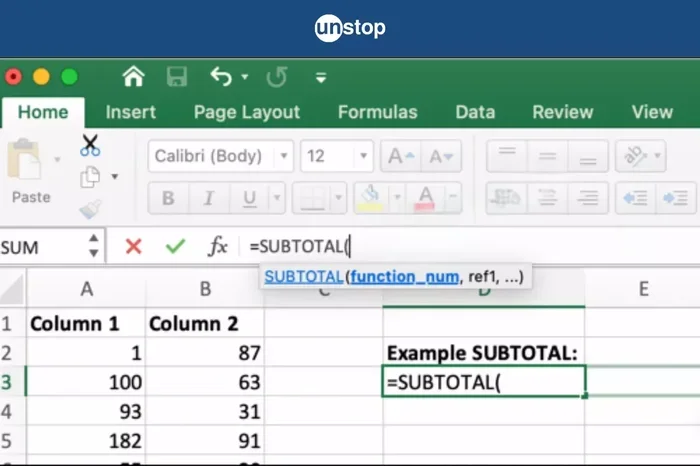
The built-in Subtotal tool is a game changer. It automatically creates grouped subtotals and a grand total for you. This tool works best when your data is sorted by a category.
Step-by-Step: Creating Subtotals with the Subtotal Feature
- Sort your data first. Click on any cell in the column you want to group by, then go to Data > Sort. This is essential because the Subtotal tool groups consecutive matching items.
- Select any cell inside your data range.
- Go to the Data tab on the ribbon.
- Click Subtotal in the Outline group.
- In the dialog box, choose the column to group by from the first dropdown.
- Choose Sum (or another function like Count or Average) from the second dropdown.
- Check the boxes for the columns you want subtotals in.
- Check or uncheck the “Replace current subtotals” box based on your needs.
- Click OK. Excel adds subtotals and a grand total automatically.
Once the subtotals are in place, you will see small numbered buttons on the left side of your spreadsheet. These let you expand or collapse groups, making it easy to focus on specific sections of your data.
Understanding the Outline Symbols
Excel adds outline symbols when you use the Subtotal tool. You will see three levels of buttons:
- Level 1: Shows only the grand total.
- Level 2: Shows each subtotal group.
- Level 3: Shows every individual row along with subtotals.
Clicking these buttons lets you switch between views instantly. This is incredibly useful when you are presenting data to others or when you just need a quick glance at the big picture.
How to Add Subtotals Manually with Formulas
Sometimes you do not want Excel to group your data automatically. Maybe you want full control over where each subtotal appears. In that case, manual subtotals with formulas are the way to go.
Using SUM for Manual Subtotals
To create a manual subtotal, simply use the SUM function for a specific range within your dataset. For example:
- =SUM(B2:B15) gives you a subtotal for rows 2 through 15.
- =SUM(B16:B30) gives you the next subtotal.
This method gives you complete flexibility. You decide exactly where each subtotal goes and which rows it covers.
Using the AGGREGATE Function for Smarter Subtotals
The AGGREGATE function is a hidden gem in Excel. It works like SUM but ignores hidden rows and error values. This makes it perfect for filtered lists where you only want to total visible cells.
Here is a simple example:
- =AGGREGATE(9, 5, B2:B100) sums only the visible cells in the range B2 to B100.
The number 9 tells Excel to use SUM, and the number 5 tells it to ignore hidden rows. This is a powerful trick that many people do not know about.
Adding a Grand Total Row
A grand total is the sum of all your subtotals or the sum of your entire dataset. It gives your spreadsheet a clean, complete ending. Here is how to add one.
Method 1: Simple SUM Below All Subtotals
Place your cursor in the cell directly below your last subtotal row. Type =SUM(, select all the subtotal cells, close the parenthesis, and press Enter. This gives you a grand total that updates automatically when your data changes.
Method 2: Using the Subtotal Tool’s Built-In Grand Total
When you use the built-in Subtotal tool from the Data tab, Excel automatically adds a grand total at the bottom of your list. You do not need to do anything extra. Just make sure you check the “Add grand total to” box in the Subtotal dialog.
Method 3: Using the TOTAL Row in Tables
If you format your data as an Excel Table (press Ctrl + T), you get a built-in Total Row option. Just check the Total Row box under the Table Design tab, and Excel adds a totals row at the bottom. You can click any cell in that row and choose Sum, Average, Count, or other functions.
| Method | Best For | Auto-Updates? | Difficulty |
|---|---|---|---|
| Manual SUM Formula | Small, simple datasets | Yes | Easy |
| Built-In Subtotal Tool | Grouped, categorized data | Yes | Medium |
| AGGREGATE Function | Filtered or hidden rows | Yes | Medium |
| Excel Table Total Row | Dynamic, growing datasets | Yes | Easy |
Common Mistakes to Avoid When Using Subtotals and Totals
Even experienced Excel users make mistakes with subtotals and totals. Here are the most common ones and how to fix them.
Mistake 1: Forgetting to Sort Data Before Using the Subtotal Tool
The Subtotal tool groups consecutive matching items. If your data is not sorted, you will get subtotals scattered everywhere. Always sort your grouping column first.
Mistake 2: Leaving Blank Rows in Your Data
Blank rows break the grouping logic. Excel treats them as section breaks, which can create incorrect subtotals. Remove blank rows before applying the Subtotal feature.
Mistake 3: Including Subtotal Rows in Your Next Calculation
This is a sneaky error. If you use SUM on a range that already contains subtotal rows, you double-count those values. Always point your formulas to the raw data, not the rows with subtotals already in them.
Mistake 4: Merging Cells in Your Data Range
Merged cells cause all kinds of problems in Excel. They break sorting, filtering, and formula references. Keep your data in unmerged, clean cells at all times.
Mistake 5: Ignoring Hidden Rows
If you hide rows and then use a regular SUM formula, the hidden values still get included. Use the AGGREGATE function or the Subtotal function (not SUM) to ignore hidden rows.
Real-World Examples of Using Subtotals and Totals
Let us look at a few practical scenarios where subtotals and totals make your life easier. Excel is used across many industries for financial tracking, and these examples show how versatile it really is.
Example 1: Monthly Expense Tracking
Imagine you have a spreadsheet of daily expenses for the year. You want to see how much you spent each month and the yearly total. Sort your data by month, use the Subtotal tool with the Sum function, and Excel gives you monthly subtotals plus a grand total at the bottom. Done in under a minute.
Example 2: Sales Report by Region
If you sell products in different regions, sort your sales data by region. Apply the Subtotal tool, and you instantly see each region’s total sales. The grand total shows your overall performance. This kind of business analytics is incredibly valuable for managers and team leads.
Example 3: Student Grade Calculation
Teachers often use Excel to track grades. You can add subtotals for each assignment category (homework, quizzes, exams) and a grand total for the final grade. This keeps everything organized and easy to read.
In fields like healthcare and medicine, professionals use similar techniques for tracking patient data and research results. Computers play a vital role in these workflows, and Excel is often at the center of it. To learn more about the broader use of computers in healthcare settings, check out this article on 10 ways computers are used in medicine.
Expert Tips for Mastering Subtotals and Totals
Here are some pro tips that take your Excel skills to the next level.
- Use Keyboard Shortcuts: Press Alt + Shift + Right Arrow to group selected rows or columns instantly. Press Alt + Shift + Left Arrow to ungroup them.
- Combine with Conditional Formatting: Highlight your subtotal rows with bold text or a different background color. This makes them stand out visually.
- Use Named Ranges: Instead of typing cell references like A1:A100, name your ranges. Your formulas become much easier to read and understand.
- Save Time with Templates: Create a template with your favorite subtotal and total setups. Reuse it every time you start a new project.
- Double-Check with Status Bar: Select any range of cells, and look at the Excel Status Bar at the bottom. It shows you the Sum, Average, and Count instantly.
These small habits add up over time. They make you faster, more accurate, and more confident in your spreadsheet management skills.
How Subtotals and Totals Work with Filtering and Sorting
One of the most powerful aspects of using subtotals and totals is how they interact with filtering and sorting. When you filter your data, the subtotals update to reflect only the visible rows. This means you can focus on specific categories without recalculating anything manually.
Here is how to get the most out of this feature:
- Apply your subtotals using the built-in Subtotal tool.
- Add filters to your column headers.
- Select a filter value to show only one category.
- Watch the subtotals adjust automatically.
This dynamic behavior is what makes Excel so powerful for data analysis. You are not stuck with static numbers. Your totals respond to your actions in real time.
If you are interested in how computers help organize and analyze data across different sectors, including the medical field, you might enjoy reading about the many ways computers are used in medicine. It is a great reminder of how digital tools shape our world.
Key Takeaways
- The SUM function is your simplest tool for calculating totals across any range of cells.
- The built-in Subtotal tool under the Data tab automatically groups data and inserts subtotals with a grand total.
- Manual subtotals with SUM or AGGREGATE formulas give you full control over where calculations appear.
- Always sort your data before using the Subtotal tool to avoid incorrect groupings.
- Avoid common mistakes like including subtotal rows in new calculations or leaving blank rows in your data.
- Use Excel Tables with Total Rows for dynamic datasets that grow over time.
- Combine subtotals with filtering and sorting for interactive, real-time data exploration.
Conclusion
Mastering subtotals and totals in your Excel spreadsheet is one of the best investments you can make in your data skills. These tools turn raw numbers into clear, actionable insights. Whether you use the simple SUM function, the built-in Subtotal feature, or advanced formulas like AGGREGATE, each method has its place in your toolkit.
Start with the basics. Practice sorting your data and applying the Subtotal tool. Then gradually explore manual formulas and dynamic table features. Over time, you will find yourself working faster and with greater confidence. The key is consistent practice and a willingness to experiment with different approaches.
Excel is a tool that grows with you. The more you use it, the more powerful it becomes. And remember, these skills apply across every field, from finance and marketing to healthcare and research. Computers make data analysis possible at scale, and Excel is at the heart of it all.
Now go open your spreadsheet, pick a dataset, and try these techniques today. You will be amazed at how quickly you can turn a messy list of numbers into a clean, professional summary.
Frequently Asked Questions
Can I use subtotals and totals together in the same Excel spreadsheet?
Yes, absolutely. You can add manual subtotals for specific groups and then place a grand total at the bottom of your sheet. Just make sure your grand total formula does not include the subtotal rows themselves, or you will double-count your numbers.
What is the difference between the SUM function and the Subtotal tool?
The SUM function simply adds up a range of cells. The Subtotal tool goes further by grouping your data, inserting subtotals at each group change, and adding a grand total automatically. The Subtotal tool also works with filtered data to show only visible rows.
How do I remove subtotals I no longer need?
Go to the Data tab, click Subtotal, and then click the Remove All button. This clears all subtotals and outline groups from your spreadsheet. Your original data stays intact.
Can I use functions other than Sum for subtotals?
Yes. The Subtotal tool lets you choose from functions like Count, Average, Max, Min, and Product. The AGGREGATE function also supports many of these options and gives you more control over how hidden rows and errors are handled.
Why are my subtotals showing the wrong numbers?
The most common reason is that your data is not sorted by the grouping column. The Subtotal tool only groups consecutive matching items. Sort your data first, then apply subtotals. Also check for blank rows or merged cells that can break the grouping logic.
Do subtotals update automatically when I change my data?
Yes. Both the built-in Subtotal tool and manual SUM formulas update automatically when you change values in your source data. If you are using Excel Tables with a Total Row, the totals also update in real time as you add or remove rows.