Can You Use Teamviewer Without Downloading Software
Yes, you can use Teamviewer without downloading software. The web-based version lets you access remote desktops directly from your browser, making remote desktop access quick and easy. Whether you need remote support for a friend or want cloud-based remote connectivity, Teamviewer offers browser options that work without installation.
Have you ever needed to help someone fix a computer problem but did not want to deal with installing software? Maybe you are at work and need to access your home PC. Or perhaps a friend is asking for tech help and you want to jump in fast. The question can you use Teamviewer without downloading comes up a lot, and the answer might surprise you.
Teamviewer is one of the most popular remote desktop access tools in the world. People use it every day for remote support, screen sharing, and controlling computers from far away. But the full desktop app requires a download and installation. So what happens when you do not want to install anything? Can you still get that remote connectivity you need? The short answer is yes. You can use Teamviewer through your web browser in many cases. In this guide, we will walk you through exactly how this works, what you can and cannot do, and when it makes sense to skip the download.
Whether you are a casual user who just needs quick help or someone exploring cloud-based remote access options, this article covers everything you need to know. We will look at the browser-based tools, the limitations you should understand, and some practical tips that make remote desktop without installation actually work well. Let us dive in.
Key Takeaways
- Browser-based access is real: Teamviewer offers a web client that lets you connect to remote PCs without installing anything.
- Quick Support is your best friend: The Teamviewer Quick Support web tool provides instant remote session capabilities from any browser.
- Limitations exist: Without the full desktop app, you lose some advanced features like unattended access and file transfer.
- Security still matters: Even the web version requires strong passwords and proper authentication to keep your remote connectivity safe.
- Alternatives are available: Several other remote control software options offer browser-based access similar to Teamviewer.
📑 Table of Contents
- What Is Teamviewer and Why Do People Use It?
- Can You Use Teamviewer Without Downloading Software?
- How to Access Teamviewer Through Your Browser
- Limitations of Using Teamviewer Without Downloading
- When Should You Download Teamviewer Instead?
- Comparing Browser-Based vs Desktop Teamviewer
- Security Considerations for Browser-Based Remote Access
- Alternatives to Teamviewer for Browser-Based Remote Access
- Final Thoughts
What Is Teamviewer and Why Do People Use It?
Teamviewer is a remote control software that lets you see and control another computer from anywhere in the world. It works over the internet, so you do not need cables or special hardware. People use it for all kinds of things. IT professionals use it to fix computers remotely. Businesses use it to manage multiple machines. Families use it to help parents or grandparents with tech problems.
The software creates a secure connection between two devices. One device acts as the host, and the other acts as the viewer. You need an ID and a password to connect. Once connected, you can see the host screen on your device and control it just like you were sitting in front of it. It is powerful, simple, and widely trusted.
How Teamviewer Normally Works
In its standard form, Teamviewer requires you to download and install the application. Here is how the typical setup goes:
- You visit the Teamviewer website and download the installer.
- You run the installer and follow the setup prompts.
- You launch the app and get your unique ID and password.
- You share those details with the person you want to connect to.
- You establish a remote session and take control.
This process works great for most people. But it has one big downside. You need admin rights on the computer to install software. If you are helping someone who does not know how to install programs, or if you are using a locked-down work computer, this can be a real problem. That is where the question of using Teamviewer without downloading becomes very important.
Can You Use Teamviewer Without Downloading Software?
The answer depends on what you want to do. Teamviewer offers a few options that do not require a full download. Let us break them down so you can decide which approach works for your situation.
Teamviewer Quick Support (Browser-Based)
Teamviewer Quick Support is a web-based tool that lets you start a remote support session without installing the full Teamviewer application. You simply go to the Teamviewer Quick Support website, and a small web launcher opens in your browser. This launcher connects you to the remote computer without needing a full installation.
Here is how it works in practice:
- You open your web browser and go to the Teamviewer Quick Support page.
- The tool generates a session ID for you.
- You share that ID with the person who needs help.
- They open the same link, and a lightweight module runs in their browser.
- You connect and start troubleshooting.
This is perfect for quick fixes. If you need to help someone reset a password, check a setting, or remove a suspicious file, the Quick Support tool handles it well. It is one of the easiest ways to get remote desktop without installation.
Teamviewer Web Client
Teamviewer also has a web client that provides limited browser-based remote access. This is different from Quick Support. The web client lets you manage your Teamviewer account, view your device list, and in some cases initiate connections. However, the web client is more about management than full control. It is a useful tool if you want to check on your devices or send connection requests without having the desktop app running.
The web client works in all major browsers including Chrome, Firefox, Edge, and Safari. You just log in to your Teamviewer account and access your dashboard. From there, you can see which devices are online and send connection requests. It is a convenient option for people who want cloud-based remote connectivity without cluttering their computer with extra software.
Using Teamviewer Portable Mode
Some users ask about running Teamviewer from a USB drive. This is sometimes called a portable version. While Teamviewer does not officially offer a portable installer on its website, some third-party sources provide portable builds. These versions run without installation and leave no traces on the host computer. However, using unofficial portable versions comes with security risks. We do not recommend this approach unless you trust the source completely.
Instead, stick with the official web-based tools. They are safer, more reliable, and designed specifically for remote access without downloading.
How to Access Teamviewer Through Your Browser
Getting started with browser-based Teamviewer is simple. Follow these steps to start your remote desktop access without installing anything.
Step-by-Step Guide
- Open your browser. Use Chrome, Firefox, Edge, or Safari. Make sure it is up to date.
- Go to the Teamviewer website. Navigate to the official Teamviewer Quick Support page.
- Allow the browser to run the module. You may see a prompt asking for permission to run a small application. Click allow.
- Note your session ID. The page will display a unique ID. Share this with the person you want to connect to.
- Enter the partner ID. If you are the one receiving help, enter the ID provided by the helper.
- Grant access. Approve the connection request on your screen.
- Start your session. The helper can now see and control your desktop.
That is it. No downloads, no installations, no admin rights needed. The entire process happens inside your browser. It is one of the simplest ways to get remote support up and running fast.
What You Need for Browser-Based Access
Browser-based Teamviewer works on most modern devices. Here is what you need:
- A computer or device with a working web browser
- A stable internet connection
- JavaScript enabled in your browser
- A Teamviewer account (optional for Quick Support)
- Allowance to run the browser module when prompted
As long as you have these basics covered, you should be able to connect without any issues. The experience is smooth on both Windows and Mac computers. Mobile browsers also support Teamviewer Quick Support, though the experience is better on a desktop or laptop.
For comparison, think about how you might play your Xbox on your laptop remotely. Similar principles apply. You are using one device to access and control another device over a network. The key difference is that Teamviewer handles the connection security and screen transmission for you, making the process much simpler than setting up a manual remote connection.
Limitations of Using Teamviewer Without Downloading
Browser-based Teamviewer is convenient, but it is not perfect. There are some important limitations you should know about before you rely on it for critical tasks.
No Unattended Access
The biggest limitation is that you cannot set up unattended access through the browser. Unattended access means you can connect to a computer even when no one is sitting in front of it. This is useful for IT admins who need to manage servers or for people who want to access their home PC while traveling. Without the full desktop app, you can only connect when someone is present to approve the session.
Limited File Transfer
Browser-based sessions offer limited file transfer capabilities. If you need to send large files back and forth during a support session, the web version may not handle it as smoothly as the desktop app. For quick screenshots or small documents, it works fine. But for anything more involved, you might need the full installation.
Reduced Performance for Heavy Tasks
The browser module is lightweight by design. This means it handles basic screen sharing and control well. But if you need to run resource-heavy tasks remotely, like video editing or gaming, the browser version will struggle. The desktop app provides better performance and lower latency for demanding use cases.
No Customization Options
With the full Teamviewer desktop app, you can customize settings like quality, color depth, and connection speed. The browser version uses default settings. You cannot tweak these to optimize for slow connections or specific needs.
Session Time Limits
Some browser-based sessions may have time limits depending on your Teamviewer license. Free accounts often have restrictions on session duration. The desktop app does not have these limits for personal use. If you need long, uninterrupted remote sessions, the desktop app is the better choice.
When Should You Download Teamviewer Instead?
Browser-based Teamviewer works great for quick tasks. But there are times when downloading the full app makes more sense. Here is when you should go ahead and install it.
You Need Unattended Access
If you want to connect to your own computer when no one is around, you need the desktop app. Set up unattended access once, and you can connect anytime from anywhere. This is incredibly useful for people who work from home and need to access their office PC.
You Do Regular IT Support
If you provide remote support to multiple people regularly, the desktop app saves you time. You can manage connections, save contacts, and set up quick access without going through the browser each time.
You Need Full File Transfer
For transferring large files, the desktop app handles it much better. You can drag and drop files during a session, which is much faster than using browser-based transfer options.
You Want Better Performance
If you are doing anything that requires smooth, responsive control, the desktop app wins. The browser version adds a small amount of lag. For most support tasks, this is not noticeable. But for tasks that need real-time interaction, the desktop app is the way to go.
Some users also explore other connectivity options. For example, you might consider how hooking up an iPad to a TV using USB works as a simple device connection method. Similarly, understanding how different connectivity tools work helps you choose the right remote access solution for your needs.
Comparing Browser-Based vs Desktop Teamviewer
Let us look at a quick comparison to help you decide which option fits your needs best.
| Feature | Browser-Based | Desktop App |
|---|---|---|
| Installation Required | No | Yes |
| Unattended Access | No | Yes |
| File Transfer | Limited | Full |
| Performance | Good for basic tasks | Excellent |
| Setup Time | Under 1 minute | 5-10 minutes |
| Customization | Minimal | Full settings |
| Works on Locked Computers | Yes (with help) | No (needs install) |
| Session Duration | May be limited | Unlimited |
As you can see, both options have their place. The browser version is perfect for quick, one-time help. The desktop app is better for ongoing, regular use. Choose based on what you need most often.
Quick Tips for Better Browser-Based Sessions
Want to get the most out of browser-based Teamviewer? Follow these quick tips:
- Use a wired internet connection when possible for the most stable experience.
- Close unnecessary browser tabs to free up memory and processing power.
- Make sure both computers have updated browsers for the best compatibility.
- Use a strong, unique password for every session to keep your remote connectivity secure.
- Restart your browser before starting a session to clear any cached data.
- Keep the screen resolution moderate on the host computer for smoother display.
Security Considerations for Browser-Based Remote Access
Security is critical when you are accessing computers remotely. Even though you are not installing software, you are still opening a connection that could be exploited if you are not careful. Here are some essential security tips.
Always Use Strong Passwords
Never use simple passwords for your Teamviewer sessions. A strong password should include uppercase and lowercase letters, numbers, and symbols. Change your passwords regularly, especially if you use Teamviewer for business purposes.
Verify the Person You Are Connecting To
Make sure you trust the person who is connecting to your computer. Scammers sometimes use remote access tools to trick people into giving them access. Only approve sessions from people you know and trust.
Keep Your Browser Updated
Browser updates often include security patches. Using an outdated browser can expose you to vulnerabilities. Always keep your browser up to date for the safest remote desktop without installation experience.
End Sessions When Done
Always end your Teamviewer session when you are finished. Do not leave connections open. This prevents unauthorized access and keeps your computer safe.
Use Two-Factor Authentication
If your Teamviewer account supports two-factor authentication, enable it. This adds an extra layer of security beyond just a password. It is a simple step that makes a big difference in protecting your remote session.
Alternatives to Teamviewer for Browser-Based Remote Access
Teamviewer is great, but it is not the only option. Several other tools offer browser-based remote access without requiring downloads. Here are some popular alternatives worth considering.
Chrome Remote Desktop
Chrome Remote Desktop is a free tool from Google that works entirely through the Chrome browser. It lets you access any computer from another device using a simple web interface. Setup takes just a few minutes, and no extra software is needed beyond the Chrome browser.
AnyDesk Web
AnyDesk offers a web-based version that works similarly to Teamviewer Quick Support. It provides fast, low-latency remote desktop access through your browser. The interface is clean and easy to use, making it a solid alternative for quick support sessions.
Microsoft Remote Desktop (Web)
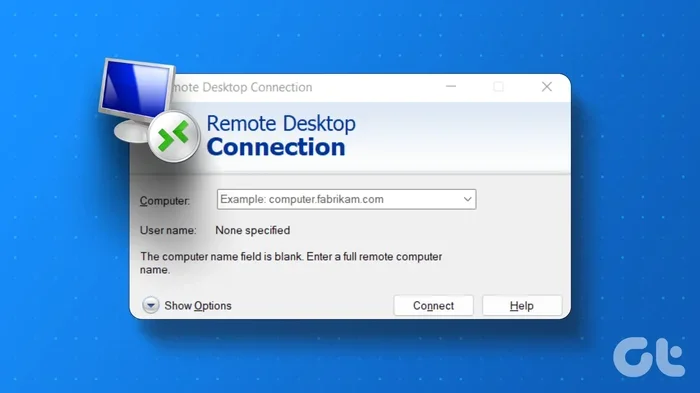
Microsoft offers a web-based version of its Remote Desktop service. This is especially useful for Windows users who want cloud-based remote connectivity without installing additional software. It works well for accessing Windows PCs remotely through a browser.
Zoom or Teams for Screen Sharing
While not full remote control tools, Zoom and Microsoft Teams offer screen sharing and remote assistance features. These can be useful for guiding someone through steps on their computer without needing full control. They work in any browser and require no downloads for basic use.
Each of these alternatives has its strengths. Teamviewer remains one of the most polished options for remote control software, but exploring alternatives helps you find the right fit for your specific needs. Think of it like choosing between different devices. Just as you might compare options for using a USB Bluetooth dongle on your TV to find the best connectivity solution, comparing remote access tools helps you pick the one that works best for you.
Final Thoughts
So, can you use Teamviewer without downloading? Absolutely. The web-based tools like Teamviewer Quick Support and the Teamviewer web client give you real remote desktop access right from your browser. You can help friends, troubleshoot problems, and even manage your devices without ever touching an installer.
That said, the browser version has limits. You will not get unattended access, full file transfer, or the same performance as the desktop app. For quick, one-time help, it is perfect. For regular, ongoing use, the desktop app is still the better choice.
The beauty of modern remote connectivity is that you have options. You do not need to install anything if you do not want to. You can get help or offer help in minutes, right from your browser. This makes remote support more accessible than ever before, and that is a great thing for everyone.
Next time you need to help someone with a computer problem or access your own PC from somewhere else, remember that you can do it without downloading anything. Open your browser, head to Teamviewer, and get connected. It is fast, easy, and works without any hassle.
Frequently Asked Questions
Can I use Teamviewer without downloading on a phone or tablet?
Yes, you can use Teamviewer Quick Support on mobile browsers. Simply visit the Teamviewer Quick Support page on your phone or tablet, and the web module will run without installing any app. The experience works best on larger screens, but it is fully functional on mobile devices for quick support sessions.
Is browser-based Teamviewer safe to use?
Yes, browser-based Teamviewer is safe when used correctly. The connection is encrypted, and you control who can access your computer. Always verify the identity of the person you are connecting with, use strong passwords, and end sessions when you are done to keep your remote session secure.
Can I use Teamviewer without downloading on a work computer?
In most cases, yes. Browser-based Teamviewer does not require admin rights or installation permissions. This makes it ideal for work computers where software installation is restricted. You can access remote desktop without installation as long as your browser allows running the Teamviewer module.
Does using Teamviewer in the browser require an account?
For Quick Support sessions, you do not need a Teamviewer account. You can start a session immediately. However, having a free Teamviewer account gives you access to the web client, which lets you manage devices and view connection history. For occasional use, no account is needed.
What browsers work best with Teamviewer web tools?
Google Chrome, Mozilla Firefox, Microsoft Edge, and Safari all work well with Teamviewer web tools. Make sure your browser is updated to the latest version for the best compatibility and security. Avoid using outdated browsers, as they may not support the web module properly.
Can I get full remote control through the browser version?
The browser version gives you full mouse and keyboard control over the remote computer. You can move the cursor, click icons, type, and troubleshoot just like you were sitting in front of the machine. However, advanced features like unattended access, file transfer, and custom settings are only available in the desktop app.